Drivers.com

follow us:

facebook twitter
  • Home
  • Download Drivers
  • Drivers Help
  • PC/Mac Resources
  • Software Drivers
  • Mac Fixes and Tips
  • PC Fix Tips
  • Security/ Backup
  • Tablets & Smartphones
  • Tech News
  • Software Drivers
  • Mac Fixes and Tips
  • PC Fix Tips
  • Security/ Backup
  • Tablets & Smartphones
  • Tech News

Fix Realtek Audio Drivers for Windows

By lisak on April 22, 2021

Realtek is one of the most common audio Drivers which comes packaged with many computers and laptops. Realtek Drivers are usually responsible for delivering sound/audio to your PC. As with all drivers, Realtek Audio Drivers can have issues and problems with installation. The article below will help you to fix Realtek Audio Drivers for Windows.

These Driver problems can usually be fixed by downloading Audio driver updates, reinstalling the Audio Driver or using a Driver Update Tool to fix the Drivers for you.

Download Realtek Audio Drivers through Windows

You can download Realtek audio drivers or updates through Windows by following the instructions set out below:
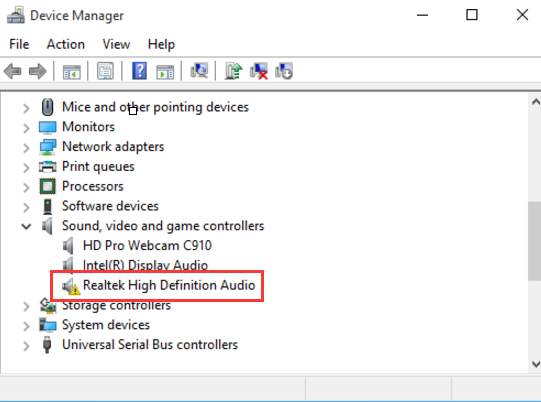
realtek audio-driver

– Open Device Manager > Open Run dialog box(Windows key + R)
– Enter devmgmt.msc in the run dialog box
– Click to expand Sound, video and game controllers > right-click on Realtek High Definition Audio
– Select Update Driver Software
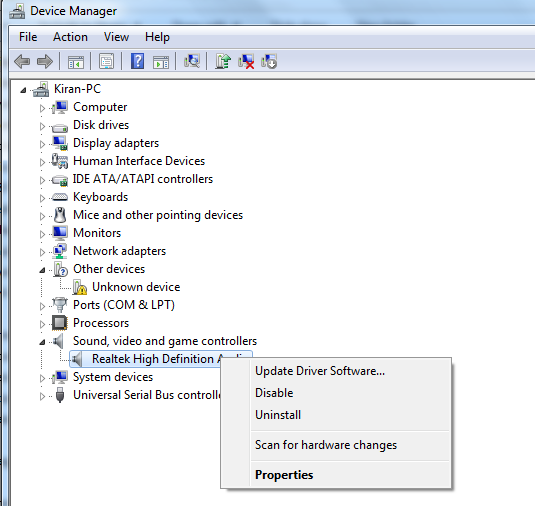
update driver software

– Select Search automatically for updated driver software
– you will then be advised as to whether or not you need to update your drivers
– If new drivers are installed you will need to restart your machine

How to fix Realtek Audio Drivers for Windows

As well as Realtek Driver errors, which can be resolved easily using a Driver update tool, there are many other Realtek audio errors that you may come across. To Fix Realtek Audio Drivers for Windows read the solutions below or download a driver update tool (download link at end).

One of these errors is ‘Realtek digital output has no sound‘ where users are not getting sound from their computer-connected speakers. Digital output usually refers to high definition digital audio devices connected to your computer (often a smart TV or a home theatre system). Click on the link above if you are having issues with Realtek Digital Output.

There are also many Realtek error codes that you may come across (such as 0x000005b3 Error or 0xE0000227 Error), click here to view a list of these errors and their meaning.

If you need to reinstall Realtek audio drivers then you will find help in the post ‘How to Reinstall Realtek HD Audio Manager‘, this will be very helpful if you are seeing the ‘Realtek audio manager is not found error‘.

Automatic Realtek Driver Updates

If you are having difficulty updating your Realtek Audio Drivers, and can’t get the relevant driver from the Realtek Drivers site then you can use a driver update tool to automatically update the Drivers for you and keep them up-to-date.

IMPORTANT NOTICE: Downloading the latest Driver releases helps resolve Driver conflicts and improve your computer’s stability and performance. Updates are recommended for all Windows 11, Windows 10, Windows 8, Windows 7, XP and Vista users.


Start Download

Filed Under: Software Drivers Tagged With: audio, audio drivers, realtek, sound

Change outgoing server port in Outlook

By lisak on July 17, 2020

If you are having problems with sending mails in outlook, the issue may be relating to the outgoing port you are using.

This will apply if you are required to use a specific port for outgoing mail (check with your host).

To enter a specific outgoing mail port number do the following:

  • open Outlook
  • click on settings (or the gear icon in the row of icons on the bottom left of your Outlook screen
  • this will open your settings option menu > select ‘manage accounts’
  • click on the account you wish to edit the port settings for
  • click on the ‘options for syncing your content’ link
  • scroll down to ‘incoming and outgoing mail server info’ and click on this link
  • in the out going mail server, enter a colon (:) after the server name and then type the server number (don’t use any spaces)
  • save and exit settings

Try sending a test email. This will work the same if you need to change the incoming server port.

Filed Under: PC Fix Tips Tagged With: email, mail, microsoft, Outlook, Windows, windows10

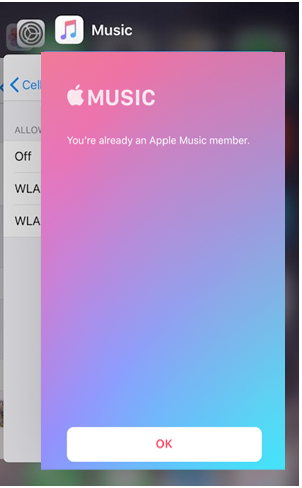
“You are already an apple music member” issue

By lisak on January 2, 2020

“You are already an apple music member” issue
you are already an apple music member
Trying to get rid of this popup?

A number of users have asked about this issue with Apple music on their iPhones.

The problem:

You already have an Apple music subscription or have just upgraded to one and the above popup appears when you try to view any content with the Music app.

The solution:

We have found a few different solutions for this, so try from the first and move on to the next one if the problem is still not fixed for you.

  1. close the Apple music app and reopen. To close an app you will need to double-click on your home button and then swipe up on the app. Then reopen the Music app to see if this has fixed the issue.

    force close music app
  2. sign out of your apple ID and sign back in again. You can do this via the Settings > [apple ID] > Sign Out. Before signing back in again return to the Music app and click on the ‘For You’ tab, then slick the subscribe for 3 months option. You should be taken to a page where you are prompted for your Apple ID and password again. Enter them and see if this now gives you access to your Apple Music. If this works then you can sign back in again via Settings.
  3. If none of the above options have worked you can go to Settings > General > Reset >Reset All Settings. Before doing this make sure you are backed up to the cloud so you don’t lose any data. If you Apple Subscription is paid for and the problem is not on that end, then this should solve your music access problems.

Filed Under: Software Drivers Tagged With: apple, apps

  • « Previous Page
  • 1
  • …
  • 10
  • 11
  • 12
  • 13
  • 14
  • …
  • 23
  • Next Page »


  • Recent Posts
  • Popular Posts
        

Read More Posts


Read More Posts

Drivers.com Sites

  • Software Drivers
  • Drivers Ed

About Us

  • Advertise
  • About Drivers
  • Drivers Support
  • Drivers.com Privacy Policy
  • Disclaimer
  • Software Drivers
  • Mac Fixes and Tips
  • PC Fix Tips
  • Security/ Backup
  • Tablets & Smartphones
  • Tech News

© Copyright 2026 PDE Publications Ltd. End User License Agreement (EULA)