Drivers.com

follow us:

facebook twitter
  • Home
  • Download Drivers
  • Drivers Help
  • PC/Mac Resources
  • Software Drivers
  • Mac Fixes and Tips
  • PC Fix Tips
  • Security/ Backup
  • Tablets & Smartphones
  • Tech News
  • Software Drivers
  • Mac Fixes and Tips
  • PC Fix Tips
  • Security/ Backup
  • Tablets & Smartphones
  • Tech News

Logitech HD Pro Webcam C920 Driver Download

By lisak on May 12, 2021

Logitech HD Pro Webcam C920 Driver Download
logitech webcam

Logitech are well-known for their PC peripherals such as keyboards and webcams. The Logitech HD Pro Webcam C920 is a popular model and this post deals with drivers for the C920 Webcam by Logitech. The C920 works very well with most modern PCs and Mac computers.

There are various options to download and install the Logitech Webcam C920 driver. You can do this manually, via Windows or you can use a driver update tool to automate this process for you.

Manually download Drivers for Logitech C920 Webcam

You can manually download Drivers and Driver updates for your Logitech Webcam via the Logitech website. This process involves downloading and then installing the correct drivers for your webcam model.

Automatically update Drivers for Logitech C920 Webcam

You can automatically update your C920 webcam Drivers, and all other drivers on your PC, by downloading a driver update tool.

Start Download

For help on other Logitech or webcam issues, see our posts below or search using the relevant keywords in the search box in the footer of this page.
Update Logitech Webcam drivers

Logitech mac drivers updates

Webcam not working issues

Filed Under: Software Drivers Tagged With: C920, logitech, webcam

AMD Radeon Driver Updates in Windows 10

By lisak on May 10, 2021

AMD Radeon graphics cards need to be updated to ensure smooth performance and to avoid problems with your AMD graphics card.

These graphics card drivers can be updated manually or automatically, depending on the card and your time and confidence with updating drivers.

Different versions of Windows may require difference drivers and this post deals primarily with updating AMD Radeon Drivers for Windows 10.

Is the Ryzen 9 7950X3D worth the hype?

What are AMD Radeon Drivers and what do they do?

Drivers are pieces of software which enable communication between your PC and a device such as a graphics card in this case. The AMD Radeon driver enables communication between your built-in video card and your PC.

Drivers are regularly updated for new Operating Systems, to fix bugs and generally just to improve performance. While you don’t need to update your AMD Radeon Drivers with every update, you do need to make sure you update them regularly in order to avoid problems with your AMD graphics card. If you are using a Driver Update Tool you don’t need to worry about this as the updates will be done for you.

Fix AMD Radeon Drivers problems

If you are having problems with performance of your graphics drivers, or are experiencing system crashes or other issues, the problem is likely to be relating to out-of-date or corrupt graphics drivers.

Update your AMD Radeon Drivers with Windows Update

update amd graphics drivers

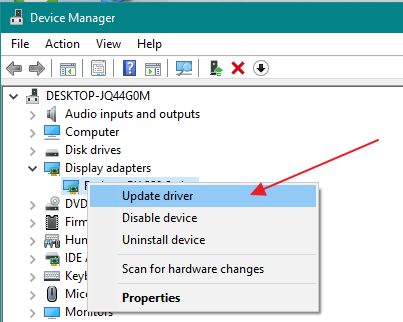
You can update all drivers, including AMD Radeon graphics drivers via the Windows Device Manager. Follow the steps below to use this method to update your drivers:

Go to Start > Device Manager

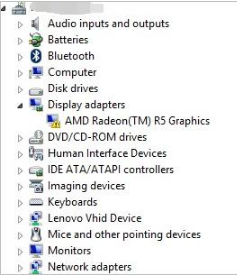
Select Display adapters > AMD Radeon Graphics

Right-click and select ‘Update Driver’

update amd driver


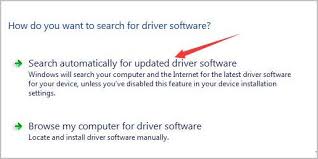
In the popup window select the first option ‘Search automatically for updated driver software‘

search for amd driver updates

Update your AMD Radeon Graphics Driver from the manufacturers website

Many manufacturers will offer driver updates through a section of their website. Depending on the manufacturer, they may offer a small or wide range of updates. When using this option the first thing you need to do is to get the details of the type of Graphics card you are using. You can find this again via the Device Manager:

update amd graphics drivers


Go to Start > Device Manager

Right-click on your AMD Radeon graphics card and select Properties

Select the Details tab, in the property dropdown select Hardware Ids

In Value you will see a long string of characters that is the identifier for your graphics card, the important parts of this string are SUBSYS (subsystem ID) and DEV (manufacturer ID).

Once you have these details you can go to the AMD website to download your required drivers.

Automatic Driver Update Tool

If you prefer to get a tool to update the AMD (and all other) drivers for you, you can use the link below to download a Driver Update Tool.

Start Download

Filed Under: Software Drivers Tagged With: amd radeon drivers, graphics card

Fix Microphone Not Working Issue in Windows 10

By lisak on May 5, 2021

Fix Microphone Not Working Issue in Windows 10

The two most frustrating things to have problems with on your computer are the audio and the microphone. If your audio is not working, you can’t hear anything or the sound is not as it should be. If your microphone is not working, then nobody can hear you!

With videoconferencing and online meetings and learning becoming more important than ever, having problems with your microphone in Windows 10 or any other system, is not an option.

Microphone problems in Windows 10

How do you know if you are having problems with your microphone?

Whether you are using an external or a built-in microphone, problems will become apparent when either users cannot hear you or you can’t activate voice commands.

If you are using an external wired microphone then test it on another device to rule out any issues with the microphone itself or the port you are using.

Before continuing with the software fixes, make sure the microphone itself is working. If it is external you can test it on other devices, if the problem is with the microphone then it may just need to be replaced.

Microphone Options in Windows 10

Windows 10 microphone options work differently to previous operating systems in that microphone input can be disabled across all applications via the Operating System.

If you are having problems with your microphone in Windows 10, one of the first things to check is your Webcam. If your webcam is disabled then all microphone input across all other applications will be disabled too. If your webcam is disabled, try enabling it in System settings and see if this fixes your microphone issue.

Microphone settings in Windows 10

The next thing to check is your actual microphone settings. To do this:

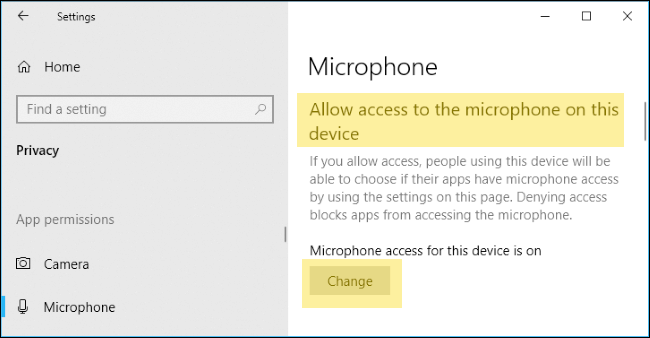
1. select settings > privacy > microphone

2. check “Microphone access for this device is on”

3. If  microphone access is off select “Change” button and select “On”

windows 10 microphone settings

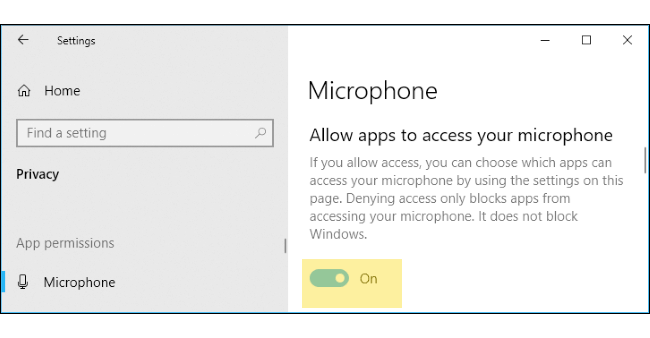
4. Scroll down to “Allow apps to access your microphone” and make sure this is set to “On” as in the screenshot below.

windows 10 microphone access on

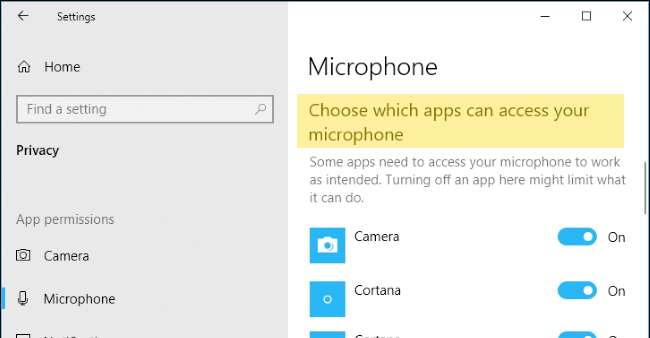
5. Scroll down to the section “Choose which apps can access your microphone” and make sure that your microphone has access to the application your want by toggling the ‘on’ button. Not all applications will be listed here, most of your desktop apps will have access to the microphone when you select ‘on’ in number 4 above.

windows 10 allow apps to access microphone

Check that your microphone is enabled in Device Manager

You may have disabled your microphone in Device Manager at some point. To check this go to:

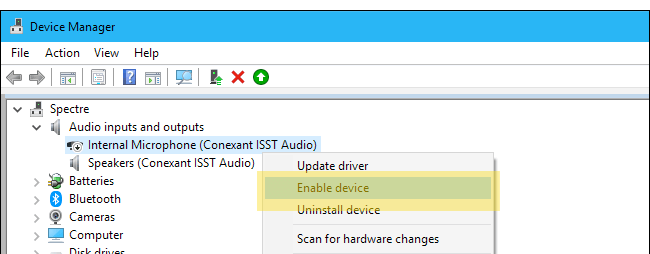
Device Manager > Audio inputs and outputs

Right-click and select “Enable device” on the microphone option

windows 10 microphone device manager

Download updates for Audio Drivers

If you are still having problems with your microphone in Windows 10 you can search for updates for your audio drivers. If you are having difficulty with these updates you can use a driver update tool to automate the updates of all your device drivers, including audio drivers.

Default Microphone in Windows 10

Your PC may be linked to more than one microphone in which case you will need to set one as the default. To do this:

Select Sound > Recording tab

right-click the microphone you want to set as default > select “Set as Default Device”

If you are still having problems after doing this then go to the application you are having problems with and see if there is a setting to choose a default microphone for this application as this may be overriding the settings above.

Run the Audio Troubleshooter in Windows 10

Another option is to use the audio troubleshooter in Windows 10. Go to:

Settings > Update & Security > Troubleshoot

Select “Recording Audio” troubleshooter > click “Run the Troubleshooter” and follow on-screen instructions

Help with audio devices

If none of the above have helped try search for your specific error using our search function, you can also view some of the articles below and post your issue in the comments to see if anyone in our community can help you.

Download and update audio drivers

Windows no sound issue

XBox one microphone issue

Filed Under: Software Drivers Tagged With: audio, microphone, sound, Windows 10

  • « Previous Page
  • 1
  • …
  • 9
  • 10
  • 11
  • 12
  • 13
  • …
  • 23
  • Next Page »


  • Recent Posts
  • Popular Posts
        

Read More Posts


Read More Posts

Drivers.com Sites

  • Software Drivers
  • Drivers Ed

About Us

  • Advertise
  • About Drivers
  • Drivers Support
  • Drivers.com Privacy Policy
  • Disclaimer
  • Software Drivers
  • Mac Fixes and Tips
  • PC Fix Tips
  • Security/ Backup
  • Tablets & Smartphones
  • Tech News

© Copyright 2026 PDE Publications Ltd. End User License Agreement (EULA)