Drivers.com

follow us:

facebook twitter
  • Home
  • Download Drivers
  • Drivers Help
  • PC/Mac Resources
  • Software Drivers
  • Mac Fixes and Tips
  • PC Fix Tips
  • Security/ Backup
  • Tablets & Smartphones
  • Tech News
  • Software Drivers
  • Mac Fixes and Tips
  • PC Fix Tips
  • Security/ Backup
  • Tablets & Smartphones
  • Tech News

Resources by Tag

sound

How do I setup a Bluetooth soundbar?

A Bluetooth soundbar is an audio device used to improve and enhance the sound quality of another device such as a TV, computer, or sound system. Bluetooth soundbars are, as the name suggests, long bar-like speakers which are generally seen under a TV when mounted on a wall. Flat-screen TV’s, due to their design, can suffer in terms of sound quality so the soundbar is seen by many as an essential addition.

A Bluetooth soundbar connects wirelessly via Bluetooth to the TV or the other device you are linking it with. Because the soundbar is not physically wired to one device, this gives two very important advantages:

– the Bluetooth soundbar can be placed wherever you like (within bluetooth range) as there are no wired constraints

– the soundbar can be used as the audio output for many different compatible devices such as TV, smartphone etc.

To set up a Bluetooth soundbar, follow the steps set out below:

  1. Where to place the soundbar?
    If you are primarily using the soundbar for your TV then you should place it near the TV. Different models may make different recommendations for placement so make sure to consult the user manual before deciding on a location.
  2. Connect to power source:
    The soundbar may be wireless in terms of connectivity to the audio source such as the TV but you will still need to power the actual soundbar itself so ensure it is plugged into a power source.
  3. Connect to audio source:
    Connections for different soundbar models will vary but may offer the following connection options:
    – HDMI
    – optical audio
    – analog audioThe user manual of your particular model will recommend the best setup for you.
  4. Bluetooth pairing:
    As well as the wired option, you will need to setup Bluetooth pairing in order to tell your soundbar which devices it can connect with. To do this you will need to make sure your soundbar is turned on and in pairing mode (this varies between models so consult manual for details)
  5. Enable Bluetooth:
    To connect via Bluetooth the audio source (TV, smartphone etc.) will need to have Bluetooth turned on .
  6. Pair the devices:
    In the Bluetooth settings of your TV or other audio source you should see a list of Bluetooth devices. From this list you should select the Bluetooth soundbar to start pairing. You may need to enter a PIN at this point. Once this pairing is complete your soundbar should be connected successfully via Bluetooth pairing.

Bluetooth soundbars vary from one model to the next so make sure to consult your manual for any specific requirements and for further details on adjusting volume and other settings.
Bluetooth Drivers Download & Updates

Filed Under: Software Drivers Tagged With: audio, bluetooth, sound, soundbar

No Sound on Windows 10

no sound windows 10When looking to fix a problem such as no sound on Windows 10, the problem is going to be either hardware or software.
Hardware problems mean the speakers/ headphones or physical audio devices themselves. Software refers to pretty much anything else like the program running the sound, the operating system or the sound drivers.

Sound problems in Windows 10 – hardware problems

It is easiest to check the simpler hardware options first, especially if you are dealing with external headphones or speakers. If these devices have a wired connection, try to plug them into another port or another device to check that they are working correctly. If you can establish that they are working then you have successfully rules one option out as the cause of your sound problems.

Accidentally muted sound?

This is actually very common as people often accidentally hit a shortcut key which then mutes their sound in Windows 10. To check that your sound is not muted:

  1. Right-click Start Button > open Device Manager
  2. In the Device Manager window > expand Audio inputs and outputs section
  3. if the sound is muted check to unmute

Update your sound drivers for Windows 10

To update your sound card drivers in Windows 10:

  1. type ‘Device Manager‘ in the search bar next to Start Menu
  2. click on the Device Manager and select ‘Sound, video and game controllers’ to show your sound card
  3. click on your sound card > select the Driver tab
  4. Select ‘Update Driver‘
  5. Then restart your computer to see if this fixes the issue

You can also use a driver update tool to automate the driver update process for you.


Filed Under: PC Fix Tips Tagged With: sound, Windows 10

No sound in Discord

Discord has become the top voice chat app used by gamers in order to communicate over voice and text. Other VoIP (Voice over Internet Protocol) such as Skype and TeamSpeak have also been popular with gamers.

As with all applications, Discord will have its problems and common issues such as problems with audio input and output, whether this is a problem with the quality of the audio or the device the audio is output to.

If you are having problems with getting sound input or output using Discord, then follow the troubleshooting steps below:

Check that Discord servers are working

There can occasionally be server issues on Discord servers which would impact the ability to connect or the quality of the connection. To check that the Discord servers are working ok, click here.

If there are problems with the Discord server then you will just have to sit it out as nothing you can do will have any impact so just keep checking back, the issues are usually resolved pretty quickly.

Restart Discord!

This always seems very obvious but shutting down and restarting an application can clear a lot of simple issues so it is always worth doing this early on in the troubleshooting process.

Check speakers and microphone settings

Some of the more obvious checks are to make sure you are not muted and that any wired connections are seated correctly. It is important to check Windows sound settings to make sure the speakers and microphone are enabled.

windows 10 microphone access on

Ensure that the application itself is not muted from windows sound settings > mixer > Discord.

Update Discord and restart PC

It is important to make sure Discord is updated. It should auto-update but occasionally may not for some reason. If this is the case then update the software and restart your PC. Even if the software is up-to-date, it is a good idea to restart your PC to clear any issues.

Update sound or audio drivers

Sound drivers need to be updated in order to keep software running effectively. You can download driver updates from the manufacturers website or you can use Windows to check for driver updates.

Updating Drivers Automatically

Automatic driver update tools offer many benefits, the most important ones being:

  • You can update device drivers automatically
  • The software scans and updates all outdated or missing drivers at one go
  • The tool picks the right drivers for your device and operating system, so you won’t have to worry about installing an incorrect driver by mistake
  • Automatic driver updates are 100% safe

Driver Updater is one of the best driver update tools out there. Outbyte Driver Updater will give you access to a database of over 1 million drivers. It will regularly scan your PC, suggesting new driver versions to install. Driver Updater contains drivers for a variety of Windows devices. With just one click, you can update drivers in your system.

Step 1
Click here to Install and launch the app

Step 2
Scan all devices

Step 3
Install or update drivers automatically


Start Download


Filed Under: PC Fix Tips Tagged With: audio, discord, sound

Fix Microphone Not Working Issue in Windows 10

Fix Microphone Not Working Issue in Windows 10

The two most frustrating things to have problems with on your computer are the audio and the microphone. If your audio is not working, you can’t hear anything or the sound is not as it should be. If your microphone is not working, then nobody can hear you!

With videoconferencing and online meetings and learning becoming more important than ever, having problems with your microphone in Windows 10 or any other system, is not an option.

Microphone problems in Windows 10

How do you know if you are having problems with your microphone?

Whether you are using an external or a built-in microphone, problems will become apparent when either users cannot hear you or you can’t activate voice commands.

If you are using an external wired microphone then test it on another device to rule out any issues with the microphone itself or the port you are using.

Before continuing with the software fixes, make sure the microphone itself is working. If it is external you can test it on other devices, if the problem is with the microphone then it may just need to be replaced.

Microphone Options in Windows 10

Windows 10 microphone options work differently to previous operating systems in that microphone input can be disabled across all applications via the Operating System.

If you are having problems with your microphone in Windows 10, one of the first things to check is your Webcam. If your webcam is disabled then all microphone input across all other applications will be disabled too. If your webcam is disabled, try enabling it in System settings and see if this fixes your microphone issue.

Microphone settings in Windows 10

The next thing to check is your actual microphone settings. To do this:

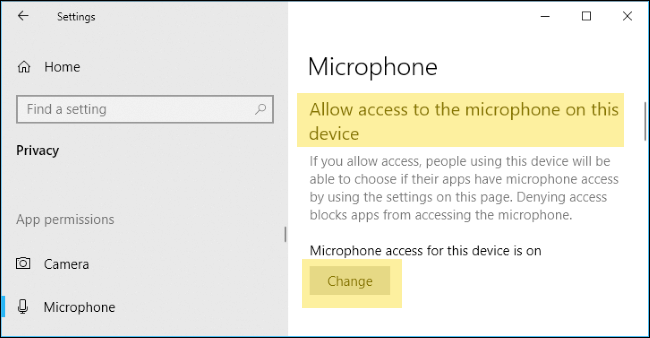
1. select settings > privacy > microphone

2. check “Microphone access for this device is on”

3. If  microphone access is off select “Change” button and select “On”

windows 10 microphone settings

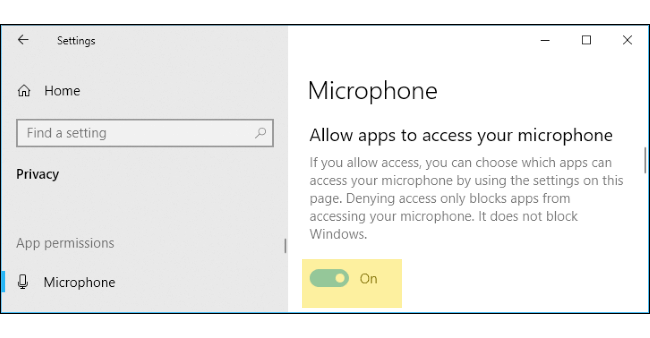
4. Scroll down to “Allow apps to access your microphone” and make sure this is set to “On” as in the screenshot below.

windows 10 microphone access on

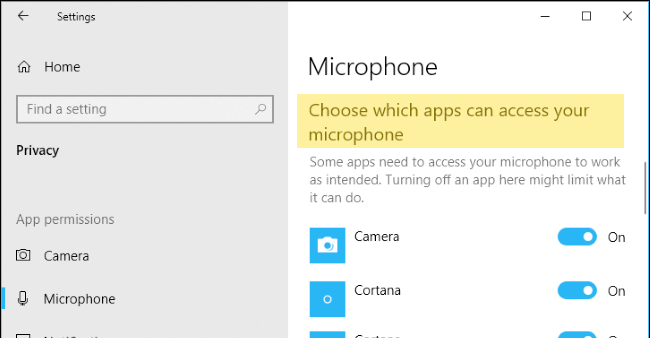
5. Scroll down to the section “Choose which apps can access your microphone” and make sure that your microphone has access to the application your want by toggling the ‘on’ button. Not all applications will be listed here, most of your desktop apps will have access to the microphone when you select ‘on’ in number 4 above.

windows 10 allow apps to access microphone

Check that your microphone is enabled in Device Manager

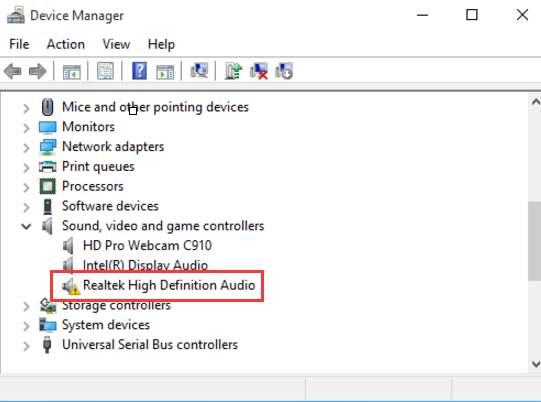
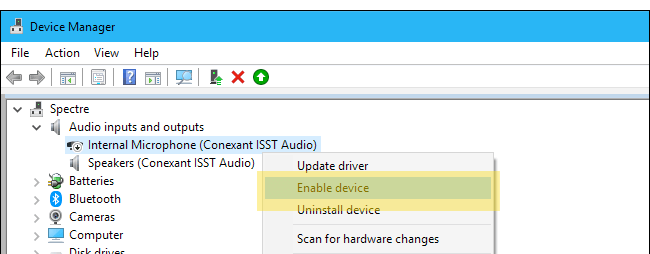
You may have disabled your microphone in Device Manager at some point. To check this go to:

Device Manager > Audio inputs and outputs

Right-click and select “Enable device” on the microphone option

windows 10 microphone device manager

Download updates for Audio Drivers

If you are still having problems with your microphone in Windows 10 you can search for updates for your audio drivers. If you are having difficulty with these updates you can use a driver update tool to automate the updates of all your device drivers, including audio drivers.

Default Microphone in Windows 10

Your PC may be linked to more than one microphone in which case you will need to set one as the default. To do this:

Select Sound > Recording tab

right-click the microphone you want to set as default > select “Set as Default Device”

If you are still having problems after doing this then go to the application you are having problems with and see if there is a setting to choose a default microphone for this application as this may be overriding the settings above.

Run the Audio Troubleshooter in Windows 10

Another option is to use the audio troubleshooter in Windows 10. Go to:

Settings > Update & Security > Troubleshoot

Select “Recording Audio” troubleshooter > click “Run the Troubleshooter” and follow on-screen instructions

Help with audio devices

If none of the above have helped try search for your specific error using our search function, you can also view some of the articles below and post your issue in the comments to see if anyone in our community can help you.

Download and update audio drivers

Windows no sound issue

XBox one microphone issue

Filed Under: Software Drivers Tagged With: audio, microphone, sound, Windows 10

Fix Realtek Audio Drivers for Windows

Realtek is one of the most common audio Drivers which comes packaged with many computers and laptops. Realtek Drivers are usually responsible for delivering sound/audio to your PC. As with all drivers, Realtek Audio Drivers can have issues and problems with installation. The article below will help you to fix Realtek Audio Drivers for Windows.

These Driver problems can usually be fixed by downloading Audio driver updates, reinstalling the Audio Driver or using a Driver Update Tool to fix the Drivers for you.

Download Realtek Audio Drivers through Windows

You can download Realtek audio drivers or updates through Windows by following the instructions set out below:
realtek audio-driver

– Open Device Manager > Open Run dialog box(Windows key + R)
– Enter devmgmt.msc in the run dialog box
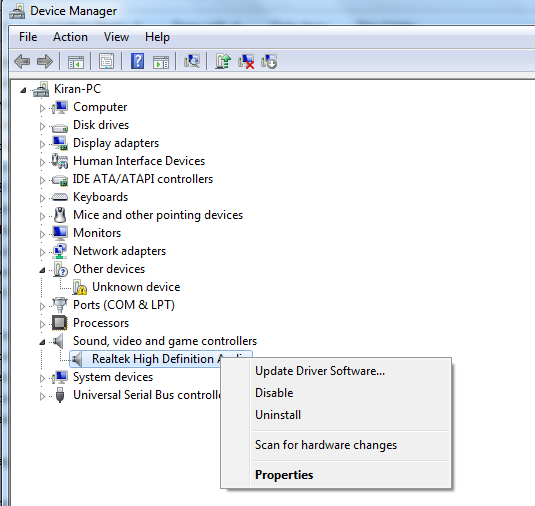
– Click to expand Sound, video and game controllers > right-click on Realtek High Definition Audio
– Select Update Driver Software

update driver software

– Select Search automatically for updated driver software
– you will then be advised as to whether or not you need to update your drivers
– If new drivers are installed you will need to restart your machine

How to fix Realtek Audio Drivers for Windows

As well as Realtek Driver errors, which can be resolved easily using a Driver update tool, there are many other Realtek audio errors that you may come across. To Fix Realtek Audio Drivers for Windows read the solutions below or download a driver update tool (download link at end).

One of these errors is ‘Realtek digital output has no sound‘ where users are not getting sound from their computer-connected speakers. Digital output usually refers to high definition digital audio devices connected to your computer (often a smart TV or a home theatre system). Click on the link above if you are having issues with Realtek Digital Output.

There are also many Realtek error codes that you may come across (such as 0x000005b3 Error or 0xE0000227 Error), click here to view a list of these errors and their meaning.

If you need to reinstall Realtek audio drivers then you will find help in the post ‘How to Reinstall Realtek HD Audio Manager‘, this will be very helpful if you are seeing the ‘Realtek audio manager is not found error‘.

Automatic Realtek Driver Updates

If you are having difficulty updating your Realtek Audio Drivers, and can’t get the relevant driver from the Realtek Drivers site then you can use a driver update tool to automatically update the Drivers for you and keep them up-to-date.

IMPORTANT NOTICE: Downloading the latest Driver releases helps resolve Driver conflicts and improve your computer’s stability and performance. Updates are recommended for all Windows 11, Windows 10, Windows 8, Windows 7, XP and Vista users.

Start Download

Filed Under: Software Drivers Tagged With: audio, audio drivers, realtek, sound


  • Recent Posts
  • Popular Posts
        

Read More Posts


Read More Posts

Drivers.com Sites

  • Software Drivers
  • Drivers Ed

About Us

  • Advertise
  • About Drivers
  • Drivers Support
  • Drivers.com Privacy Policy
  • Disclaimer
  • Software Drivers
  • Mac Fixes and Tips
  • PC Fix Tips
  • Security/ Backup
  • Tablets & Smartphones
  • Tech News

© Copyright 2026 PDE Publications Ltd. End User License Agreement (EULA)