Drivers.com

follow us:

facebook twitter
  • Home
  • Download Drivers
  • Drivers Help
  • PC/Mac Resources
  • Software Drivers
  • Mac Fixes and Tips
  • PC Fix Tips
  • Security/ Backup
  • Tablets & Smartphones
  • Tech News
  • Software Drivers
  • Mac Fixes and Tips
  • PC Fix Tips
  • Security/ Backup
  • Tablets & Smartphones
  • Tech News

Resources by Tag

bluetooth

Bluetooth Dongle Driver Update

It is important to download and update the latest Bluetooth Dongle Driver for your operating system.

If you are experiencing problems with your Bluetooth then it is likely you need to update your Bluetooth Dongle Driver.

Here we give you instructions on how to download Bluetooth Dongle Drivers for Windows 11, Windows 10, Windows 8 and Windows 7. You can choose to manually or automatically update these Drivers, depending on how much time and resources you have to give to this.

How to Install Drivers Bluetooth Dongle Drivers

When you download your Bluetooth Dongle Driver you then need to install it. You can use Device Manager in Windows to do this.

Open Device Manager

  • Right-click the Start menu > select Device Manager
  • Locate ‘control Panel’, in different OS this can be accessed in different ways
  • Again depending on whether you are running Windows 11, Windows 10, 8 or 7 select either  Hardware and Sound > Device Manager or System and Maintenance -> Device Manager or Performance and Maintenance > System > Hardware tab > Device Manager button

Install Bluetooth Dongle Drivers With Device Manager

  1. When you find the device and model with the problem then double-click to view Properties
  2. Select the Driver tab
  3. Click the Update Driver button and follow the on-screen instructions

Turn On Bluetooth

Download and Install Drivers Automatically

Automatic driver update tools offer many benefits, the most important ones being:

  • You can update device drivers automatically
  • The software scans and updates all outdated or missing drivers at one go
  • The tool picks the right drivers for your device and operating system, so you won’t have to worry about installing an incorrect driver by mistake
  • Automatic driver updates are 100% safe

Driver Updater is one of the best driver update tools out there. Outbyte Driver Updater will give you access to a database of over 1 million drivers. It will regularly scan your PC, suggesting new driver versions to install. Driver Updater contains drivers for a variety of Windows devices. With just one click, you can update drivers in your system.

Step 1
Click here to Install and launch the app

Step 2
Scan all devices

Step 3
Install or update drivers automatically
 

Start Download


Filed Under: Software Drivers Tagged With: bluetooth, dongle

How do I setup a Bluetooth soundbar?

A Bluetooth soundbar is an audio device used to improve and enhance the sound quality of another device such as a TV, computer, or sound system. Bluetooth soundbars are, as the name suggests, long bar-like speakers which are generally seen under a TV when mounted on a wall. Flat-screen TV’s, due to their design, can suffer in terms of sound quality so the soundbar is seen by many as an essential addition.

A Bluetooth soundbar connects wirelessly via Bluetooth to the TV or the other device you are linking it with. Because the soundbar is not physically wired to one device, this gives two very important advantages:

– the Bluetooth soundbar can be placed wherever you like (within bluetooth range) as there are no wired constraints

– the soundbar can be used as the audio output for many different compatible devices such as TV, smartphone etc.

To set up a Bluetooth soundbar, follow the steps set out below:

  1. Where to place the soundbar?
    If you are primarily using the soundbar for your TV then you should place it near the TV. Different models may make different recommendations for placement so make sure to consult the user manual before deciding on a location.
  2. Connect to power source:
    The soundbar may be wireless in terms of connectivity to the audio source such as the TV but you will still need to power the actual soundbar itself so ensure it is plugged into a power source.
  3. Connect to audio source:
    Connections for different soundbar models will vary but may offer the following connection options:
    – HDMI
    – optical audio
    – analog audioThe user manual of your particular model will recommend the best setup for you.
  4. Bluetooth pairing:
    As well as the wired option, you will need to setup Bluetooth pairing in order to tell your soundbar which devices it can connect with. To do this you will need to make sure your soundbar is turned on and in pairing mode (this varies between models so consult manual for details)
  5. Enable Bluetooth:
    To connect via Bluetooth the audio source (TV, smartphone etc.) will need to have Bluetooth turned on .
  6. Pair the devices:
    In the Bluetooth settings of your TV or other audio source you should see a list of Bluetooth devices. From this list you should select the Bluetooth soundbar to start pairing. You may need to enter a PIN at this point. Once this pairing is complete your soundbar should be connected successfully via Bluetooth pairing.

Bluetooth soundbars vary from one model to the next so make sure to consult your manual for any specific requirements and for further details on adjusting volume and other settings.

Bluetooth Drivers Download & Updates

Filed Under: Software Drivers Tagged With: audio, bluetooth, sound, soundbar

Wireless keyboard not working

Wireless keyboard not working

If your wireless keyboard is not working there are 2 main reasons:

  • the keyboard itself (either power or a problem with the hardware)
  • the connection between the keyboard and the computer you are using (this could be bluetooth, drivers or another connection issue)

Problems with the wireless keyboard

Checking wireless keyboard power

The first thing to check if you cannot get your wireless keyboard to work is power. Your keyboard will have batteries or some form of power source. Check that this is working by looking for an indicator light or by replacing the batteries with ones you know to be working. It may seem obvious but check that you have the batteries inserted the right way (I have made that mistake in the past!)

When you are sure that the power to your keyboard is not the issue, then move on to the next step. However, most of the time this is the problem so double-check – it will save you time down the line!

Checking wireless keyboard hardware issues

This is more difficult to check and really is the last resort when you have checked all other options. If the steps in the next section don’t resolved your wireless keyboard connection issue, then you may have to assume it is a hardware problem and either get it repaired or replaced.

Wireless keyboard connection problem

Wireless keyboard connection setup

If you are setting up your keyboard for the first time then you need to follow the pairing or setup instructions for your specific model of keyboard. Some keyboards will have a receiver that needs to be plugged in to a USB port, others will have a bluetooth pairing button, the connection method depends on your keyboard.

To check if your wireless keyboard is connected or paired, follow the steps set out below:

Go to Windows Settings by clicking on Start menu > click the gear icon near the bottom-left

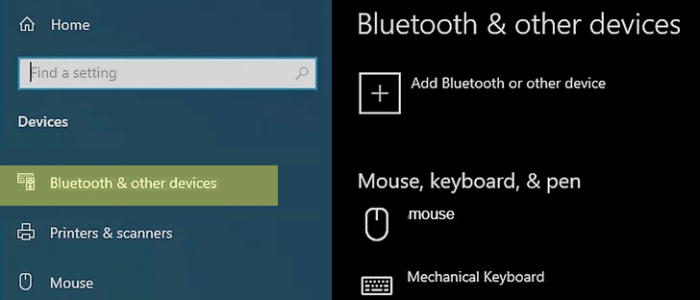
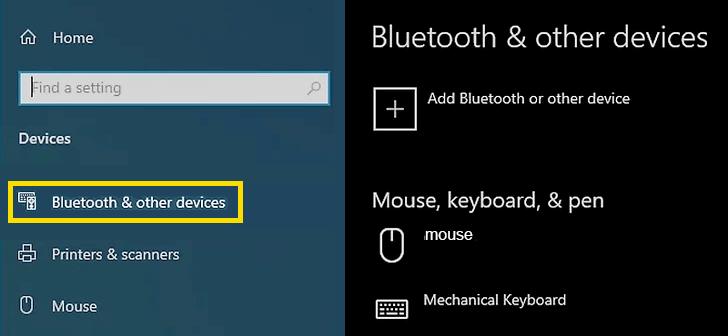
Select Devices > Bluetooth & other devices

windows bluetooth settings

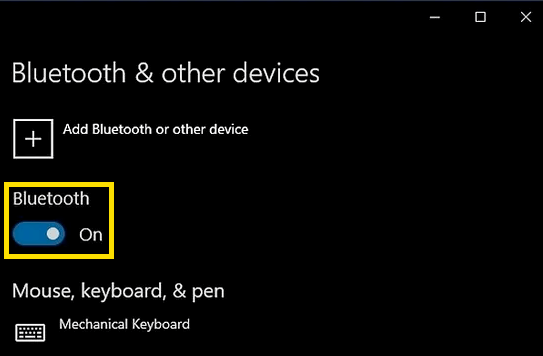
Make sure Bluetooth slider switch is toggled to ‘on’

bluetooth slider toggle on

If you don’t see your wireless keyboard listed, then select ‘Add Bluetooth or other device’ and follow the on-screen instructions. If you don’t see your keyboard listed try turning it off and back on again.

If you are still having problems with your wireless keyboard connection then you may need to check your wireless keyboard drivers. You can check and update your wireless keyboard drivers using Windows or if you wish to use a Driver update tool to automate your driver updates, click on the download link below.

Start Download

Keyboard not working in Windows 10?

Keyboard not typing windows 7, 8, 10

Keyboard and mouse driver updates

Filed Under: PC Fix Tips Tagged With: bluetooth, wireless keyboard

How to fix Bluetooth issues in Windows 10?

How to fix Bluetooth issues in Windows 10?

Windows 10 users can often experience issues with connecting Bluetooth devices to their PC. If you are facing similar problems, below are some simple solutions to resolve your Windows 10 Bluetooth problems. You can also view our article on How to Fix Bluetooth Drivers problems.

Bluetooth icon is missing

Bluetooth fix 1

  1. Use the Windows key to launch the Start screen
  2. Type troubleshooting in the Search Box on the Task Bar
  3. Click on Troubleshooting from the search results
  4. In the new Window, Click View All
  5. From the list of options, Select Hardware and Devices
  6. Click Next and follow the on-screen instructions

If the above troubleshooting method does not work for you, follow the steps set out in Method 2 below.

Bluetooth fix 2

  1. Press Windows button + R on the keyboard
  2. Type Services.msc and press Enter
  3. Look for the relevant Bluetooth device in the list and double-click on it to open the Properties
  4. In the Startup type drop down list, select Automatic
  5. Click Start in the Service Status
  6. Select OK

If the above troubleshooting method does not work for you, you need to uninstall the Bluetooth driver by following the troubleshooting steps given in Method 3

Bluetooth fix 3

  1. Go to the Desktop screen by pressing the Windows logo key + D
  2. Press the Windows key +X on the keyboard when you are at Desktop
  3. Select Device Manager
  4. Look for Bluetooth devices
  5. Double click on Bluetooth driver and select Uninstall
  6. After the Bluetooth driver is uninstalled, restart the PC
  7. Windows 10 will reinstall the Bluetooth Driver

If the issue is not fixed even after reinstalling the Bluetooth Driver, you need to try installing the latest drivers in compatibility mode. Below are the steps you need to follow to do this:

  1. Go to the Device Manager
  2. Right-click on your Bluetooth Device
  3. Click Properties and go to the Details tab
  4. Click Driver Details
  5. In Property, select Hardware IDs from the drop down list
  6. Note down the first value in the list
  7. Search for the latest Drivers on the Internet using the Hardware ID
  8. Download the latest Drivers from the Internet
  9. You need to install these Drivers in compatibility mode to resolve the issue

Steps to install Bluetooth drivers in compatibility mode in Windows

  1. Go to the folder where the latest Bluetooth Driver file is located
  2. Right-click on the file and select Troubleshoot Compatibility
  3. This will launch Compatibility troubleshooter and it will detect any issues
  4. Click Troubleshoot Program
  5. In the next window, check the boxes – “The program worked well in earlier version of Windows” and “This program requires additional permissions”
  6. Click on Next
  7. In the next window, select the version of Windows in which the Driver worked well
  8. Click Next
  9. Click Test the program
  10. Install the Drivers as you do normally
  11. Wait while the settings are saved for the program
  12. Click Close

Filed Under: Software Drivers Tagged With: bluetooth, drivers, Windows 10

How to fix Bluetooth issues in Windows 8.1?

Bluetooth has become an increasingly important function in laptops. Some Windows 8.1 users have reported experiencing various Bluetooth issues after upgrading from Windows 8. Some common Bluetooth issues in Windows 8.1 and their solutions are detailed in the article below:

Before you proceed to carrying out any troubleshooting steps, you should firstly ensure that the Bluetooth functionality is enabled. The steps to turn on Bluetooth in Windows 8.1 are:

  1. Move your mouse pointer to top right corner of the screen and click Settings
  2. Click Change PC Settings
  3. In PC Settings, click Wireless option
  4. Now you will see a Bluetooth option on the right-hand side
  5. Switch on Bluetooth

Problem 1 – Bluetooth not working 

 To resolve this issue, follow the steps set out below:

  1. Press Windows + R to open the Run command
  2. Type services.msc and press Enter
  3. Look for Bluetooth Support Service and click on it
  4. Go to the General Tab, change the startup type from Manual to Automatic
  5. Next, click on Log On Tab
  6. Click the radio button ‘This Account’ and type your account name
  7. Remove both hidden password and restart your computer
  8. Next, reinstall your Bluetooth Drivers
  9. Go to your laptop manufacturer site and download the latest Bluetooth Drivers for your laptop model and Windows 8.1 system
  10. Download the Drivers and install them. Restart your computer

If the laptop manufacturer does not list the compatible Bluetooth Drivers for Windows 8.1, do the following:

  1. Press Windows + R to open the Run command, type regedit to open the Registry editor
  2. In the Registry Editor window, go to HKEY_LOCAL_MACHINE/SOFTWARE/Microsoft/Windows NT/CurrentVersion
  3. Right-click the CurrentVersion key in the pane on the right-hand side
  4. Select Modify
  5. Change Current version value from 6.3 to 6.2.

Problem 2 – Bluetooth devices get disconnected after a while

This happens mainly as a result of Power settings. In Windows 8.1, several devices (including Bluetooth) are automatically turned off by the Operating System to save Power.  You can resolve this issue by changing the power settings.

  1. Press Windows + R to open the Run command
  2. Type devmgmt.msc and press Enter
  3. In the Device Manager window, click Network Adapter and expand it
  4. Look for Bluetooth wireless network
  5. Right-click on it and go to the Power Management tab
  6. uncheck “Allow the computer to turn off this device to save power”

If none of the above solutions solves your Bluetooth issue, you need to update your Bluetooth Drivers for your system. You can either do this automatically by using a Driver Update Tool or follow the steps set out below to manually download and update the Drivers.

  1. Open the Run dialog box and type devmgmt.msc to open the Device Manager
  2. In the Device Manager window, go to Other Devices
  3. Right-click on Bluetooth Low Energy/Unknown Devices
  4. Click on Update Driver Software
  5. In next window, click Search automatically for updated driver software
  6. Windows will now search online for latest Bluetooth Drivers compatible with Windows 8.1 and install them

Automatically Update Drivers

Automatic driver update tools offer many benefits, the most important ones being:

  • You can update device drivers automatically
  • The software scans and updates all outdated or missing drivers at one go
  • The tool picks the right drivers for your device and operating system, so you won’t have to worry about installing an incorrect driver by mistake
  • Automatic driver updates are 100% safe

Driver Updater is one of the best driver update tools out there. Outbyte Driver Updater will give you access to a database of over 1 million drivers. It will regularly scan your PC, suggesting new driver versions to install. Driver Updater contains drivers for a variety of Windows devices. With just one click, you can update drivers in your system.

Step 1
Click here to Install and launch the app

Step 2
Scan all devices

Step 3
Install or update drivers automatically
 

Start Download


Filed Under: Software Drivers Tagged With: bluetooth, solution to bluetooth errors in Windows 8.1, windows 8


  • Recent Posts
  • Popular Posts
        

Read More Posts


Read More Posts

Drivers.com Sites

  • Software Drivers
  • Drivers Ed

About Us

  • Advertise
  • About Drivers
  • Drivers Support
  • Drivers.com Privacy Policy
  • Disclaimer
  • Software Drivers
  • Mac Fixes and Tips
  • PC Fix Tips
  • Security/ Backup
  • Tablets & Smartphones
  • Tech News

© Copyright 2026 PDE Publications Ltd. End User License Agreement (EULA)