


If your wireless keyboard is not working there are 2 main reasons:
- the keyboard itself (either power or a problem with the hardware)
- the connection between the keyboard and the computer you are using (this could be bluetooth, drivers or another connection issue)
Problems with the wireless keyboard
Checking wireless keyboard power
The first thing to check if you cannot get your wireless keyboard to work is power. Your keyboard will have batteries or some form of power source. Check that this is working by looking for an indicator light or by replacing the batteries with ones you know to be working. It may seem obvious but check that you have the batteries inserted the right way (I have made that mistake in the past!)
When you are sure that the power to your keyboard is not the issue, then move on to the next step. However, most of the time this is the problem so double-check – it will save you time down the line!
Checking wireless keyboard hardware issues
This is more difficult to check and really is the last resort when you have checked all other options. If the steps in the next section don’t resolved your wireless keyboard connection issue, then you may have to assume it is a hardware problem and either get it repaired or replaced.
Wireless keyboard connection problem
Wireless keyboard connection setup
If you are setting up your keyboard for the first time then you need to follow the pairing or setup instructions for your specific model of keyboard. Some keyboards will have a receiver that needs to be plugged in to a USB port, others will have a bluetooth pairing button, the connection method depends on your keyboard.
To check if your wireless keyboard is connected or paired, follow the steps set out below:
Go to Windows Settings by clicking on Start menu > click the gear icon near the bottom-left
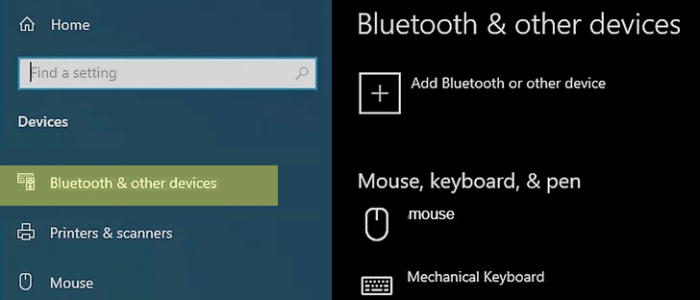
Select Devices > Bluetooth & other devices
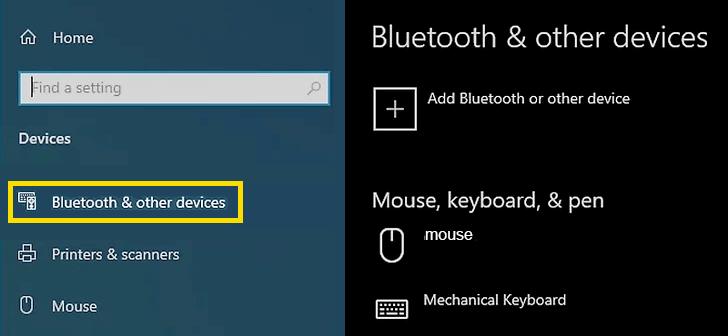
Make sure Bluetooth slider switch is toggled to ‘on’
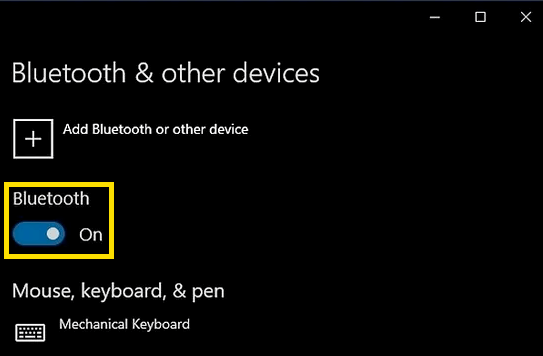
If you don’t see your wireless keyboard listed, then select ‘Add Bluetooth or other device’ and follow the on-screen instructions. If you don’t see your keyboard listed try turning it off and back on again.
If you are still having problems with your wireless keyboard connection then you may need to check your wireless keyboard drivers. You can check and update your wireless keyboard drivers using Windows or if you wish to use a Driver update tool to automate your driver updates, click on the download link below.
Keyboard not working in Windows 10?