


AMD Radeon graphics cards need to be updated to ensure smooth performance and to avoid problems with your AMD graphics card.
These graphics card drivers can be updated manually or automatically, depending on the card and your time and confidence with updating drivers.
Different versions of Windows may require difference drivers and this post deals primarily with updating AMD Radeon Drivers for Windows 10.
What are AMD Radeon Drivers and what do they do?
Drivers are pieces of software which enable communication between your PC and a device such as a graphics card in this case. The AMD Radeon driver enables communication between your built-in video card and your PC.
Drivers are regularly updated for new Operating Systems, to fix bugs and generally just to improve performance. While you don’t need to update your AMD Radeon Drivers with every update, you do need to make sure you update them regularly in order to avoid problems with your AMD graphics card. If you are using a Driver Update Tool you don’t need to worry about this as the updates will be done for you.
Fix AMD Radeon Drivers problems
If you are having problems with performance of your graphics drivers, or are experiencing system crashes or other issues, the problem is likely to be relating to out-of-date or corrupt graphics drivers.
Update your AMD Radeon Drivers with Windows Update
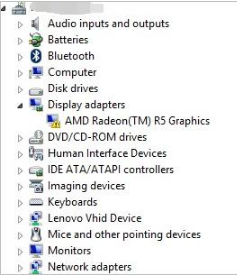
You can update all drivers, including AMD Radeon graphics drivers via the Windows Device Manager. Follow the steps below to use this method to update your drivers:
Go to Start > Device Manager
Select Display adapters > AMD Radeon Graphics
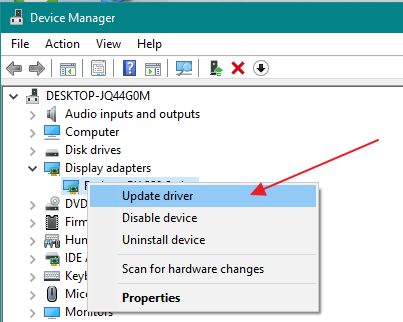
Right-click and select ‘Update Driver’
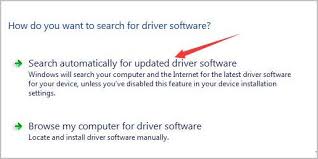
In the popup window select the first option ‘Search automatically for updated driver software‘
Update your AMD Radeon Graphics Driver from the manufacturers website
Many manufacturers will offer driver updates through a section of their website. Depending on the manufacturer, they may offer a small or wide range of updates. When using this option the first thing you need to do is to get the details of the type of Graphics card you are using. You can find this again via the Device Manager:
Go to Start > Device Manager
Right-click on your AMD Radeon graphics card and select Properties
Select the Details tab, in the property dropdown select Hardware Ids
In Value you will see a long string of characters that is the identifier for your graphics card, the important parts of this string are SUBSYS (subsystem ID) and DEV (manufacturer ID).
Once you have these details you can go to the AMD website to download your required drivers.
Automatic Driver Update Tool
If you prefer to get a tool to update the AMD (and all other) drivers for you, you can use the link below to download a Driver Update Tool.