If you are a gamer or someone who uses graphics-intensive software, knowing what graphics card your computer has is essential. Your graphics card is known as a GPU (Graphics Processing Unit) and is responsible for rendering images and videos on your computer screen. It plays a vital role in the performance of your computer, particularly when it comes to gaming or video editing.
In this article, we’ll discuss how you can check what graphics card your computer has and why it’s important to know these details.
Why Is It Important to Know What Graphics Card You Have?
Before we go into how to check the details of your graphics card, let’s first look at why it’s important to have this information.
Compatibility with Software and Games
Different software and games have different requirements when it comes to graphics cards. Some may require a specific brand or model, while others may have minimum requirements for performance. Knowing what graphics card you have will help you determine if your computer meets the requirements for a particular software or game.
Troubleshooting Performance Issues
If you’re experiencing performance issues with your computer, knowing what graphics card you have can help you troubleshoot the problem. You can check if your graphics card is outdated or if it’s not powerful enough to handle the tasks you’re trying to perform.
Upgrading or Replacing Your Graphics Card
If you’re looking to upgrade or replace your graphics card, you need to know what you currently have. This will help you determine what type of graphics card is compatible with your computer and what improvements you can expect from the upgrade.
How to Check What Graphics Card Your Computer Has
Now that you understand the importance of knowing the specifications of your graphics card let’s look at how you can find this information.
Using the Device Manager on Windows
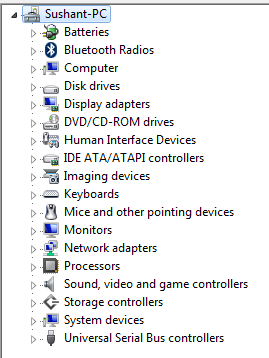
The Device Manager on Windows is a built-in tool that allows you to view and manage all the hardware devices connected to your computer. Here’s how you can use it to check your graphics card:
- Press the Windows key + R on your keyboard to open the Run dialog box.
- Type “devmgmt.msc” and press Enter.
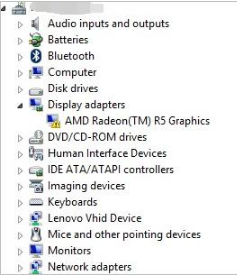
- In the Device Manager window, expand the “Display adapters” category.
- You should see the name of your graphics card listed here.
Using System Information on Windows
System Information is another built-in tool on Windows that provides detailed information about your computer’s hardware and software. Here’s how you can use it to check your graphics card:
- Press the Windows key + R on your keyboard to open the Run dialog box.
- Type “msinfo32” and press Enter.
- In the System Information window, expand the “Components” category.
- Click on “Display” to view information about your graphics card.
Using System Profiler on Mac
If you’re using a Mac, you can use the System Profiler tool to check your graphics card. Here’s how:
- Click on the Apple icon in the top left corner of your screen.
- Select “About This Mac” from the drop-down menu.
- In the window that opens, click on “System Report.”
- In the left sidebar, click on “Graphics/Displays” to view information about your graphics card.
Using Third-Party Software
There are also third-party software programs that you can use to check your graphics card. These programs often provide more detailed information and may even offer additional features. Some popular options include CPU-Z, GPU-Z, and Speccy.
How to Identify Your Graphics Card
Knowing the name of your graphics card is only half the battle. You also need to know how to identify it. This is especially important if you’re looking to upgrade or replace your graphics card.
Check the Model Number
The easiest way to identify your graphics card is by checking the model number. This is the name of the graphics card that you saw in the Device Manager or System Information. You can use this information to search for more details about your graphics card online.
Check the Manufacturer’s Website
If you’re still unsure about the specifics of your graphics card, you can visit the manufacturer’s website. Most manufacturers have a support section on their website where you can enter your graphics card’s model number and find detailed information about it.
Use GPU Identification Software
There are also software programs specifically designed to identify your graphics card. These programs often provide more detailed information than the built-in tools on your computer. Some popular options include GPU-Z, Speccy, and AIDA64.
How to Find the Right Graphics Card for Your Computer
If you’re looking to upgrade or replace your graphics card, you need to make sure that it’s compatible with your computer. Here are some things to consider when looking for the right graphics card:
Compatibility with Your Computer’s Motherboard
Your graphics card needs to be compatible with your computer’s motherboard. This means that it needs to have the right slot and interface to fit into your computer. The most common types of slots are PCI, AGP, and PCIe. Make sure to check your computer’s specifications to determine which type of slot you have.
Power Requirements
Graphics cards require a certain amount of power to function properly. Make sure to check the power supply unit (PSU) in your computer to ensure that it can handle the power requirements of the graphics card you’re considering.
Performance Requirements
Different graphics cards have different levels of performance. If you’re a gamer or someone who uses graphics-intensive software, you’ll want to look for a graphics card with a higher performance level. Make sure to check the specifications of the software or game you’re using to determine the minimum requirements for performance.
Knowing what graphics card your computer has is very important for compatibility, troubleshooting, and upgrading purposes. You can check your graphics card using the built-in tools on your computer or you can opt to use third-party software. Make sure to also identify your graphics card and consider compatibility, power requirements, and performance when looking for a new one. With this information, you can ensure that your computer is equipped with the right graphics card for your needs.