
Drivers.com

follow us:

facebook twitter
  • Home
  • Download Drivers
  • Drivers Help
  • PC/Mac Resources
  • Software Drivers
  • Mac Fixes and Tips
  • PC Fix Tips
  • Security/ Backup
  • Tablets & Smartphones
  • Tech News
  • Software Drivers
  • Mac Fixes and Tips
  • PC Fix Tips
  • Security/ Backup
  • Tablets & Smartphones
  • Tech News

Troubleshooting Lexmark printer problems in Windows 8.1

By lisak on October 5, 2018

Printers are useful devices but some old devices don’t work with newer OS like Windows 8.1.  In many cases, users feel they have to buy a new printer. This is not always the case. If you have an old Lexmark printer and are facing problems with this printer, then the solutions given in this post might help you get your old Lexmark printer back up and running again.

Fix Lexmark Driver Problems

 Communication problem with Lexmark printer

Some users have complained about experiencing communication problems with older Lexmark printers after upgrading to Windows 8.1. The reason for this problem is drivers not functioning properly. Even reinstalling the printer does not solve the issue. If you are facing a similar problem, here are the troubleshooting tips you need to follow.

  1. Disconnect your Lexmark printer from your computer
  2. Open the Charms bar by moving the mouse pointer to lower-right corner of the screen and then moving it upwards
  3. Click Search
  4. Type Device Manager
  5. Click on Device Manager from the list of search results
  6. In Device Manager window, go to Devices+Printers
  7. Right-click on your Lexmark printer and select Remove
  8. Go to Control Panel > Administrative Tools > Services
  9. Look for Print Spooler in the list, double-click on it and select Stop
  10. Uninstall all Lexmark software from your PC and reboot
  11. Stop the Print Spooler again
  12. Right-click on Setup file and select Properties
  13. Go to Compatibility tab and check the Compatibility mode box
  14. Select operating system with which the old Lexmark printer worked well. You can choose Windows 7 or even Windows XP SP3 from the list
  15. Click OK
  16. Run the installation and follow-on screen instructions

The Print Spooler service will start automatically and you should be able to print

Lexmark printer won’t work after upgrade

Most of the time, such problems arise due to corrupt Printer Drivers. If you are having similar problem, follow the troubleshooting steps set out below:

  1. Disconnect Lexmark printer from your Windows 8.1 system
  2. Move the mouse pointer to the upper-right corner of the screen and move the pointer downwards
  3. Type control panel in search box
  4. Select control panel from the list of search results
  5. Open Device Manager
  6. Look for a yellow exclamation mark beside the Lexmark Printer entry
  7. Right-click on Lexmark printer and select uninstall
  8. Reboot PC
  9. Connect the Lexmark printer. Windows will detect new hardware connected and install correct drivers


 

My Lexmark Printer Won’t Print!

Filed Under: Software Drivers Tagged With: error, lexmark printer, windows 8.1

5 signs you are addicted to technology

By lisak on September 28, 2018

5 signs you are addicted to technology

technology addict1. You bring your device or devices EVERYWHERE
There are times when you need to have your phone or tablet with you but there are also times when it is better to leave your phone in your bag or even at home. If the mere thought of this makes you break out in a sweat then you can check yes to this one!

2. Constantly ‘waking’ your phone to check for calls/ texts/ notifications

We have all done this when waiting for an important text or update, constantly ‘waking’ the phone even though you know that you would have seen the screen light up if a notification had come through. This behaviour can become obsessive – if you recognise yourself here, check yes!

3. Anxiety when separated from your device

Do you feel withdrawal-style anxiety when separated from your phone or other device for even a short period of time? Getting away from technology for a few hours should be liberating, not stress-inducing. If the effect on you is more the latter then you can answer yes to this one.

4. ‘Lost weekend’ effect

Have you regularly spent hours on on your device without actually doing anything you can quantify or even sometimes remember? Technology addicts often use various devices at once, going between various tasks but not really concentrating on any one thing in particular.

5. Wake up call

Is your phone the first thing you reach for when you wake? Do you always check your phone last thing at night and first thing in the morning? If this sounds like you then you are a yes!

What is your biggest technology addiction giveaway? If we get some good ones here we might do a new list and a new cartoon!

Filed Under: Tablets & Smartphones Tagged With: addicted, technology

Update Acer Graphics Drivers in Windows 10

By lisak on March 16, 2018

Problems with Acer Graphics Drivers?

Acer Graphics errors can often occur after an upgrade to Windows 10. If your Acer Video or Graphics Drivers are not causing problems or not working properly, this may be because the Graphics or Video Drivers are not compatible with Windows 10.

Update Acer Drivers

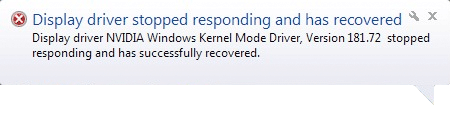
Has your screen become distorted with unusually big user interface or other strange appearance? Maybe your Acer computer is crashing or freezing? Have you seen the error “Display driver stopped responding and has recovered”?

nvidia display driver error

If you suspect the problem is with your Acer Graphics Driver then you need to update your Graphics Driver, you can do this either manually or use a Driver Update Tool if you are short on time or computer experience.

  1. Update Drivers using Windows Update or from Acer Website
  2. Download Driver Update Tool for automatic Acer Driver Updates
Acer Wireless Networking Not Working?

1. Update Drivers using Windows Update

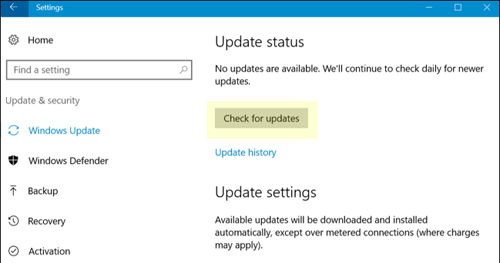
Browse to Start > Settings > Update & security

Select Windows Update > Check for updates

windows update check for updates

If Windows 10 finds an updated Driver you will be shown a link to click, otherwise no updates were found and you need to either try the Acer website or use a Driver Update Tool.

2. Download Driver Update Tool for automatic Acer Driver Updates

If you are unable to find updated Acer Graphics Drivers then you may need to use a Driver Update Tool. This can also be a useful option to save time and get all your Driver updates in one place.

Automatic driver update tools offer many benefits, the most important ones being:

  • You can update device drivers automatically
  • The software scans and updates all outdated or missing drivers at one go
  • The tool picks the right drivers for your device and operating system, so you won’t have to worry about installing an incorrect driver by mistake
  • Automatic driver updates are 100% safe

Driver Updater is one of the best driver update tools out there. Outbyte Driver Updater will give you access to a database of over 1 million drivers. It will regularly scan your PC, suggesting new driver versions to install. Driver Updater contains drivers for a variety of Windows devices. With just one click, you can update drivers in your system.

Step 1
Click here to Install and launch the app

Step 2
Scan all devices

Step 3
Install or update drivers automatically


Start Download


Filed Under: Software Drivers Tagged With: acer, drivers, Windows 10

  • « Previous Page
  • 1
  • …
  • 11
  • 12
  • 13
  • 14
  • 15
  • …
  • 23
  • Next Page »


  • Recent Posts
  • Popular Posts
        

Read More Posts


Read More Posts

Drivers.com Sites

  • Software Drivers
  • Drivers Ed

About Us

  • Advertise
  • About Drivers
  • Drivers Support
  • Drivers.com Privacy Policy
  • Disclaimer
  • Software Drivers
  • Mac Fixes and Tips
  • PC Fix Tips
  • Security/ Backup
  • Tablets & Smartphones
  • Tech News

© Copyright 2026 PDE Publications Ltd. End User License Agreement (EULA)