
Drivers.com

follow us:

facebook twitter
  • Home
  • Download Drivers
  • Drivers Help
  • PC/Mac Resources
  • Software Drivers
  • Mac Fixes and Tips
  • PC Fix Tips
  • Security/ Backup
  • Tablets & Smartphones
  • Tech News
  • Software Drivers
  • Mac Fixes and Tips
  • PC Fix Tips
  • Security/ Backup
  • Tablets & Smartphones
  • Tech News

WiFi doesn’t have a valid IP configuration : Windows 10 error

By lisak on March 13, 2018

If you are using a Windows 10 system and seeing the error ‘WiFi doesn’t have a valid IP configuration’ then this post will show you how to fix this issue.
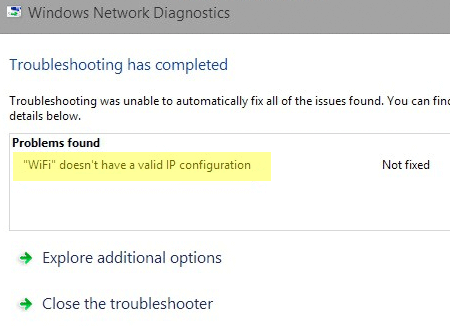
wifi failure IP configuration

Users usually see this error when they run the diagnostic tool in Windows as a results of wireless network issues.

What is the cause of the IP configuration error?

This error occurs in Windows 10 for a number of different reasons and is usually due to one of the following:

  • WiFi hardware issues (routers, modems etc.)
  • Network issues relating to the network providers
  • Problems with out-of-date, missing or corrupt wireless network adapter Driver

Fix 1: check wireless network hardware and software

When troubleshooting WiFi issues the first thing to do is to check if WiFi is enabled (there is often a slider switch to toggle WiFi on and off). Ensure airplane mode is not enabled on your device and that all WiFi equipment and the network itself is working. You can test this by trying to connect to the WiFi using another device. If your problem is with the Wifi and not the specific Windows 10 device, click here.

Fix 2: reboot connection to wireless network

It is always worth both rebooting your PC if you have not already done so, and also resetting the wireless network connection. To do so:

  1. go to Task Bar > type ‘network’ in search box
  2. choose ‘view network connections’
  3. right-click on network adapter and choose disable
  4. wait a few minutes and right-click and choose enable

Fix 3: Release/ renew IP address to fix WiFi IP configuration error

This solution will often work to fix the IP configuration error. To reset the TCP/ IP you will need to login as administrator and use the Command Prompt.

open Command Prompt > type ‘ipconfig/release‘ > hit enter
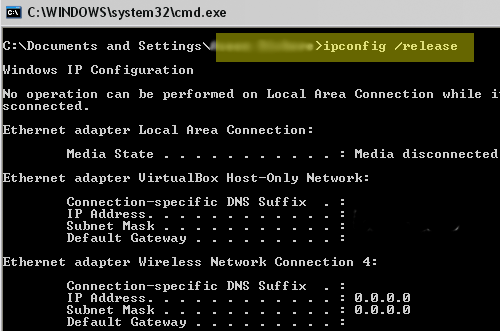
fix ip error ipconfig release

next type ‘ipconfig/renew‘ > hit enter

fix ip error ipconfig renew

next type ‘exit’ > hit enter

Check to see if this has fixed your WiFi IP configuration error. If not continue to the next fix.

Fix 4: Reset TCP/ IP

If releasing and renewing the IP address has not worked then you will need to try resetting the IP address.

open Command Prompt > type ‘netsh winsock reset‘ > hit enter
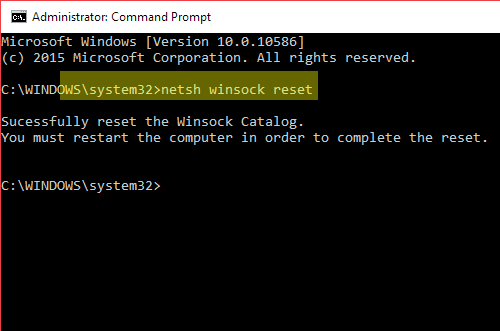
fix ip error winsock reset

type ‘netsh int ip reset’ > hit enter
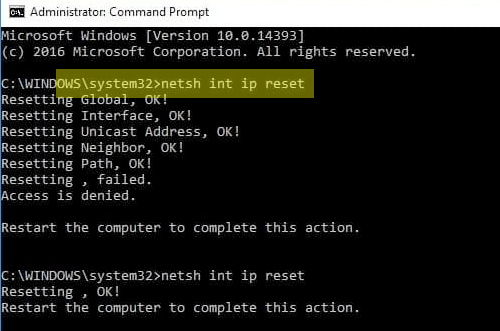
fix ip reset

next type ‘exit’ > hit enter

Restart your PC and then check to see if this has fixed your WiFi IP configuration error. If not continue to the next fix.

Fix 5: update Wireless Network Driver

You need to check if your Wireless Network Driver is up-to-date and, if not, either manually update the Drivers or use a Driver Update Tool.

Go to Device Manager and expand the Network Adapters menu

Browse to your Wireless Network Adapter > right-click and select ‘uninstall’

Right-click on Network Adapters and Click on ‘Scan for hardware changes’ from the context menu

Windows will reinstall the  most appropriate Driver. If you wish to use a Driver Update Tool to automate this process click on the link below.

Automatic driver update tools offer many benefits, the most important ones being:

  • You can update device drivers automatically
  • The software scans and updates all outdated or missing drivers at one go
  • The tool picks the right drivers for your device and operating system, so you won’t have to worry about installing an incorrect driver by mistake
  • Automatic driver updates are 100% safe

Driver Updater is one of the best driver update tools out there. Outbyte Driver Updater will give you access to a database of over 1 million drivers. It will regularly scan your PC, suggesting new driver versions to install. Driver Updater contains drivers for a variety of Windows devices. With just one click, you can update drivers in your system.

Step 1
Click here to Install and launch the app

Step 2
Scan all devices

Step 3
Install or update drivers automatically


Start Download


Filed Under: PC Fix Tips Tagged With: error, ip, Windows 10

NVIDIA GeForce Series Drivers Links

By lisak on March 22, 2017

GeForce series Drivers are part of the NVIDIA series of graphics Drivers for PCs and Notebooks. Use the links below to go directly to the relevant page on the manufacturers website. Remember to backup your PC first before making any changes or updates to Drivers.

Windows 10 32-bit NVIDIA Drivers

In many cases the same Driver is available for the different series but different Operating Systems will call for different Drivers. 32-bit and 64-bit Drivers will also be different as will those for PCs versus notebooks.

GeForce 900 Series

(GeForce GTX TITAN X, GeForce GTX 980 Ti, GeForce GTX 980, GeForce GTX 970, GeForce GTX 960)

GeForce 700 Series

(GeForce GTX TITAN Z, GeForce GTX TITAN Black, GeForce GTX TITAN, GeForce GTX 780 Ti, GeForce GTX 780, GeForce GTX 770, GeForce GTX 760, GeForce GTX 760 Ti (OEM), GeForce GTX 750 Ti, GeForce GTX 750, GeForce GTX 745, GeForce GT 740, GeForce GT 730, GeForce GT 720, GeForce GT 710, GeForce GT 705)

GeForce 600 Series

(GeForce GTX 690, GeForce GTX 680, GeForce GTX 670, GeForce GTX 660 Ti, GeForce GTX 660, GeForce GTX 650 Ti BOOST, GeForce GTX 650 Ti, GeForce GTX 650, GeForce GTX 645, GeForce GT 645, GeForce GT 640, GeForce GT 630, GeForce GT 620, GeForce GT 610, GeForce 605)

GeForce 500 Series

(GeForce GTX 590, GeForce GTX 580, GeForce GTX 570, GeForce GTX 560 Ti, GeForce GTX 560 SE, GeForce GTX 560, GeForce GTX 555, GeForce GTX 550 Ti, GeForce GT 545, GeForce GT 530, GeForce GT 520, GeForce 510)

GeForce 400 Series

(GeForce GTX 480, GeForce GTX 470, GeForce GTX 465, GeForce GTX 460 SE v2, GeForce GTX 460 SE, GeForce GTX 460,, GeForce GTS 450, GeForce GT 440, GeForce GT 430, GeForce GT 420)

GeForce 900M Series (Notebooks)

(GeForce GTX 980M, GeForce GTX 970M, GeForce GTX 965M, GeForce GTX 960M, GeForce GTX 950M, GeForce 940M, GeForce 930M, GeForce 920M)

GeForce 800M Series (Notebooks)

(GeForce GTX 880M, GeForce GTX 870M, GeForce GTX 860M, GeForce GTX 850M, GeForce 840M, GeForce 830M, GeForce 820M, GeForce 810M)

GeForce 700M Series (Notebooks)

(GeForce GTX 780M, GeForce GTX 770M, GeForce GTX 765M, GeForce GTX 760M, GeForce GT 755M, GeForce GT 750M, GeForce GT 745M, GeForce GT 740M, GeForce GT 735M, GeForce GT 730M, GeForce GT 720M, GeForce 710M, GeForce 705M)

GeForce 600M Series (Notebooks)

(GeForce GTX 680MX, GeForce GTX 680M, GeForce GTX 675MX, GeForce GTX 675M, GeForce GTX 670MX, GeForce GTX 670M, GeForce GTX 660M, GeForce GT 650M, GeForce GT 645M, GeForce GT 640M, GeForce GT 640M LE, GeForce GT 635M, GeForce GT 630M, GeForce GT 625M, GeForce GT 620M, GeForce 610M)

GeForce 500M Series (Notebooks)

(GeForce GTX 580M, GeForce GTX 570M, GeForce GTX 560M, GeForce GT 555M, GeForce GT 550M, GeForce GT 540M, GeForce GT 525M, GeForce GT 520M, GeForce GT 520MX)

GeForce 400M Series (Notebooks)

(GeForce GTX 485M, GeForce GTX 480M, GeForce GTX 470M, GeForce GTX 460M, GeForce GT 445M, GeForce GT 435M, GeForce GT 425M, GeForce GT 420M, GeForce GT 415M, GeForce 410M)

Filed Under: Software Drivers Tagged With: 32-bit, drivers, graphics, nvidia

Fix printer problems after Windows 10 upgrade

By lisak on January 19, 2017

Has your printer stopped working properly after you have upgraded to Windows 10? Then, here are few solutions you can try.

Ensure the printer is set as default

To set your printer as the default, follow the steps set out below:

  1. First move the mouse pointer to the upper right-corner of the screen and then move the mouse pointer down
  2. Click Search
  3. Type Devices and Printers in the Search box
  4. Click Devices and Printers
  5. Select the printer you want to use as default
  6. Right-click on the selected printer and Select as Default printer

If you are using network printers, then here are the steps you need to follow:

  1. Follow the steps from 1 – 4 above
  2. Click Manage Default printer
  3. Select Change my default printer when I change networks
  4. Under Select Network, choose the first network
  5. Under Select Printer, choose the printer you want to use with first network
  6. Click Add
  7. Repeat the procedure for all network and printers
  8. If you want to use only one printer for all networks- in Step 3- select Always use the same printer as my default printer and click OK

If the printer is still not functioning properly, run the Printer troubleshooter provided by Microsoft.

Printer Drivers Download & Updates

Run the Microsoft in-built Printer troubleshooter

Here are the troubleshooting steps you need to follow:

  1. Make sure the printer is On and connected to your Windows PC
  2. Try printing a document. If it doesn’t work run the print troubleshooter
  3. You will be prompted to save Printerdiagnostic10.cab. Save the file to the desktop
  4. Click on the downloaded file to run the Troubleshooter
  5. Click on the Printer in the first screen and click Next

The troubleshooter will now detect any problems with the printer. It will list the printers configured to your Windows 10 PC. You may also see entries like Microsoft Print to PDF, Adobe PDF in the list.

  1. Select your printer from the list and click Next
  2. Windows 10 will now check for any problem with the printer
  3. Follow any on-screen instructions and close the troubleshooter

Also make it a point to install all updates provided by Microsoft. Windows 10 may still be ironing out performance and compatibility issues by providing regular updates.

Filed Under: PC Fix Tips

  • « Previous Page
  • 1
  • …
  • 12
  • 13
  • 14
  • 15
  • 16
  • …
  • 23
  • Next Page »


  • Recent Posts
  • Popular Posts
        

Read More Posts


Read More Posts

Drivers.com Sites

  • Software Drivers
  • Drivers Ed

About Us

  • Advertise
  • About Drivers
  • Drivers Support
  • Drivers.com Privacy Policy
  • Disclaimer
  • Software Drivers
  • Mac Fixes and Tips
  • PC Fix Tips
  • Security/ Backup
  • Tablets & Smartphones
  • Tech News

© Copyright 2026 PDE Publications Ltd. End User License Agreement (EULA)