
Drivers.com

follow us:

facebook twitter
  • Home
  • Download Drivers
  • Drivers Help
  • PC/Mac Resources
  • Software Drivers
  • Mac Fixes and Tips
  • PC Fix Tips
  • Security/ Backup
  • Tablets & Smartphones
  • Tech News
  • Software Drivers
  • Mac Fixes and Tips
  • PC Fix Tips
  • Security/ Backup
  • Tablets & Smartphones
  • Tech News

Resources by Tag

graphics

OpenGL Driver Download and Update

If you use Graphics-intensive software such as games like Minecraft, then you may come across OpenGL driver errors in Windows.

What is OpenGL

OpenGL is developed and maintained by the Khronos Group. OpenGL (Open Graphics Library) is a cross-platform graphics API used in computer graphics and video games.

As OpenGL is a Library and therefore doesn’t have its own Drivers, to update Drivers you will need to update your graphics driver.

How do I update OpenGL Drivers?

If you get an error message saying the OpenGL driver (Intel OpenGL driver, NVIDIA OpenGL driver or others.) is having problems, then you need to update your Graphics Driver.  When you have problems with the OpenGL Driver (as mentioned above the Driver is not actually OpenGL but the Graphics Card), it means the graphics card driver need to be updated.

If you need to update OpenGL this means you need to update the graphics card driver.

How do I update my graphics card driver

There are two ways to update your graphics card driver. you can manually update the Drivers or you can use an automatic update tool to find and install the Drivers for you.

Can’t Find the Name of Intel ICD Open GL Driver Error Solved

Update the graphics card driver manually

To update your graphics card manually you will first need to identify what graphics card is installed on your computer.

You will also need to know which  operating system version your PC is running.

You can then download the latest graphics card driver from the graphics card manufacturer’s website. Some of the most common graphics cards are AMD,  Intel, and NVIDIA .

If you haven’t got the time or resources to download the Graphics Driver manually, then you can use a Driver Update Tool to automate this process for you. A Driver Update Tool will keep all your drivers up-to-date, not just the graphics drivers.

Download and Install Drivers Automatically

Automatic driver update tools offer many benefits, the most important ones being:

  • You can update device drivers automatically
  • The software scans and updates all outdated or missing drivers at one go
  • The tool picks the right drivers for your device and operating system, so you won’t have to worry about installing an incorrect driver by mistake
  • Automatic driver updates are 100% safe

Driver Updater is one of the best driver update tools out there. Outbyte Driver Updater will give you access to a database of over 1 million drivers. It will regularly scan your PC, suggesting new driver versions to install. Driver Updater contains drivers for a variety of Windows devices. With just one click, you can update drivers in your system.

Step 1
Click here to Install and launch the app

Step 2
Scan all devices

Step 3
Install or update drivers automatically
Start Download

Filed Under: Software Drivers Tagged With: graphics, OpenGL

NVIDIA GeForce Series Drivers Links

GeForce series Drivers are part of the NVIDIA series of graphics Drivers for PCs and Notebooks. Use the links below to go directly to the relevant page on the manufacturers website. Remember to backup your PC first before making any changes or updates to Drivers.

Windows 10 32-bit NVIDIA Drivers

In many cases the same Driver is available for the different series but different Operating Systems will call for different Drivers. 32-bit and 64-bit Drivers will also be different as will those for PCs versus notebooks.

GeForce 900 Series

(GeForce GTX TITAN X, GeForce GTX 980 Ti, GeForce GTX 980, GeForce GTX 970, GeForce GTX 960)

GeForce 700 Series

(GeForce GTX TITAN Z, GeForce GTX TITAN Black, GeForce GTX TITAN, GeForce GTX 780 Ti, GeForce GTX 780, GeForce GTX 770, GeForce GTX 760, GeForce GTX 760 Ti (OEM), GeForce GTX 750 Ti, GeForce GTX 750, GeForce GTX 745, GeForce GT 740, GeForce GT 730, GeForce GT 720, GeForce GT 710, GeForce GT 705)

GeForce 600 Series

(GeForce GTX 690, GeForce GTX 680, GeForce GTX 670, GeForce GTX 660 Ti, GeForce GTX 660, GeForce GTX 650 Ti BOOST, GeForce GTX 650 Ti, GeForce GTX 650, GeForce GTX 645, GeForce GT 645, GeForce GT 640, GeForce GT 630, GeForce GT 620, GeForce GT 610, GeForce 605)

GeForce 500 Series

(GeForce GTX 590, GeForce GTX 580, GeForce GTX 570, GeForce GTX 560 Ti, GeForce GTX 560 SE, GeForce GTX 560, GeForce GTX 555, GeForce GTX 550 Ti, GeForce GT 545, GeForce GT 530, GeForce GT 520, GeForce 510)

GeForce 400 Series

(GeForce GTX 480, GeForce GTX 470, GeForce GTX 465, GeForce GTX 460 SE v2, GeForce GTX 460 SE, GeForce GTX 460,, GeForce GTS 450, GeForce GT 440, GeForce GT 430, GeForce GT 420)

GeForce 900M Series (Notebooks)

(GeForce GTX 980M, GeForce GTX 970M, GeForce GTX 965M, GeForce GTX 960M, GeForce GTX 950M, GeForce 940M, GeForce 930M, GeForce 920M)

GeForce 800M Series (Notebooks)

(GeForce GTX 880M, GeForce GTX 870M, GeForce GTX 860M, GeForce GTX 850M, GeForce 840M, GeForce 830M, GeForce 820M, GeForce 810M)

GeForce 700M Series (Notebooks)

(GeForce GTX 780M, GeForce GTX 770M, GeForce GTX 765M, GeForce GTX 760M, GeForce GT 755M, GeForce GT 750M, GeForce GT 745M, GeForce GT 740M, GeForce GT 735M, GeForce GT 730M, GeForce GT 720M, GeForce 710M, GeForce 705M)

GeForce 600M Series (Notebooks)

(GeForce GTX 680MX, GeForce GTX 680M, GeForce GTX 675MX, GeForce GTX 675M, GeForce GTX 670MX, GeForce GTX 670M, GeForce GTX 660M, GeForce GT 650M, GeForce GT 645M, GeForce GT 640M, GeForce GT 640M LE, GeForce GT 635M, GeForce GT 630M, GeForce GT 625M, GeForce GT 620M, GeForce 610M)

GeForce 500M Series (Notebooks)

(GeForce GTX 580M, GeForce GTX 570M, GeForce GTX 560M, GeForce GT 555M, GeForce GT 550M, GeForce GT 540M, GeForce GT 525M, GeForce GT 520M, GeForce GT 520MX)

GeForce 400M Series (Notebooks)

(GeForce GTX 485M, GeForce GTX 480M, GeForce GTX 470M, GeForce GTX 460M, GeForce GT 445M, GeForce GT 435M, GeForce GT 425M, GeForce GT 420M, GeForce GT 415M, GeForce 410M)

Filed Under: Software Drivers Tagged With: 32-bit, drivers, graphics, nvidia

How to fix “NVIDIA installer failed” issue in Windows 10?

Windows 10 users often complain about display issues after upgrading to Windows 10. If  you have an NVIDIA Graphics Chip installed and you are seeing some errors, then these solutions might help you to resolve the issue.

Error message – “NVIDIA Installer failed”

This is a common issue reported by many users following an upgrade to Windows 10. When you upgrade to Windows 10, the  Windows update tries to download and install graphics drivers in the background. Sometimes this process takes 5-10 minutes or even longer. If you try installing NVIDIA Graphics Drivers immediately, you will most likely get an error which says NVIDIA installer failed.

Solution 1 to NVIDIA installer failed issue

To resolve this issue, let the Windows 10 system sit idle for 15-20 minutes to ensure the Windows Update has completed the downloading and installation processes. After waiting for 15-20 minutes, reboot the system. Once the system is up again, install the NVIDIA Driver by following the steps set out below:

  1. In the Installation options screen, select Custom
  2. Click Next
  3. On the next screen, check the box “Perform a clean installation”
  4. Click Next
  5. Follow on-screen instructions to complete the installation
  6. Reboot the system

If  the drivers are not successfully installed,  try Solution 2 below.

Solution 2 to NVIDIA installer failed issue

Turn off your antivirus and firewall

Some antivirus tools are known to block files during the NVIDIA Driver installation.  Some Comodo antivirus users have reported NVIDIA Driver failed issues. If you are running any firewall and antivirus software, turn it off before starting the installation process.

Turn off the antivirus program and also kill the remaining processes related to them. You can do this by killing the antivirus processes in the Task Manager. Follow the steps below to turn off antivirus and firewall temporarily:

  1. Press Ctrl+Alt+Delete
  2. Click Task Manager
  3. Go to the Processes tab
  4. Look for any processes related to antivirus and kill each of them – Click on each process and select End Task to kill the process
  5. Reboot your PC
  6. Try installing the NVIDIA Driver. Select Custom and check the box “Perform clean installation” during installation

If  you get the NVIDIA installation error again, follow the steps given in Solution 3

Solution 3 to NVIDIA installer failed issue

  1. Go to Task Manager
  2. Go to the Processes tab to end any NVIDIA processes
  3. You also need to delete some NVIDIA installation related files
  4. To delete any NVIDIA related files, you need to log in as administrator
  5. Delete the following files from the C: drive
  • C:\Windows\System32\DriverStore\FileRepository\nv_lh file
  • C:\Windows\System32\DriverStore\FileRepository\nvdsp.inf file
  • C:\Windows\System32\DriverStore\FileRepository\nvoclock file
  • C:\Program Files (x86)\NVIDIA Corporation\
  • C:\Program Files\NVIDIA Corporation\
  1. After deleting the NVIDIA files, reboot the system and try installing the NVIDIA Drivers again

If none of the above solutions work, you may need to reinstall windows. You can also try using a Driver Update Tool

Automatic driver updates

Automatic driver update tools offer many benefits, the most important ones being:

  • You can update device drivers automatically
  • The software scans and updates all outdated or missing drivers at one go
  • The tool picks the right drivers for your device and operating system, so you won’t have to worry about installing an incorrect driver by mistake
  • Automatic driver updates are 100% safe

Driver Updater is one of the best driver update tools out there. Outbyte Driver Updater will give you access to a database of over 1 million drivers. It will regularly scan your PC, suggesting new driver versions to install. Driver Updater contains drivers for a variety of Windows devices. With just one click, you can update drivers in your system.

Step 1
Click here to Install and launch the app

Step 2
Scan all devices

Step 3
Install or update drivers automatically


Start Download


Filed Under: PC Fix Tips Tagged With: graphics, nvidia, windows10

Steps to install latest graphic drivers in Windows

It is important to update Graphics Drivers to get optimum performance from your computer. Often computer users do not update their Graphic Drivers after installing them for the first time, probably because of a lack of knowledge about how to go about it. Below are the steps you need to perform to install the latest Graphic Drivers.

Before updating the Graphics Driver, note down the Display Device provider and the version of the installed Driver.

How to find the Driver version in Windows

  1. Click on the Start button on desktop
  2. Type Device Manager in the search box
  3. Select Device Manager from the list of search results
  4. In the Device Manager window, go to Display Adapters
  5. Double click on it to expand
  6. Right-click on device and select Properties
  7. In the Properties window, click the Driver tab
  8. Note down the details like Driver Provider, Driver Date, and Driver version

If the Driver Date is 1-2 years old, there is a possibility the graphics device manufacturer has released an update.

You can also run a driver update tool, if you want to use the software to automatically update the Drivers for you then you will need to register to receive a license key. If you use a Driver Update Tool such as this then you can disregard the rest of this post as the software will complete the Driver Updates for you and keep them up-to-date in the future.

There are three major graphic chips manufacturers – Intel, AMD and NVIDIA. Each graphics device manufacturer has its own method of updating Graphic Drivers

Updating NVIDIA Drivers

  1. Open your browser and go to the following URL – http://www.geforce.com/drivers
  2. Go to the Manual Search section
  3. Enter information related to graphics device in your computer
  4. Click Search
  5. Download the latest driver from the search results page
  6. Right-click on the downloaded file and select Run as administrator
  7. After the installation completes, reboot the computer

Updating AMD Graphics Drivers

AMD provides an Auto Detect tool that simplifies the process of updating Drivers.

  1. Download the AMD Driver Autodetect tool from the following URL – http://support.amd.com/en-us/download/auto-detect-tool#
  2. Install the application and run it
  3. The application will detect the graphics device and driver version installed on your computer
  4. If there is any updated driver available, it will prompt you to download it
  5. Download the driver update file and click Install
  6. Follow the on-screen instructions
  7. Reboot the computer

Updating Intel Graphics Drivers

The driver update process for Intel Graphics Drivers is similar to that of AMD. Intel provides the Intel Driver Update utility that checks for the driver version installed on your computer. The utility checks for any driver updates available and downloads them for you.

  1. Download the Intel Driver Update utility from the following URL – http://www.intel.com/content/www/us/en/support/detect.html
  2. Run the installer
  3. Follow the on-screen instructions to install the application
  4. Launch the application and click Scan
  5. The driver update utility will check for any driver updates available and prompt you to download latest drivers for the graphics device
  6. Download and install the latest Intel graphics drivers
  7. Reboot the computer after installing the latest graphic drivers

If the drivers you require are not available from the manufacturers website, then we would advise you to use a reliable driver update tool to update your Graphics Drivers.

Filed Under: Software Drivers Tagged With: graphics, install windows graphic drivers, nvidia

How to fix NVIDIA driver issue after Windows 10 upgrade?

Windows 10 is a relatively new operating system and Microsoft is offering several updates to fine tune the user experience. Some users, however, have complained about the system’s display crashing after Windows 10 updates NVIDIA Drivers via Windows update.  In some NVIDIA forums, users have also complained about stuttering issues and poor image rendering while playing games.

Steps to Install NVIDIA Drivers

Fix NVIDIA Driver issue after Windows 10 upgrade

The simplest fix to this is to restart your Windows machine after the upgrade. If that doesn’t solve your problem, here are few things that you can do.

After the NVIDIA Driver issue surfaced, the company offered a new set of Drivers to resolve all NVIDIA Driver problems in Windows 10.  You need to download NVIDIA 353.62 Driver version from nvidia.com website.

Microsoft has also offered users a way to resolve the issue. Let’s first look at the Microsoft’s resolution for the NVIDIA Driver issue.

Microsoft’s Solution to resolve the Driver issue

Microsoft’s solution involves uninstalling the problematic Driver and/or uninstalling the Windows update that is causing the display issue. If Windows was functioning properly prior to the Driver update or Windows update, you can follow the steps given below to uninstall the Driver or Windows update.

Steps to uninstall the unwanted Driver

  1. Press Windows +X to open Quick Access menu and choose Device Manger
  2. Locate the Device Driver with the problem (with a yellow exclamation mark)
  3. Right click on the problematic Driver and select Uninstall
  4. In the Uninstall dialog box, check the option “Delete the driver software for this device if available”

Steps to uninstall an unwanted Windows Update

  1. Click the Start button on desktop
  2. Type “View Installed Updates” in the search box
  3. Click on “View Installed Updates – Control Panel” from the Search results.
  4. Select the unwanted update in the list
  5. Click Uninstall

If you are not comfortable with Microsoft’s solution, follow the NVIDIA resolution.

Steps to download NVIDIA Driver

  1. Open your favorite browser and navigate to the URL – http://www.geforce.com/drivers
  2. Go to Manual Driver search on the webpage
  3. Enter your computer configuration and hit Start Search
  4. You need to download the latest NVIDIA Drivers (v353.62) with Windows Hardware Quality Labs (WHQL) certification
  5. After you have downloaded the driver file, right-click on the file and select “Run as administrator” from the context menu
  6. Follow the on-screen instructions to install the NVIDIA Display Drivers and restart the system
How to Update Nvidia Drivers in Windows 10

Filed Under: Software Drivers Tagged With: graphics, nvidia, Windows 10

How to fix Intel HD graphics driver issues after Windows 10 upgrade?

Some common issues faced by users after upgrading to Windows 10 are:

  • problems when watching videos
  • problems playing games
  • slow PC issues

Other display issues have also been reported after an upgrade to Windows 10. These issues can be fixed and below we have set out some possible solutions.

Intel Drivers Download & Updates

For the vast majority of Intel HD graphics Driver issues, you will need to go to the Intel website and download compatible graphics drivers for Windows 10.

You have 2 options for updating your Intel Graphics Drivers: you can manually update your Drivers or you can opt for automatic Driver updates. Both options are discussed below:

Option 1: Manually update your Intel Graphics Drivers in Windows 10

You can download and install the Drivers manually by following the steps given below:

  1. Click on the Start Menu in the Task Bar
  2. Click Control Panel
  3. Change the view to small icons, click Device Manager
  4. In Device Manager, click on “>” to expand Display Adapters
  5. Right-click on Intel device and select Update Driver software
  6. Click Browse my computer for driver software
  7. Navigate to the location where you have downloaded the driver file to
  8. Follow the on-screen instructions to install Intel HD Graphics Driver
  9. Close Driver Manager
  10. Restart your PC

We also recommend installing all Windows driver updates. To install driver updates, do the following:

  1. Click on the Start Menu in the Task Bar
  2. Click Settings
  3. In the Settings window, click “Update & Security”
  4. Click “Check for updates”

Wait for some time as Windows checks for available updates. If the updates are available, Windows will present you with a link that tells you about optional updates available for your Windows 10 system.

  1. Click the link to check for more information about updates
  2. Select the Driver you want to install and click OK
  3. Select Install Updates
  4. After installing updates, restart the system

If the display issues persist, you need to uninstall the Intel HD Graphics Driver manually and reinstall it. Here are the steps to follow in order to do this:

  1. Click the  Start button on your Desktop
  2. Type device manager in the search box
  3. Click Device Manager from the list of results
  4. Go to the Display adapters section and click “>” to expand this section
  5. Find the Intel HD Graphics Driver in the list
  6. Right-click Intel HD Graphic Driver and select Uninstall
  7. Reboot the computer after the uninstall process is completed

The next step involves going to the Intel website and downloading compatible display drivers for your Windows 10 system. If there are no Drivers available for Windows 10, you can try installing the display drivers you have in compatibility mode. Here are the steps to follow in order to do this:

  1. Right-click on Driver setup file and select Properties
  2. Select Compatibility Tab
  3. Check the box next to “Run this program in Compatibility mode”
  4. Select the operating system in which the Driver worked properly
  5. Wait for the Driver to install. When the Driver installation is complete, restart the system

Option 2: Automatically update your Intel Graphics Drivers in Windows 10

There are times when you will need to use a Driver Update Tool to update your Drivers, either because the Drivers are no longer available or because you wish to save time and keep all your Drivers updated from one program.

Automatically update your Intel Drivers

Automatic driver update tools offer many benefits, the most important ones being:

  • You can update device drivers automatically
  • The software scans and updates all outdated or missing drivers at one go
  • The tool picks the right drivers for your device and operating system, so you won’t have to worry about installing an incorrect driver by mistake
  • Automatic driver updates are 100% safe

Driver Updater is one of the best driver update tools out there. Outbyte Driver Updater will give you access to a database of over 1 million drivers. It will regularly scan your PC, suggesting new driver versions to install. Driver Updater contains drivers for a variety of Windows devices. With just one click, you can update drivers in your system.

Step 1
Click here to Install and launch the app

Step 2
Scan all devices

Step 3
Install or update drivers automatically


Start Download


If you are still having problems with your Drivers, or wish to automate your Driver Updates, click here for more information on Intel Drivers.

Filed Under: Software Drivers Tagged With: graphics, Windows 10

AMD Driver Update: How to Update Your AMD Graphics Driver 


Several situations may require an AMD Driver update:

  • You have an old Driver installed and a newer Driver version is needed so that you can take advantage of the latest features
  • You have upgraded the hardware and require the latest Driver to avoid incompatibility issues
  • You are getting an error or errors that suggest an outdated or corrupt AMD Driver is the culprit
  • You have performed a clean install

You can update your AMD Drivers using the AMD Driver Autodetect Utility or you can update them manually. Both methods are discussed here in detail.

AMD RX 580 Dropping Signal to Monitor – How to Fix?

If you are upgrading your Operating System or have a number of Drivers you need to update, you would be better using a driver update tool. You can download this software and run a Free Drivers Scan of your PC to check for outdated or missing Drivers.

Updating Drivers with AMD Driver Autodetect Utility

The tool helps you download a new AMD Driver if available. It detects your operating system and graphics card and then suggests the latest available Driver. It works on Windows systems only.

Complete these steps to update your AMD Driver:

  1. Go to AMD Auto Detect Tool page
  2. Click Download, and then click Run in the prompt window (The Utility will launch itself automatically after the completion of the download.)
  3. The Utility will analyze your operating system and graphics hardware and will suggest the most appropriate Driver on basis of its findings. Click the Download button to download the recommended Driver

AMD Driver Autodetect Utility Can’t the Graphics Card or Operating System

You may receive the following error when your run the AMD Driver Autodetect Utility:

“We are unable to find your product or OS”

The error means that the Autodetect Utility was not able to identify your operating system or product and you will have to manually update your Drivers or use a driver update tool.

If you are manually updating your Drivers you will need to check the model of graphics card installed (if using a Driver Update Tool the software will do this for you).

  1. Open Device Manager (type devmgmt.msc in the Search field and press Enter)
  2. Click Display Adapters
  3. You will find the model number under the Display Adapters; note it down

Now that you have the model number, complete the following steps to manually download the Driver:

  1. Go to the AMD Driver Download page
  2. In the Manually Select Your Driver box, select the appropriate option in the appearing drop-down menus
  3. Click Display Results
  4. Go through the results and download the latest Driver

For help wtih other AMD and Graphics issues, click on the links below:

Fix AMD Redeon 7850 errors

A guide to Graphics Cards

Is the Ryzen 9 7950X3D worth the hype?

Updating Drivers Automatically

Automatic driver update tools offer many benefits, the most important ones being:

  • You can update device drivers automatically
  • The software scans and updates all outdated or missing drivers at one go
  • The tool picks the right drivers for your device and operating system, so you won’t have to worry about installing an incorrect driver by mistake
  • Automatic driver updates are 100% safe

Driver Updater is one of the best driver update tools out there. Outbyte Driver Updater will give you access to a database of over 1 million drivers. It will regularly scan your PC, suggesting new driver versions to install. Driver Updater contains drivers for a variety of Windows devices. With just one click, you can update drivers in your system.

Step 1
Click here to Install and launch the app

Step 2
Scan all devices

Step 3
Install or update drivers automatically


Start Download


Filed Under: Software Drivers Tagged With: AMD, graphics

Graphics Cards – A Complete Guide Part 1

Click here to Run a Free Graphics Drivers Scan, or update your Graphics Drivers >>

In order to go into sufficient detail about Graphics Cards, we have broken this post into two parts, this being the first, use the link at the end to continue to the second part which deals with how to choose a Graphics Card and how to find out what kind of Graphics Card you are currently using.

What is a Graphics Card?

A Graphics Card is a hardware component which converts all 2D or 3D images so they can be displayed on the screen. There are two types of Graphics Cards – Integrated Graphics Cards and Discrete Graphics Cards. Integrated graphics are best suited for watching videos, writing word documents, browsing the internet and playing internet games, to name but a few. Discrete/dedicated graphics cards are suited for serious 3D gaming, graphics design and video/photography HD editing. AMD, Intel and Nvidia are the three major contenders when it comes to Graphics Cards.

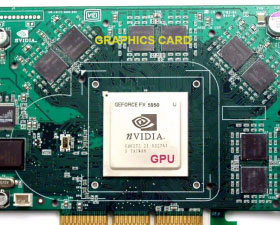
Graphics cards can be interchangeably referred to as video cards and GPUs. A GPU or Graphics Processing Unit, is the chip side of the Graphics Card and acts as the processor for rendering 3D images. The actual Graphics Card is the hardware itself which contains the GPU.

graphics cards help

Nvidia GeForceFX 5950 Ultra Graphics Card displaying the GPU

Two Types of Graphics Cards

1. Integrated Graphics

Integrated graphics are built into the motherboard of the CPU (Central Processing Unit). They don’t use their own RAM and therefore share the memory and resources of the processor. If the processor is busy executing other forms of data, the graphics side is greatly impacted which results in displaying poor graphics quality. Integrated graphics work efficiently with low-end graphics processing, producing less heat and consuming less power.

Intel Graphics Cards dominate the integrated graphics market and usually come packaged with many home computers and laptops.

2. Discrete/dedicated Graphics

These graphics greatly improve graphic quality and are far stronger in comparison to integrated graphics. Discrete graphics contain their own memory and CPU and are more demanding, faster and more powerful than their integrated counterparts. In contrast, they produce more heat and consume a lot of power. Discrete graphics are essential for 3D rendering and serious gaming. AMD and Nvidia are recommended when it comes to discrete GPUs for the best graphical experience.

continue to part 2 of this post >>

Filed Under: PC Fix Tips Tagged With: graphics

Graphics Cards – A Complete Guide, Part 2

<< Back to part 1

Click here to Run a Free Graphics Drivers Scan, or update your Graphics Drivers >>

How to choose a Graphics Card

There are many factors to consider when selecting a Graphics Card to suit your needs. Graphics Cards are usually purchased for gaming purposes/graphics demanding programs, hence the following factors need to be considered when choosing one:

1. GPU

GPU is the number one factor when it comes to selecting a Graphics Card. Similar to the CPU, the GPU has many cores which the card uses to its maximum potential when processing images. The speed of the cores is measured in Clock Speed.

Clock Speed

This measures the speed of the cores in Gigahertz (GHz) or Megahertz (MHz). This is the speed at which cores process per second. Generally, the faster the Clock Speed, the higher the number of instructions executed.

2. RAM

This memory is needed to access and draw its images. You need to have sufficient memory in order for games, or any graphics demanding program, to process and display the images on screen. Bottlenecking is a problem that either stops or slows down the transfer of information. This is usually caused by insufficient RAM of the GPU. To bypass the problem, adequate RAM is necessary.

Bandwidth
This tells you how fast the card can access the card’s memory. The higher the Bandwidth, the faster the card will be able to fetch the data and graphics from the memory.

Bus Width
This processes the memory and controls the amount of data transferred. A lot of Bus Width is needed if a lot of memory is used to transfer data to and from RAM.

Clock Speed
This is the rate at how many times the RAM can be accessed each second. The faster the Clock Speed, the less time it will have to wait.

Specifications of a Gaming Laptop – Part 1

3. Shaders/Stream Processors/Cores

These terms all mean one thing and refers to the number of cores on a Graphics Card. They handle most of the tasks of rendering images and finalising them onto the screen. They carry out many rendering effects and have many types of Shaders. AMD refers to their Shaders as “Stream Processors” and Nvidia refers to them as “CUDA Cores”. Adding more cores ultimately increases the overall power of the GPU.

How do I check the Graphics Card in My Computer?

To see which Graphics Card you’re using, simply follow these steps:

1. Go to your desktop and right click, the following should appear on the screen

screen resolution graphics
change appearance display graphics

2. Click on “Screen Resolution” and a new window should appear on the desktop

3. Click on “Advanced Settings” which will prompt another window to open

graphics card properties

This should tell you the type of Graphics Card your computer is currently using.

Conclusion

1. GPU is the chip and it is situated on the hardware called the Graphics Card.
2. Integrated Graphics are suitable for everyday tasks whereas Discrete Graphics are necessary for high-end usage.
3. Selecting a Graphics Card which is required for high graphics performance involves considering a few major factors; GPU (Clock Speed), RAM (Bandwidth, Bus Width, Clock Speed), Shaders (AMD or Nvidia).

Filed Under: PC Fix Tips Tagged With: graphics

Solution to Sapphire HD 7770 errors

Solution to “No AMD graphics driver installed or is not functioning properly. Please install the AMD driver appropriate for your AMD software” error.

One of the primary reasons for this error is outdated Drivers. To resolve this error, you can go to the AMD website and download the latest Drivers for your Sapphire HD 7770 graphics card. If you cannot find the required Drivers, you could download a driver update tool and run a free Drivers Scan to check if this is indeed the problem.

“No AMD Graphics Driver Is Installed” Error Fixed

If updating the Drivers does not solve your problem, you may be required to disable “Digital Signature Requirement” forced on all systems running 64-bit versions of Windows Vista and Windows 7.  Follow the steps below to disable “Digital Signature Requirement” in Windows.

  1. Click Start
  2. Go to All Programs -> Accessories
  3. Right-click Command Prompt and select “Run as administrator”

Type the following lines and press Enter after typing each line

  1. bcdedit.exe -set loadoptions DDISABLE_INTEGRITY_CHECKS
  2. bcdedit.exe -set TESTSIGNING ON
  3. Restart your computer.

The above mentioned commands will disable Digital Signature Requirement and Windows OS will load the available Drivers for your graphics card.

Solution for Error – STOP: 0x000000116 blue screen (BSOD) error

STOP: 0x000000116 error is generally related to your video card Drivers or problems with your video card. The first step towards resolving this error is updating Drivers for your graphics card. You can visit the AMD website and download Drives for your graphics card and then follow the steps given below. Again, if you cannot find the required Drivers you can use a driver update tool and run a free Drivers Scan to check if this is indeed the problem (you can then skip the steps below as the Drivers will automatically install and update)

  1. Go to Start -> Control Panel
  2. Go to Hardware and Sound
  3. Under Device and Printers, click Device Manager
  4. In Device Manager, click “+” to expand Display Adapters. You will see an entry for Sapphire HD 7770 graphics card.
  5. Right Click on your graphics card and select Update driver.

Windows system will initiate the driver update wizard and give you different options to update the device Drivers

  1. Choose “Browse my computer for driver software “
  2. Click “Next”
  3. Browse to the folder which has the latest Drivers for your graphics card and let windows install the Drivers.
  4. Restart the computer

If updating device drivers doesn’t solve the problem, uninstall all devices under “Display Adapters” in Device Manager. If you are unable to boot into windows, try going into Safe Mode and uninstall all devices and drivers related to Display Adapters. Uninstalling all devices under Displays Adapter forces Windows to detect and reinstall the video card.

  1. Go to Start -> Control Panel– > Hardware and Sound
  2. Under Device and Printers, click “Device Manager”
  3. In Device Manager Window, click “+” to expand Display Adapters. You will see an entry for Sapphire HD 7770 graphics card
  4. Right Click your graphics card and select Uninstall
  5. Restart the system

Windows will now detect the Sapphire HD 7770 as new hardware and initiate the new hardware installation wizard. When prompted for device drivers, select the manual option that lets you point towards the folder which has the latest Drivers.

AMD Driver Download & Update

Filed Under: Software Drivers Tagged With: AMD, graphics, sapphire

  • 1
  • 2
  • Next Page »


  • Recent Posts
  • Popular Posts
        

Read More Posts


Read More Posts

Drivers.com Sites

  • Software Drivers
  • Drivers Ed

About Us

  • Advertise
  • About Drivers
  • Drivers Support
  • Drivers.com Privacy Policy
  • Disclaimer
  • Software Drivers
  • Mac Fixes and Tips
  • PC Fix Tips
  • Security/ Backup
  • Tablets & Smartphones
  • Tech News

© Copyright 2026 PDE Publications Ltd. End User License Agreement (EULA)