
Drivers.com

follow us:

facebook twitter
  • Home
  • Download Drivers
  • Drivers Help
  • PC/Mac Resources
  • Software Drivers
  • Mac Fixes and Tips
  • PC Fix Tips
  • Security/ Backup
  • Tablets & Smartphones
  • Tech News
  • Software Drivers
  • Mac Fixes and Tips
  • PC Fix Tips
  • Security/ Backup
  • Tablets & Smartphones
  • Tech News

Resources by Tag

AMD

Is the Ryzen 9 7950X3D worth the hype?

Is the Ryzen 9 7950X3D worth the hype?
3d virtual cache gaming chip


The Ryzen 9 7950X3D is a very powerful AMD CPU (from the 7000-series). This new model uses 3D vertical cache technology to create the world’s fastest gaming desktop processor.

Although the Ryzen 9 7950X3D is now the fastest gaming chip in the world, the innovative design of the chip can mean reduced performance in some applications and games. However, high-end gaming systems will see a significant performance boost. If this is what you are looking for then the Ryzen 9 7950X3D is hard to beat.

The extra cache in this CPU provides an incredible performance boost for gaming and many other tasks.

What is new with the Ryzen 9 7950X3D?
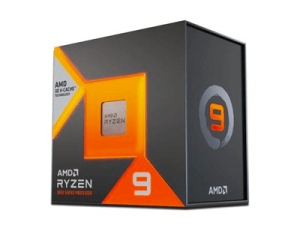
amd ryzen 7950X3D

3D V-Cache or vertical cache is a technology used in computer graphics which vastly improves the performance of 3D scene rendering. This V-Cache system stores the vertices of 3D models in much more efficient format which allows for faster processing when rendering a scene. This has huge performance implications for applications such as video games and animation software.

What is the price of the Ryzen 9 7950X3D?

With added memory and processing power, the Ryzen 9 7950X3D CPU is a great choice for gamers or other users requiring high-level performance for 3D rendering.

The AMD Ryzen 9 7950X3D is priced pretty competitively with no major jump in price with the improved performance. This pricing allows this new X3D to compete with Intel’s i9-13900KS.

What are the specs of the Ryzen 9 7950X3D?

The 7950X3D basis specifications are:

  Ryzen 9 7950X3D
Cores / Threads 16 / 32
Base clock speed / boost clock speed 4.2GHz / 5.7GHz
Cache L3 128MB
TDP 120W
Launch MSRP $699

Is the Ryzen 9 7950X3D worth buying?

The 7950X3D has some very powerful specs and a competitive price for what it offers. For anyone looking for a high performance CPU for gaming or software animation, this AMD offering is a very good option.

https://www.drivers.com/update/pc-fix-tips/specs-gaming-laptop-1/
https://www.drivers.com/update/pc-fix-tips/tips-optimize-pc-gaming/

Filed Under: PC Fix Tips, Tech News Tagged With: 7950X3D, AMD, gaming, Ryzen 9 7950X3D

How to fix AMD GPU issues in Windows 10

Many users, especially those having AMD GPU installed in their system, have complained of facing several display-related issues after upgrading to Windows 10. One such issue is the inability to change the brightness of the display after upgrading to Windows 10.

Below is an easy solution to this problem.

AMD Driver Download & Update

Solution: Before proceeding with troubleshooting steps, create a restoration point.

  1. In the taskbar, search for create a restore point and select it from the results
  2. In System properties window, go to System Protection tab and select Create
  3. Enter a description for restore point
  4. Select Create > OK

You need to uninstall AMD Catalyst Center and Display Driver from your Windows 10 system by following the steps set out below.

  1. Move the mouse pointer to the bottom left of the desktop. A Start box will appear
  2. Right-click the screen to open Context Menu
  3. Click Control Panel
  4. Select Program and Features
  5. Select AMD Catalyst Install Manager
  6. Click Change
  7. When prompted by the AMD Catalyst Install Manger, click Next
  8. In the next screen, select Express Uninstall ALL AMD software
  9. Click Next
  10. In next screen, click All versions to allows AMD Catalyst Install Manager to remove all versions of the AMD video and Audio drivers in your system (Note: clicking on Current Version will only remove latest AMD video and audio drivers from your system)

The Un-installation process should begin. Wait until you are prompted to take action and when prompted by the AMD Catalyst Install Manager

  1. click Remove
  2. Click Finish
  3. Reboot PC

Download the latest AMD Drivers for GPU installed in your system. Before proceeding to install the latest AMD Catalyst drivers, we advise you to close all applications including webcam, live monitoring antivirus software, remote access and firewall.

Steps to install AMD Catalyst Center

  1. Click on the downloaded installation file and click on Run when prompted
  2. The AMD installation folder option opens which allows you to select the installation folder
  3. Once the folder is selected, click Install
  4. The Installer manager window prompts to select the preferred language. Choose the preferred language and click Next
  5. You are provided with two options- Express and Custom. Select Express and click Next
  6. Click Accept if you agree to the terms and conditions
  7. The installation process begins. Click Finish when the installation is completed
  8. Reboot the PC

In most cases the AMD GPU issues are solved after installing the compatible Display driver in your Windows 10 PC. Also make it a point to install all recommended updates by Microsoft as they are meant to eliminate performance-related bugs and security issues in Windows 10. One effective way of keeping your display and other drivers up-to-date is by downloading a reputable reliable driver update tool.

AMD Radeon Driver Updates in Windows 10

Filed Under: PC Fix Tips Tagged With: AMD, GPU, Windows 10

ATI Catalyst Control Center Windows 7

ATI Catalyst Control Center is software used to unlock capabilities of AMD graphics processors. The software also includes a Driver for AMD graphic cards. The software is generally included in the AMD Display Card Driver CD provided with the AMD graphics card.

You can also download the ATI Catalyst Control center for Windows 7 computer from the Internet. Let’s look at some common errors related to ATI catalyst control center in Windows 7

Error- Windows 7 Catalyst control center fails to load

You may get this error when trying to load the ATI Catalyst control center.

Reason: One of the reasons for this Catalyst control center problem is corrupted Windows Global Assembly Cache (GAC)

Solution:

  1. Using the Catalyst Install Manager, remove all ATI programs and features from the control panel. Reboot the system in Safe Mode and follow the steps set out
  2. Delete all ATI folders in C:Programs files and C:Programs files (x86)
  3. Go to C:Windowsassembly and sort by “Public Key Token”
  4. Locate the following Public Key Token “90ba9c70f846762e” associated with ATI
  5. Generally, you will only find 2 entries. Delete both of these entries

(Note: Right-click on the entries and choose uninstall to delete the entries)

  1. Shut down and restart the system in Normal mode
  2. Reinstall ATI Catalyst Control Center

How to update ATI Catalyst Control Center

AMD provides updates to ATI Catalyst Control Center. This update also contains the latest Graphic Card Drivers. You can choose to install the complete ATI Catalyst Control Center package from the ATI website. If you are not tech-savvy, the easiest way to update ATI CCC is by uninstalling the older version of the program and performing a clean install of latest ATI CCC package.

Steps to uninstall ATI CCC from your computer

  1. Click on Start button
  2. Click Control Panel
  3. Click Program and Features
  4. Select ATI Catalyst Control Center from the list
  5. Click Uninstall
  6. The AMD Catalyst Install Manager is launched and you are provided an option to uninstall the program
  7. Select “Express uninstall all AMD software“
  8. Follow on-screen instructions to uninstall ATI CCC

Install latest ATI CCC in your computer

  1. Download the latest ATI CCC for your Graphics Card from the manufacturer’s website
  2. Close all applications including anti-virus on your system while installing ATI CCC on your computer
  3. When the downloaded installation file is run, a security prompt will appear. Click Run to start the installation process.
  4. Select the installation folder for ATI CCC installation
  5. In Select Installation operation window select Install
  6. In Installer Welcome window select Express

After the installation process is completed, click Finish.

If you wish to use a Driver Update Tool to automate the process of installing and updating Drivers. Driver update tools

Filed Under: Software Drivers Tagged With: AMD, ati, Catalyst Control Center, windows 7

AMD Driver Update: How to Update Your AMD Graphics Driver 


Several situations may require an AMD Driver update:

  • You have an old Driver installed and a newer Driver version is needed so that you can take advantage of the latest features
  • You have upgraded the hardware and require the latest Driver to avoid incompatibility issues
  • You are getting an error or errors that suggest an outdated or corrupt AMD Driver is the culprit
  • You have performed a clean install

You can update your AMD Drivers using the AMD Driver Autodetect Utility or you can update them manually. Both methods are discussed here in detail.

AMD RX 580 Dropping Signal to Monitor – How to Fix?

If you are upgrading your Operating System or have a number of Drivers you need to update, you would be better using a driver update tool. You can download this software and run a Free Drivers Scan of your PC to check for outdated or missing Drivers.

Updating Drivers with AMD Driver Autodetect Utility

The tool helps you download a new AMD Driver if available. It detects your operating system and graphics card and then suggests the latest available Driver. It works on Windows systems only.

Complete these steps to update your AMD Driver:

  1. Go to AMD Auto Detect Tool page
  2. Click Download, and then click Run in the prompt window (The Utility will launch itself automatically after the completion of the download.)
  3. The Utility will analyze your operating system and graphics hardware and will suggest the most appropriate Driver on basis of its findings. Click the Download button to download the recommended Driver

AMD Driver Autodetect Utility Can’t the Graphics Card or Operating System

You may receive the following error when your run the AMD Driver Autodetect Utility:

“We are unable to find your product or OS”

The error means that the Autodetect Utility was not able to identify your operating system or product and you will have to manually update your Drivers or use a driver update tool.

If you are manually updating your Drivers you will need to check the model of graphics card installed (if using a Driver Update Tool the software will do this for you).

  1. Open Device Manager (type devmgmt.msc in the Search field and press Enter)
  2. Click Display Adapters
  3. You will find the model number under the Display Adapters; note it down

Now that you have the model number, complete the following steps to manually download the Driver:

  1. Go to the AMD Driver Download page
  2. In the Manually Select Your Driver box, select the appropriate option in the appearing drop-down menus
  3. Click Display Results
  4. Go through the results and download the latest Driver

For help wtih other AMD and Graphics issues, click on the links below:

Fix AMD Redeon 7850 errors

A guide to Graphics Cards

Is the Ryzen 9 7950X3D worth the hype?

Updating Drivers Automatically

Automatic driver update tools offer many benefits, the most important ones being:

  • You can update device drivers automatically
  • The software scans and updates all outdated or missing drivers at one go
  • The tool picks the right drivers for your device and operating system, so you won’t have to worry about installing an incorrect driver by mistake
  • Automatic driver updates are 100% safe

Driver Updater is one of the best driver update tools out there. Outbyte Driver Updater will give you access to a database of over 1 million drivers. It will regularly scan your PC, suggesting new driver versions to install. Driver Updater contains drivers for a variety of Windows devices. With just one click, you can update drivers in your system.

Step 1
Click here to Install and launch the app

Step 2
Scan all devices

Step 3
Install or update drivers automatically


Start Download


Filed Under: Software Drivers Tagged With: AMD, graphics

AMD Driver Download & Update

AMD Driver Download and Updates

Updating AMD Drivers

Updating your AMD Drivers regularly is very important if you wish to keep your device running smoothly and effectively. To keep your AMD drivers up-to-date you can either manually install the AMD drivers or use a driver update tool to automate the process.

IMPORTANT NOTICE: Downloading the latest Driver releases helps resolve Driver conflicts and improve your computer’s stability and performance. Updates are recommended for all Windows 11, Windows 10, Windows 8, Windows 7, XP and Vista users.

Download and install AMD Drivers

How Do I Install Driver updates?

To fix your Drivers problems you will need to know the particular model of the AMD device you are having problems with. Once you have the details you can search the AMD website for your drivers and, if available, download and install these drivers.

How do I know if I need to update my Drivers?

If you are unsure of whether or not you need to update your Drivers, or indeed which Drivers may need to be updated, you can run a Drivers scan using a driver update tool (you will need to pay to register this tool but usually the Drivers scan is free). This will allow you to assess your Driver needs without any commitment. Alternatively, you can use the device manager to check if there are problems with any of your hardware devices.

Can I update the Drivers myself?

In many cases the answer to this is yes, however in some cases the manufacturers no longer make the Drivers available so you need to use a Driver Update Tool to install the missing Drivers. The purpose of such as tool is to save you time and effort by automatically downloading and updating the Drivers for you.

How will a Driver Update Tool fix my AMD Drivers?

A Driver Update Tool is used by both home PC users and computer professionals every day to take the headache out of updating Drivers. A driver update tool can scan your PC for missing or outdated Drivers and then download these Drivers for you and keep them updated so you do not encounter these problems again.

In addition, a driver update tool will give you:

  • Up to 3 times faster internet connection and download speeds
  • Better PC performance for games and audio applications
  • Smooth-running of all your PC devices such as printers, scanners etc.
  • Better all-round performance of your PC due to automatic driver updates which will keep all your devices and your PC in top condition

Common AMD Driver Problems

The most common AMD Driver problem is ‘AMD Driver stopped responding’. To solve this and other AMD Driver problems, download our Driver Update Tool using the link below and run a Free Drivers Scan.

Automatic driver update tools offer many benefits, the most important ones being:

  • You can update device drivers automatically
  • The software scans and updates all outdated or missing drivers at one go
  • The tool picks the right drivers for your device and operating system, so you won’t have to worry about installing an incorrect driver by mistake
  • Automatic driver updates are 100% safe

Driver Updater is one of the best driver update tools out there. Outbyte Driver Updater will give you access to a database of over 1 million drivers. It will regularly scan your PC, suggesting new driver versions to install. Driver Updater contains drivers for a variety of Windows devices. With just one click, you can update drivers in your system.

Step 1
Click here to Install and launch the app

Step 2
Scan all devices

Step 3
Install or update drivers automatically


Start Download


“No AMD Graphics Driver Is Installed” Error Fixed
AMD Driver Update: How to Update Your AMD Graphics Driver 

Filed Under: Software Drivers Tagged With: AMD

Solution to Sapphire HD 7770 errors

Solution to “No AMD graphics driver installed or is not functioning properly. Please install the AMD driver appropriate for your AMD software” error.

One of the primary reasons for this error is outdated Drivers. To resolve this error, you can go to the AMD website and download the latest Drivers for your Sapphire HD 7770 graphics card. If you cannot find the required Drivers, you could download a driver update tool and run a free Drivers Scan to check if this is indeed the problem.

“No AMD Graphics Driver Is Installed” Error Fixed

If updating the Drivers does not solve your problem, you may be required to disable “Digital Signature Requirement” forced on all systems running 64-bit versions of Windows Vista and Windows 7.  Follow the steps below to disable “Digital Signature Requirement” in Windows.

  1. Click Start
  2. Go to All Programs -> Accessories
  3. Right-click Command Prompt and select “Run as administrator”

Type the following lines and press Enter after typing each line

  1. bcdedit.exe -set loadoptions DDISABLE_INTEGRITY_CHECKS
  2. bcdedit.exe -set TESTSIGNING ON
  3. Restart your computer.

The above mentioned commands will disable Digital Signature Requirement and Windows OS will load the available Drivers for your graphics card.

Solution for Error – STOP: 0x000000116 blue screen (BSOD) error

STOP: 0x000000116 error is generally related to your video card Drivers or problems with your video card. The first step towards resolving this error is updating Drivers for your graphics card. You can visit the AMD website and download Drives for your graphics card and then follow the steps given below. Again, if you cannot find the required Drivers you can use a driver update tool and run a free Drivers Scan to check if this is indeed the problem (you can then skip the steps below as the Drivers will automatically install and update)

  1. Go to Start -> Control Panel
  2. Go to Hardware and Sound
  3. Under Device and Printers, click Device Manager
  4. In Device Manager, click “+” to expand Display Adapters. You will see an entry for Sapphire HD 7770 graphics card.
  5. Right Click on your graphics card and select Update driver.

Windows system will initiate the driver update wizard and give you different options to update the device Drivers

  1. Choose “Browse my computer for driver software “
  2. Click “Next”
  3. Browse to the folder which has the latest Drivers for your graphics card and let windows install the Drivers.
  4. Restart the computer

If updating device drivers doesn’t solve the problem, uninstall all devices under “Display Adapters” in Device Manager. If you are unable to boot into windows, try going into Safe Mode and uninstall all devices and drivers related to Display Adapters. Uninstalling all devices under Displays Adapter forces Windows to detect and reinstall the video card.

  1. Go to Start -> Control Panel– > Hardware and Sound
  2. Under Device and Printers, click “Device Manager”
  3. In Device Manager Window, click “+” to expand Display Adapters. You will see an entry for Sapphire HD 7770 graphics card
  4. Right Click your graphics card and select Uninstall
  5. Restart the system

Windows will now detect the Sapphire HD 7770 as new hardware and initiate the new hardware installation wizard. When prompted for device drivers, select the manual option that lets you point towards the folder which has the latest Drivers.

AMD Driver Download & Update

Filed Under: Software Drivers Tagged With: AMD, graphics, sapphire

Resolve AMD RADEON 7850 errors

Solution for AMD Graphics Card Error Code 43

Windows generates Error Code 43 whenever it finds problem with any installed hardware, such as your graphics card. The error may not be displayed on the screen but you will experience problems with display when your graphics card is not working properly. In some scenarios, Windows will load its own driver for Display Adapters. A look at Device Manger will give you more information about Error Code 43.

  1. Go to Start > Control Panel
  2. Go to “Hardware and Sound”
  3. Under Device and Printers, click “Device Manager”
  4. In Device Manager, click “+” to expand Display Adapters. You will see an entry for AMD RADEON 7850 graphics card and a yellow exclamation mark near the device name.
  5. Right-click on the device to view its Properties.
  6. In the General Tab,  you will see an error message which says “Windows has stopped the device because it has reported problems (Code 43)”

There can be several reasons for this error, including incorrect settings, over clocking issues or corrupt/ missing Drivers. Sometimes changing the graphics card settings to maximum values causes the system to generate Error Code 43.  Change the graphic card settings to factory defaults.  Resetting the graphics card will resolve the issues that have propped up due to wrong settings or changing default settings. Follow the steps given below to reset the graphics card to factory defaults

  1. Launch AMD Catalyst Control Center
  2. Click on Preferences menu
  3. Restore Factory Defaults
  4. When a warning message is displayed, click Yes
  5. Click OK
  6. Restart the system

If the error code 43 still persists, you may be required to update drivers. A better option is to uninstall all AMD drivers and install latest drivers for AMD RADEON 7850. You should use AMD Catalyst Install Manager (CIM) to perform a clean uninstall of all AMD Drivers. Do not use Windows Add/Remove programs to uninstall AMD software as leftover entries can cause other problems.

Steps to completely uninstall AMD drivers from your Windows system

  1. Click on Start -> Control Panel
  2. Select “Programs and Features”
  3. Select “ATI Catalyst Install Manager”
  4. Click on “Change”
  5. Click on “Next” on screen which says “Welcome to the InstallShield Wizard for ATI Catalyst™ Install Manager”
  6. Select “Express Uninstall All ATI Software”
  7. Follow on-screen instructions to complete the process
  8. Click on Finish
  9. Restart the system

Once you have uninstalled all AMD drivers and software, you need to download latest drivers for AMD RADEON 7850 from AMD website.  If you prefer to use an automated option download our recommended Driver Update Tool and run a free driver scan for your AMD RADEON 7850 graphics card.

Filed Under: Software Drivers Tagged With: AMD, errors, radeon

Latest AMD/ ATI Radeon Drivers Available

If you wish to download/ update your ATI Drivers such as ATI Radeon Drivers, click here and use the download link to download the ATI Driver Update Tool and run a Free Drivers Scan.

The latest version (v. 11.10) of Radeon AMD/ATI Video Card Drivers has been recently made available.

As you would expect with a new version release, there are performance improvements and bug fixes included in version 11.10.

The new version will include:

  • support for Eyefinity 5×1 display configurations
  • Increases the max resolution to 16,000 x 16,000 pixels
  • Improves games performance (Battlefield 3 and Rage).
  • Many bug fixes in Rage such as unexplained crashing and flickering
  • Updates to the AMD Radeon display driver, AMD Catalyst Control Center, and AMD Vision Engine Control Center to v8.902.

32-bit driver versions of this latest release can be downloaded for the various operating systems by clicking on the links below:

Windows 7
Windows Vista
Windows XP

64-bit driver versions can be downloaded here.

Filed Under: Software Drivers Tagged With: AMD, AMD/ ATI Radeon Drivers, ati, battlefield 3, graphics drivers, graphics updates, rage, Update Drivers


  • Recent Posts
  • Popular Posts
        

Read More Posts


Read More Posts

Drivers.com Sites

  • Software Drivers
  • Drivers Ed

About Us

  • Advertise
  • About Drivers
  • Drivers Support
  • Drivers.com Privacy Policy
  • Disclaimer
  • Software Drivers
  • Mac Fixes and Tips
  • PC Fix Tips
  • Security/ Backup
  • Tablets & Smartphones
  • Tech News

© Copyright 2026 PDE Publications Ltd. End User License Agreement (EULA)