Drivers.com

follow us:

facebook twitter
  • Home
  • Download Drivers
  • Drivers Help
  • PC/Mac Resources
  • Software Drivers
  • Mac Fixes and Tips
  • PC Fix Tips
  • Security/ Backup
  • Tablets & Smartphones
  • Tech News
  • Software Drivers
  • Mac Fixes and Tips
  • PC Fix Tips
  • Security/ Backup
  • Tablets & Smartphones
  • Tech News

Resources by Tag

gaming

Best CPUs for Gaming in 2026

Below we provide a guide to the best CPUs for gaming in 2026, covering top picks, what to look for, and why they matter. So whether you are building a high-end rig, a mid-range system, or a budget gaming PC, this post will help.

Best CPUs for Gaming in 2026

How to choose the right processor to get the most out of your games and GPU

A CPU (Central Processing Unit) is one of the most critical components of a gaming PC — it drives game logic, AI, physics calculations, and helps your GPU render frames smoothly. In 2026, both AMD and Intel produce excellent processors, and choosing the right one depends on your budget, resolution, and gaming goals.

Top Gaming CPUs This Year

Best Overall Gaming CPU — AMD Ryzen 7 9800X3D

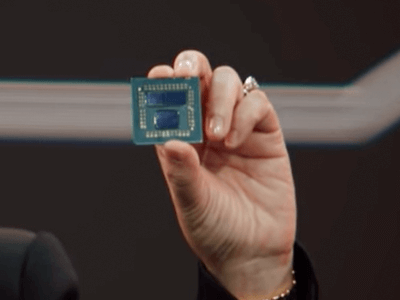
The Ryzen 7 9800X3D stands out as the best all-around processor for gaming in 2026. Its huge 3D V-Cache design boosts frame rates in CPU-sensitive titles like competitive shooters and open-world games, while keeping power use lower than many rivals.

Why it’s great:

  • Excellent performance at 1080p and 1440p
  • Ideal for pairing with high-end GPUs
  • Efficient and cool compared to many high-end chips

Note: AMD also released an updated version, the Ryzen 7 9850X3D, offering slightly higher clocks and performance gains — but the original 9800X3D remains the best value for pure gaming.

Best High-End Performance — AMD Ryzen 9 9950X3D

For gamers who also do streaming or content creation with gaming, the Ryzen 9 9950X3D brings 16 cores and 3D V-Cache performance together. It matches or even beats other flagship chips in demanding multitasking while still dominating in games.

Pros:

  • Great for gaming + productivity
  • Top-tier performance in heavily threaded workloads

Best CPUs by Category

Mid-Range & Value Picks

  • If you want strong gaming performance without spending a fortune:
  • AMD Ryzen 5 9600X – Excellent fps for 1080p/1440p gaming on a sensible budget.
  • AMD Ryzen 7 9700X – Slightly more cores and multitasking headroom, great all-rounder.

These are ideal for most gamers unless you need the absolute highest frame rates.

Budget & Entry-Level CPUs

If you’re on a strict budget:

  • Midrange Ryzen 5 7600X or Intel Core i5 alternatives can still drive playable frame rates.
  • Modern games are increasingly demanding, but even lower-end CPUs with 6+ cores at higher clock speeds can handle many titles smoothly, especially when paired with a capable GPU.

What To Look For in a Gaming CPU

To choose the right chip, consider:

1. Core Count & Threads
Most modern games benefit from 6–8 cores, with additional threads helping multitasking (e.g., streaming while gaming).
2. Clock Speeds (GHz)
Higher clock speeds help games that depend on fast single-core performance, such as competitive or esports titles.
3. Cache & Architecture
Tech like 3D V-Cache dramatically helps gaming performance by increasing available high-speed cache.
4. Future-proofing
If you plan to hold onto your system for several years, choosing a recent architecture with platform upgrade paths (like AM5 or latest Intel sockets) can extend longevity.

Intel vs AMD: Who Wins?

Both companies offer strong gaming CPUs:

AMD’s 3D V-Cache CPUs currently dominate pure gaming performance.

Intel’s chips still offer competitive performance, especially in multitasking and productivity scenarios, and may be attractive on deals.

Ultimate choice often comes down to price vs performance and whether you value specialised gaming performance (AMD) or broader performance mix (Intel).

If gaming frame rates are your priority, AMD’s 3D V-Cache processors like the Ryzen 7 9800X3D are currently the best choice in 2026.

For mixed use — gaming plus productivity — a higher-end chip like the Ryzen 9 9950X3D or a fast Intel alternative can be more compelling. And for everyday gamers on a budget, CPUs like Ryzen 5 9600X deliver excellent value and performance.
Filed Under: Tech News Tagged With: CPU, gaming, laptop

Is the Ryzen 9 7950X3D worth the hype?

Is the Ryzen 9 7950X3D worth the hype?
3d virtual cache gaming chip


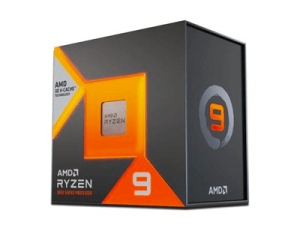
The Ryzen 9 7950X3D is a very powerful AMD CPU (from the 7000-series). This new model uses 3D vertical cache technology to create the world’s fastest gaming desktop processor.

Although the Ryzen 9 7950X3D is now the fastest gaming chip in the world, the innovative design of the chip can mean reduced performance in some applications and games. However, high-end gaming systems will see a significant performance boost. If this is what you are looking for then the Ryzen 9 7950X3D is hard to beat.

The extra cache in this CPU provides an incredible performance boost for gaming and many other tasks.

What is new with the Ryzen 9 7950X3D?

amd ryzen 7950X3D

3D V-Cache or vertical cache is a technology used in computer graphics which vastly improves the performance of 3D scene rendering. This V-Cache system stores the vertices of 3D models in much more efficient format which allows for faster processing when rendering a scene. This has huge performance implications for applications such as video games and animation software.

What is the price of the Ryzen 9 7950X3D?

With added memory and processing power, the Ryzen 9 7950X3D CPU is a great choice for gamers or other users requiring high-level performance for 3D rendering.

The AMD Ryzen 9 7950X3D is priced pretty competitively with no major jump in price with the improved performance. This pricing allows this new X3D to compete with Intel’s i9-13900KS.

What are the specs of the Ryzen 9 7950X3D?

The 7950X3D basis specifications are:

  Ryzen 9 7950X3D
Cores / Threads 16 / 32
Base clock speed / boost clock speed 4.2GHz / 5.7GHz
Cache L3 128MB
TDP 120W
Launch MSRP $699

Is the Ryzen 9 7950X3D worth buying?

The 7950X3D has some very powerful specs and a competitive price for what it offers. For anyone looking for a high performance CPU for gaming or software animation, this AMD offering is a very good option.

https://www.drivers.com/update/pc-fix-tips/specs-gaming-laptop-1/
https://www.drivers.com/update/pc-fix-tips/tips-optimize-pc-gaming/

Filed Under: PC Fix Tips, Tech News Tagged With: 7950X3D, AMD, gaming, Ryzen 9 7950X3D

Can I play my PS4 on a Mac or PC?

Can I play my PS4 on a Mac or PC?

The short answer to this is yes, you can. This will be music to the ears of many PS4 users who have to battle for TV screen use with others in the house!

The second question you are probably thinking of is ‘is this a complicated process that is going to eat into hours of my potential gaming time?’ Happily, the answer to this is no!

With the release of Sony’s Remote Play application, streaming PS4 games to another screen such as a laptop or PC (or even phone if you really want to go there!) is a straight-forward, stress-free experience.

How to stream PlayStation 4 games to your PC or Mac

You can access your PlayStation games using another screen such as a phone or laptop but there are certain requirements, you will need:

  • a strong internet connection (as you will be streaming)
  • enough space on the device you want to stream on to install the required Remote Play application
  • Windows 8.1 or higher and OS X Yosemite or higher (at least 2GB of RAM)

Once you have ensured that the above requirements are met, then follow the steps below and you should be up-and-running on streaming your PS4 games in no time!

1. make sure your PS4 software is updated

Go to Settings > System Software Update > Update

2. Enable Remote Play

Go to Settings > Remote Play Connection Settings > click the check box to Enable Remote Play

3. Set the PS4 as your primary system

Go to Settings > PlayStation Network/Account Management > Select Activate As Your Primary PS4 > click Activate

4. Change the power settings

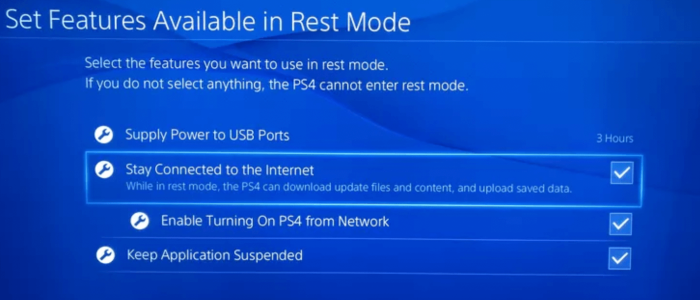
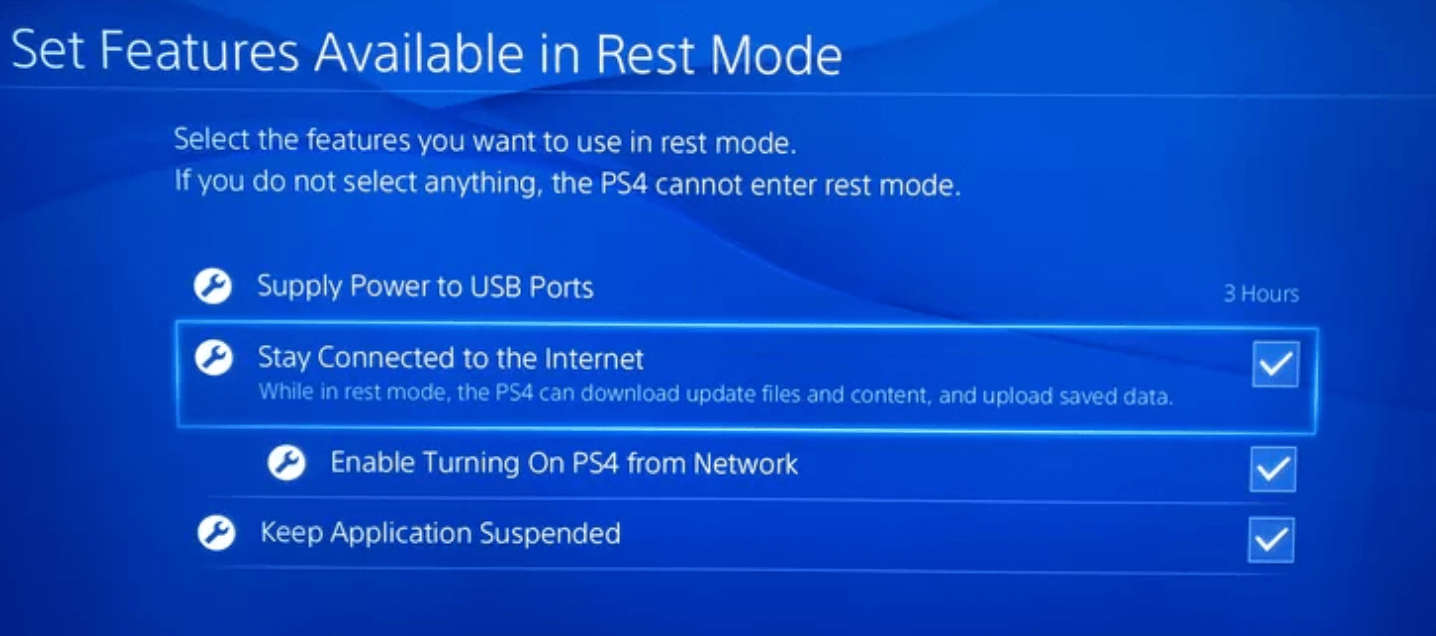
Go to Settings > Power Save Settings > Set Feature Available in Rest Mode

Ensure “Stay Connected to the Internet” is enabled

Ensure “Enable Turning on PS4 from Network” is enabled

ps4 stay connected rest mode

Step 5: Install Remote Play on your PC or Mac

  • Download Remote Play software from the Sony website on to the device you want to use to connect to your PS4
  • Install the Remote Play software and follow the instructions to link it to your PS4 (you will need your PlayStation account login details)

ps4 remoteplay

Step 6: Start streaming your PS4 games from a second device

  • On the device you want to use launch the Remote Play App and select Start
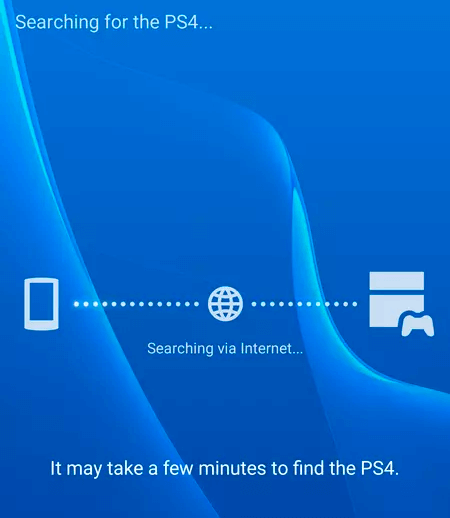
  • Ensure your PlayStation is turned on. In the Remote Play app you will be prompted to sign in to your PlayStation account which will then search for your PS4 via your WiFi connection
  • Connect your controller to your computer and you are ready to go.

You can use wireless controllers and bluetooth and other headsets with this PS4 setup. There are separate posts on these.

Filed Under: Mac Fixes and Tips, PC Fix Tips Tagged With: gaming, playstation, ps4

Review of HP Omen 17

Review of HP Omen 17

The HP Omen is a popular gaming laptop series. HP has recently introduced a new design for the Omen and some improvements for the 15 and 17-inch models. If you are looking for a no-compromise desktop replacement for gaming, the HP Omen 17 can be a good option to consider.

Below we will take a detailed look at the HP Omen 17.

HP Omen 17: Design

The design of the HP Omen 17 has improved and as the company itself states, it is inspired by the design of fighter jets and spacecraft! The fiber-like texturing and the angled air vents give a definitive look to the laptop. The new design is not only about the looks but also works well in enhancing the performance of the laptop.

The new air vents increase the maximum airflow by 20% which prevents the laptop from over-heating during extended gaming sessions. Despite the bigger vents, the thickness of the laptop is only 1.3 inches, which is less than other gaming laptops. However, it is a bit heavier than its predecessor and weighs around 8.1lbs.

The laptop features two cold-swappable hard drive slots on the front, and unlike earlier models, the HP Omen 17 can also be configured with dual graphics cards.

HP Omen 17: Screen

Gamers have two options in terms of the laptop screen for their HP Omen 17. They can either go for 17.3 inches Full HD IPS W-LED backlit display with antiglare coat offering a resolution 1920X1080 pixels or a 17.3 inch 4K IPS W-LED backlit display offering a higher resolution of 3840 x 2160 pixels.

HP Omen 17: Processor and Graphics

The HP Omen 17 is powered by an Intel iCore i7 processor with a clock frequency of 2.8GHZ which can be throttled to 3.8GHz by some CPU overclocking. The lower configuration of HP Omen 17 features NVIDIA® GeForce® GTX 106 graphics chips with 6GB dedicated DDR5 memory while the higher configuration of HP Omen 17 features NVIDIA® GeForce® GTX 1070 graphics chip with 8GB DDR5 dedicated memory.

The powerful graphics card with more than sufficient graphics RAM gives the laptop the ability to play the latest games seamlessly.

HP Omen 17: Hard Drive and Memory

The HP Omen 17 features 1TB 7200rpm SATA hard drive and a 256GB PCIe SSD. The presence of the SSD drive makes the laptop more responsive, leading to a superior gaming experience. The laptop is fitted with 32GB DDR4 RAM which is plenty for most demanding games.

HP Omen 17: Ports

The HP Omen 17 has a wide variety of ports and in good numbers. The majority of the ports are located on the left side. You get Ethernet, HDMI, Mini DisplayPort, USB 3.1 (Gen 1) Type C, SD card reader, microphone and a headset port as well.

The Type C port also supports Thunderbolt 3, which was missing in the earlier model. If that’s not enough, the laptop also includes a pair of Type A, USB 3.1 (Gen 1) connectors, in addition to the power connector on the right side.

Though the design of the laptop is good, performing an upgrade is not so easy. You have to remove at least 10 screws to get access to important parts like RAM, and the Hard drive, this could be considered a flaw in the design.

HP Omen 17: Keyboard & Touchpad

This laptop features a full-sized backlit keyboard with red backlighting. You get a full 10-keypad and a row of macro keys on the left. The touchpad has not changed much but there is scope for improvement. Though the touchpad is sensitive and works well, it falls short in performance when you compare it with those on the Surface laptop or Surface Book.

HP Omen 17: Battery life

The new Omen laptop is powered by an 8-cell 86 Wh Lithium-ion Battery that offers a backup of 8 hours and 15 minutes with FHD panel and up to 6 hours and 45 minutes with UHD 4K panel. That’s a pretty good battery life for a gaming laptop.

HP Omen 17: Other features

You have two options in the Windows operating system: Windows 10 Home 64-bit or Windows 10 Pro 64-bit. Though it is a gaming laptop, there are several discount offers for Office suite and antivirus products. The laptop is fitted with an HP Wide Vision HD Camera with a dual array digital microphone and Bang & Olufsen, dual speakers.

HP Omen 17: Gaming Performance

If you are looking for a gaming laptop, it is useful to get an idea of the performance of the HP Omen 17 in 3DMark Fire Strike Extreme. Gaming experts who put the laptop through the gaming performance tests were satisfied with the results.

The graphics chip GTX 1070 performs well and the scores are better than GTX 1060 but below GTX 1080. In comparison to its predecessor, the new HP Omen 17 is 3% faster.

The Rise of the Tomb Raider is an ultimate game to test your laptop’s graphics card’s capability. The HP Omen 17 with 120 Hz, 1080 display can crank a 100fps in The Rise of the Tomb Raider game at the highest resolution (1080)—a quite impressive feat, indeed.

HP Omen 17: Non-gaming performance

If you are looking to use the HP Omen 17 for occasional video editing, you will not be disappointed. The laptop powered by Intel i-core i7 processor and 32GB RAM is able to handle the encoding of Handbrake video with ease.

HP Omen 17: Conclusion

The HP Omen 17 is a few steps ahead of its predecessors on many fronts. However, the ordinary touchpad and nothing-too-special audio might make the deal less sweet for some buyers.

The laptop has great aesthetics and the lack of Thunderbolt 3 has been corrected in this model. The laptop is good looking enough and fast enough. It also includes some great features. So overall, it gives you great value for money.

The aggressive pricing of the HP Omen 17 makes it difficult for gamers to ignore this model. If you are seriously looking for “value” in a high-end gaming laptop, the HP Omen 17 could be the right candidate.

Filed Under: Tech News Tagged With: gaming, hp omen, review

Gaming laptop: Alienware 17 R4 Review

For all you gamers out there we look at the great and not-so-great features with the new Alienware 17 R4?

The Build: It’s BIG

Are you looking for a gaming laptop that’s easy to carry?

Then, Alienware 17 might not suit you, because it is a gigantic laptop. If you are looking for something portable then this will probably not be for you!

The Alienware 17 laptop is just a little more than 9.5 pounds. That is heavy enough on its own but it also comes with a power adapter that weighs about 2.5 pounds. Like other gaming laptops, the Alienware 17 provides high power at the price of average battery life. Don’t expect the laptop to last for more than 3 hours when under medium to heavy use.

But that shouldn’t disappoint you too much, because Alienware 17, just like its predecessors, is not meant for easy haul or lasting hours on end without charging – but rather performance.

Size aside, Alienware 17 is quite an attractive machine with its popular trademark chrome and black color scheme.

While its keyboard is only zone-lit, there are RGB LED strips either side of the laptop, as well as on the lid. What’s more, there’s one under the trackpad, too. There is some nice attention to the detail in the design.

However, the design is not without issues, even if they are not major ones. The fans are placed at the end of the chassis, which, while understandable given the amount of heat this laptop can produce, takes away from the overall design.

The fans can also be quite loud. The laptop is sufficiently noisy under medium load, and if pushed, the sound is very noticeable.

Another potential issue for users is the power plugs. They are located at the back. While Alienware 17 is not the only laptop to have power plugs at the rear, it can be inconvenient and many users have an issue with this.

Alienware 17 Performance: It’s definitely worth it

Alienware 17 is very high on performance and is a good desktop replacement option.

The laptop comes with an Intel Core i7-7820HK, its strongest asset, and an Nvidia GeForce GTX 1080, as well as 16GB DDR4 RAM, 500GB of SSD storage, and 1TB of drive space.

The majority of gaming laptops in this category go with i7-7700HQ, which is a pretty good processor itself. However, if you want the absolute best gaming experience, go for i7-7820HK. Apart from the top-of-the-range processor, Alienware 17 comes with GTX 1080.

One important thing to bear in mind is that the baseline model has 8GB RAM which will be insufficient for many users. So if you’ve decided to buy Alienware 17, you may want to spend a little extra and go for 16GB at least.

Gaming enthusiasts looking for a desktop replacement must consider two things: venting and heat management.

Alienware 17 works well on both counts, and that’s why it is built for continuous gaming.

Alienware 17: the verdict

This laptop is by no means perfect – it doesn’t have the most advanced zone lightning, its fans are quite loud, battery life is no better than average, and its size is bulky.

However, Alienware 17 is a powerful gaming laptop and excels in performance – the most important consideration for a gaming laptop.

Top 3 laptops for gaming

Is the Ryzen 9 7950X3D worth the hype?


Filed Under: Tech News Tagged With: alienware 17, gaming, review

Xbox blinking red – What does it mean?

Xbox blinking red – What does it mean?

Sometimes the flashing lights on your Xbox indicate a specific problem with the device and in order to fix the problem you need to understand what the cause is. When the Xbox lights are blinking red- what does this mean?

How to connect an Xbox One Wireless Controller to a Windows PC

One flashing Red light on Xbox – What does this mean?

There are 4 Red lights on your Xbox console.  If any one of these red lights is flashing, it means there is a problem with your Xbox.  Generally, the red flashing light is also accompanied by some error such as E74 error, another code error or no picture displayed.

Xbox E74 error

If you are seeing an E74 error, it means there is some major problem with your Xbox and you need to take it to an authorized service center.

Steps to resolve other code errors

If you are experiencing another code error such as errors E66, E67, E68, E69, or E70, it could indicate a problem with your power supply cord. Here are troubleshooting steps to follow:

  1. Turn off your Xbox console
  2. Disconnect the power cord from the back of the console. Unplug the power cord from the power supply unit and also from the wall outlet
  3. Reconnect all three connections securely
  4. Switch on the Xbox console again
  5. If the problem is resolved, you will see a green light blinking

If you are not seeing a picture on the screen, follow the further troubleshooting steps below.

Three Flashing Red lights – What to do?

If you see three flashing red lights, it indicates the console or the power supply has a hardware problem.  You need to find out whether the problem is with the Xbox console or power supply of the console.

If you see a green light on your power supply after switching on the console, the problem is due to hardware issue with the Xbox console

Four Flashing Red lights – What to do?

If you see four flashing red lights, you need to ensure the A/V cable is connected to the A/V port of the console.

Light in center of Xbox 360 console power button blinking red

If you see a blinking red light at the center of the Xbox console, it generally means the console is heating up and there is no proper ventilation. In this case, the red light will continue to blink until the console cools down.  To resolve the issue, switch off the console and move it to an area where there is proper ventilation. You may also need to clear any dust or blockages from the vents.

Solution to Xbox One Controller Driver update failed issue

Filed Under: PC Fix Tips Tagged With: error, gaming, xbox

Top 3 laptops for gaming

Is the Ryzen 9 7950X3D worth the hype?

Many avid gamers ask which laptops are best to play games like Fallout 4 or Street fighter V. We present the 3 top gaming laptops that are high on both graphics and processor performance.

Alienware 13 (OLED Display)

You will not get a better display than OLED. The Alienware 13 is a top-notch gaming laptop from Dell. The 13-inch OLED display offers a response time of 1ms that means a higher refresh rate and more frames per second. The laptop is powered by the new Intel i7 processor and NVIDIA® GeForce® GTX 965M with 4GB GDDR5 memory. It also has premium features like copper cooling. The superb combination of the CPU and GPU ensures you have an awesome gaming experience every time. Other important specifications are

  • Klipsch and Creative SoundBlaster X-Fi technology
  • 2.0MP Full HD webcam
  • Killer DoubleShot Pro for faster networking performance
  • Bluetooth 4.1 technology
  • SuperSpeed USB||(3.1) 10 Gbps Ports
  • HDMI 2.0 Output

ASUS ROG G752VS-XB78K OC Edition 17

It is an ultimate gaming laptop with a 17-inch screen Full HD display with a viewing angle of 178 degree. The Asus gaming laptop is powered by an Intel Quad Core i7- processor running at a clock speed of 2.7 GHz accompanied by a discrete GPU – NVIDIA GTX 1070 with 8GB GDDR5 memory. The Windows 10 Pro is installed on an SATA SSD that ensures optimal response during gaming. Asus has provided an intelligent cooling system which is known as 3D Vapor Chamber. The cooling system effectively dissipates the heat generated that improves GPU performance. Other important specifications are:

  • Dual-Band 2×2 802.1ac Wi-Fi
  • USB 3.1 Type-C
  • VR Ready
  • 1.2MP HD Camera
  • 8 cell Li-ion Battery Pack that offers 88WHrs

Razer Blade Pro

The Razer Blade Pro has impressive specifications to ensure optimum gaming experience. It features 17.3-inch G-Sync-ready screen having a resolution of 3840X2160 pixels. The laptop is powered by a 6th generation Intel Core i6 processor that can run at a clock speed up to 3.5 GHz with Turbo boost. That is not all, the laptop has NVIDIA GeForce GTX 1080 under the hood that delivers the performance of desktop gaming in a laptop. You can easily play games at 4K resolution and at ultra-settings. it comes loaded with 32GB of Dual channel memory at 2133 MHz it comes in various storage (RAID) configurations, the minimum is 512 MB(2X256 MB SSD), 1 TB (2X500GB SSD) and 2TB(2X1GB SSD). Other important specifications are:

  • Killer DoubleShot Pro with Killer Wireless AC 1535 and Killer Ethernet
  • 2.0MP built-in webcam
  • 3 SuperSpeed USB 3.0 ports
  • HDMI 2.0 audio and video output
  • Windows 10
  • Built-in 99WH Li-Ion rechargeable battery

Filed Under: Software Drivers Tagged With: gaming

6 effective tips to optimize PC for gaming

Modern games require an optimized PC in order to deliver a smooth gaming experience. You don’t have to be a techie to optimize your PC for gaming, It can be done with a few simple steps. Follow the tips given below to get the most out of your hardware and experience much better game performance.

1. Update graphic card drivers

The performance of the PC greatly depends on the components inside. Drivers play an important role in bringing out the optimal performance of graphic cards. Graphic card manufacturers release driver updates to increase performance of their graphic cards or to ensure new games do not have problems with their graphic cards.

Video Graphics Drivers Download & Updates

2. Install latest game patches

The Release of a game doesn’t mean that the development work is finished. Game developers frequently release game patches to increase game performance and/ or fix bugs. You need to install all game patches released by the developer. These game patches improve performance and also might help fix any display issue, besides enhancing the overall gaming experience.

3. Add more RAM

Gamers often ask how much RAM is needed for a smooth gaming experience. In most cases, modern games will not run on your PC if you have 2GB of RAM. The recommended RAM is anything between 4GB and 8GB.

4. Close unwanted background processes

All processes running in your computer use up system resources, reducing the resources available for your gaming. If you take a look at the task manager, you will likely see several background processes running. Before playing, it is best you close process you don’t require.

5. Defragment hard drive

After months of use, the data on the hard drive tends to get fragmented. Fragmentation affects the speed at which the system accesses data. The more fragmentation your HDD has, the more time your system will take to access files stored on it. You can use the in-built defragmenter utility or a third party tool to defragment the hard drive.

6. Disable animation and 3D effects

Modern operating systems focus on animation and the 3D effect to render a good visual experience. However, these functionalities use a lot of system resources, so it is a good idea to disable animation and 3D effects if you have a less than ideal system specification.

For Windows 7

  1. Click the Start button
  2. Right-click My Computer – > Properties
  3. Click Advanced System in the left pane; a System properties window opens,
  4. Go to Advanced Tab and click the Settings button; a “Performance Options” window opens.
  5. Go to “Visual Effects” tab
  6. Select the “Adjust for Best Performance ”radio button

That’s it. Now you can go ahead and fine tune your PC for gaming all by yourself. Happy gaming!

Filed Under: PC Fix Tips Tagged With: gaming

Specifications of a Gaming Laptop – Part 1

A gaming laptop usually requires extra storage, better graphics and a faster CPU. It consumes more power and ican be quite bulky. To achieve the best gaming experience, the following factors should be taken into consideration when choosing the ideal gaming laptop:

1. GPU

What differentiates a gaming laptop from any other laptop is the GPU. The Graphics Processing Unit (GPU) is a single chip processor responsible for the high end graphics, videos and game performance. Also called discrete GPUs, these particular chips are solely committed to the graphics side of the laptop and have their own share of memory available, resulting in better performance.

There are many graphics chips to choose from, anything from Nvidia’s GeForce GTX series to AMD Radeon HD series is money well spent. It would still be wise to read up on the different Graphic Cards available and compare the prices and performance to suit your gaming needs, e.g. Nvidia’s cards are quieter and cooler yet AMD has some problems with older games-AMD is also more expensive which is reflected in the superior performance. Notebook Check provides an informative guide on examining the features of various Graphics Cards. A gaming laptop must have a Class 1 graphics card to be considered suitable for serious gaming.

Note that most gaming laptops come with single and dual GPUs yet when accounting for space and heat, a faster individual GPU is a much better option rather than dual.

2. CPU

CPU (the processor) is the second most important element after the GPU. It’s the core of the computer and is responsible for the operating system and applications that are run. The two top contenders in the CPU race are Intel and AMD, this is largely determined by factors such as:

clock speed – speed of a computer (in gigahertz)

number of cores – basic computation units of CPU (usually range from 2 to 6)

AMD processorintel core processor

AMD and Intel Processors

The higher the clock speed and cores, the greater the laptop speed. Intel’s quad Core i7 series is currently favoured  when it comes to gaming and stands up well against bottle-necking (the phase when a process slows/stops). Intel’s quad Core i5 series also compares well. Quad (four) cores are always preferred over dual (two) cores when it comes to the CPU.

It is important to note that if the games being played don’t demand the full use of the cores then the CPU will not be used to its maximum capacity. Hence it is always advisable to spend more money on the GPU side of the gaming laptop rather than the CPU.

3. RAM

Random Access Memory (RAM) is the primary memory in a laptop. DDR (Double Data Rate) is a type of RAM that transfers twice the data in a certain given time. From DDR2 to DDR3 to DDR4, the faster the memory, the more efficient the games will be. To prevent bottlenecking, a memory of 8GB or 16GB is required. More than sufficient allocated memory usually gives games and the Operating System adequate space to work with.

random access memory (ram)

Transcend DDR2 RAM 200-pin

Continue to “Specifications of a Gaming Laptop – Part 2” >>

Filed Under: PC Fix Tips Tagged With: gaming, laptop

Specifications of a Gaming Laptop – Part 2

Continued from “Specifications of a Gaming Laptop – Part 1”

solid state drives (ssd's)4. SSD

Solid-State Drives or SSD’s are the ultimate storage solution. An SSD is necessary for storing games and the Operating System and seriously reduces the load and boot time of a game. Endurance of an SSD refers to the length of time it will take to wear out the drive while storing data. Since SSDs have no moving components in contrast with Hard Disk Drives (HDD), they last longer and are able to withstand physical accidents without the loss of data.

SSDs are undoubtedly more expensive but they are faster and have higher endurance in comparison to HDDs.

5.  Display and Size

1080p (1920 x 1080 pixels) resolution is the essential minimum display for any gaming laptop and seems to be the dominant resolution in the computable future. Bear in mind that the larger the screen, the more cumbersome the laptop will be and the greater the power consumed e.g. a laptop with a 15.6 inch screen will weigh at approximately 2.6-3kg whereas a 13 inch laptop will weigh at approximately 1.5kg.

screen resolution gaming

Different screen resolutions

Extra Factors to Consider

Cooling

Gaming laptops will heat up when running power hungry games. The cooling system of a gaming laptop should be considered before purchase. It is also recommended to add a cooling pad to help with the over-heating issues.

Operating System

The Operating System does not have a huge bearing on gaming needs so this shouldn’t influence your choice of laptop to any great extent.

Headphones

Very few gaming laptops come with good quality speakers, noise cancelling headphones are a good purchase with any gaming laptop to help improve and enhance the user experience.

Conclusion

  • GPU should be considered before buying a gaming laptop since it will determine the gaming quality and graphics of the game
  •  CPU is the next priority and preference should be given to quad cores over dual
  •  RAM can range from DDR – DDR4 and is responsible for the space the games will run in. Aim for 8 to 16 GB
  • SSDs are important for storing games and the Operating System and decreases the load time of a game
  • 1080p resolution is more favourable. Laptops with large screens will be heavier and the battery life will suffer

Filed Under: PC Fix Tips Tagged With: gaming, laptop

  • 1
  • 2
  • Next Page »


  • Recent Posts
  • Popular Posts
        

Read More Posts


Read More Posts

Drivers.com Sites

  • Software Drivers
  • Drivers Ed

About Us

  • Advertise
  • About Drivers
  • Drivers Support
  • Drivers.com Privacy Policy
  • Disclaimer
  • Software Drivers
  • Mac Fixes and Tips
  • PC Fix Tips
  • Security/ Backup
  • Tablets & Smartphones
  • Tech News

© Copyright 2026 PDE Publications Ltd. End User License Agreement (EULA)