


The short answer to this is yes, you can. This will be music to the ears of many PS4 users who have to battle for TV screen use with others in the house!
The second question you are probably thinking of is ‘is this a complicated process that is going to eat into hours of my potential gaming time?’ Happily, the answer to this is no!
With the release of Sony’s Remote Play application, streaming PS4 games to another screen such as a laptop or PC (or even phone if you really want to go there!) is a straight-forward, stress-free experience.
How to stream PlayStation 4 games to your PC or Mac
You can access your PlayStation games using another screen such as a phone or laptop but there are certain requirements, you will need:
- a strong internet connection (as you will be streaming)
- enough space on the device you want to stream on to install the required Remote Play application
- Windows 8.1 or higher and OS X Yosemite or higher (at least 2GB of RAM)
Once you have ensured that the above requirements are met, then follow the steps below and you should be up-and-running on streaming your PS4 games in no time!
1. make sure your PS4 software is updated
Go to Settings > System Software Update > Update
2. Enable Remote Play
Go to Settings > Remote Play Connection Settings > click the check box to Enable Remote Play
3. Set the PS4 as your primary system
Go to Settings > PlayStation Network/Account Management > Select Activate As Your Primary PS4 > click Activate
4. Change the power settings
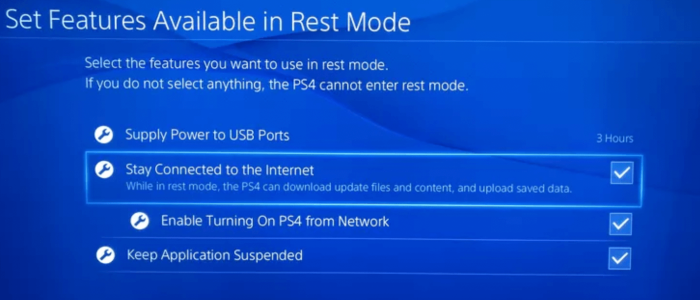
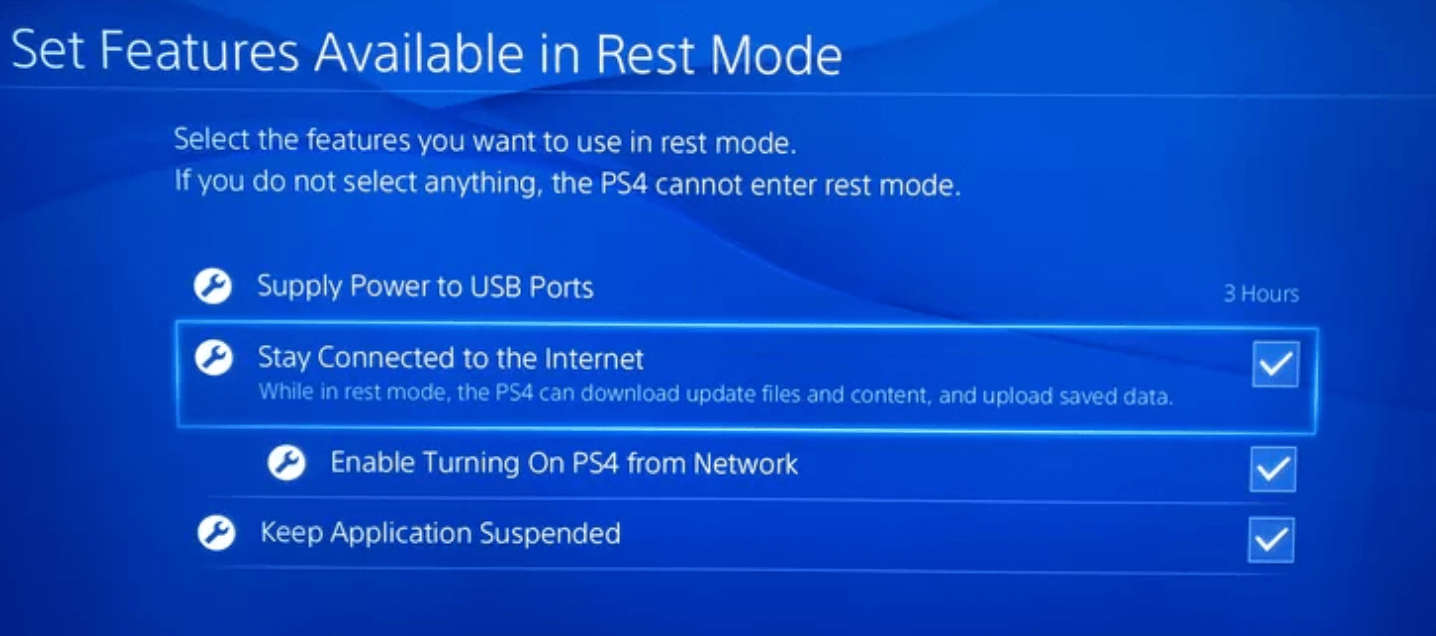
Go to Settings > Power Save Settings > Set Feature Available in Rest Mode
Ensure “Stay Connected to the Internet” is enabled
Ensure “Enable Turning on PS4 from Network” is enabled
Step 5: Install Remote Play on your PC or Mac
- Download Remote Play software from the Sony website on to the device you want to use to connect to your PS4
- Install the Remote Play software and follow the instructions to link it to your PS4 (you will need your PlayStation account login details)
Step 6: Start streaming your PS4 games from a second device
- On the device you want to use launch the Remote Play App and select Start
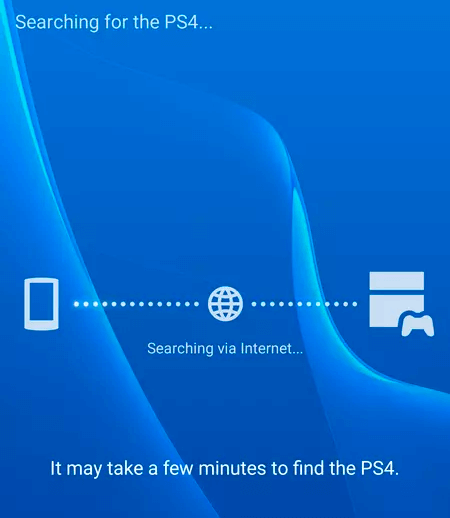
- Ensure your PlayStation is turned on. In the Remote Play app you will be prompted to sign in to your PlayStation account which will then search for your PS4 via your WiFi connection
- Connect your controller to your computer and you are ready to go.
You can use wireless controllers and bluetooth and other headsets with this PS4 setup. There are separate posts on these.