Drivers.com

follow us:

facebook twitter
  • Home
  • Download Drivers
  • Drivers Help
  • PC/Mac Resources
  • Software Drivers
  • Mac Fixes and Tips
  • PC Fix Tips
  • Security/ Backup
  • Tablets & Smartphones
  • Tech News
  • Software Drivers
  • Mac Fixes and Tips
  • PC Fix Tips
  • Security/ Backup
  • Tablets & Smartphones
  • Tech News

Resources by Tag

ps4

How to fix PS4 Error Code SU-30746-0?

How to fix PS4 Error Code SU-30746-0?

If you get the PS4 error SU-30746-0, try not to panic. While this error code is not as common as some other PS4 errors, you can fix it on your own — and we’ll show you how.

What is PS4 Error Code SU-30746-O?

The error occurs when the system fails to locate the appropriate update file it needs to update the PS4 software. Now, let’s look at the two popular solutions to this error.

How to troubleshoot Error Code SU-30746-0?

Solution 1 – Update PS4 Software in Safe Mode

Just like a Windows computer, PS4 can be launched in Safe Mode, in which only essential files and processes are loaded at startup.

  • Power off the PS4 console
  • Download the latest firmware version available
  • Save this file in a USB storage device
  • Press and hold down the PS4 power button till two beeps are heard. Release the power button immediately following the second beep. Now, your PS4 console should launch into Safe Mode
  • Connect the DUALSHOCK4 controller with a USB cable and then press the PS button
  • Choose Update System Storage (3rd option in the menu) and press X
  • Choose Update Using Internet in case you’re using Ethernet cable. If not, insert the external USB storage device that has the latest firmware file and select Update from USB Storage Device
  • Reboot PS4 after PS4 has been updated
  • Check whether the issue is solved

If you’re unable to update PS4 in Safe Mode or if this solution didn’t work, try the second solution.

Solution 2 – Reset PS4 to its default settings

Reverting to factory settings worked for a good percentage of users who received this error, so this solution is worth trying. Here’s what you need to do:

  • Power off your PS4
  • Press down and hold the Power button till two beeps are heard. After the second beep, release the PS4 power button. You should be able to access Safe Mode now
  • Connect the PS4 DUALSHOCK4 controller to the PS4 via a USB cable and press the PS button
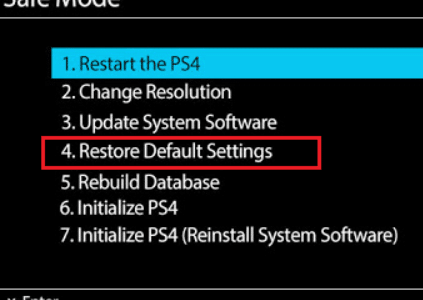
  • Choose Restore Default Settings (4th option) and press X

  • Select Yes and press X again
  • PS4 settings will now be restored to their default settings
  • Restart the console

The PS4 Error Code SU-30746-0 error should be fixed now.

While PS4 errors usually don’t occur due to graphics driver-related issue (that’s because PS4 has its graphics process unit built directly into the console’s chip), many computer errors do. Keep your computer in top shape by regularly updating device drivers. The easiest way to do that is by using a reliable third-party tool like Driver Updater.

Automatic driver update tools offer many benefits, the most important ones being:

  • You can update device drivers automatically
  • The software scans and updates all outdated or missing drivers at one go
  • The tool picks the right drivers for your device and operating system, so you won’t have to worry about installing an incorrect driver by mistake
  • Automatic driver updates are 100% safe

Driver Updater is one of the best driver update tools out there. Outbyte Driver Updater will give you access to a database of over 1 million drivers. It will regularly scan your PC, suggesting new driver versions to install. Driver Updater contains drivers for a variety of Windows devices. With just one click, you can update drivers in your system.

Step 1
Click here to Install and launch the app

Step 2
Scan all devices

Step 3
Install or update drivers automatically
 

Start Download


Filed Under: PC Fix Tips Tagged With: ps4

Can I play my PS4 on a Mac or PC?

Can I play my PS4 on a Mac or PC?

The short answer to this is yes, you can. This will be music to the ears of many PS4 users who have to battle for TV screen use with others in the house!

The second question you are probably thinking of is ‘is this a complicated process that is going to eat into hours of my potential gaming time?’ Happily, the answer to this is no!

With the release of Sony’s Remote Play application, streaming PS4 games to another screen such as a laptop or PC (or even phone if you really want to go there!) is a straight-forward, stress-free experience.

How to stream PlayStation 4 games to your PC or Mac

You can access your PlayStation games using another screen such as a phone or laptop but there are certain requirements, you will need:

  • a strong internet connection (as you will be streaming)
  • enough space on the device you want to stream on to install the required Remote Play application
  • Windows 8.1 or higher and OS X Yosemite or higher (at least 2GB of RAM)

Once you have ensured that the above requirements are met, then follow the steps below and you should be up-and-running on streaming your PS4 games in no time!

1. make sure your PS4 software is updated

Go to Settings > System Software Update > Update

2. Enable Remote Play

Go to Settings > Remote Play Connection Settings > click the check box to Enable Remote Play

3. Set the PS4 as your primary system

Go to Settings > PlayStation Network/Account Management > Select Activate As Your Primary PS4 > click Activate

4. Change the power settings

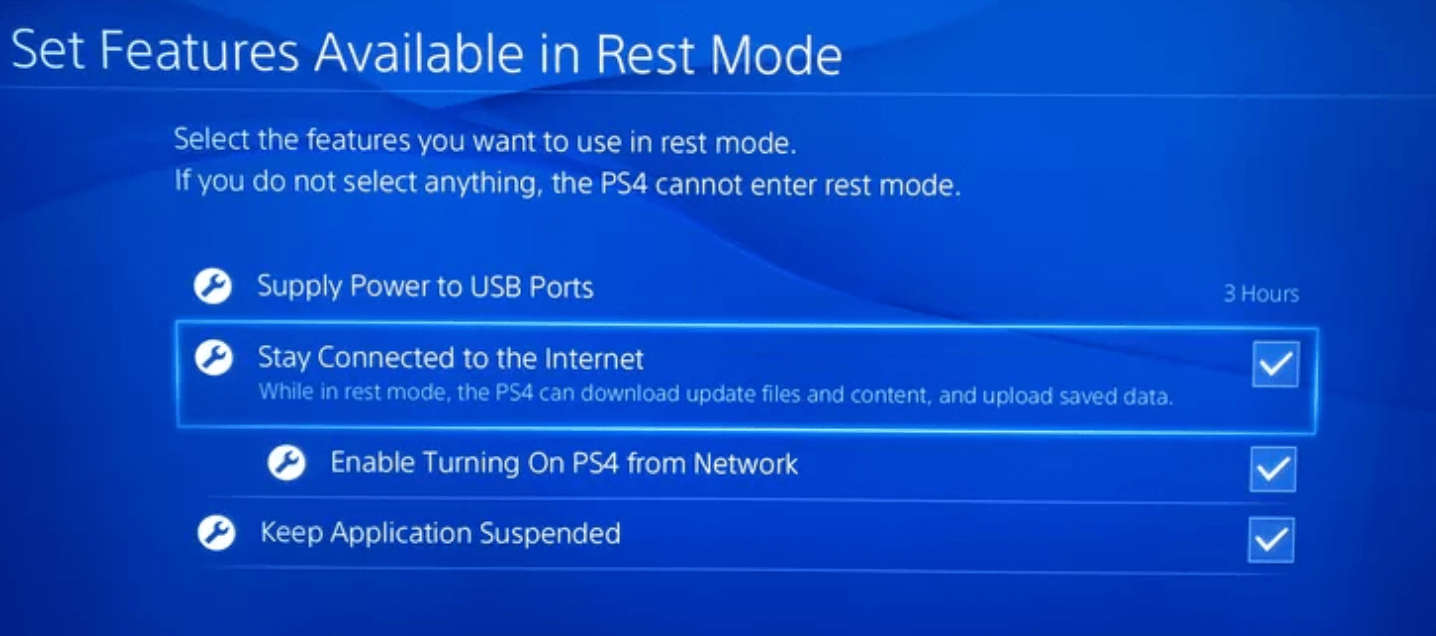
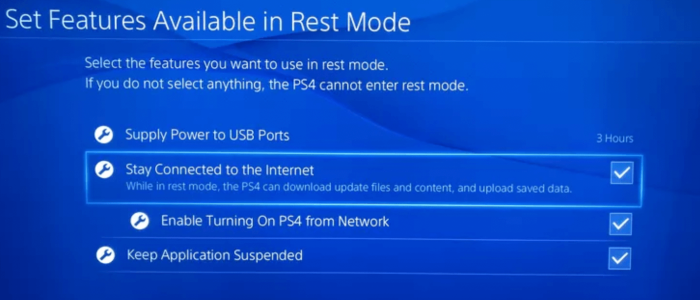
Go to Settings > Power Save Settings > Set Feature Available in Rest Mode

Ensure “Stay Connected to the Internet” is enabled

Ensure “Enable Turning on PS4 from Network” is enabled

ps4 stay connected rest mode

Step 5: Install Remote Play on your PC or Mac

  • Download Remote Play software from the Sony website on to the device you want to use to connect to your PS4
  • Install the Remote Play software and follow the instructions to link it to your PS4 (you will need your PlayStation account login details)

ps4 remoteplay

Step 6: Start streaming your PS4 games from a second device

  • On the device you want to use launch the Remote Play App and select Start
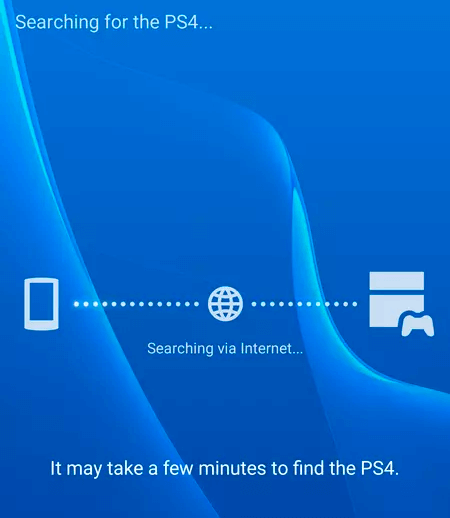
  • Ensure your PlayStation is turned on. In the Remote Play app you will be prompted to sign in to your PlayStation account which will then search for your PS4 via your WiFi connection
  • Connect your controller to your computer and you are ready to go.

You can use wireless controllers and bluetooth and other headsets with this PS4 setup. There are separate posts on these.

Filed Under: Mac Fixes and Tips, PC Fix Tips Tagged With: gaming, playstation, ps4


  • Recent Posts
  • Popular Posts
        

Read More Posts


Read More Posts

Drivers.com Sites

  • Software Drivers
  • Drivers Ed

About Us

  • Advertise
  • About Drivers
  • Drivers Support
  • Drivers.com Privacy Policy
  • Disclaimer
  • Software Drivers
  • Mac Fixes and Tips
  • PC Fix Tips
  • Security/ Backup
  • Tablets & Smartphones
  • Tech News

© Copyright 2026 PDE Publications Ltd. End User License Agreement (EULA)