


Is your Logitech M325 mouse not working well? Are you facing some driver-related issues?
If so you need to download and install the latest Logitech M325 mouse driver. Drivers can help optimize performance and it is important to keep them up-to-date.
When it comes to downloading the Logitech M325 mouse driver, you basically have two options. You can download the driver manually or automatically. While the latter is a more convenient option, this post lists the steps for both the methods. But first a few words about the Logitech M325 mouse.
What is the Logitech M325 mouse?
A convenient-to-use wireless mouse, the Logitech M325 is designed for everyday use. Thanks to its small and sleek design, it is a great option for traveling. The mouse comes with a smart battery, which will likely last you 18 months or so.
The Logitech M325 mouse comes with the popular plug-and-play installation and obviates the need for using the touchpad, allowing you to work faster. Since the device is ergonomically designed and fits nicely in your hand.
When you install the Logitech M325, Windows automatically detects the proper driver and installs it. However, sometimes compatibility issue may arise, especially after a Windows update. Therefore, it is understand how to update your existing driver for seamless performance.
Downloading the latest Logitech M325 mouse driver manually
First, let’s go through the steps for downloading your mouse driver manually. You can manually download a driver in two ways – via the device manager utility or directly through the manufacturer’s website.
Downloading the Logitech M325 from Device Manager
Device manager is an in-built utility in Windows that allows users to view as well as control the hardware attached to their device.
Below are the steps you need to perform to update your mouse driver using Device Manager:
- Press Win + R to open the run dialog box
- Type devmgmt.msc and then press Enter
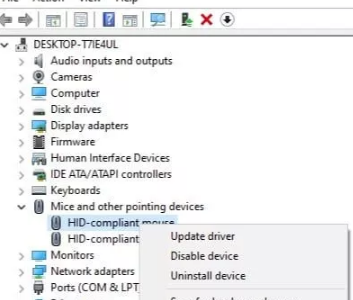
- Expand Mice and Other Pointing Devices option
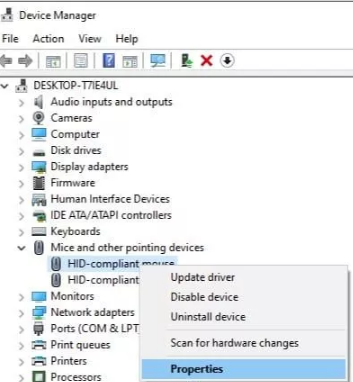
- When the menu expands, right-click the Logitech M325 mouse and click Properties
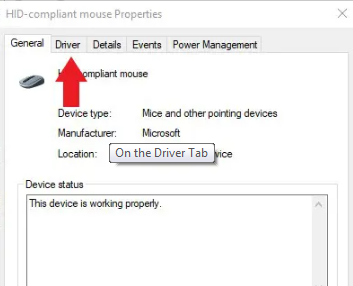
- Click the Driver tab (the second one from left).
- Click the Update Driver button
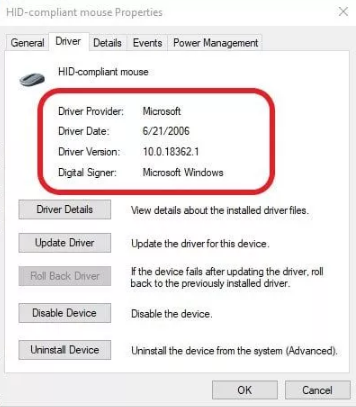
- In the next window, select Search automatically for updated driver software.
- Windows will search the internet to find a driver update and install it. If it does not find a driver update, you have to manually download the mouse driver and install it.
- Restart Windows
Download the Logitech M325 driver from the manufacturer website
If for some reason, Windows is unable to download and install the latest driver for your mouse, you can directly go the Logitech website and download it.
Here are the steps to follow:
- Open your internet browser
- Browse to the Logitech website
- Search for the latest driver for your mouse. It is important to note that you must download the version that corresponds to your Windows PC or laptop. For instance, if you are using a 32-bit Windows, then you should download a driver meant for 32-bit Windows computers and not 64-bit.
- Save the downloaded file on your desktop or some other location
- Double-click the .exe file to launch installation and follow on-screen instructions if any
- Reboot Windows after installation is complete
Download the Logitech M325 Mouse Driver Automatically
The manual process of updating device drivers can be tedious and time-consuming. You also require a bit of technical knowledge to complete the process. If you would rather simplify and speed up the entire process, consider using a reliable driver update tool.
Benefits of using an automatic driver update tool
Automatic driver update tools offer many benefits, the most important ones being:
- You can update device drivers automatically
- The software scans and updates all outdated or missing drivers at one go
- The tool picks the right drivers for your device and operating system, so you won’t have to worry about installing an incorrect driver by mistake
- Automatic driver updates are 100% safe
Driver Updater is one of the best driver update tools out there. Outbyte Driver Updater will give you access to a database of over 1 million drivers. It will regularly scan your PC, suggesting new driver versions to install. Driver Updater contains drivers for a variety of Windows devices. With just one click, you can update drivers in your system.
Step 1
Click here to Install and launch the app
Step 2
Scan all devices
Step 3
Install or update drivers automatically
DIY Fixes for Logitech M310 Mouse Driver Errors
How to download the Logitech M185 Driver
