

Drivers.com

follow us:

facebook twitter
  • Home
  • Download Drivers
  • Drivers Help
  • PC/Mac Resources
  • Software Drivers
  • Mac Fixes and Tips
  • PC Fix Tips
  • Security/ Backup
  • Tablets & Smartphones
  • Tech News
  • Software Drivers
  • Mac Fixes and Tips
  • PC Fix Tips
  • Security/ Backup
  • Tablets & Smartphones
  • Tech News

No Sound on Windows 10

By lisak on June 27, 2021

no sound windows 10When looking to fix a problem such as no sound on Windows 10, the problem is going to be either hardware or software.

Hardware problems mean the speakers/ headphones or physical audio devices themselves. Software refers to pretty much anything else like the program running the sound, the operating system or the sound drivers.

Sound problems in Windows 10 – hardware problems

It is easiest to check the simpler hardware options first, especially if you are dealing with external headphones or speakers. If these devices have a wired connection, try to plug them into another port or another device to check that they are working correctly. If you can establish that they are working then you have successfully rules one option out as the cause of your sound problems.

Accidentally muted sound?

This is actually very common as people often accidentally hit a shortcut key which then mutes their sound in Windows 10. To check that your sound is not muted:

  1. Right-click Start Button > open Device Manager
  2. In the Device Manager window > expand Audio inputs and outputs section
  3. if the sound is muted check to unmute

Update your sound drivers for Windows 10

To update your sound card drivers in Windows 10:

  1. type ‘Device Manager‘ in the search bar next to Start Menu
  2. click on the Device Manager and select ‘Sound, video and game controllers’ to show your sound card
  3. click on your sound card > select the Driver tab
  4. Select ‘Update Driver‘
  5. Then restart your computer to see if this fixes the issue

You can also use a driver update tool to automate the driver update process for you.
 

Filed Under: PC Fix Tips Tagged With: sound, Windows 10

Wireless mouse not working

By lisak on June 17, 2021

Troubleshooting problems with Wireless Mouse

There are a number of reasons a wireless mouse can stop working. If your wireless mouse is new and you have yet to use it, then the issue is likely to be power or connection. The first two questions to ask in this case are

  • have you inserted charged/ fresh batteries?
  • have you setup the mouse via Bluetooth or the suggested setup method in the instructions?

With these first questions out of the way, we will go through all the possible problems with a new and old wireless mouse. Go through each of these options one-by-one and check them.

  • Wireless mouse battery/power issues:
    As it is not wired to your computer, a wireless mouse needs batteries to run. Make sure the batteries are inserted the correct way and that they are working (try them out in another device if needs be).
  • Wireless mouse power switch:
    There is often, but not always, a switch on the underside of a wireless mouse which can be toggled to turn on or off. Usually when it is toggled to ‘on’ an LED light can be visible in the switch.
  • Wireless mouse setup:
    Depending on your wireless mouse, you may need to set it up using a USB receiver or a Bluetooth connection. If it is a USB receiver then you need to make sure this is plugged in correctly and the USB port is working (try in another one if possible to rule this out as an issue). If your mouse is Bluetooth then you need to go to your Bluetooth settings and make sure there are no issues with connectivity.
  • Uneven or reflective surface: Always use a mouse pad to ensure that you have an even and appropriate surface for your mouse.
  • Wireless mouse drivers:
    Check that your wireless mouse drivers are installed and up-to-date.

Filed Under: PC Fix Tips Tagged With: wireless mouse

Fix ‘Ethernet Doesn’t Have a Valid IP Configuration’

By lisak on May 31, 2021

Fix ‘Ethernet Doesn’t Have a Valid IP Configuration’

An IP (Internet Protocol) address is a unique address which serves to identify a device on a network such as the internet or a local network.

An IP address is an identifier which allows for information to be sent across a network, if there is a problem with the IP configuration then this communication will not be possible.

ethernet valid ip address

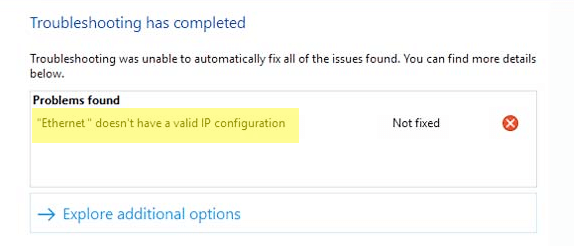
‘Ethernet Doesn’t Have a Valid IP Configuration’ error message

This error appears when your computer, for whatever reason, fails to get a valid IP address and therefore cannot connect to the internet.

Restart your PC or laptop

The first solution to always try is to restart your computer. This seems very low-tech but it works in a surprising number of cases! This is because it can clear out any glitches and is always worth a try before progressing to other solutions.

Restart router

If you have restarted your PC and are still experiencing ‘ethernet doesn’t have a valid IP configuration’ error message, the next step to take should be to restart your router. If this doesn’t solve the problem then move on to the next step, configuring network adapter settings.

Check antivirus software settings

If you are running antivirus on your PC then it would be worth temporarily disabling it to check if this fixes the issue. If it does fix the issue then you will need to look into the settings of your anti-virus software to see why it is causing problems with assigning an IP address.

Configure your network adapter settings

The IP address is usually automatically allocated but in some cases the settings may be different and you may have to assign your own IP address.

To do this  do the following:

  •  select Win+R and Run ncpa.cpl
  • right-click on your network adapter > select properties
  • select TCP IPV4 > click properties
  • If the option Obtain an IP address automatically is set, try setting your own IP address. Most home networks are 192.168.1.180
  • If it is already assigned an address try switching it to automatic assignment and test this

When making any changes such as those above, make a note of the original settings so you can change back if it doesn’t work.

Update your Network Drivers

If you are still having problems connecting to the internet you can check if your network drivers need to be updated.

Updating Drivers Automatically

Automatic driver update tools offer many benefits, the most important ones being:

  • You can update device drivers automatically
  • The software scans and updates all outdated or missing drivers at one go
  • The tool picks the right drivers for your device and operating system, so you won’t have to worry about installing an incorrect driver by mistake
  • Automatic driver updates are 100% safe

Driver Updater is one of the best driver update tools out there. Outbyte Driver Updater will give you access to a database of over 1 million drivers. It will regularly scan your PC, suggesting new driver versions to install. Driver Updater contains drivers for a variety of Windows devices. With just one click, you can update drivers in your system.

Step 1
Click here to Install and launch the app

Step 2
Scan all devices

Step 3
Install or update drivers automatically


Start Download


Filed Under: PC Fix Tips Tagged With: ethernet, valid ip

  • « Previous Page
  • 1
  • …
  • 7
  • 8
  • 9
  • 10
  • 11
  • …
  • 23
  • Next Page »


  • Recent Posts
  • Popular Posts
        

Read More Posts


Read More Posts

Drivers.com Sites

  • Software Drivers
  • Drivers Ed

About Us

  • Advertise
  • About Drivers
  • Drivers Support
  • Drivers.com Privacy Policy
  • Disclaimer
  • Software Drivers
  • Mac Fixes and Tips
  • PC Fix Tips
  • Security/ Backup
  • Tablets & Smartphones
  • Tech News

© Copyright 2026 PDE Publications Ltd. End User License Agreement (EULA)