
Drivers.com

follow us:

facebook twitter
  • Home
  • Download Drivers
  • Drivers Help
  • PC/Mac Resources
  • Software Drivers
  • Mac Fixes and Tips
  • PC Fix Tips
  • Security/ Backup
  • Tablets & Smartphones
  • Tech News
  • Software Drivers
  • Mac Fixes and Tips
  • PC Fix Tips
  • Security/ Backup
  • Tablets & Smartphones
  • Tech News

Resources by Tag

ethernet

Fix ‘Ethernet Doesn’t Have a Valid IP Configuration’

Fix ‘Ethernet Doesn’t Have a Valid IP Configuration’

An IP (Internet Protocol) address is a unique address which serves to identify a device on a network such as the internet or a local network.

An IP address is an identifier which allows for information to be sent across a network, if there is a problem with the IP configuration then this communication will not be possible.

ethernet valid ip address

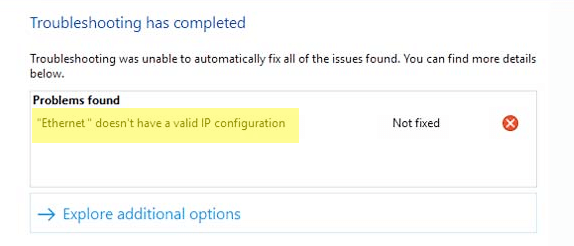
‘Ethernet Doesn’t Have a Valid IP Configuration’ error message

This error appears when your computer, for whatever reason, fails to get a valid IP address and therefore cannot connect to the internet.

Restart your PC or laptop

The first solution to always try is to restart your computer. This seems very low-tech but it works in a surprising number of cases! This is because it can clear out any glitches and is always worth a try before progressing to other solutions.

Restart router

If you have restarted your PC and are still experiencing ‘ethernet doesn’t have a valid IP configuration’ error message, the next step to take should be to restart your router. If this doesn’t solve the problem then move on to the next step, configuring network adapter settings.

Check antivirus software settings

If you are running antivirus on your PC then it would be worth temporarily disabling it to check if this fixes the issue. If it does fix the issue then you will need to look into the settings of your anti-virus software to see why it is causing problems with assigning an IP address.

Configure your network adapter settings

The IP address is usually automatically allocated but in some cases the settings may be different and you may have to assign your own IP address.

To do this  do the following:

  •  select Win+R and Run ncpa.cpl
  • right-click on your network adapter > select properties
  • select TCP IPV4 > click properties
  • If the option Obtain an IP address automatically is set, try setting your own IP address. Most home networks are 192.168.1.180
  • If it is already assigned an address try switching it to automatic assignment and test this

When making any changes such as those above, make a note of the original settings so you can change back if it doesn’t work.

Update your Network Drivers

If you are still having problems connecting to the internet you can check if your network drivers need to be updated.

Updating Drivers Automatically

Automatic driver update tools offer many benefits, the most important ones being:

  • You can update device drivers automatically
  • The software scans and updates all outdated or missing drivers at one go
  • The tool picks the right drivers for your device and operating system, so you won’t have to worry about installing an incorrect driver by mistake
  • Automatic driver updates are 100% safe

Driver Updater is one of the best driver update tools out there. Outbyte Driver Updater will give you access to a database of over 1 million drivers. It will regularly scan your PC, suggesting new driver versions to install. Driver Updater contains drivers for a variety of Windows devices. With just one click, you can update drivers in your system.

Step 1
Click here to Install and launch the app

Step 2
Scan all devices

Step 3
Install or update drivers automatically


Start Download


Filed Under: PC Fix Tips Tagged With: ethernet, valid ip

How to fix Ethernet controller driver issue in Windows 7?

An Ethernet controller manages a computer’s connection to a wired network such as an internet connection. The Ethernet Controller is the hardware element while the Driver is the software element enabling communication between the Ethernet Controller and your computer

If there is any problem with the Ethernet Controller Drivers, you will have problems connecting to the Internet. In this post, we are going to discuss common errors related to Ethernet Controller Drivers and the best ways to resolve these errors.

Network adapter suddenly stopped working

If there is any issue with Ethernet Controller Drivers, the system will not display any error. You will need to check the device manager and see if there is any issue with Ethernet Controller Drivers.

  1. Click on Start Menu
  2. Type Device Manager in the search box
  3. Select Device Manager from the list of search results
  4. In the Device Manager window, go to Other Devices and expand it

You may see the Ethernet Controllers entry has a yellow exclamation mark beside it. This indicates your system does not have Ethernet Controller Drivers or they have become corrupt. To resolve this problem, reinstall the Drivers in the Safe Mode. Follow the steps set out below to log into Safe Mode.

Steps to log in Safe Mode

  1. Restart the computer if it is powered on
  2. Press F8 several times while the PC boots up
  3. You can stop pressing the F8 button when you see Advanced Boot options on the screen
  4. Use the up/down arrow keys to highlight your selection
  5. Select Safe Mode with Networking option and press Enter
  6. You will see the Drivers loading and eventually the Welcome screen
  7. Log in to your computer using the Administrator account
Windows 7 Ethernet Drivers

Once you have logged in in Safe Mode with Networking, you can go ahead and uninstall Ethernet Network Controller Drivers through the Device Manager.

  1. Open Device Manager
  2. Go to Other Devices and right-click on Ethernet Controllers and select uninstall
  3. Once the adapter has been uninstalled, go to the Action Menu
  4. Click Scan for hardware changes
  5. If the device is successfully reinstalled, you will see an entry under Network Adapter

If the Driver’s re-installation fails, you will need to access another computer with a working Internet connection to download the latest Ethernet Controller Drivers. You can download Drivers by using hardware ID. Below are the steps you need to follow on your system

  1. Open the Device Manager
  2. Go to Other Devices and right-click on Ethernet Controllers and select Properties
  3. In the Properties window, go to the Details tab
  4. Under Property, select Hardware Ids from the drop-down list
  5. Note down the first value which looks something like PCI\VEN_XXXX&DEV_XXXX&SUBSYS_E0001458&REV_10 (where X represents a number)

Next, open the other laptop, download the relevant Drivers, copy them onto an external drive and then transfer them to your first laptop, and finally install the Drivers. If you wish you can use a driver update tool to automate this process for you.

Automatic driver update tools offer many benefits, the most important ones being:

  • You can update device drivers automatically
  • The software scans and updates all outdated or missing drivers at one go
  • The tool picks the right drivers for your device and operating system, so you won’t have to worry about installing an incorrect driver by mistake
  • Automatic driver updates are 100% safe

Driver Updater is one of the best driver update tools out there. Outbyte Driver Updater will give you access to a database of over 1 million drivers. It will regularly scan your PC, suggesting new driver versions to install. Driver Updater contains drivers for a variety of Windows devices. With just one click, you can update drivers in your system.

Step 1
Click here to Install and launch the app

Step 2
Scan all devices

Step 3
Install or update drivers automatically


Start Download


Filed Under: PC Fix Tips Tagged With: ethernet, Resolve Ethernet controller driver issue Windows 7, windows 7

Ethernet Controller Driver Windows 7

What is an Ethernet Controller Driver?

The ethernet controller driver is an important component of your computer, but you may not know what exactly it is or what it does. When using an ethernet controller driver, your operating system and network system can interact with greater ease and efficiency, allowing your computer to work more quickly. There are various types of Ethernet Controller Drivers, such as Network Controller Card Drivers and other Hardware Drivers.

Windows 7 Ethernet Drivers

How can I fix Ethernet Controller Driver problems?

If you’re having issues with any of your Drivers it can be relatively easy to figure out what the problem is through some troubleshooting. The first thing to do is make sure your Drivers are up=to-date and you can do so by checking on the manufacturers website, you can also download a driver update tool and run a free Drivers Scan for your Ethernet Controller Drivers. Outdated drivers won’t work as well if at all, so it’s important that you look for driver updates and regularly update them.

If your Drivers are updated and you’re still having issues, check the Windows 7 Device Manager. This can save you some time since you can figure out if your computer problems are due to your Ethernet Card or Drivers or something else entirely. To access your Device Manager, simply open up the Windows 7 Start Bar, find the start search area, and input “devmgmt.msc.”

From there, you can toggle to the Network Adapter area through the Device Manager Window. If your ethernet is the problem, then you will see a question mark or similar (can be an exclamation mark or yellow triangle) beside the Ethernet Card icon. Click the Ethernet Card icon, access the Properties, and then find the Details tab. Here you can see the age of your driver and if you need to update it.

Your Network Adapter may also be causing problems. If this is the case, Windows offers a Network Adapter troubleshooter to assist in Network-related problems. You can locate this by going to the Start Bar and searching for the term “troubleshooting.” From there, you should see the Network and Internet options. Click these and then Network Adapter. Here you can check how well the Adapter is functioning.

If the Network Adapter isn’t working, you can always reset it. If this doesn’t solve the problem though, you may need a new Adapter. However, before you replace it, make sure that you double-check that your Ethernet Controller Driver is updated, because this can affect the Network Adapter.

If you’re uncertain about where to start when updating your Windows 7 Ethernet Controller Driver, a driver update tool can take a lot of the guesswork out of finding the most recent Drivers.

Ethernet Drivers Download & Updates

Filed Under: Software Drivers Tagged With: ethernet, windows 7

Fix Intel 82562v-2 Driver Errors

Fixing Intel 82562v-2 Driver errors may seem complicated, but majority of the time you can solve these errors with a few simple steps. The most common error with Intel 82562v-2 Ethernet adapter is of the system failing to initialize the device after the computer wakes up from Sleep mode.

Let’s take a look at this and some other common 82562v-2 errors and their solutions.

Intel Drivers Download & Updates

How to fix initialization problem of Intel 82562v-2 Ethernet adapter

This problem is particularly related to Intel 82562v-2 Drivers. Often the Intel network Drivers may become corrupt when you install new hardware or software. To resolve this problem, you need to download the latest Drivers for Intel 82562v-2 Ethernet adapter. You should also install all system updates provided by Microsoft for your version of Windows.

Another solution for this problem is disabling Power Save mode in your Windows system to prevent your computer from hibernating after a specific period of inactivity.

How to fix “Network icon shows red X” problem

You may face this problem if the Ethernet Drivers are no longer recognised or have become corrupted. To resolve this network connectivity problem you will need to change the adapter settings.

  1. Go to Network and Sharing Center and then right-click Network Adapter
  2. Select Disable
  3. Right-click Ethernet Adapter again and select Enable

If this does not solve the problem, uninstall and reinstall your Intel 82562v-2 Drivers again. If you notice this problem after a system update, try restoring your system to a date when the Ethernet Adapter was working fine.

Ethernet Drivers Download & Updates

How to fix Error 12007: connecting to www.microsoft.com

Error 12007 is generally related to the Ethernet Adapter. To check if your problem is with the Ethernet Adapter, go to Device Manager and look for the following signs around the adapter: a yellow exclamation mark, a red X mark, or a down arrow. The presence of any of the three indicates a problem with the adapter. To resolve the issue, uninstall and reinstall you Intel 82562v-2 Drivers.

How to resolve “Ethernet Adapter does not show up in the list in Device Manager” problem

This indicates your Windows system has lost track of the Intel 82562v-2 Ethernet adapter. There can be several reasons for this, including Drivers becoming corrupt or Ethernet Adapter failing.

To resolve this problem, try installing the Intel 82562v-2 Drivers from the original media. Your system will detect the Ethernet adapter when you initiate the installation process. If the Ethernet Adapter has failed in some way, the installation process will be stalled and an error will be generated stating no Ethernet Adapter is installed in your system.

Intel 82562v-2 Ethernet Adapter errors are mainly related to Drivers. Keeping your Ethernet adapters up to date can help you prevent many networking errors.

You can click download Intel Drivers using our Driver Update Tool and run a free driver scan for your Intel 82562v-2 drivers.

Filed Under: Software Drivers Tagged With: ethernet, intel

Resolve Ethernet controller driver error code 31 windows 7

There are many different driver error codes – some are not difficult to resolve, while others can prove a lot more troublesome, even the most technically proficient. Luckily error code 31 belongs to the easy-to-resolve category.

Error code 31 can occur with many hardware devices. However, it is most commonly seen with Ethernet cards. While irritating, error code 31 is not something you need to lose sleep over, because it can be quickly fixed by installing the latest Ethernet drivers.

Windows 7 Ethernet Drivers

Error Message

Each error code is accompanied with an error message, which may or may not correctly point to the cause of the problem. The error message that one receives with error code 31 is:

“This device is not working properly because Windows cannot load the drivers required for this device (Code 31)”

How to see the error code 31 error message

Error code 31 is a device manager error code and, as such, is displayed in the Device status box, under the General tab in the device’s properties dialog box. In other words, a message on the desktop does not flash when this error occurs. To view error code 31, perform the steps listed below:

  1. Click the Windows icon
  2. Type devmgmt.msc in the Start Search box
  3. Press Enter
  4. Double-click Network adapters in the Device Manager window to view all the network devices installed (when a problem with a hardware device occurs, an exclamation mark, a question mark, or a yellow triangle is displayed beside it)
  5. Double-click your Ethernet card
  6. The error code 31 will be displayed in its Device status box

Why error code 31 occurs

The most common reasons are:

  • Missing drivers
  • Outdated drivers
  • Corrupt drivers

How to fix error code 31 Ethernet controller driver

To fix this issue, you must download and install the latest Ethernet controller drivers. The most effective and quickest way of updating Ethernet controller drivers is by using a reliable and compatible driver update tool. Although you need to pay a subscription fee to use such applications, the good ones are worth their cost and are reasonably priced. To update drivers using such an application, all you do is download the software and follow the on-screen instructions. On the other hand, if you decide to update drivers manually, you need a follow a more involved process that involves the following steps:

  1. Write down the details of your Ethernet card (you can find the details from the device manager window or from the box in which the Ethernet card came or from the Ethernet card itself)
  2. Go to the manufacturer’s website
  3. Search for the latest driver for your Ethernet card
  4. If found (yes, you do not always get the required drivers on the manufacturer’s website!), download the drivers
  5. Install the new Ethernet card drivers
  6. Restart Windows

Filed Under: Software Drivers Tagged With: error code 31, ethernet, windows 7


  • Recent Posts
  • Popular Posts
        

Read More Posts


Read More Posts

Drivers.com Sites

  • Software Drivers
  • Drivers Ed

About Us

  • Advertise
  • About Drivers
  • Drivers Support
  • Drivers.com Privacy Policy
  • Disclaimer
  • Software Drivers
  • Mac Fixes and Tips
  • PC Fix Tips
  • Security/ Backup
  • Tablets & Smartphones
  • Tech News

© Copyright 2026 PDE Publications Ltd. End User License Agreement (EULA)