Drivers.com

follow us:

facebook twitter
  • Home
  • Download Drivers
  • Drivers Help
  • PC/Mac Resources
  • Software Drivers
  • Mac Fixes and Tips
  • PC Fix Tips
  • Security/ Backup
  • Tablets & Smartphones
  • Tech News
  • Software Drivers
  • Mac Fixes and Tips
  • PC Fix Tips
  • Security/ Backup
  • Tablets & Smartphones
  • Tech News

What is the best flip-phone?

By lisak on April 1, 2023

What is the best flip-phone?

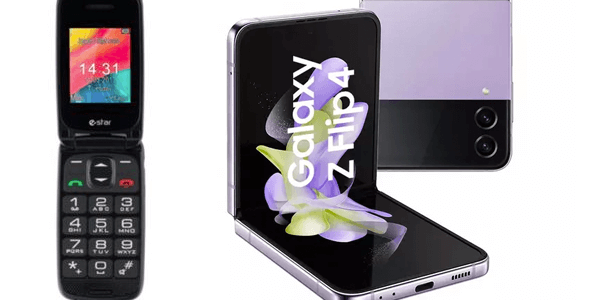
The term “flip phone” can refer to many different types of phones but it generally means those hinged phone where the screen flips closed onto the keypad. Some flip phones are quite basic while the newer ones have screens on the outside of the phone as well as the main screen.
flip phones

This means alerts and other information can be viewed while the flip phone is closed. Because of these variations in technical specifications and therefore price, it can be hard to directly compare flip phones but here are some options that are popular and highly regarded amongst phone users.

  1. Samsung Galaxy Z Flip4: This is a modern flip phone that runs on Android and features a foldable display . It has a beautifully sleek design and powerful specifications, making it a popular choice for those looking for a flip phone without compromising on display.
  2. Nokia 2720 Flip: This is probably the most basic flip phone that is both easy to use and has a very long battery life. It features 4G connectivity, a 2.8-inch screen, and a durable design. A solid and practical phone.
  3. Motorola Razr: Another modern flip phone with a foldable display. The Motorola Razr runs on Android and has a sleek design.
  4. LG Wine 2: This is another basic flip phone that is popular for its large buttons and easy to use interdace. It features all the basic cellular phone needs such 4G connectivity, a 2.8-inch screen, and a 2MP camera.

The best flip phone for you will depend on your needs and of course your budget. You may want a flip phone to easily fit in a pocket or bag and care very little about the look of the phone and the high screen and camera specs. If this is the case a basic flip phone such as the Nokia is likely to suffice. However, if you are looking for a sleek design with high end specifications and good accessory value – then the Samsung Galaxy Flip4 may be the one for you, but start saving as it doesn’t come cheap!
Filed Under: Tablets & Smartphones Tagged With: flip phone, flip4, galaxy, nokia, samsung, smartphone

Windows 11 vs Windows 10

By lisak on February 11, 2022

Windows 11 vs Windows 10

Is your PC compatible with Windows 11?

This is Windows first major upgrade in 6 years so understandably there will be questions about compatibility. According to Microsoft the new Operating System should work with most PC’s and they have targeted the middle of 2022 for all Windows 10 devices to have the capability to download and install Windows 11.

Microsoft has a PC Health Check app which will help you determine if your PC meets the basic requirements to run Windows 11.

If you find that the PC Health Check app is not working for you or does not provide enough information, an alternative app is WhyNotWin11 which may be less user-friendly but provides more feedback on compatibility.

System Requirements to run Windows 11

  • Minimum 4GB RAM
  • 64GB storage
  • 1GHz or greater with minimum of 2 cores on 64-bit processor
  • 720p display
  • Internet access for updates which also requires a Microsoft account

Windows 11 features

Windows 11 has a number of new features which aim to help the user work more efficiently and with a recognition of the changing way we are using our devices.

Improved support for touchscreen, voice and pen, better app integration and desktop customisation features all aim to make the user experience more seamless and efficient.

Integration with Android apps

If you are the owner of a Samsung Galaxy phone then you will have had access to Android apps on Windows 10 but Windows 11 includes native integration of Android apps allowing for more seamless operation between mobile and desktop/ laptop devices.

Android apps will be available in the Microsoft Store

Updated interface in Windows 11

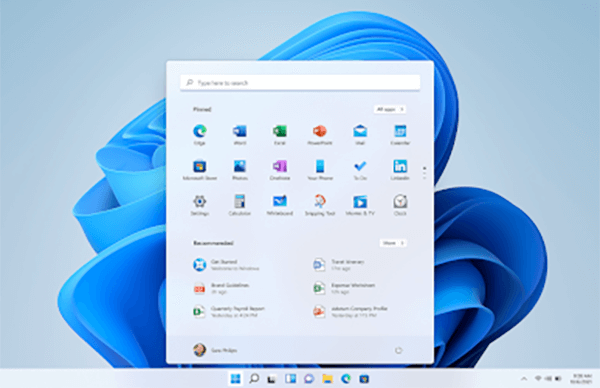
The Windows 11 interface features a cleaner design which has been compared to that of the Mac OS. Along with other visual updates, the Windows 11 start menu has moved to the centre of the Taskbar

windows 11 interface

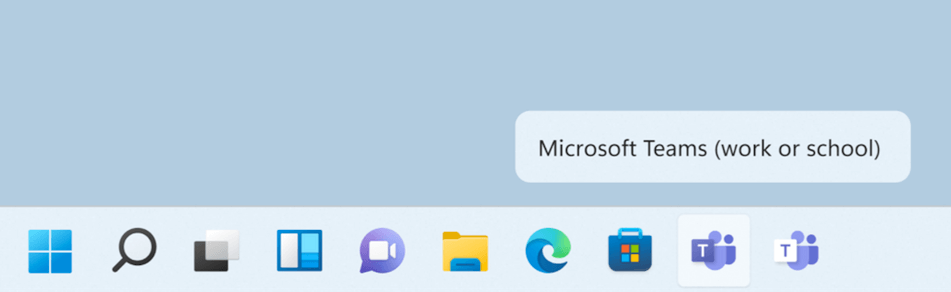
Microsoft Teams on Taskbar

Teams has been given much greater prominence in Windows 11 and can be accessed directly from the Taskbar. Teams itself has been updated to get a new look. Many users now have a personal and work or school Teams account and this has been taken into account in an interface that labels the accounts so they are accessed separately rather than via one application as before.

Personal Teams accounts will also have an easy-to-access chat function, this feature will not be available on work/ school accounts.

Windows 11 Teams

Desktop customisation features:

Windows 11 features 3 main desktop customisation features: Windows widgets, Snap layouts and Virtual desktops.

Windows widgets

Windows widgets will allow for greater personalisation of your desktop with the ability to customise the widgets according to your preferences.

Snap layouts

Snap layouts will be a very useful feature for jumping between personal and home/ school use on your device. This feature allows you to organise and group apps according to their use, and then open this group with one action, saving you from minimising/ maximising individual windows.

Virtual desktops

Virtual desktops were available in Windows 10 but this feature has been revamped in Windows 11. Virtual desktops allow users to toggle between different desktops such as those for personal use, school or work.

Gaming improvements in Windows 11

Better integration with Xbox gaming consoles recognise the need for improved gaming capability on Windows PCs.

How to upgrade to Windows 11

Windows 10 users can upgrade to Windows 11 for free, click here to check if you are eligible for this upgrade.

Filed Under: PC Fix Tips, Tech News Tagged With: snap layouts, virtual desktops, widgets, windows 11

Can I play my PS4 on a Mac or PC?

By lisak on November 5, 2021

Can I play my PS4 on a Mac or PC?

The short answer to this is yes, you can. This will be music to the ears of many PS4 users who have to battle for TV screen use with others in the house!

The second question you are probably thinking of is ‘is this a complicated process that is going to eat into hours of my potential gaming time?’ Happily, the answer to this is no!

With the release of Sony’s Remote Play application, streaming PS4 games to another screen such as a laptop or PC (or even phone if you really want to go there!) is a straight-forward, stress-free experience.

How to stream PlayStation 4 games to your PC or Mac

You can access your PlayStation games using another screen such as a phone or laptop but there are certain requirements, you will need:

  • a strong internet connection (as you will be streaming)
  • enough space on the device you want to stream on to install the required Remote Play application
  • Windows 8.1 or higher and OS X Yosemite or higher (at least 2GB of RAM)

Once you have ensured that the above requirements are met, then follow the steps below and you should be up-and-running on streaming your PS4 games in no time!

1. make sure your PS4 software is updated

Go to Settings > System Software Update > Update

2. Enable Remote Play

Go to Settings > Remote Play Connection Settings > click the check box to Enable Remote Play

3. Set the PS4 as your primary system

Go to Settings > PlayStation Network/Account Management > Select Activate As Your Primary PS4 > click Activate

4. Change the power settings

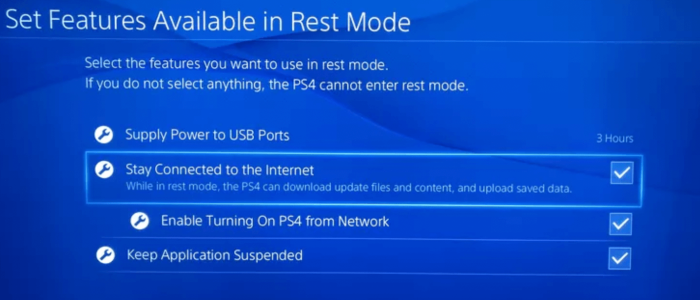
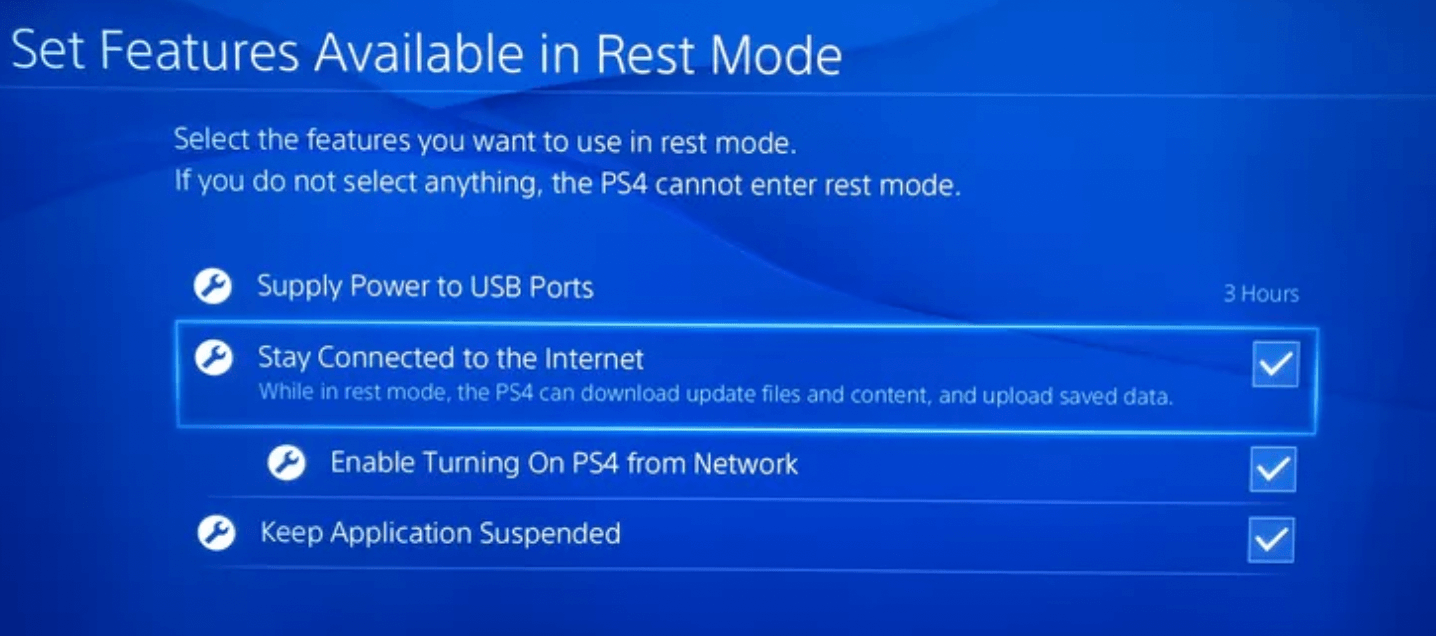
Go to Settings > Power Save Settings > Set Feature Available in Rest Mode

Ensure “Stay Connected to the Internet” is enabled

Ensure “Enable Turning on PS4 from Network” is enabled

ps4 stay connected rest mode

Step 5: Install Remote Play on your PC or Mac

  • Download Remote Play software from the Sony website on to the device you want to use to connect to your PS4
  • Install the Remote Play software and follow the instructions to link it to your PS4 (you will need your PlayStation account login details)

ps4 remoteplay

Step 6: Start streaming your PS4 games from a second device

  • On the device you want to use launch the Remote Play App and select Start
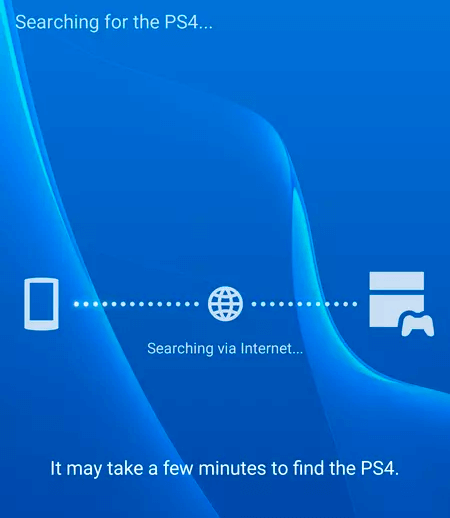
  • Ensure your PlayStation is turned on. In the Remote Play app you will be prompted to sign in to your PlayStation account which will then search for your PS4 via your WiFi connection
  • Connect your controller to your computer and you are ready to go.

You can use wireless controllers and bluetooth and other headsets with this PS4 setup. There are separate posts on these.

Filed Under: Mac Fixes and Tips, PC Fix Tips Tagged With: gaming, playstation, ps4

  • « Previous Page
  • 1
  • …
  • 6
  • 7
  • 8
  • 9
  • 10
  • …
  • 23
  • Next Page »


  • Recent Posts
  • Popular Posts
        

Read More Posts


Read More Posts

Drivers.com Sites

  • Software Drivers
  • Drivers Ed

About Us

  • Advertise
  • About Drivers
  • Drivers Support
  • Drivers.com Privacy Policy
  • Disclaimer
  • Software Drivers
  • Mac Fixes and Tips
  • PC Fix Tips
  • Security/ Backup
  • Tablets & Smartphones
  • Tech News

© Copyright 2026 PDE Publications Ltd. End User License Agreement (EULA)