
Drivers.com

follow us:

facebook twitter
  • Home
  • Download Drivers
  • Drivers Help
  • PC/Mac Resources
  • Software Drivers
  • Mac Fixes and Tips
  • PC Fix Tips
  • Security/ Backup
  • Tablets & Smartphones
  • Tech News
  • Software Drivers
  • Mac Fixes and Tips
  • PC Fix Tips
  • Security/ Backup
  • Tablets & Smartphones
  • Tech News

Resources by Tag

smartphone

What is the best flip-phone?

What is the best flip-phone?

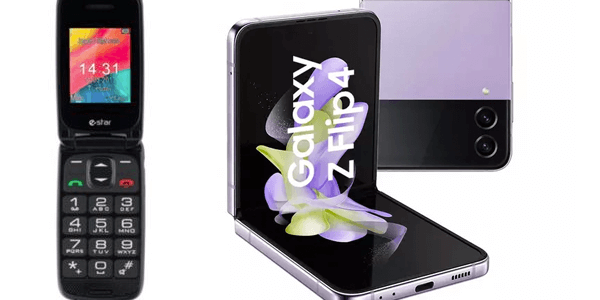
The term “flip phone” can refer to many different types of phones but it generally means those hinged phone where the screen flips closed onto the keypad. Some flip phones are quite basic while the newer ones have screens on the outside of the phone as well as the main screen.
flip phones

This means alerts and other information can be viewed while the flip phone is closed. Because of these variations in technical specifications and therefore price, it can be hard to directly compare flip phones but here are some options that are popular and highly regarded amongst phone users.

  1. Samsung Galaxy Z Flip4: This is a modern flip phone that runs on Android and features a foldable display . It has a beautifully sleek design and powerful specifications, making it a popular choice for those looking for a flip phone without compromising on display.
  2. Nokia 2720 Flip: This is probably the most basic flip phone that is both easy to use and has a very long battery life. It features 4G connectivity, a 2.8-inch screen, and a durable design. A solid and practical phone.
  3. Motorola Razr: Another modern flip phone with a foldable display. The Motorola Razr runs on Android and has a sleek design.
  4. LG Wine 2: This is another basic flip phone that is popular for its large buttons and easy to use interdace. It features all the basic cellular phone needs such 4G connectivity, a 2.8-inch screen, and a 2MP camera.

The best flip phone for you will depend on your needs and of course your budget. You may want a flip phone to easily fit in a pocket or bag and care very little about the look of the phone and the high screen and camera specs. If this is the case a basic flip phone such as the Nokia is likely to suffice. However, if you are looking for a sleek design with high end specifications and good accessory value – then the Samsung Galaxy Flip4 may be the one for you, but start saving as it doesn’t come cheap!


Filed Under: Tablets & Smartphones Tagged With: flip phone, flip4, galaxy, nokia, samsung, smartphone

12 best features in Android 8.1 Oreo to get you excited!

12 best features in Android 8.1 Oreo to get you excited!

Google strives to make improvements to Android with every new version, and Android 8.1 Oreo reflects this. Android 8.1 Oreo offers many exciting features. We have listed our top 12 of these new features below:

  1. Improved Menu in Android 8.1 Oreo

Google has worked hard to make the settings menu smaller in Android, meaning you will have to scroll less to see all the options. Additionally, the settings menu is more nested. This basically means the different options are categorized to reduce the menu size vertically.oreo picture in picture mode

For example, you will not find different options for WiFi hotspot, mobile networks, tethering, data usage, VPN, and airplane mode; all of them are grouped into one category – Network & Internet.

Though you have to dig into the menus, the categories make the settings menu look more refined, and systematic. Besides, Android Oreo also has a Quick settings menu where you can find most accessed settings. This reduces the need for delving into the main settings menu again and again.

  1. Power Saving features in Oreo

Battery draining is a big problem for Smartphone users and Google has made the power saving feature more effective in Android Oreo. In the new operating system, you have more control over apps running in the background which can be one of the main battery guzzlers. With Android 8.0, Google has provided greater user control to check and restrain the background activities of all apps. You can selectively control the background activity of any app and restrict background activities like location updates and broadcasts. With background activities under your direct control, the smartphone can preserve battery power and give you a much greater standby time.

  1. Android Oreo’s Enhanced Safety and Security

Malware and spam apps are an unfortunate reality and a huge threat to privacy and data stored on the Android phone. Google has introduced a new safety feature known as Google Play Protect that tracks the suspicious activity of apps installed on your phone.  It not only scans apps when you download them from the app store but also supervises the functions of the app. If it finds any app that is harmful, it will give you a notification and an option to remove the app in question.

  1. Picture-in-Picture mode in Oreo

With Android 8.0, you can continue watching videos while working on other apps. If you want to use another app while watching the video, just tap on your home screen and open the app. The video screen will float and stick to any one side of the screen while the newly opened app gets a bigger screen area, meaning that this new PIP (picture-in-picture) feature allows entertainment and work to go hand in hand.

  1. Neighbor Awareness Networking in Oreo

The Neighbor Aware Networking simplifies the sharing of data between two Android devices. With Android 8.0, your device can connect with other compatible devices directly. To exchange files, you need to connect through a central access point or use the same WiFi network. The NAM (Neighbor Awareness Networking) features will come in handy to play games and share applications.

  1. New emojis in Oreo

Never underestimate the selling power of emojis! If you are a fan of emojis like the ones used in Facebook Messenger or the Whatsapp mobile app, then you will have reason to rejoice! Google has finally said goodbye to blob emojis and with Android Oreo, you get new round emojis popular in online chats and communication. The circular emojis on Android Oreo are not only more refined but the number of emojis has also increased.

  1. Oreo’s improved Bluetooth and Audio support

Google has teamed up with Sony Electronics and provided LDAC wireless technology that renders better audio listening experience through Bluetooth. This proprietary wireless technology from Sony can transfer data at a speed of 990 kbps or more.

This in turn improves the music listening experience over Bluetooth. Google has also introduced a new Android C API named AAudio that lets applications read and write data to streams. AAudio is useful for high-performance audio applications which require low latency.

  1. Smart Text Selection in Oreo

The humble copy/paste feature in Android has undergone a radical change; it now integrates machine learning technology. The phone can now understand the text you want to select and does it all by itself.

For example, earlier if you had to copy a phone number, you had to place the cursor on the first digit of the phone and drag the cursor to the last digit of the phone number to copy the phone number. With Android O, a single tap on the phone number copies the phone number and pastes it onto the dialer.

The same goes for the address, if you select one word of the address, the smart recognition technology goes ahead and copies the complete address to the clipboard, ready for paste. Android users would love this new feature which makes text selection so much easier.

  1. Better password management in Oreo

Before Android O, we depended heavily on 3rd party apps for password management which was a bit risky. Things have changed with Android Oreo, as you get an inbuilt password management feature with an Autofill option. This makes remembering or typing passwords unnecessary. The password management features works smoothly and the Autofill feature is launched automatically like the keyboard.

  1. Improved Search Feature in Oreo

Earlier, the search option could only find apps, but with Android Oreo, the search option can also find app info along with applications.

  1. Oreo has better control over notification channels

Android Oreo gives you better control over notifications by grouping similar notifications from different apps. There are three categories of notifications- General Notifications (high priority), Offline notifications (low priority), and third category which is more account based. You can selectively snooze app notifications for different time intervals such as 15 minutes, 30 minutes or 1 hour. Once the snooze interval time elapses, the system will start displaying notifications again and there is no chance of missing any important notification just because you forget to switch the notifications “On” for a particular app.

  1. Turn on WiFi automatically in Oreo

Earlier Android users had to turn their WiFi on or off when moving places. If you left your WiFi on, the phone would scan for open WiFi hotspots constantly, causing a huge battery drain. If you kept WiFi off, you would have to manually turn it on upon reaching your home or office. This has changed with Android Oreo and the phone will turn on the WiFi automatically when you reach your home or office.  In other words, Android Oreo can instantly recall the locations where you have accessed WiFi in the past and uses that information to switch “On” the WiFi automatically.

Filed Under: Tech News Tagged With: android 8.1, oreo, smartphone

Is Galaxy S8 Battery Draining too fast? Use these tips

Released in 2017, Galaxy S8 and S8 Plus are two premium Android smartphones with robust features like Bixby voice and Samsung’s powerful camera. The camera and the voice assistant are two of the most battery draining apps on any phone.

If you are going to use these features then you should implement some battery saving strategies in order to extend the battery life of your Galaxy phone. Below are some batteries saving tips that will come handy if you find that your Galaxy S8’s battery is draining too quickly.

Uninstall or disable any battery draining apps

The Galaxy S8 offers plenty of battery customization options. If your battery is draining too fast, you should try to analyse the reasons for this as it is likely you will be able to make some changes that will extend your the battery life on your Samsung Galaxy.

If you suspect one or more apps are draining the battery excessively, the best solution to the problem would be to disable or uninstall the offending app or apps.

Android features built-in system level tools that allow you to detect battery draining apps so that you don’t have to sit for hours to calculate the power consumed by every app on your Galaxy S8.

Below are the steps to follow in order to find which apps are the greatest offenders in using up your battery:

  1. Go to Settings app
  2. Tap Device maintenance
  3. Tap Battery
  4. Under App power monitor, you will see the app that is consuming most battery

The apps are listed in descending order of power usage so the worst culprits will be at the top of the list. After you have found the worst battery draining apps, you can make an informed decision regarding which apps you should uninstall or disable.

If you don’t want some apps to run continuously in the background, you can put these apps to sleep. After you have done this, these apps will only get activated when you manually start them (by touching the app icon). Here are the steps to follow in order to implement this:

  1. In the App power monitor screen, select the apps you want to put to sleep
  2. Tap Save Power and you can put unwanted battery hungry apps to sleep

Adjust the Power saving mode

The Galaxy S8 phones come with an inbuilt power-saving tool that is a very useful feature. However, to get optimal benefit from it, you need to tweak the Power saving mode according to your needs. Here are the steps to customize Power Saving mode.

  1. Go to Settings menu
  2. Under Device Maintenance, tap Battery option
  3. Under Power Savings mode, you will find two battery saving modes: Mid Mode and Max mode

The Mid mode reduces the brightness of the screen and lowers the screen resolution to 2220×1080. It also turns off background network usage. The Max mode lowers the screen resolution even further to 1480×720. It also limits the CPU performance to 70%, thereby improving your phone’s ability to conserve battery power.

Get notifications of system health

Do you know the App power monitor can also be tuned to monitor your smartphone’s health? Here are the steps to follow in order to activate this:

  1. Go to Advanced settings
  2. Tap Notification settings
  3. Make sure the App power monitor is looking at unstable, battery draining, and unused apps

Once you have set this, the App power monitor will alert you when there is an issue.

Lower screen resolution

The Galaxy S8 is fitted with AMOLED screen with a max resolution of 2960×1440. However, this does not mean you should keep the device resolution at the maximum at all times.

Keeping the screen resolution at a higher level drains the battery faster. You can increase the battery life of your phone by a few hours by opting for a lower screen resolution. You can keep the display resolution at 2220×1080 which is more than enough in most circumstances. And whenever needed, you can set a higher resolution but don’t forget to revert to a lower resolution later.

Don’t get carried away by Automatic brightness settings

The Auto-Brightness settings sound good but it can eat into your phone’s battery life. The Auto-brightness feature in Android smartphones including Galaxy S8 phones is not great when it comes to determining the right screen brightness for every situation. Switching off the feature will help saving the battery, as your phone display will not be frequently swinging from darkest to brightest or in-between.

Switch off the Always-On display setting

The Always-On display setting might be useful, but it is demanding on the phone’s battery. According to smartphone experts who have reviewed Galaxy S8 phones, the smartphone with Always-On display feature activated consumes around 0.23 watts on average and 0.13 watts during standby. Even though the Always-On display feature looks power efficient, switching it off can save some battery power. If you want the feature enabled, you can consider scheduling it, such as keeping the display on only when the Galaxy S8 is plugged in.

Activate the “Keep the screen turned off” feature

The Galaxy S8 is fitted with an AMOLED screen that can be quite energy draining. Since the display is sensitive, you might see the display switched on by accidental touch. For example, the display might turn on when you accidentally touch the screen when it is in your pocket.

You would certainly want to avoid turning on the display accidentally. This is where the “Keep the screen turned off” feature comes in handy. With this feature activated, you don’t have to worry about the display turning on accidentally, like when the phone is under a cushion or  in your pocket.

Switch off all Voice Assistants

The Google Assistant and Bixby might be helpful, but you don’t need them all the time. You can switch off the voice assistant when you have no use for it.

If you have any other valuable battery-saving tips for your Samsung Galaxy device, please share below!

Filed Under: Tablets & Smartphones Tagged With: battery, galaxy, s8, smartphone

OnePlus 5 Smartphone Review

OnePlus phones became popular internationally within a short period after their launch. According to industry experts, the phone has an excellent build quality and features, which has lead to many comparing it to the likes of the iPhone.

Released in June 2017, the OnePlus 5 is the latest flagship phone, eagerly awaited by smartphone fans.

Below we take a detailed look at the features and technology in the OnePlus 5

Design and Build quality of the phone

The dimensions of the OnePlus 5 are 154.2 x 74.1 x 7.25 mm. With a thickness of 7.3mm, the One Plus 5 is one of the slimmest phones available, second only to the iPhone 7 that has thickness of 7.1mm.

Despite the thin frame, the company has managed to squeeze in a 3.5mm jack for a wired headset which is nothing but a design miracle. The Power button sits on the right side while you have the volume button and silent mode toggle on the left edge. The speaker driver sits at the bottom of the phone, beside the USB-C and 3.5mm jack.

The phone has Horizon Line design concept to give it a more rounded design look and feel. OnePlus 5 has an nice metallic look with antenna lines cleverly concealed. The phone’s body is made of aluminum alloy that is sturdy enough but not heavy, and it weighs around 153 gms.

OnePlus 5 Display and Resolution

The OnePlus 5 features an Optic AMOLED display measuring 5.5 inches with 24-bit color depth. The resolution of the screen is 1080 x 1920 pixels while the pixel density stands at 4.1 pixels-per-inch. The display is protected by Corning Gorilla Glass 5 which raises the protection bar. The display can survive a drop of 1.6 meters even on hard surfaces 80% of the time.

OnePlus 5 Processor, Memory, and Performance

The One Plus 5 is fitted with the latest Qualcomm SoC- the Snapdragon 835 that houses an octa-core processor (4X2.45GHz Kryo and 4X1.9GHz Kryo) and Adreno 540 graphic chip.

The phone has two configurations. The lower end model is equipped with 6GB RAM and 64GB internal storage while the higher end model is equipped with 8GB RAM and 128Gb of internal storage.

The phone has enough processing power to run demanding games like Real Racing 3, Pokémon Go and the likes. However, it does not support flash memory cards.

The phone features Dual lane technology that increases read and write speeds when accessing data stored on the device. The dual lane technology allows the storage controller to access two memory locations at a time, which is a distinct advantage over traditional storage controller, which waits for the first read/write operation to finish before initiating the second one.

OnePlus 5 Camera

The OnePlus 5 phone features dual cameras at the back of the device; a 16 MP camera with 1.7 aperture and electronic image stabilization and a 20 MP camera with 2.6 aperture and phase detection technology. The front camera is also a 16MP resolution with 2.0 aperture and 1.0 µm pixel size.

The OnePlus 5 has several photography features like phase detection auto-focus, geo-tagging, dual LED flash, face detection, touch focus, HDR, Panorama and 1.6x digital zoom.

The rear cameras can record videos in different resolutions such as 720p@30/120fps, 1080p@30/60fps, and 2160p@30fps. The front camera can record 1080p videos.

The dual camera technology leads to clearer photos and you can also blur the background for better photos. The intelligent camera software can automatically detect light conditions and optimize the camera system for clarity and accuracy. The new Pro mode gives you more control over photography elements in the phone. You can fine-tune settings like shutter speed and ISO.

OnePlus 5 battery life

The OnePlus 5 features a non-removable Lithium-Polymer battery rated at 3300 mAh. The phone supports dash charging which charges the day’s power in just 30 minutes. The fast charging technology employed by the company protects the phone from heating and also protects the battery with consistent charging speeds.

OnePlus 5 Software

The OnePlus 5 runs Oxygen OS which is based on Android 7.1.1 (Nougat). It features exclusive technology knows as App Priority. This intelligent technology learns your app usage patterns and helps in the quick launching of these apps while keeping other intrusive apps away that might degrade the performance by draining the battery or interfere with your user experience by hogging resources.

The OnePlus 5 also doubles up as an e-reader. It has a special e-reader mode where the display is automatically fine-tuned for reading: the blue light is filtered out and gray scale mapping makes reading onscreen easier.

For gamers, the OnePlus 5 offers a Gaming DND mode where the notifications are muted and soft keys are temporarily disabled to prevent accidental taps.

Conclusion

There is no doubt that the OnePlus 5 packs in all the premium features that you would want in your smartphone. It is likely to give the iPhone a run for its money!

Filed Under: Tech News Tagged With: OnePlus 5, smartphone

Why is my Android Phone so slow?

We all want our Android smartphones to be as fast as they were they day we unboxed them but this is rarely the case. Usually after a number of months there can be a severe drop in performance, slowing the device down noticeably. There are a number of factors that contribute to this and actions you can take to help prevent this slowdown.  Below are some of the reasons that Android phone has slowed down:

Operating System updates and Apps

Your phone’s software does not remain the same after few months. Phone manufacturers offer system updates; some are bug fixes while some are for functionality and performance enhancements. Also, you install several apps over  time and these apps also need to update. The app can therefore become ‘heavier’ over time after updates and might demand more memory and processing power, causing the phone to slow down.

Solution: While there is not much you can do about Operating System updates; you can certainly uninstall heavier apps and look for lighter app alternatives.

Background Processes

You might have installed several apps that have a startup entry, and they launch processes the moment you switch on your phone. The background processes of these apps continue to use processing power,  battery power, memory, and access the Internet without you even being aware. Since Android allows for multitasking, these apps continue to run in the background which can slow down your phone significantly. Also if you are using a large number of widgets on your home screen, they can also use considerable processing power and memory to provide you with constantly updated information. Below are the steps to check for background process in Android (before 6.0):

  1. Tap on Settings
  2. Scroll down to Developer options and tap on it
  3. Tap on Process statistics to see the list of background processes

Solution- Uninstall any apps that you don’t use. Also, check for default apps that you don’t need. If you are not able to uninstall them, you can disable them by following the steps given below

  1. Tap on Settings
  2. Scroll down to Apps and tap on it
  3. Tap on the App you want to disable
  4. Tap on Disable

A Nearly Full File System

Your Android phone needs free space to function smoothly. The internal storage space and your SSD card have a file system that slows down as it fills ups. Also, cache can consume a large amount of space and slow down your phone. See what is taking up space on your Android phone by following steps given below:

  1. Tap on Settings
  2. Scroll down to Storage and tap on it

You will get a detailed view of different elements (apps, pictures, audio, video, cached data, downloads) and the space occupied by them.

Solution- Delete unwanted files and clear the cache by following the steps below:

  1. Tap on Settings
  2. Tap on Apps
  3. Go to the App for which you want to clear cache
  4. Tap on the App
  5. Tap on Clear Cache

All systems, whether it a phone, laptop or tablet, will slow down over time. In order to help counteract this, you should keep apps and files to a minimum, just keep what you need and either delete or externally store the rest.

Filed Under: Tablets & Smartphones Tagged With: android, slow, smartphone, speed


  • Recent Posts
  • Popular Posts
        

Read More Posts


Read More Posts

Drivers.com Sites

  • Software Drivers
  • Drivers Ed

About Us

  • Advertise
  • About Drivers
  • Drivers Support
  • Drivers.com Privacy Policy
  • Disclaimer
  • Software Drivers
  • Mac Fixes and Tips
  • PC Fix Tips
  • Security/ Backup
  • Tablets & Smartphones
  • Tech News

© Copyright 2026 PDE Publications Ltd. End User License Agreement (EULA)