Drivers.com

follow us:

facebook twitter
  • Home
  • Download Drivers
  • Drivers Help
  • PC/Mac Resources
  • Software Drivers
  • Mac Fixes and Tips
  • PC Fix Tips
  • Security/ Backup
  • Tablets & Smartphones
  • Tech News
  • Software Drivers
  • Mac Fixes and Tips
  • PC Fix Tips
  • Security/ Backup
  • Tablets & Smartphones
  • Tech News

Resources by Tag

speed

Chrome running slow

Chrome running slow

Chrome has been rapidly gaining in popularity and now accounts for almost three-quarters of all browser usage. However, this increase in popularity has not been without its issues. The most common issue we are asked about in relation to the Chrome browser is speed. Users are finding Chrome becomes very slow and even freezes or hangs. Below we look into some fixes for this issue.

Internet connection speed

The first thing to do is to eliminate internet speed as a possible cause for this. If you can access email and other online services (not using Chrome) with reasonable speed, and it is just Chrome that appears to be slow then proceed to the next step, if everything is slow then check your broadband or internet speeds as this may be the issue. You may need to update your network drivers to help speed up your PC.

Slow PC or laptop?

If your PC is old or has almost reached its storage capacity this could very likely be causing speed issues across the board. If you have another browser installed on your PC, try accessing sites using this and see if the speed issues are still there. If so, then the problem is with your PC or laptop speed and you can view this post for more advice.

How to speed up Chrome browser

Update to the latest version of Chrome

It is important for security as well as performance to make sure you keep your version of Chrome up-to-date.

To update Chrome:

  • When in Chrome select ‘More’ in the top-right corner
  • Select ‘Update Google Chrome’ and if this option is not showing then you are already using the latest version
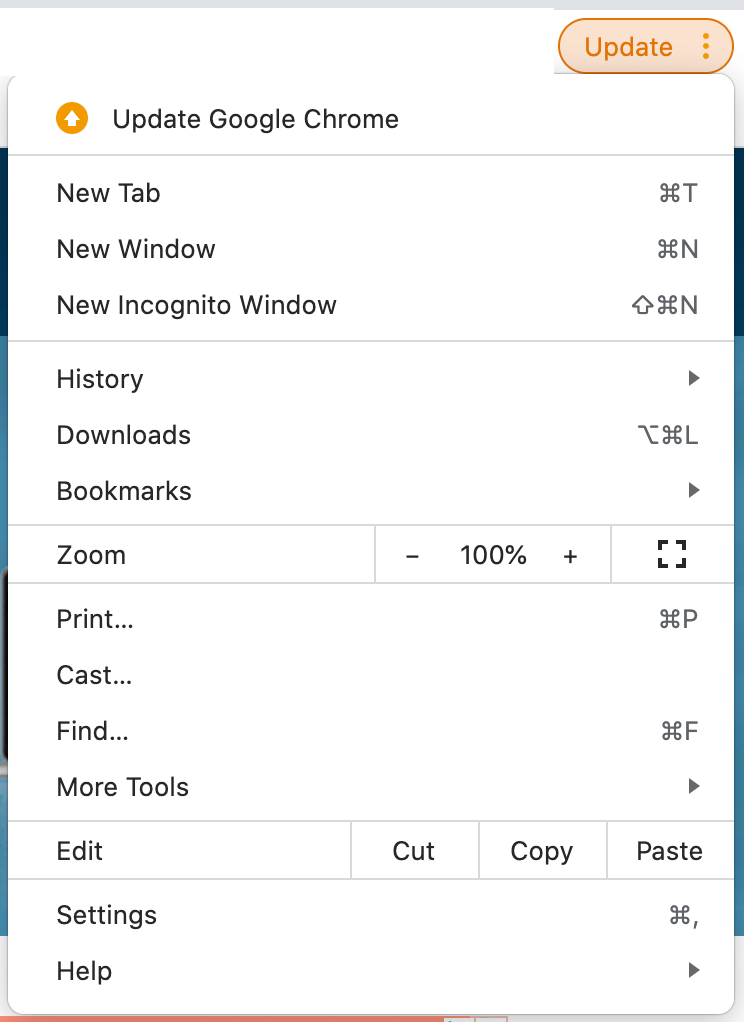
update google chrome

Too many tabs open in Google Chrome

When you have too many tabs open in Chrome, this can use up a lot of system resources, depending on what pages are being accessed. It is good practice to only keep tabs open when they are being used and not to have too many open at a given time.

Clear cache in Chrome

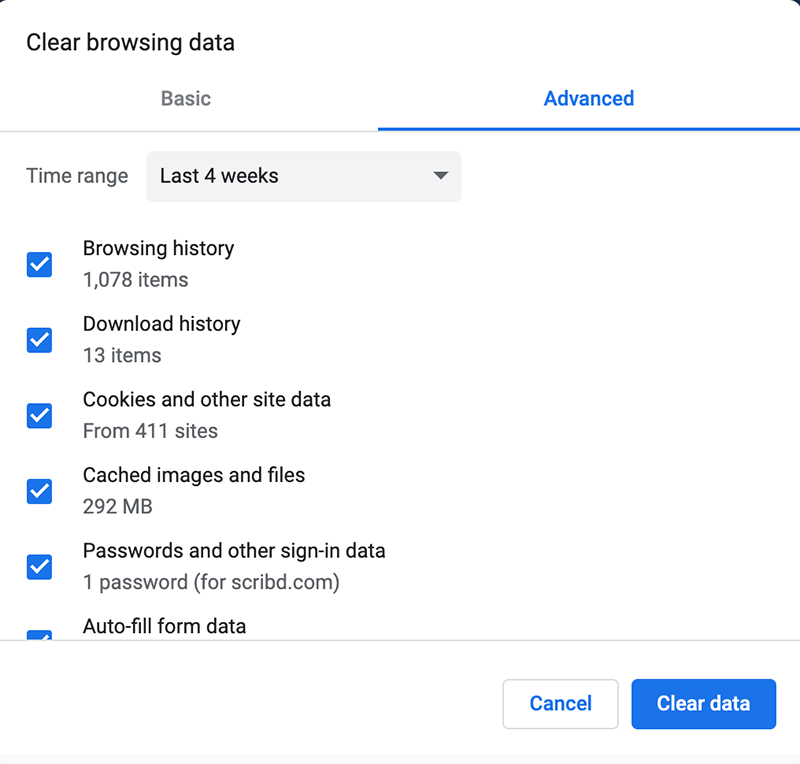
clear chrome cache

Chrome stores cached files for a long time so the cache can become very bloated, slowing down the browsing experience and taking up valuable space on your hard drive.

How do I clear my cache in Google Chrome

To clear the cache click on the three dots in the top right > select More Tools and Clear Browsing Data and select the time range for the data you want to clear.
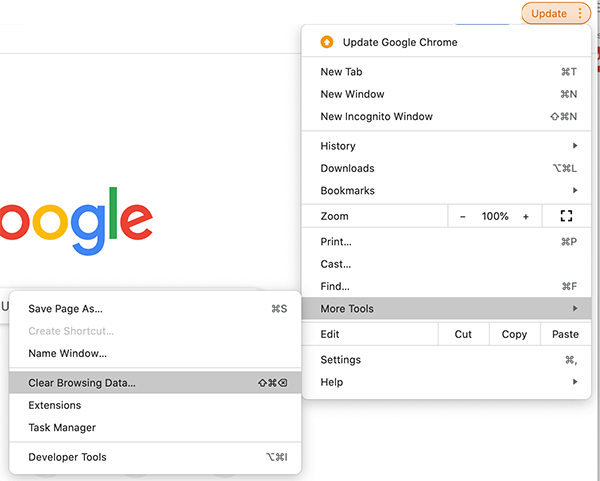
clear google cache menu


Clear unused Add-ons

Chrome Add-ons can be hugely useful but they can also slow down the browsing experience if there are too many of them. It is likely that you are not using all the Add-ons you have installed. Check through your Add-ons and delete any that you are no longer using.

To view your Add-ons select the three dot menu in the top right > More Tools > Extensions

You can either choose to ‘remove’ Add-ons from here, or if you are not sure if you still need them, use the slider to toggle to disable them.

Faster Chrome Browser

After carrying out some or all of the above fixes your Chrome browser should be running at a much faster speed. If you are still experiencing speed issues you may need to go through the steps again and be more ruthless with clearing your cache and the number of Add-ons.
Some other relevant posts:

Speed up Windows computer

This site cannot provide a secure connection in Chrome

Fix high CPU usage

Filed Under: Software Drivers Tagged With: browser, chrome, slow, speed

Why is my Android Phone so slow?

We all want our Android smartphones to be as fast as they were they day we unboxed them but this is rarely the case. Usually after a number of months there can be a severe drop in performance, slowing the device down noticeably. There are a number of factors that contribute to this and actions you can take to help prevent this slowdown.  Below are some of the reasons that Android phone has slowed down:

Operating System updates and Apps

Your phone’s software does not remain the same after few months. Phone manufacturers offer system updates; some are bug fixes while some are for functionality and performance enhancements. Also, you install several apps over  time and these apps also need to update. The app can therefore become ‘heavier’ over time after updates and might demand more memory and processing power, causing the phone to slow down.

Solution: While there is not much you can do about Operating System updates; you can certainly uninstall heavier apps and look for lighter app alternatives.

Background Processes

You might have installed several apps that have a startup entry, and they launch processes the moment you switch on your phone. The background processes of these apps continue to use processing power,  battery power, memory, and access the Internet without you even being aware. Since Android allows for multitasking, these apps continue to run in the background which can slow down your phone significantly. Also if you are using a large number of widgets on your home screen, they can also use considerable processing power and memory to provide you with constantly updated information. Below are the steps to check for background process in Android (before 6.0):

  1. Tap on Settings
  2. Scroll down to Developer options and tap on it
  3. Tap on Process statistics to see the list of background processes

Solution- Uninstall any apps that you don’t use. Also, check for default apps that you don’t need. If you are not able to uninstall them, you can disable them by following the steps given below

  1. Tap on Settings
  2. Scroll down to Apps and tap on it
  3. Tap on the App you want to disable
  4. Tap on Disable

A Nearly Full File System

Your Android phone needs free space to function smoothly. The internal storage space and your SSD card have a file system that slows down as it fills ups. Also, cache can consume a large amount of space and slow down your phone. See what is taking up space on your Android phone by following steps given below:

  1. Tap on Settings
  2. Scroll down to Storage and tap on it

You will get a detailed view of different elements (apps, pictures, audio, video, cached data, downloads) and the space occupied by them.

Solution- Delete unwanted files and clear the cache by following the steps below:

  1. Tap on Settings
  2. Tap on Apps
  3. Go to the App for which you want to clear cache
  4. Tap on the App
  5. Tap on Clear Cache

All systems, whether it a phone, laptop or tablet, will slow down over time. In order to help counteract this, you should keep apps and files to a minimum, just keep what you need and either delete or externally store the rest.

Filed Under: Tablets & Smartphones Tagged With: android, slow, smartphone, speed

How to fix slow performance issues in Windows 8

There are several possible causes of a slow performing computer. The main culprit is usually a system drive full of unwanted files which are often leftover from an installation or uninstall.

Many Windows 8 users complain of slow performance in their computer even though the computer is equipped with adequate RAM and has powerful PC components. Let’s look at some solutions to fix this slow performance issue in Windows 8.

  1. Go to the Desktop in Windows 8
  2. Right-click on This PC
  3. Click Properties
  4. In the Control Panel window, locate and click Advanced System Settings (you will find it on the top left-hand side)
  5. In the System Properties Window, click the Advanced tab
  6. Under Performance, click Settings
  7. Go to the Visual Effects tab
  8. Click Custom
  9. Remove check marks for all options except Smooth edges of screen fonts
  10. Click OK

If that doesn’t help much you need to take a series of steps to resolve the slow performance issue

Take a look at your antivirus tool

Antivirus software can hog lots of system resources. You need to look at the resources used by your antivirus program and check the locations it is scanning more frequently. For example, if you are using virtual machines like Virtual box or VMware, ensure the folders of these machines are excluded from the scanning list.

To check the resources used by your antivirus program, use a Process Monitor offered by Microsoft that analyzes the processes and the resources used. If you find the antivirus is burdening your system, consider changing your antivirus tool and go for one that is lighter on resources but still effective.

Remove unwanted entries from Startup

Several programs run in the background and hog system resources without your knowledge. You can find out more about these programs from Startup. Microsoft has overhauled the Task Manager in Windows 8 and 10. The Startup component is part of Task Manager in Windows 8. To remove unwanted entries in Startup, do the following:

  1. Press Ctrl+Alt+Delete and you will see the Task Manager option
  2. You can also right-click the Task Bar to access Task Manager
  3. Open Task Manager
  4. Click More details
  5. Go to Startup tab

The Task Manager uses a color scheme to inform you about the resources used by each program/process. The darker the color, the more resources are being used by the program. Look for any programs that you don’t want to get started automatically

  1. Select any unwanted program from the list
  2. Right-click on it and select Disable
  3. Follow this for all unwanted startup entries

You may find that your computer speed increases significantly after making these changes. Please comment below if you have any other tips to speed up a Windows 8 PC.

Filed Under: PC Fix Tips Tagged With: speed, windows 8

10 Tips To A Faster PC

speed up slow PC

Troubled by a slow computer? Here are some easy-to-perform steps that will significantly speed up your computer.

  1. Increase Memory

RAM is used as temporary memory by your computer to load and execute programs and process files. If you have a habit of multitasking and opening several programs at a time, your PC may work at a snail’s pace if the RAM is at the bare minimum. Adding more modules/sticks of RAM will improve your PC’s speed.

  1. Uninstall Unused Programs

We often install programs for specific purposes but forget to remove them after we stop using them. Many of these programs continue to run unnecessarily in background, hogging memory and computing power of the CPU. Uninstall all programs you don’t use; this will improve the performance of your PC.

  1. Defragment Drives

Over time the data stored on the disk gets fragmented. As a result, the Operating System starts taking more time to access files. Additionally, fragmentation can also lead to hard disk errors. Defragging the hard disk addresses both of these issues.

  1. Run Disk Cleanup

Log files are created every time you start your PC or use any program. However, these files are not used again later. Running a disk cleanup program will remove such files and free valuable hard drive space.

To run a Disk Cleanup, follow the steps below:

Click on Start -> All Programs

Click -> Accessories -> System Tools -> Disk Cleanup

  1. Disable Or Delete Unwanted Entries From Startup

If you look at the startup, you will find many there are numerous Programs listed. These programs get loaded in the memory automatically and the processes continue to run and hog resources even if you have not launched the program that is related to the process. By disabling their entries in Startup, you can reduce the startup time and also prevent these Programs from using your system resources.

  1. Install An SSD

Solid State Drives are faster than hard drives. You can speed up your PC by installing a SSD along with HDD. Install the Operating system and Programs on SSD and data on hard drive.

  1. Replacing Old Graphics Card

If you are an avid gamer, you will want to use the latest graphic card. New games have blazing fast frame rates and an old graphic card is incapable of providing the required processing speed for that these new games require. For more information read our Graphics Card article >>

  1. Install A Reliable Protective Tool

Malware not only causes errors but also slows system speed. Keep your data protected and your PC working at a good speed by installing a reliable anti-malware tool.

  1. Update Your Drivers

 Old Drivers can cause performance-related issues. Update your Drivers on a regular basis to keep your computer running smoothly and efficiently. The easiest and fastest way of doing this is by using a driver update tool.

  1. Cleaning The PC From Inside

Dust settling on the motherboard and other components leads to overheating, which not only adversely affects your PC’s performance but also causes damage to hardware. To avoid this, open the PC cabinet and brush off any dust that has settled inside. Obviously only do this if you are confident in doing so. If you are not experienced in opening up the PC, then just complete the steps above that you feel comfortable doing.

Carrying out even half of these top tips should significantly speed up your PC.

Filed Under: PC Fix Tips Tagged With: speed

Slow Computer? 5 Quick Steps To Spring Clean Your PC

Slow Computer? 5 Quick Steps To Spring Clean Your PC
clean up pc programs

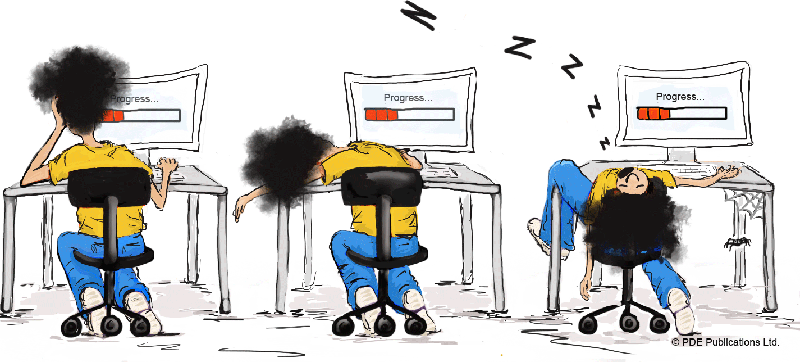
Over time your PC will inevitably slow down. In most cases this means that everyday tasks take that little bit longer but in some cases a PC can become so slow that it is almost unusable. In both of these situations life can be made a lot easier by taking a few simple steps to speed up your PC. Like anything, your computer needs a spring clean, programs, add-ons and data begin to clog up your hard drive and slow down both the startup of the computer and everyday programs such as mail and web browsers.

In order to save yourself a lot of time and frustration, you need to take 10 minutes to run a quick PC clean up and speed up that slow PC!

First things first – back-up everything!

1. See what is hogging your system resourcescpu system resources

To check if there is any particular program eating up your resources you will need to go to the Task Manager. To access the Task Manager you can right-click on the Taskbar and choose ‘Start Task Manager’ – alternatively, a shortcut is to press Ctrl + Shift + Esc.

Click on the Processes tab once the Task Manager is open. There are a number of columns in the processes tab, but the one that is relevant here is the CPU column. The CPU column shows the percentage of CPU activity taken up by a specific program.  If you are using close to 100% of the CPU then it is likely that you have one program that is ‘stuck’ and needs to be closed and restarted.

To view what programs, if any, are using a high percentage of CPU resources, sort the CPU column by clicking the header. If you find a program that is using a lot of resources, and cannot close it in the normal manner, then you can select the program in Task Manager and choose ‘End Process’ (make sure you have saved work before doing this if possible)

2. Streamline your start-up programs

startup programs slow pc

When you are running multiple programs at once this can significantly slow down your PC.
In many cases programs will automatically start up when the PC starts (this depends on the settings of the Programs in question), the user may be unaware of these resource-hogging programs running in the background. These programs would show up in Task Manager and you can choose to remove the programs entirely or change the settings so they are not automatically launched.

To view and edit the programs which are auto-launching on start-up, click the ‘startup’ tab within the Task Manager.

3. Check for viruses, malware and spyware

This is particularly important if your PC has suddenly slowed down or experienced performance issues. It is good practice to regularly check antivirus software (ensure there are automatic updates) and also to run manual scans of your PC for potential malware or spyware.

4. Do housekeeping on large files

This step depends on how you structure your files and data. In many cases of slow PC’s, users don’t have a structure and everything ranging from work emails to family movies go somewhere on the same hard drive. If you have a lot of photos, music or other media files it is a good idea to store them on an external hard drive or buy some cloud space for storage (view our article What is Cloud Storage and should I use it?)

While doing housekeeping on large files, you should also make sure to delete temporary files and empty your recycle bin.

5. Delete unused Programs

It is very unlikely that you use all the Programs on your PC and it is very likely that you have downloaded numerous Programs over time, many of which may never be used again. These may be trial versions of Programs or simply Programs you no longer use. Either way, if there are Programs on your PC that you do not use – uninstall them.

In the Add/ Remove Programs or Uninstall a Program feature of the Control Panel, you can view the amound of space a Program takes up. From here you can also select the unused Program and click ‘uninstall’.

Check out our related articles below for other PC Speed Tips

Why is my PC so slow?

Filed Under: PC Fix Tips Tagged With: speed

5 steps to a clean PC!

Clean PC – Efficient PC

Proper maintenance of any device will help extend its lifespan and also maintain a good level of efficiency. This rule applies equally to your personal computer and you should periodically take steps to clean your PC to keep it in optimum working order. In this article, we outline 5 quick steps to clean your PC.

1. Cleaning the hardware

Over time, dust gets collected on the system components inside your computer. dust can accumulate in vents and fans and prevent efficient cooling, thereby leading to overheating of the system components and reducing their life span. Clean the exhaust fans of your computer and also blow off the dust accumulated on motherboard and other parts by using a compressed air cleaner.

2. Remove spyware and adware

Spyware and Adware Programs can slow down your PC and reduce its efficiency. These programs spawn several processes which hog system resources. Also, these programs try to transmit information over the Internet which can be harmful. Some Spyware programs are tough to remove as they do not show up in the Add/Remove programs tool in Windows. You could download and install a good Spyware and Adware removal tool to get rid of these nasty programs.

Top 5 ways to speed up your PC

3. Uninstalling unnecessary programs

Many times we install programs for a specific task and forget to uninstall these programs after completing the task. Almost every program runs a background process that utilizes system resources.  The processes Tab in the Task Manager will give you an idea about different application processes and the system resources they use. Uninstalling unnecessary programs will free up valuable hard drive space and system resources and also reduce the burden on your system. 

4. Perform Maintenance tasks

Over time as you use your computer;  several files and unnecessary data entries are created. For example, when you surf the Internet, the website you visit stores cookies and Internet files on your computer for later use. These internet files and cookies occupy space on your C drive and a large amount of such files (even the most moderate surfer can accumulate a substantial amount) can considerably burden your system. You should periodically delete cookies and temporary internet files from your computer to make your system more efficient.

5. Defrag your hard drive

Fragmentation is a common problem in Windows that becomes more severe over time. The data in your hard drive is stored in small clusters. When there is large amount of space in your HDD, Windows operating system stores data in contiguous clusters. When there is less space on drive, it stores data wherever it finds free clusters. When the data is heavily fragmented, the read and write heads of the HDD have to work extra hard to find data scattered in different places on the drive. Defragging the hard drive ensures the data is arranged in contiguous clusters and the access time is greatly reduced. Windows has in-built defrag tool. If you are not happy with its performance, you also have several free and premium defrag tools that can defrag your hard drive and optimize it for performance. The Speedy PC Pro tool above would prove very useful in this respect.

Filed Under: PC Fix Tips Tagged With: adware, speed, spyware

Top 3 Registry Tweaks To Improve Windows performance

Registry is the location in a Windows system that contains all settings for applications, user interface and the Windows Operating System. The information about every setting is stored in what is called a ‘Registry Key’. You can boost the performance of your Windows system by modifying or deleting unnecessary Registry Keys.

To be on safe side, you should take a Registry backup which can be used restore the Registry to its previous state in case you delete a wrong value. Let’s take a look at top 3 Registry tweaks that can improve Windows performance.

Registry Errors: Causes and Solution
  1. Speeding up Windows 7 taskbar

The Taskbar can be a very useful feature in Windows. When you move your Mouse over the Taskbar, the thumbnails of applications can take a while to load. You can reduce this delay by a simple Registry tweak.

  1. Click on Start button
  2. Type “regedit” in the search box on the Start menu
  3. Hit Enter
  4. Navigate to HKEY_CURRENT_USERSoftwareMicrosoftWindowsCurrentVersionExplorerAdvanced
  5. Right click to create a DWORD
  6. Name it “ExtendedUIHoverTime”
  7. Double-click on “ExtendedUIHoverTime” and give it a Decimal value of “1”.
  8. Click Ok to exit Registry
  9. Restart your computer 
  10. Hiding Homegroups in Windows Explorer’s Sidebar

The default location such as Homegroups which appear in Windows Explorer’s Sidebar is seldom used. Removing such default entries can clear up clutter and simplify navigation.  A small Registry edit can hide these default entries that show in the Windows Explorer Sidebar.

  1. Click on Start button
  2. Type “regedit” in the search box in the Start menu
  3. Hit Enter
  4. Navigate to HKEY_CLASSES>ROOTCLSID{B4FB3F98-C1EA-428d-A78A-D1F5659CBA93}ShellFolder

You will be required to get permission before editing any entry in this registry key

  1. In navigation pane, right-click “ShellFolder”
  2. Click Permissions
  3. Select the current user
  4. Under Full control, check the box “Allow”
  5. In the right hand pane, click “Attributes”
  6. Change the value from b084010c to b094010c
  7. Click Ok to exit Registry editor
  8. Restart the computer
  9. Customizing Windows Explorer’s “Open With” Menu

The Context menu is a good option to open a file where the extension of the file and the default program to be used is not defined in the system. If you have installed many programs in your Windows system, the “open with” menu becomes cluttered with many entries. Most of the time, you will notice there are unwanted program entries which are not used. In such cases, you can remove the unwanted program entries from the “Open with” menu by a simple Registry edit.

  1. Click on Start button
  2. Type “regedit” in the search box in the Start menu
  3. Hit Enter
  4. Navigate to HKEY_CURRENT_USER Software Microsoft Windows CurrentVersion Explorer FileExts
  5. Here, you will see different file extensions registered on your Windows system
  6. Go to the file extension you want to edit and click the white triangle to view sub folders
  7. Select OpenWithList. Note the programs in the right pane
  8. Right-click the value which you don’t want to see in the “openwith” menu
  9. Select Delete.

Note: For example, you system has 5 programs registered to open a PDF file such as Adobe reader, Foxit Reader, Notepad, WinWord and NitroPDF. You can remove entries of Notepad and WinWord that cannot handle a PDF file.

Three reasons why you must clean Windows registry

Filed Under: PC Fix Tips Tagged With: registry, speed

How to remove Bing Bar Toolbar

Are you unhappy with the presence of the Bing Bar toolbar? Is it occupying a lot of browser screen space? Do you want to remove it because you find it annoying?

Well, whatever your reasons for removing Bing Bar toolbar, it can actually be removed very easily. Here are the steps you need to perform to remove Bing Bar toolbar from Internet Explorer and Firefox.

Remove Bing Bar toolbar from Internet Explorer

To remove Bing Bar toolbar from IE browser, perform these steps:

  • Open Internet Explorer by clicking its icon on the desktop or the taskbar
  • Click Tools, located on the right-hand side, and then click Manage Add-ons
  • Browse through the options in the right pane to locate Bing Bar
  • Select Bing Bar by clicking it, and then click the Disable button at the bottom of the window
  • Select the box before Bing Bar BHO under the heading Bing Bar in the Disable Add-on window
  • Click the Disable button

Remove Bing Bar from Firefox

To remove Bing Bar from Firefox, perform the following steps:

  • Open Firefox by clicking its icon in the desktop or the taskbar
  • Click Tools, and then Add-ons
  • Locate and select Bing Bar in the Add-ons window, and then click the Disable button

How to uninstall Bing Bar completely

If you want to uninstall Bing Bar completely from your computer, perform these steps:

  • Close any open browser window
  • Click the Windows icon in the taskbar, and then click Control Panel
  • Click Add or Remove programs
  • Locate and select Bing Bar
  • Click the Uninstall button

Removing Bing Bar toolbar may have a positive effect on your computer’s performance. However, the effect is not expected to be significant. If, in addition to removing Bing Bar, you want to improve your computer’s performance, you must do the following:

Run Disk Cleanup regularly

A built-in utility, Disk Cleanup does two things: (1) it tells you the type of files you can safely delete and (2) permanently delete the selected files. You should run this utility once every 15 days.

Run Disk Defragmenter regularly

This built-in utility not only speeds up your computer’s performance, but it also prevents hard disk errors. You should run this utility once every 30 days.

Filed Under: PC Fix Tips Tagged With: bing, PC optimization, speed, uninstall

Solution to avgrsx.exe high CPU issue

The avgrsx.exe file belongs to the AVG antivirus program. It is an important part of this software, however often it is seen consuming too much resource. Users often complain that the process slows the boot process, opening of large files, and their computer at random times. Here we look in brief at what this process does and how you can solve the said issues.

PC Speed Help: How to fix high CPU usage

Purpose of avgrsx.exe

Avgrsx.exe belongs to the Resident Shield component of the AVG protective software. It is responsible for protecting a computer against malware in real-time.

The process scans files when you open, move, copy, or save them. In case it detects a threat, it will cause a pop-up alert window to appear on the desktop asking you about the action you want to take against the infected file(s). The pop-up alert window only appears when you have not configured the AVG protection tool to take a predefined action every time a threat is detected.

By default, this process is set to run every time you power on your computer.

Issue 1 – Avgrsx.exe slows Windows startup

Removing avgrsx.exe from the Startup menu will solve the issue. However, the problem is that if you do this, your AVG antivirus tool will no longer scan files as Windows starts.

To reduce a process from the Startup menu perform these steps:

  • Click the Windows icon in the taskbar
  • Type msconfig in the Start Search bar and then press Enter
  • Click the Startup tab in the System Configuration dialog box
  • Deselect the item you don’t want to load automatically along with Windows

Issue 2 – Avgrsx.exe causes large files to open slowly

As mentioned previously, the process scans files for threats when you open them. Larger a file is the more time avgrsx.exe will take to scan it and slower the file will open. A workaround to this issue is to prevent this process from scanning certain large file that you use often.

Issue 3 – Avgrsx.exe consume too much CPU resource

By design, this process requires a lot of resource to function properly. So there is not much you can do about this issue if you want to continue using the AVG protective software. You cannot terminate or permanently disable the process because that will make your computer vulnerable to malware attacks.

The only permanent solution to the three issues mentioned above is to replace the AVG protective tool with another reliable, yet light, antivirus software. There are tools that offer you the same level of protection, may be even better, that AVG antivirus program provides without negatively affecting your computer’s speed. Then why not get yourself a new reliable, light antivirus software application and end performance-related issues once and for all?

Filed Under: PC Fix Tips Tagged With: avg, speed

Tips to Speed up a Windows Computer

If your Windows pc takes a long time to start, or if it freezes up often, you will benefit a great deal from the following tips:

Speed Up PC Tip 1 – Remove Unwanted Applications and Files

Getting rid of unwanted applications and files is an important step to speed up Windows. You can uninstall unwanted programs using the Add or Remove Programs utility. This utility is in the Control Panel window and shows you the names of the programs installed on your computer. To remove unwanted programs, open the Add or Remove Programs window, identify the programs you no longer use, and uninstall them one by one.

Removing unwanted files is also simple and can be done by running the built-in Disk Cleanup utility. This utility shows you the files that you can delete safely and allows you remove such files with a single click of the mouse.

Speed Up PC Tip 2 – Install the Latest Windows Updates

Not installing Windows Updates regularly is a recipe for disaster. New updates improve the performance and security of your PC. If, for some reasons, you have set Windows to not download and install the new updates automatically, we recommend you change the settings to facilitate automatic installation of all new important updates.

Install the Latest Drivers

Keeping your drivers up-to-update helps you improve the performance of your PC. With the help of a driver update tool, you can keep your drivers updated in a simple and easy manner.

We have some more detailed and specific articles on this topic, such as How to fix high CPU usage, How to speed Windows 8 startup, How to speed up Windows startup, Why is my PC so slow? and finally Top 5 ways to speed up your PC

With all of these PC Speed articles – you should find what you are looking for and get your PC running at optimum performance again.

Filed Under: PC Fix Tips Tagged With: Slow PC, speed, Windows

  • 1
  • 2
  • Next Page »


  • Recent Posts
  • Popular Posts
        

Read More Posts


Read More Posts

Drivers.com Sites

  • Software Drivers
  • Drivers Ed

About Us

  • Advertise
  • About Drivers
  • Drivers Support
  • Drivers.com Privacy Policy
  • Disclaimer
  • Software Drivers
  • Mac Fixes and Tips
  • PC Fix Tips
  • Security/ Backup
  • Tablets & Smartphones
  • Tech News

© Copyright 2026 PDE Publications Ltd. End User License Agreement (EULA)