Drivers.com

follow us:

facebook twitter
  • Home
  • Download Drivers
  • Drivers Help
  • PC/Mac Resources
  • Software Drivers
  • Mac Fixes and Tips
  • PC Fix Tips
  • Security/ Backup
  • Tablets & Smartphones
  • Tech News
  • Software Drivers
  • Mac Fixes and Tips
  • PC Fix Tips
  • Security/ Backup
  • Tablets & Smartphones
  • Tech News

Resources by Tag

chrome

Chrome running slow

Chrome running slow

Chrome has been rapidly gaining in popularity and now accounts for almost three-quarters of all browser usage. However, this increase in popularity has not been without its issues. The most common issue we are asked about in relation to the Chrome browser is speed. Users are finding Chrome becomes very slow and even freezes or hangs. Below we look into some fixes for this issue.

Internet connection speed

The first thing to do is to eliminate internet speed as a possible cause for this. If you can access email and other online services (not using Chrome) with reasonable speed, and it is just Chrome that appears to be slow then proceed to the next step, if everything is slow then check your broadband or internet speeds as this may be the issue. You may need to update your network drivers to help speed up your PC.

Slow PC or laptop?

If your PC is old or has almost reached its storage capacity this could very likely be causing speed issues across the board. If you have another browser installed on your PC, try accessing sites using this and see if the speed issues are still there. If so, then the problem is with your PC or laptop speed and you can view this post for more advice.

How to speed up Chrome browser

Update to the latest version of Chrome

It is important for security as well as performance to make sure you keep your version of Chrome up-to-date.

To update Chrome:

  • When in Chrome select ‘More’ in the top-right corner
  • Select ‘Update Google Chrome’ and if this option is not showing then you are already using the latest version
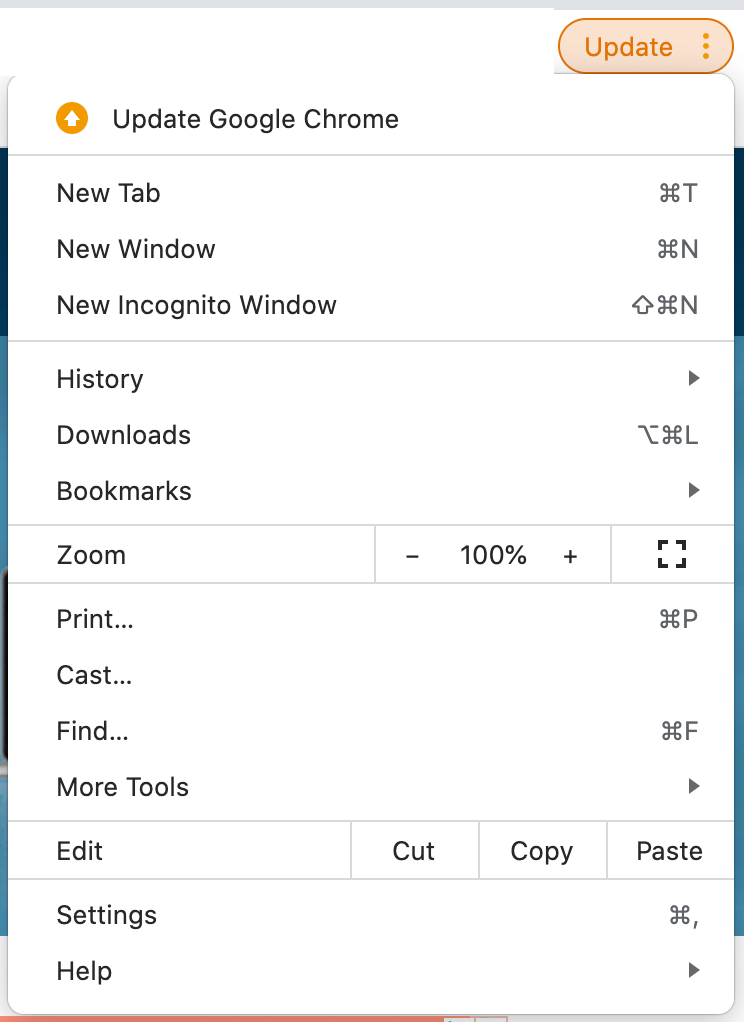
update google chrome

Too many tabs open in Google Chrome

When you have too many tabs open in Chrome, this can use up a lot of system resources, depending on what pages are being accessed. It is good practice to only keep tabs open when they are being used and not to have too many open at a given time.

Clear cache in Chrome

clear chrome cache

Chrome stores cached files for a long time so the cache can become very bloated, slowing down the browsing experience and taking up valuable space on your hard drive.

How do I clear my cache in Google Chrome

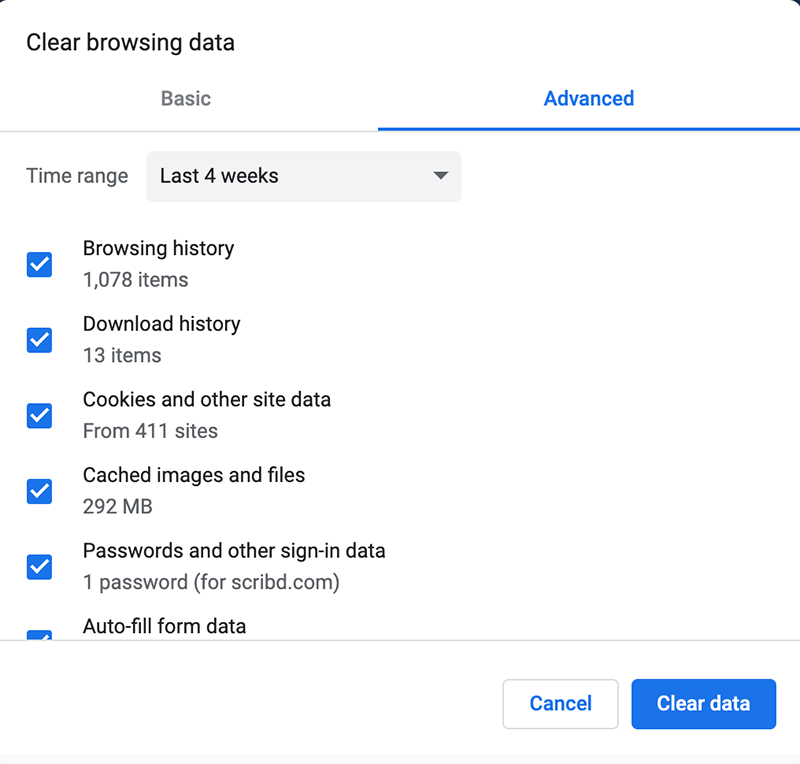
To clear the cache click on the three dots in the top right > select More Tools and Clear Browsing Data and select the time range for the data you want to clear.
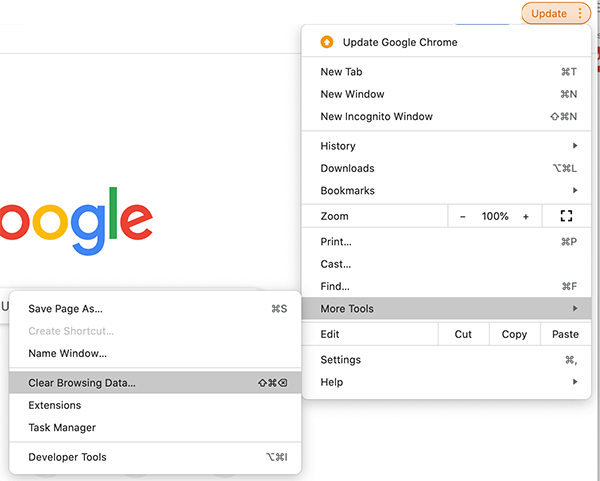
clear google cache menu


Clear unused Add-ons

Chrome Add-ons can be hugely useful but they can also slow down the browsing experience if there are too many of them. It is likely that you are not using all the Add-ons you have installed. Check through your Add-ons and delete any that you are no longer using.

To view your Add-ons select the three dot menu in the top right > More Tools > Extensions

You can either choose to ‘remove’ Add-ons from here, or if you are not sure if you still need them, use the slider to toggle to disable them.

Faster Chrome Browser

After carrying out some or all of the above fixes your Chrome browser should be running at a much faster speed. If you are still experiencing speed issues you may need to go through the steps again and be more ruthless with clearing your cache and the number of Add-ons.

Some other relevant posts:

Speed up Windows computer

This site cannot provide a secure connection in Chrome

Fix high CPU usage

Filed Under: Software Drivers Tagged With: browser, chrome, slow, speed

How To Use a Chrome Extension To Send Encrypted Emails through Gmail

Want to send encrypted email through Gmail? Here’s how you can do that for free.

You can use SafeGmail, an extension for Chrome, to send encrypted emails. Some important features of SafeGmail are:

  • It is free
  • It works with Google Chrome
  • The email message is encrypted as well as decrypted within Google Chrome
  • After a specific time, the message automatically expires
  • It is very easy to install and use
  • It works with all email providers

How to use Install SafeGmail

First, you would need to download the free extension. Go to the Google Chrome website and click the ADD TO CHROME button located at the top right-hand corner. Next, follow the on-screen instructions, and restart Google Chrome after installation is complete.

How to use SafeGmail

Open Gmail after you’ve installed SafeGmail, and select the Encrypt box in the Compose screen. Feed in a question and its’ answer. Ensure that the recipient is aware of the answer that you have listed. Next, compose the message and click Send + Encrypt.

The encrypted message appears as random text between dashed lines. To read the encrypted message, recipient(s) would need to click the embedded Here link, answer the question entered by you, and paste the text between dashed lines.

Sharing encrypted emails is an effective and safe way of sharing sensitive emails. But what about sensitive data stored on your PC? To prevent data and identity theft, we recommend you to use an advanced and robust anti-virus software.

Filed Under: PC Fix Tips Tagged With: chrome, email, encryption, security


  • Recent Posts
  • Popular Posts
        

Read More Posts


Read More Posts

Drivers.com Sites

  • Software Drivers
  • Drivers Ed

About Us

  • Advertise
  • About Drivers
  • Drivers Support
  • Drivers.com Privacy Policy
  • Disclaimer
  • Software Drivers
  • Mac Fixes and Tips
  • PC Fix Tips
  • Security/ Backup
  • Tablets & Smartphones
  • Tech News

© Copyright 2026 PDE Publications Ltd. End User License Agreement (EULA)