
Drivers.com

follow us:

facebook twitter
  • Home
  • Download Drivers
  • Drivers Help
  • PC/Mac Resources
  • Software Drivers
  • Mac Fixes and Tips
  • PC Fix Tips
  • Security/ Backup
  • Tablets & Smartphones
  • Tech News
  • Software Drivers
  • Mac Fixes and Tips
  • PC Fix Tips
  • Security/ Backup
  • Tablets & Smartphones
  • Tech News

Resources by Tag

email

Change outgoing server port in Outlook

If you are having problems with sending mails in outlook, the issue may be relating to the outgoing port you are using.

This will apply if you are required to use a specific port for outgoing mail (check with your host).

To enter a specific outgoing mail port number do the following:

  • open Outlook
  • click on settings (or the gear icon in the row of icons on the bottom left of your Outlook screen
  • this will open your settings option menu > select ‘manage accounts’
  • click on the account you wish to edit the port settings for
  • click on the ‘options for syncing your content’ link
  • scroll down to ‘incoming and outgoing mail server info’ and click on this link
  • in the out going mail server, enter a colon (:) after the server name and then type the server number (don’t use any spaces)
  • save and exit settings

Try sending a test email. This will work the same if you need to change the incoming server port.
Filed Under: PC Fix Tips Tagged With: email, mail, microsoft, Outlook, Windows, windows10

Tips on Keeping Your Email Inbox Free of Spam

Junk messages, scams, phishing schemes: spam comes in many forms. While some messages can be just annoying, others can actually lead to viruses that may damage your computer or even put your finances and personal information at risk. Whether you just created a new email account or your current address has been getting bombarded with junk, it helps to learn ways to combat spam.

By following these tips, the only messages that you’ll receive in your email inbox will be the ones that you want!

Set up Filters

Most email clients like Gmail and Yahoo! Mail allow you to organize your messages according to filters. While these filters are useful for organizing your inbox, they can also move messages straight to your trash folder. To enable this:

  1. Access your settings on your email account
  2. Copy the email address of the spammer and paste it in the filters area

If you set up the filter correctly, all emails from the spammer will automatically be deleted rather than end up in your inbox.

Don’t Open the Message

When you receive a spam message, it can be tempting to look into the content of the email. This is especially true if you are not familiar with spam mail. However, opening these emails can be risky, especially if you click any attachments in the email. Clicking a link or opening an attachment can lead to inadvertently downloading malware or other viruses that can wreak havoc on your computer, as well as potentially compromising your personal information.

Alter Your Email Account to Delete Pictures

There are ways to tip off a scammer that your email address is live and active, and pictures are one of them. These pictures may be invisible to the naked eye as they may only consist of a single pixel that matches the color of the body of the email. You could never find this picture by yourself, so go into your email account settings to turn off all pictures. The amount of spam that you receive just may decrease as a result of this simple action.

Don’t Email Back

No matter what kind of email message that you receive from a spammer, absolutely never message back. Many spam accounts try to look like legitimate businesses, but you can often tell that something isn’t quite right. To stay safe, consider this rule of thumb: if you don’t know who is emailing you and you didn’t reach out to this person first, it’s best not to reply.

Invest in Software

Lastly, if you find that the above measures aren’t really helping reduce your rate of spam, you may want to consider an anti-spam program. This software gains permission from your email account to prevent unwanted spam messages from ever reaching your inbox. That should hopefully take care of your spam problem for good.

Filed Under: PC Fix Tips Tagged With: email, spam

10 Tips to Avoid Email Phishing Scams

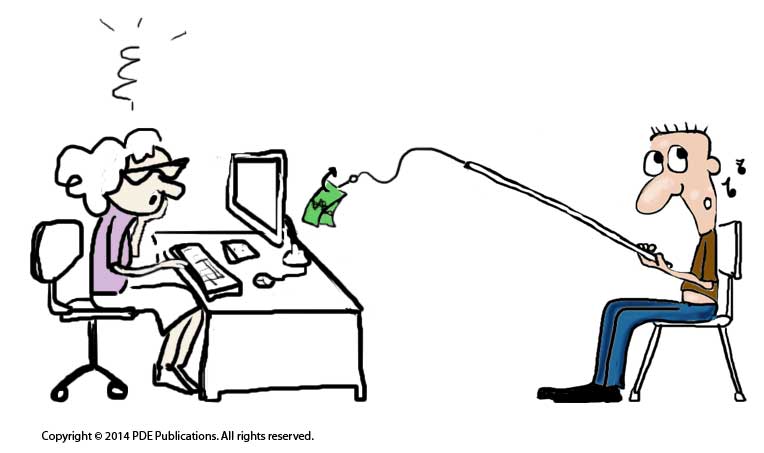
Anyone with an email address will have received a ‘phishing’ email at some time or other, many will be subjected to these on a daily basis, particularly at this time of year. Phishing emails are designed to steal money from you in either of two ways:

1. Malicious software: by installing malicious software on your computer

2. Social engineering: by getting information from you either directly or by surreptitiously getting you to install the above malicious software

avoid phishing email

The easiest way to avoid either of these threats is to delete these ‘phishing’ emails as they arrive. This is often easier said than done, as oftentimes the emails appear to be from your bank, or from a friend looking for help and it may not be immediately obvious that they are not legitimate.

Obvious signs of a ‘Phishing’ email

There are a number of telltale signs of ‘phishing’ emails, some more obvious than others. Some emails don’t even require a second glance before deleting, while others may need a little bit of research. Whatever you do, do not click on anything in the email until you have worked your way through our top 10 and have satisfied yourself that the email is above-board.

1. The actual link and the visible links do not match

This is the first thing I look for when I get an email from someone claiming to be my bank or PayPal or similar. Phishing emails will almost always contain at least one link for you to click on.

The link may appear as – click here to update your account details at www.paypal.com

When you mouseover the link (move the cursor over the hyperlinked/ underlined text without actually clicking on it) you will see text popup with the URL or web address that the link will actually lead you to (usually with a light yellow background). In a legitimate email this should read the same or essentially the same as the link written in the email. In a phishing email you are likely to get a very different link here, to a completely different website and often a completely different country extension such as Russia (.ru)

Scammers sending out these emails rely on users

a) not looking at where the link leads to (hovering over link as above) and/ or

b) not reading the domain name carefully when they do so

I have seen some very clever phishing emails in the past showing the URL as paypal.com, when I mouseover it shows either paypel.com (note the vital misspelling) or paypal.buydesignershoes.com. The bit before the .com is the domain name, the subdomain or text before the first ‘.’ is irrelevant as this is likely to show the name of the company the scammers are impersonating.

2. The email is not personalised

This is not always the case as more advanced phishing schemes may use your name. However, the majority of phishing emails will read ‘Dear User’ or something equally vague. If they are claiming to be from your bank or an organisation that holds account details for you, then they should at least know your name.

3. The ‘to’ field says ‘undisclosed recipients’

This is usually a red flag for me as it tells me that the same email has been sent to multiple recipients. Be on alert and look for other phishing indicators.

4.  Bad spelling or grammar

We are all prone to the odd typo or grammatical error, but emails with obvious spelling and/ or grammatical errors should put you on immediate alert. This is particularly the case when the email claims to be from a large company such as Microsoft or PayPal. While not infallible, they are unlikely to miss obvious errors such as these in official customer emails.

5. You are asked to send money

This email may claim to be from a friend (they may have gathered names and email address from your address book so this can be quite convincing), the friend is often said to be stranded in some city having lost their luggage or something similar, it could equally be from a company looking for bank details to pay you for something you haven’t even applied for. If you are in doubt about an email from a friend, email them separately (do not hit the ‘reply’ button), if from a company, they are not going to sending emails to random people offering any type of work which leads on to the next thing to look out for – unsolicited email …

6. Unsolicited email

This one is not black and white as you may get an email from your bank asking you to update your password. This is an unsolicited email but not an unusual request. However, the bank should always direct you to their website and not ask you to click on a link within the website. If in doubt, go to the known URL and login as normal, if they are contacting you by email to ask you to update something, there should be something on your account page alerting you to this.

Out of the blue job offers and once in lifetime investment opportunities are almost always going to be bogus! Unfortunately it is unlikely that Facebook want to pay you to sit at home all day and surf the net, and that South African diamond miner looking for an investment partner …. well, you may want to believe it but trust your better judgement!

7. The email looks for personal information

This may not be as obvious as your bank account number, in cases of identity theft these details are built up over time and from a number of sources. The phishing email may just be looking for your full name or postal address. Don’t supply any information of this sort if in any doubt.

8. A sense of urgency

Phishing scams rely on the likelihood of people making bad or ill-informed decisions under pressure. Phishing emails usual have threatening language and a sense of urgency, so sentences such as ‘update your details now or your account will be closed’ are not uncommon. A common incitement to click on a link is to tell recipients that something was recently purchased on their iTunes account and to click on the link if they think this may not have been them. The easiest way to find out if anything was purchased using your account details is to go to itunes.com (or whatever the company/ website in question) and login, all purchases will be listed on your account.

9. The ‘from’ address does not match the claimed domain or company name

When the email you receive claims to be from microsoft, the email address in the ‘from’ field of the email should read usersname@microsoft.com or similar. If it is a gmail or another web-based email account (such as microsoft-tech-support@gmail.com), then it is very likely to be bogus. To see the email address your may have to mouseover the name in the ‘from’ field or click the little arrow to the right of the name.

10. Trust your instincts!

If in doubt, don’t click. There are always ways of researching if an email is bogus. If you have gone through all the checks above and are still unsure, copy and paste some of the text into Google and do a search. If is is a common scam it may come up on some of the message boards. If you know the sender (a bank or on a personal basis), email them in a separate email (don’t hit ‘reply’) and check the details.

Remember, it is worth taking the extra time to confirm the authenticity of an email, this may save you a lot of time and money!

Filed Under: Security/ Backup Tagged With: email, phishing

Pointers for backing up MS Outlook 2010 email

Email clients can be put into two categories—online and offline. MS Outlook 2010, like Thunderbird and Windows Live Mail belong to the latter, while gmail and Yahoo! mail are examples of online email. Offline email clients connect to email servers and allow you to save your email messages on your hard drive. Saving your emails on your hard disk enables you to transfer them to another computer. Another advantage of backing up your emails is that it prevents data loss in case MS Outlook encounters a serious problem.

To back up MS Outlook 2010 email, perform the steps detailed below:

Open MS Outlook 2010

  1. Browse to the File menu, click Options, and then click Export
  2. Select export to a file, and then click the Next button
  3. Choose Outlook Data File (.pst), and then click the Next button
  4. Select your email folder and tick the box before Include subfolders, and then click Next
  5. Select the location where you want to save your emails (it is best if you save your emails to a different hard drive)
  6. Click the Finish button

Besides backing up MS Outlook emails, there are many others PC maintenance tasks that you must perform regularly. If you don’t have the time for these activities, invest in a reliable PC Optimization Tool, which keeps your PC in prime condition all the time.

Filed Under: PC Fix Tips Tagged With: backup, email, Outlook

How do I set up email on my Android phone?

Setting up email on an Android phone

Setting up Google Android’s mail app is very simple; anyone can complete the task within a few minutes. All you have to do to is perform the following steps:

  1. Click the display all apps icon
  2. Locate the Mail application
  3. Select a mail provider
  4. Enter the details of your email account
  5. Set up a name for your email account

You can setup multiple email accounts on your Android phone.

Just like you protect your PC from malware, you must keep your Android phone safe from unscrupulous programs and people. But keep in mind that there are different antivirus programs for these two products. A PC antivirus tool may not work on your Android phone and vice-versa.

Filed Under: Tablets & Smartphones Tagged With: android, email, tablet-smartphones

How To Use a Chrome Extension To Send Encrypted Emails through Gmail

Want to send encrypted email through Gmail? Here’s how you can do that for free.

You can use SafeGmail, an extension for Chrome, to send encrypted emails. Some important features of SafeGmail are:

  • It is free
  • It works with Google Chrome
  • The email message is encrypted as well as decrypted within Google Chrome
  • After a specific time, the message automatically expires
  • It is very easy to install and use
  • It works with all email providers

How to use Install SafeGmail

First, you would need to download the free extension. Go to the Google Chrome website and click the ADD TO CHROME button located at the top right-hand corner. Next, follow the on-screen instructions, and restart Google Chrome after installation is complete.

How to use SafeGmail

Open Gmail after you’ve installed SafeGmail, and select the Encrypt box in the Compose screen. Feed in a question and its’ answer. Ensure that the recipient is aware of the answer that you have listed. Next, compose the message and click Send + Encrypt.

The encrypted message appears as random text between dashed lines. To read the encrypted message, recipient(s) would need to click the embedded Here link, answer the question entered by you, and paste the text between dashed lines.

Sharing encrypted emails is an effective and safe way of sharing sensitive emails. But what about sensitive data stored on your PC? To prevent data and identity theft, we recommend you to use an advanced and robust anti-virus software.

Filed Under: PC Fix Tips Tagged With: chrome, email, encryption, security

Malware spammed out widely posing as income tax email

A Trojan horse has been recently identified as posing as a tax-return related email. The aim of this malware campaign is to trick users into opening it. This dubious tax-return related email is accompanied with a zip file, which will carry your name. For instance if your email id is samantha@example.com, the name of the zip will be samantha.zip. Inside this zip file will be an executable file. Once you click the executable file, the malware will take control of your pc, allowing its writer to access your computer remotely. You can safeguard yourself against this backdoor Trojan horse and other malware by installing an advanced antivirus tool and scanning downloaded files before running them.

Filed Under: Security/ Backup Tagged With: email, malware, security, spam

Beware of Unsolicited emails with a link

Be careful when an unsolicited email with a link shows up in your email inbox. You must check whether the link takes you to the website that it claims it will take you. If you are careless about it, you could become the latest victim of an identity theft.

Phishing scammers repeatedly use this modus operandi to fool the unsuspecting. They send emails containing a link to numerous email addresses. The link would claim to take users to a log-in website such as Google Docs where users must feed in their personal information. But in reality the linked website would be a phishing site masquerading as a genuine website. Once scammers have your personal email ID and password, they will access your email account and steal any personal information, such as your bank account details, contained in it.

How can you prevent yourself from falling victim to phishing scams?

When you click the embedded link in unsolicited emails, always check the URL of the webpage you are directed to. If the directed page is supposed to be Google Docs, the URL will show that. If the URL address is something else, do not fill in any information. Instead, close the page immediately.

To prevent yourself from malware and spyware programs, it is also necessary that you install an advanced antivirus software Program and run regular virus scans.

Filed Under: Security/ Backup Tagged With: email, phishing, scam, security, spam, virus

How do I get deleted emails back?

Users often ask, “Is it possible to retrieve deleted emails?” The answer is YES. The task of retrieving deleted emails or missing files is in fact a very simple one. Anybody and everybody can do it. All you need to have is reliable data recovery software.

While the range of features provided varies from software to software, the more sophisticated ones invariably offer the following features:

  • Retrieve deleted emails
  • Retrieve deleted email attachments
  • Recover many different file types, including encrypted, compressed, and recycled
  • Retrieve missing files from all types of peripheral devices
  • Save recovered files to any selected destination
  • Retrieve deleted files from an iPod

Good data recovery software programs are those that do not use too much system resources when running and can retrieve lost data quickly. Besides this, keep the following things in mind while purchasing a data recovery tool:

  • It must be compatible with your operating system
  • You must have the recommended system requirements required for running it

A data recovery software is immensely useful in case of data loss, but you can minimize data loss to a great extent by following these tips:

  • Backup all important files regularly
  • Install a robust antivirus software and run regular system scans
  • Scan all email attachments and downloaded files

Filed Under: PC Fix Tips Tagged With: data, email, lost data, recover


  • Recent Posts
  • Popular Posts
        

Read More Posts


Read More Posts

Drivers.com Sites

  • Software Drivers
  • Drivers Ed

About Us

  • Advertise
  • About Drivers
  • Drivers Support
  • Drivers.com Privacy Policy
  • Disclaimer
  • Software Drivers
  • Mac Fixes and Tips
  • PC Fix Tips
  • Security/ Backup
  • Tablets & Smartphones
  • Tech News

© Copyright 2026 PDE Publications Ltd. End User License Agreement (EULA)