Drivers.com

follow us:

facebook twitter
  • Home
  • Download Drivers
  • Drivers Help
  • PC/Mac Resources
  • Software Drivers
  • Mac Fixes and Tips
  • PC Fix Tips
  • Security/ Backup
  • Tablets & Smartphones
  • Tech News
  • Software Drivers
  • Mac Fixes and Tips
  • PC Fix Tips
  • Security/ Backup
  • Tablets & Smartphones
  • Tech News

Resources by Tag

tablet-smartphones

5 Android Nougat Features You Should Know About

5 Android Nougat Features You Should Know About

Android fans have waited a considerable time for 7.0 Nougat. Thankfully, the more efficient displays and faster speeds of Android’s 7.0 Nougat have more than made up for this long wait. While Nougat might not be as dense as previous updates from Android, it is packed full of excellent new features.

Top 5 additions in Android’s 7.0 Nougat

  1. Instant Apps

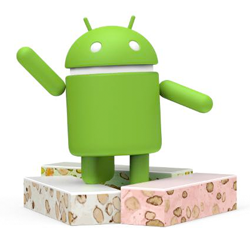
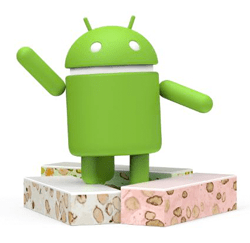
android nougatA real game-changer, the Instant Apps feature is perhaps the most exciting new addition. As a matter of fact, many have called it the biggest change to happen to the app stores since the Apple’s on-device app portal quite a while back.

Thanks to this feature, users now can use any app in the Play store without buying it or even downloading it.

All you need to do is open an app’s store page … and that’s all! You can immediately start testing it to see if it is something that you might want.

  1. Power-saving Features

Google introduced its smart power-saving feature called “Dove” in Android 6.0 Marshmallow. The original “Dove” feature ensures your smartphone or tablet goes into a dormant state when it’s not being used in order to save power—but in Android 7.0 the power-saving feature goes a step further.

Nougat’s “Doze on the Go” feature offer better power-saving capabilities. It puts your smartphone or tablet into the battery-saving mode even when the device is in motion. That is, anytime the display is off, the Doze’s power-saving feature kicks in.

  1. Multi-window Application Support

Multitasking has just got a whole lot easier. Now users can open 2 applications side-by-side on their Android screen, a feature that was until now available only on Samsung’s Galaxy Note smartphones and limited Android phones.

  1. Background System Updates

With Android 7.0 Nougat, Google has introduced seamless updates to allow installation of system updates in the background in new Android devices.

The system updates will be installed in the background now, same way as they are done in Chrome OS. OTA updates will be downloaded over WiFi and installed in the form of a unique system image. Next time when you reboot your device, the system will automatically update to the new image.

  1. Virtual Reality

Last in the list, but by no means the least, is Daydream. To unify VR experience on mobile devices, Google has launched Daydream, which obviates vendors like LG and Samsung from making their own VR platforms or partnering with separate third-parties. It also allows developers to make a single VR app that will function on every Android device.

Filed Under: Tech News Tagged With: new Nougat features, tablet-smartphones

How to fix common Galaxy Note 4 problems?

Galaxy Note 4 is a great device, but it too can experience glitches from time to time.

Below are some common problems Galaxy Note 4 users face and their solutions.

Camera Crashes

Occasionally the Galaxy Note 4 camera crashes when launched from the lock screen. If you are experiencing a similar problem with the camera, use the following steps to fix it.

  1. Go to Settings > All > Camera
  2. Tap “Clear Data”
  3. If that doesn’t help, you will be required to delete all camera preferences by tapping on “Clear Cache”

App Problems

If any app installed on the Galaxy Note 4 is causing a problem, the first thing you need to do is update the app in question. If the problem with the app continues, you need to clear the cache by following the steps given below:

  1. Pull down the notification area of the screen and tap on the Settings icon
  2. Go to application settings by tapping on Apps
  3. Tap on the name of the app for which you want to delete Cache
  4. Tap on Clear Cache

If clearing the cache does not solve the app problem, you need to uninstall the app, reboot your Galaxy Note 4 and reinstall the app.

Solving system-wide problems (not specific to any app)

If you are experiencing any problem while using the device that is not specific to any app but system-wide, you need to clear the System Cache. Here are the steps you need to follow:

  1. Press Home, Volume Up, and Home buttons simultaneously
  2. Continue holding the buttons until your Galaxy Note 4 vibrates
  3. Release Power and Home buttons
  4. You should now see the Recovery screen
  5. Use the Volume buttons to navigate and select Wipe Cache Partition
  6. Press the Power button to confirm your selection
  7. Select Reboot System Now
  8. Press the Power button again to confirm selection

Factory Reset

If clearing app cache and system cache does not solve your problem, the only thing you can do is a factory reset. Be careful before resetting your Note 4 to factory fresh settings as you will lose all data in the process. Take a back-up of all important data before you proceed.

  1. Go to Settings
  2. Scroll down the screen to User and Backup
  3. Tap on Backup and Reset
  4. If you have made a backup, uncheck the option Backup my data else take a complete backup
  5. Tap Factory Data Reset
  6. If you are prompted to enter a PIN or Password, enter it
  7. Tap Continue
  8. Tap on Delete All
  9. Wait for device to reboot

Factory reset is the last resort to take to solve common Galaxy Note 4 problems. After a factory reset, you will be required to reinstall your apps.

Filed Under: Tablets & Smartphones Tagged With: galaxy, tablet-smartphones

iPad Pro- Will it replace the laptop?

Ahead of the iPad Pro launch in November 2015, Tim Cook, CEO of Apple asked, “Why would anyone buy a PC anymore?” The company suggests their iPad Pro might be a replacement to the laptop.

Let’s compare the iPad Pro with a laptop to see how true this may be.

iPad Pro versus Laptop – Productivity

One of the main selling points of a laptop is its portability, but tablets are far more portable than laptops. The second main selling point of a laptop is productivity. Laptops have bigger screens, touchpads and keypads, making it easier for you to run and work with applications such as Word, Excel, graphics packages and PowerPoint.

The iPad Pro is a touchscreen device. It offers you a different type of input tool – Pencil, a stylus. The screen of the iPad Pro is pressure sensitive which is ideal for those whose work involves writing, sketching or annotating, the iPad Pro is a great device for artists.

If you prefer typing on a physical keyboard, the iPad Pro allows you to attach a Smart Keyboard which connects to the iPad Pro without needing Bluetooth. The keyboard is few millimeters thick and your iPad Pro stands at an angle when docked to this keyboard. The only drawback in this arrangement is the iPad Pro screen is at a fixed position so you will be unable to tilt the screen.

iPad Pro versus Laptop – Battery life

The battery life of many laptops is only few hours long whereas the iPad Pro is likely to give you enough power to last a full day. Obviously, the battery life depends on several factors such as screen brightness and the apps you are using. However in most cases, the iPad Pro would be more power efficient than a laptop.

iPad Pro versus Laptop – Screen

The iPad Pro has a 12.9 inch screen that is comparatively smaller than mainstream laptops that either have a 14-inch or 15-inch screen. However, the iPad Pro screen offers good working area and you would be able to do most work very comfortably on this screen size. The iPad Pro offers a screen resolution of 2732×2048 pixels, which is higher than that available in most laptops.

iPad Pro versus Laptop – Storage

Laptops offer you good storage options such as 500 GB or even up to 1TB. In addition, you can always connect external drives if you want additional storage space. Apple is offering 2 storage options in the iPad Pro – 32GB and 128 GB.

iPad Pro versus Laptop – the Verdict

The iPad Pro is ideal for artists and serves well for other purposes also such as browsing, editing and sharing pictures, watching movies or TV programs. However, the device may not be ideal for everyone who wants a portable device for doing document/ spreadsheet or other work. The laptop still holds strong when you need a business tool with strong backup options.

Filed Under: Mac Fixes and Tips Tagged With: iPad, laptop, tablet-smartphones

How to keep your Android phone safe from the new Android malware

The growth in popularity of the Android platform makes it more of a target for those wanting to exploit users by installing malware on their devices. This article goes through how to remove Android malware and how to stop any re-infection once you have got rid of the offending program.

Growing number of auto rooting adware a big concern for Android users

You may think adware is not such a major threat and does little more than display advertisements on your mobile phone. The truth is adware also installs tracking software on your mobile phone. Having adware on your mobile phone is like having a “Live server” sitting inside your Android phone, which sends information about you and your surfing habits to a remote location.

The reason this new android malware is so dangerous is because it roots the device automatically after the user installs it. It embeds itself as a system application and then it becomes impossible for the user to remove it. Even a factory reset won’t help and there is nothing you can do. The only way to remove the Auto rooting Adware is flashing your Android phone with original ROM. This can only be done at authorized service centers.

Names of android malware and how they work

Shedun, Shuanet and Shiftybugs are three common adware programs which are known to contain malicious code. There are several variants of these adware programs, with the variations having 71 percent to 82 percent of same code as the three aforementioned programs.  In order to root your device, the adware app uses publicly available exploits that perform the rooting function. The exploits used by these Adware programs are

  • Framaroot
  • Memexploit
  • ExynosAbuse

Keep your Android phone safe from auto rooting Adware

If you are only downloading and installing apps from the Google Play store, you are most likely safe from this auto rooting Adware. These types of Adware programs generally get installed when you visit third party app stores. These corrupted apps take advantage of existing security vulnerabilities. So as long as there are ways to root your device, there will always be the risk of corrupted apps rooting your device automatically. The best way to stay safe is be extra cautious when you download apps from other sources.

According to Lookout technology and security researchers, there are more than 20,000 repackaged apps that have the new Android Malware hidden or embedded with them. This new Android Malware might be posing as one of your favorite apps in a third party app store.

Filed Under: Tablets & Smartphones Tagged With: android, malware, tablet-smartphones

Are you ready for Blackberry Priv?

The Android platform is one of the most popular mobile platforms on the market today. If you are a BlackBerry fan and want to experience Android, there is reason to celebrate – BlackBerry Priv is here! There are some very positive initial reports about BlackBerry Priv.

How different is BlackBerry Priv?

Though an Android phone, BlackBerry Priv retains all characteristics of the BlackBerry lineup of phones. The phone has 5.4 inch touchscreen offering a resolution of 1440 x 2560 pixels. The screen is packed with 540 pixels per inch that offers stunning clarity to your images and videos. The AMOLED screen is protected by Corning Gorilla Glass 5. One of the unique features of the BlackBerry Priv is its sliding keyboard.

Android Phone with an extended keypad

We are so used to touchscreen keyboards that many of us have forgotten how typing on a physical keypad feels like. One of the signature looks of BlackBerry phones was its QWERTY keypad that make it instantly recognizable and also offered convenience while typing in details. The BlackBerry Priv retains its QWERTY keyboard but it lies hidden during the normal use and you can slide it out when you need it. The QWERTY keypad is backlit which means you will also be able to comfortably type in dim light.

Inside the BlackBerry Priv

Today, the majority of Smartphones are powered by Qualcomm, and BlackBerry Priv is no different. A Qualcomm MSM8992 Snapdragon 808 chip sits inside the BlackBerry Priv. The Qualcomm chip houses a dual core and a quad-core processor running at 1.8GHz and 1.44GHz clock speeds, respectively. The phone also has a dedicated graphics processor- Adreno 418.

The phone has 3GB RAM and 32 GB internal storage space. If that does not seem enough, the BlackBerry also supports microSD card up to 200GB. The rear camera is an 18MP camera supporting a resolution of 4896 x 3672 pixels. The lens of the camera is manufactured by Schneider-Kreuznach optics which is well known for its high quality photography lenses. The front camera is a 2MP camera which is capable of shooting 720p videos. The BlackBerry Priv has several photography friendly features such as optical image stabilization, autofocus, and several other features.

Though, the specifications might look similar to other Android phones, the unique design of BlackBerry, its sliding keyboard, and more RAM availability, makes it standout in the Android phone market.

Filed Under: Tablets & Smartphones Tagged With: blackberry, tablet-smartphones

How to organise photos using Photo Stream

Photo Stream: Important things to remember

Currently iCloud only allows to sort photos as per upload date. It does not support using a folder system, so you need to use picture tags and titles to organize photos while storing them on devices. Photo Stream only syncs photos across devices, not folders on your devices.

Different ways to organize photos on iPad

Importing and arranging photos in an Album

The photos that are imported through Photo Stream are sorted in different folders on your iPad. Within the library the photos are divided into Places, People, Events, and Faces. Events hold every collection you have imported or made. Photos displays a thumbnail view of every photo in the collection while Places and Faces collect images that are geotagged and run under iPad’s facial recognition feature.

Flagging

Flagging photos ensure that the photos you want to edit do not get lost in your collection.

It is quite easy to flag a photo. Open the photo in your iPhoto app and tap on the flag that appears on the photo. The photos which are flagged are listed under Recent.

Using the keyword

Tagging your photos with a keyword is a great idea. It is similar to labeling a photo or a group of photos. However, photos that are synchronized by photo stream automatically get tagged “Photo Stream:“. The photos synced through Photo Stream also have other attributes such as ratings. You can use this information to find photos in the photo library on your iPad.

Create Albums

You can create Albums to save photos related to an event or group photos as per keyword or tags.

  1. Tap on Photo App icon
  2. Tap on Albums at the top of the interface
  3. Enter the name you want to use for the album (choose wisely as this can greatly help when searching for photos) and tap Save button
  4. Tap Photo Stream at the top of the interface to view your photos collection
  5. Tap on all photos that you want to add to the Album. A blue circle with check mark appears on the photos that are selected.
  6. The photos are now added to the newly created Album. You can see the Album and the photos in the Album view of iPhoto app.

A good system of photo organization is essential in order to manage multiple photos on multiple devices. Tagging, flagging and sorting photos as you create/ edit or import them can save a lot of time at a later date.

Filed Under: Tablets & Smartphones Tagged With: photos, photostream, tablet-smartphones

Choosing the best laptop/tablet for college

While there is no shortage of laptops for college students, choosing the right one can sometimes be a task in itself. The different screen sizes, hardware options and other technologies can make the decision difficult if you are not sure of exactly what you will need. There is a very thin line between a laptop and tablet which further ads to the confusion.  Here are a few tips to help you choose a good laptop if you are a student.

Pick the right screen size

15-inch laptops are the cheapest.  But these laptops are a bit bulky and also have a shorter battery life. 14-inch laptops offer a perfect balance between screen size and portability. These laptops generally weigh less than 5 pounds. If you plan to use the laptop only at home, a 15-inch laptop will do. However, you plan carrying it around throughout the day, a 14-inch laptop would be a wise choice.

A closer look at the specs

What is inside the laptop matters the most and a deeper look at the specs will give you all information you need. Some of the important components are CPU, RAM, and graphics card.

You should look to buy a laptop with the latest CPU, such as processors based on Intel’s Haswell architecture. Haswell processors offer better battery life and also offer good graphics performance. If you have a lower budget, you can consider laptops with Intel’s 3rd generation processor or Ivy Bridge processors. A Laptop with an AMD processor is equally good. The AMD A series of processor offers better performance than E series processors that are generally fitted in entry level laptops.

The latest Windows 8 or Windows 8.1 have a heavy graphic environment, so it is better if the laptop has an in-built or discrete graphics chip included. Look for nothing less than 4 GB memory. If the laptop has 64 bit OS, you can look for laptops with at least 6GB – 8GB of memory.

At least 5.5 hours battery life

The laptop usage hours depend on the capacity of the battery installed. There are 3 types of laptop batteries:

  • 4 –cell,
  • 6 cell, and
  • 9-cell

The 9-cell offers the highest battery backup while the 4 cell offers the lowest. Go for a laptop with 6-cell battery at least. They have around 5.5 hours battery life, ensuring you wouldn’t have to search for an electric socket to charge your laptop while on the move.

Is a tablet a worthy option?

If you value battery life and portability factors the most, you can consider purchasing a tablet instead of laptop. However, using a tablet for documenting work, among several other things, may not prove so easy, especially if you are accustomed to using a laptop’s keypad for typing.

Ultimately, the decision to go for a laptop or a tablet depends on your comfort and the intended use of the device

Filed Under: Tech News Tagged With: laptop, tablet-smartphones

What is Photo Stream and why should I use it?

Photo Stream is essentially a feature which enables users to automatically share photos between iCloud-connected devices such as iPhones and iPads. Although it uses iCloud to sync these photos, Photo Stream should be considered as separate from iCloud storage, as usage does not count towards your iCloud storage limits.

It is also very different from iCloud storage in that the Photo Stream photos are only temporarily stored on iCloud for syncing purposes and it should therefore not be thought of as a backup solution. More about this later on.

First lets look at what you need to use Photo Stream and whether indeed you should be using it at all!

What do I need to use Photo Stream?

  1. you need an Apple device such as Macbook, iMac, iPad or iPhone or a PC running Windows 7 or later
  2. you will need to already have an iCloud account
  3. you will need to have Photo Stream enabled on the relevant device(s)

When you take a photo on one linked device (such as your iphone), Photo Stream automatically uploads this photo to your iCloud account and your iCloud account in turn downloads the photo to all your other linked devices such as your iPad.

This syncing will only happen over WiFi or Ethernet, so you do not need to worry about eating into your data package.

Can I use Photo Stream for backing up my photos?

In a word – no. Photo Stream is temporary storage, allowing photos to be synced to iCloud-connected devices. The photos that are downloaded through Photo Stream are stored in an Album called ‘My Photo Stream’.

Photos are stored for 30 days in iCloud in order to give all the linked devices a chance to connect and download these photos. The most recent 1000 photos are stored on individual devices. If you want to keep any of these shared photos, you should save the photo to your Camera Roll.

Saving pictures from Photo Stream to the Photos App

Go to Photos > Albums > My Photo Stream

Tap the sharing icon on the top of your screen

Tap to select the photos to copy to the Photos App 

Just ‘Save’ to save the photos to the Camera Roll or ‘Add To’ to save to a different photo album

You can also go into individual photos in the Photo Stream Album and share from there.

How can I free up space on my iPhone or iPad?

If you do not have linked devices which you want to sync photos to, then you do not need to enable Photo Stream. If you have just an iPhone for example and have Photo Stream enabled, then your most recent 1000 photographs are being unnecessarily uploaded to iCloud and downloaded to the ‘My Photo Stream’ Album. This means that you will have duplicates of your 1000 most recent photos.

Also, you may not need to share photos between devices if you sync these devices individually to iTunes for example. Photo Stream is an optional feature but may not be useful for everyone, particularly if storage space is an issue.

Only enable Photo Stream if you have multiple devices and want to view photos between these devices.

Filed Under: Mac Fixes and Tips Tagged With: camera, tablet-smartphones

Using a Windows smartphone as a Wi-Fi hotspot

You need to access the Internet on your laptop but there is no free WiFi zone around. What are you going to do now? If you have a Windows smartphone, you can tether its 3G or 4G signal and use it as a WiFi hotspot. To do this, you would need to perform the steps detailed below:

  1. Open Settings
  2. Select the System tab
  3. Open the Internet Sharing option
  4. Select Internet sharing, which, by default, is switched off
  5. Click the setup box, and select a name for your WiFi hotspot. Enter a password for it as well

Now, open your laptop, select the WiFi hotspot you’ve just created among the names of WiFi connections available, and enter the password. That’s it! Now you can access the Internet from your laptop.

You can also covert an Android phone, iPhone, or a Blackberry phone into a WiFi hotspot. However, the steps for each of these devices are slightly different.

For your laptop we recommend you keep it safe from malware by installing a robust antivirus tool. In addition, you may also consider using a free, third-party firewall, which can be much better than the default Windows firewall.

Filed Under: Tablets & Smartphones Tagged With: hotspot, tablet-smartphones, wifi

Converting Blackberry Smartphone into a mobile Wi-Fi hotspot

Did you know that you can convert your Blackberry 3G smartphone into a WiFi hotspot? This built-in feature is very useful, especially for people who frequently need to work while on the move. By converting your smartphone into a WiFi hotspot, you can access the Internet on multiple devices such as tablet and laptop.

Useful as it is, there are a couple of things you must bear in mind when setting up a mobile WiFi hotspot.

  • Ensure that the network operator you use allows tethering (name given to the process of converting a smartphone into a mobile WiFi hotspot) on your plan
  • Ensure that you are aware of any data limit

Coming to the steps you must perform, here is what you need to do:

  1. Using your phone’s drop-down bar, locate and enter System settings
  2. Choose Network Connections
  3. Choose Mobile Hotspot
  4. Go through the setup stages by reading the text on display and then clicking the Next button where appropriate
  5. Enter an appropriate password for the mobile hotspot you’ve created

Now open your laptop, select the mobile hotspot, enter your password, and you are ready to access the Internet on it.

We round off the post with a few words of advice: protect your Windows laptop against malware by installing an advanced antivirus tool on it.

Filed Under: Tablets & Smartphones Tagged With: blackberry, hotspot, tablet-smartphones

  • 1
  • 2
  • Next Page »


  • Recent Posts
  • Popular Posts
        

Read More Posts


Read More Posts

Drivers.com Sites

  • Software Drivers
  • Drivers Ed

About Us

  • Advertise
  • About Drivers
  • Drivers Support
  • Drivers.com Privacy Policy
  • Disclaimer
  • Software Drivers
  • Mac Fixes and Tips
  • PC Fix Tips
  • Security/ Backup
  • Tablets & Smartphones
  • Tech News

© Copyright 2026 PDE Publications Ltd. End User License Agreement (EULA)