
Drivers.com

follow us:

facebook twitter
  • Home
  • Download Drivers
  • Drivers Help
  • PC/Mac Resources
  • Software Drivers
  • Mac Fixes and Tips
  • PC Fix Tips
  • Security/ Backup
  • Tablets & Smartphones
  • Tech News
  • Software Drivers
  • Mac Fixes and Tips
  • PC Fix Tips
  • Security/ Backup
  • Tablets & Smartphones
  • Tech News

Resources by Tag

virus

Can Android phones get viruses?

android virusUsers frequently ask us if Android phones are susceptible to viruses. There is no definite answer to this question, as the susceptibility of the Android phone greatly depends on actions of the user.

Like every other Operating System, Android has security vulnerabilities for which Google offers security patches as soon as these vulnerabilities are uncovered. To understand the susceptibility factor, you need to first understand how app and the Android ecosystem work.

Apps and the Android ecosystem

Every Android app has its own UID on install. By default, the Android app does not have any rights outside of its home directory. It does not have permission to write on the screen nor does it have permission to execute itself. Android applications are required to request permissions from the user to perform other actions like read the user’s contacts, make a phone call, use Bluetooth stack, camera, or access the network. This means unless you are careless about the permissions, there is limited possibility of viruses affecting your phone. Google always recommends you download apps from trusted sources only. If you follow this very important rule, the chances of getting a virus on your phone are rare.

Android Malware – Fact or Fiction

Though it is very rare that your Android phone may get infected with a virus, the possibility can’t be ruled out completely. Android malware exists and it can affect your mobile if you are careless. There have been cases where developers have been able to get entry for their malicious apps in the Play Store, but Google has always been fast to react to apps that can potentially cause harm to Android devices.

Do you need an antivirus for an Android phone?

There are plenty of antivirus solutions for Android but how necessary are they? Security experts working at Google will say that 99% of Android users don’t need an antivirus solution because the traditional viruses don’t affect the Android platform. When we talk about virus related to Android platform, we mainly speak about malicious apps that the user chooses to download.

How to stay safe and keep your Android free from viruses?

The vast majority of Android malware is focused on stealing information, which is a major security concern for most of us. You can remain safe by always updating the app and also updating the Operating System whenever any update is available. You need to be careful while downloading apps and granting them permissions. Using open WiFi networks also pose a big risk, so it’s better you avoid them and use secure WiFi networks only. Using a VPN is a good idea to secure communication and data traffic from and to the mobile.
Filed Under: Tech News Tagged With: adroid, security, virus

Microsoft issues first Windows XP patch in 3 years to stymie ‘WannaCry’

WannaCry ransomware has hit more than 150 countries.  According to stats released by leading security companies, more than 230,000 computers were affected by WannaCry ransomware.  Microsoft was quick in releasing a security update for its latest Windows operating systems.

As we know, Microsoft has already ended support for Windows XP a few years ago and had asked XP users to upgrade to newer Windows operating systems. However, you may be surprised to learn that Windows XP is still being used by millions of users worldwide. In fact, according to Netmarketshare, it is 3rd most popular operating system in the world and Windows XP is still running on just over 7% of the world’s computers. Since Microsoft has stopped supporting Windows XP, it is most vulnerable to ransomware like Wannacry.

How WannaCry affects computers?

According to leading security blogs, the ransomware executes massive IP address scanning to find out vulnerable computers. After the system is infected with WannaCry, the malware encrypts the victim’s photos, documents, music, and the files remain inaccessible, until the victim pays the demanded ransom to get the decrypt key.

The WannaCry ransomware exploits Server Message Block vulnerability to load malware and compromise Windows machines. SMB is a transport protocol used by Windows operating systems for a variety of purposes including printer sharing, file sharing and accessing Windows Remote services. SMB works over TCP ports 445 and 139. In April 2017, Shadow Brokers hackers group had released information about SMB vulnerability named “Eternal Blue” which was part of Microsoft’s Security Bulletin – MS17-010.

Microsoft had already issued a patch to fix this vulnerability in March 2017. However, organizations and individuals running an older version of a Windows operating systems such as Windows XP and discontinued versions like Windows 8 were not able to apply this security patch. This made computers running Windows XP and Windows 8 more vulnerable.  Looking at the large number of businesses and individuals affected by WannaCry, Microsoft made an exception to their policy by releasing a security patch to protect Windows XP users from ransomware.  The security updates which addresses the file sharing bug is also available for older versions of Windows operating system including Windows XP, Windows 8 and Windows Server 2003.

The company has said the versions of MS17-010, a six-vulnerability fix offered to Windows 7 and Windows 10 users were also ready for Windows XP and some unsupported Windows Server products. The company further clarified the patches were kept ready looking at the potential impact the bug would have on customers and the security patch was ready to be distributed under Custom support. According to Microsoft’s policies, the company only offers security post retired assistance under Custom Support which is a pay-for-patches program for corporate customers.

Windows XP emergency patch not available through Windows Update maintenance services

Microsoft ended support for Windows XP in 2014. The KB4012598 update published last week which patches the SMB bug is the first patch offered to Windows XP users after three years. Microsoft offered the security patch to fix the SMB bug to Windows 7, Windows 8.1, and Windows 10 users through its regular Windows Update maintenance service.  The company has mentioned corporate and individuals using unsupported versions of Windows operating systems need to download the emergency patch manually for their respective operating systems and server products from the Microsoft Update Catalog.  The emergency patch is not being delivered through Windows update. Here are the links to download an emergency patch to keep your computer safe from WannaCry ransomware.

Windows Server 2003 SP2 x64

Windows Server 2003 SP2 x86

Windows XP SP2 x64

Windows XP SP3 x86

Windows XP Embedded SP3 x86

Windows 8 x86

Windows 8 x64

The emergency patch is available for free. Users are required to download the emergency patch to protect their computer from WannaCry ransomware.  Microsoft has mentioned the decision to publish the security update for unsupported Windows operating systems and server products was made after assessing the situation. The company took this unusual decision to protect the overall customer ecosystem.

The company has also mentioned that WannaCry ransomware can infect your computer in other ways. Some cyber-attacks used phishing tactics with malicious attachments. Users are advised not to open files from unknown and untrusted sources. Microsoft has mentioned Windows 7, Windows 8.1 and Windows 10 users have already been offered the security update and the latest Windows Defender anti-virus definitions are also secured.

Countries most affected by WannaCry ransomware

UK, Spain, US, Russia, and China are the top 5 most affected countries by WannaCry ransomware. According to leading news agencies, 16 NHS health trusts in the UK, Interior Ministry of Russia, Telefonica in Spain, FedEx USA and Academic Institutes in China have been victims of the WannaCry attack.

Prior to the retirement of Windows XP, that is in early 2014, the UK government had contracted with Microsoft for one-year custom support for their XP machine at NHS. However, the UK government did not renew the contract which made XP machines at NHS trusts a soft target for recent cyber-attacks.

The ransomware attack has subsided and attackers behind the ransomware were only able to make $20,000.  Though Microsoft published a security patch for Windows XP, not many XP users were at the receiving end of this cyber-attack. In fact, 98% of computers affected by ransomware were running some versions of Windows 7 and there was only one Windows XP in a thousand affected machines.

If your computer is infected by Ransomware, the first thing you need to do is stop it from spreading to other machines by isolating the infected machine from the network. The next step is downloading and applying an emergency patch.

The WannaCry attack could have been worse and the next attack could come anytime. Next time, the users may not be so lucky.  The only way to protect your computer is to apply security patches in a timely manner and not use older unsupported versions of operating systems. As Microsoft’s blog makes it clear, vulnerable computer are not the only danger to themselves but they are a big risk to the entire world at large.

Click here for Microsoft Drivers Updates.

Filed Under: PC Fix Tips Tagged With: ransomware, virus, wannacry

Beware! the top 5 computer virus risks

Computers are exposed to numerous threats on a daily basis, from worms and trojans to spyware and adware, and then of course there is the ever-present computer virus. Protecting your computer against such threats is far easier if you understand what the threats are and how exactly they work.  Much like a biological virus, if you understand how a virus is spread, you can take more effective steps to avoid infection.

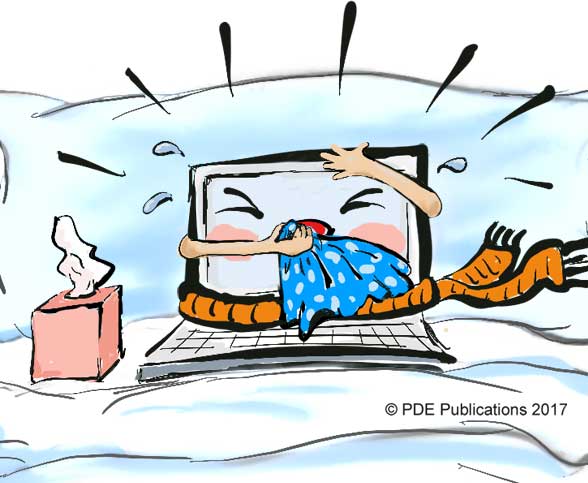
computer virus cartoon

Norton provide a useful definition of a computer virus:

“A computer virus, much like a flu virus, is designed to spread from host to host and has the ability to replicate itself. Similarly, in the same way that viruses cannot reproduce without a host cell, computer viruses cannot reproduce and spread without programming such as a file or document.” [Norton.com]

While you can never guarantee full protection (as computer viruses, like organic viruses, constantly evolve), you can take some very effective steps to protect your computer and more importantly, the personal and other data that your computer contains. The easiest way to go about protecting your computer is to understand the ways in which you are most vulnerable to threat.

In this article we will look at the top 5 computer virus risks you may be taking.

Top 5 ways to get a computer virus:

1. Trusting emails

Opening an attachment from unknown (and sometimes known) senders

Email is probably still the most common way to spread computer viruses. A computer virus needs code to attach on to and this code can be packaged in a file. More often than not this file is an .exe email attachment. If you see an email (it will often prompt you to open the attachments to check an order or review details) and you do not know the sender, then just delete it. Do not click on the link as this can launch the program and thus the virus.

https://www.drivers.com/update/security-backup/how-check-pc-viruses/

Clicking on a link in an email

Embedding links in emails is a common ‘phishing’ tactic for getting users to visit malicious websites. The site you end up on may be designed to send malicious files/ code to your computer so clicking these links is not worth the risk. If you hover over any of these links in the email (without clicking) you will often see that the actual web address it is pointing to is very different from that written in the email. If you are unsure and the email purports to come form amazon or apple or some other website, then don’t click the link but type the web address directly in your browser as opposed to clicking on any embedded links.

https://www.drivers.com/update/security-backup/tips-avoid-email-phishing-scams/

2. Trusting unknown websites

Always proceed with caution when clicking any links on an unknown or untrusted website. Some malicious links can be well-disguised in pop-up windows that may look like your standard Windows popups prompting you to click on the ‘OK’ button. Always read the information on screen before clicking and if unsure, just close the window and the leave the website.

3. Download infected software

Antivirus tools will often flag or quarantine malware or software containing viruses. However, this is by no means foolproof and antivirus tools can miss some malware and even mislabel some good software as malicious. Rather than just relying on the antivirus tools it is important to use both restraint and common sense!

Restraint in that you should be selective in the software you download. Not only can it present a risk to your PC, but it also takes up valuable space on your PC. Common sense will help prevent you from downloading more than you had bargained for. Read each screen carefully, particularly where you are presented with the option of a custom or automatic install. The idea of customizing an install puts people off as it sounds like a lot of unnecessary work, but really all it does is allow you to uncheck any boxes which would give your permission for additional software to be downloaded.

4. Not running an antivirus program or failing to install updates

Viruses are constantly evolving to evade the security measures put in place to protect users. If you do not have an antivirus tool installed, then you have no first line of defense against these viruses. If you don’t keep your antivirus tool or database up-to-date then you are vulnerable to all new developments in the world of viruses and malware. Windows Updates are equally, if not more important. These updates, which are free, often address critical security vulnerabilities and are therefore of vital importance.

Click here if you are having problems with Windows Update as failing to install Windows Updates can leave your PC very vulnerable to attack.

5. Trusting files from other users

In the past this often took the form of files on an external drive or a disk but this is less common now with cloud storage. The real risk from other users files are those streamed and shared from music and movie-sharing websites. These sites are notorious for spreading viruses and malware so proceed with caution!

Now that you know the top 5 ways to get a computer virus, you can take the steps necessary to avoid doing so!

Filed Under: Security/ Backup Tagged With: adware, malware, virus

Do I need to worry about the HeartBleed Bug?

Will the Heartbleed bug effect me?

If you use the internet – probably. This is not to say that your information has necessarily been compromised, the point is it may have been. For this reason, the first thing to do is to change all your passwords and do so now.

The Heartbleed Bug is one of the more serious threats in the last number of years, not least of all because it relates to encryption software run by pretty much all the major websites, but also because it went undetected for the last 2 years.

(Our Driver Update, Antivirus and other software is processed through safecart.com which has now, like Amazon and other major websites, applied a security patch to protect against the Heartbleed Bug.)

What is the Heartbleed Bug?

The Heartbleed Bug is a vulnerability in OpenSSL encryption software (official reference CVE-2014-0160), this is the secure connection depicted by the little padlock icon that you will see on the vast majority of websites including Twitter and Facebook. This vulnerability in the encryption software potentially allows hackers to access and steal supposedly-encrypted data such as passwords and credit card details.

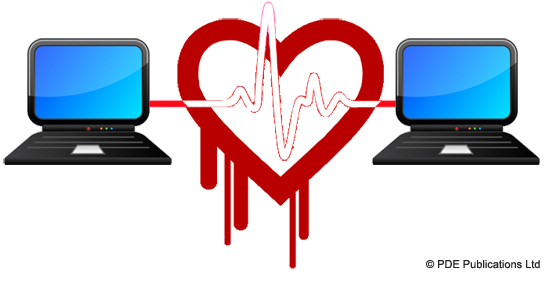
The bug itself is a security loophole which can be exploited by hackers in order to surreptitiously gain access to user data. Messages are often sent between computers on a secure connection so one computer can check that the other is available – this involves sending a small packet of information or data, known as a heartbeat – the receipt of which may be confirmed by the recipient computer on the secure connection.  The vulnerability lies in allowing hackers to use fake data packets, prompting the target computer to respond with the users data.

heartbleed bug help

What do I do to protect myself against the Heartbleed Bug?

As mentioned above, if you haven’t changed all your passwords, do so now. Assuming that the websites in question have applied security patches to address this vulnerability, changing the passwords will protect your data, so the new password will not be compromised. You should also apply any Operating System security patches that are provided.

You can check if a website has updated its version of OpenSSL to protect against this bug by using the online heartbleed test tool .

Most major websites will have been exposed to this vulnerability so we recommend changing all passwords. If you use common passwords across websites – change them all as this presents a great opportunities to hackers to access your data, even on sites that were not initially exposed to this security bug.

Filed Under: Security/ Backup Tagged With: heartbleed, virus

How to disable mdm.exe virus

The original mdm.exe is a genuine process. However, it is not uncommon for malware to have the same name as a genuine process file. If you find that mdm.exe is not located in its usual location or there are two entries by the name mdm.exe under the Processes tab in the Windows Task Manager window, you can be almost certain that your computer is infected.

How to check if mdm.exe running is safe

Check the location of the file first. The genuine mdm.exe is located in the folder C:WindowsSystem 32. An mdm.exe located in some other location is a cause for concern. You should immediately run a virus scan to ensure that your computer is not infected or to remove present malware and secure the computer once again.

The other thing you can do is open Task Manager and check how many mdm.exe are running. If more than one is running, you may well be looking at a malware-related issue.

To open the Task Manager window, perform the following steps:

  • Click Ctrl+Alt+Del
  • Click the Processes tab
  • Browse through the listed entries to check how many mdm.exe are running

Malicious programs that are known to disguise themselves as mdm.exe

The following malware is known to hide itself as mdm.exe:

  • W32. Unubot.B
  • W32.Sdbot.APE
  • W32. Rbot.AIJ
  • W32.Agobot.AQ
  • W32.Bckdr-QJR

What to do when your computer is infected with malware disguised as mdm.exe

If your desktop is infected, perform the following steps in the same order they appear here.

Update your antivirus tool – Open your antivirus tool’s interface and click on the Update button to update it with the latest virus definitions and signature. If up till now you haven’t used an antivirus application, download and install one immediately. When purchasing a new antivirus tool, be mindful about the following things: (1) ensure that the tool is compatible with your Windows operating system, (2) it provides real-time protection, (3) it doesn’t consume too much resources, (4) it is fast. Update your new antivirus tool once the installation is complete.

Disconnect your computer from the Internet – Next disconnect your Windows computer from any network that it is connected to.

Reboot Windows in the Safe Mode – Close all open applications and programs and restart Windows. Next press and hold the F8 key as your computer boots to enter into the Advanced Boot Menu. Here, using the arrow keys on your keyboard, select Safe Mode and press Enter.

Run a full system scan – Finally run a full system scan to get rid of the malicious mdm.exe and other malware files.

Filed Under: Security/ Backup Tagged With: virus

How to keep your pc virus free

Most computer users feel that installing an anti-virus tool is enough to keep their computer virus-free. However, installing an antivirus tool alone is not enough to keep a pc protected; you need to do a lot more than that.

Here we look at the full range of actions you need to take to prevent malicious programs from gaining entry into your computer.

Install an advanced antivirus tool

The first thing obviously is to install a reliable and advanced antivirus tool. When purchasing a protective software application, ensure that it offers real-time protection against malware, does not consume too many resources, and is compatible with the operating system you use.

Schedule automatic scans

Scanning your computer for virus and other threats every once in a while is not enough. Instead configure the software to scan your computer daily.

Update your antivirus software regularly

An antivirus tool can identify and take action against only those threats that are registered in its’ library. As new virus definitions are released periodically, it is essential that you regularly update your protective software to allow it to protect your computer from the latest threats.

Do not download files from dubious websites

Some online file libraries are safe, but many are not. Therefore, it is recommended that you check the authenticity of a website before downloading files from it. Here’s an example:

Let us assume you need a device driver. There are many websites that offer drivers for free, but all of them are not safe. It is best that you download a driver from a genuine website such as drivers.com. It is a trusted site with a huge library of different device drivers.

Do not use peer to peer file sharing websites

Such websites usually promote adware or spyware. That is why it is best that you avoid them. If you absolutely need to download stuff from such a website, at the least, scan the downloaded file or application before opening it.

Scan any external device before using it

Whenever you attach an external device such as a portable hard disk to your computer, you should scan its contents first.

Scan email attachments before opening it

Before you open an email attachment scan it using your antivirus tool. And lastly, do not open any email attachments that you receive from unsolicited sources.

Filed Under: Security/ Backup Tagged With: antivirus, malware, virus

No Task Bar or Icon At Windows Start Up

One of our users recently experienced the following, surprisingly common, problem:

“When I boot Windows, all I see is a blank desktop. There is no task bar or no icons are visible. I booted in Safe Mode and here everything appears as normal – what has caused this?”

Cause of blank desktop issue

We decided to post this issue, and the solution, as it seems to be experienced by more and more users. There are various reasons for this problem but the most common and likely cause is malware infection.

Solution to blank desktop issue

If the issue is due of malware infection, you can resolve it by running a virus scan using a trusted antivirus tool in the Safe Mode. It is advisable to run a malware check anyway as, if this is not the cause, it will at least rule it out.

Filed Under: PC Fix Tips Tagged With: blank, desktop, screen, virus

Stop Windows from signing you out

Some Windows XP users have complained about Windows automatically signing them out after a few minutes of inactivity.

Unlikely as it seems, this issue usually occurs because of screensaver settings. To correct the problem, perform the steps detailed below:

  1. Right-click on an empty area on your desktop
  2. Choose Display Properties
  3. Click Screen Saver
  4. Increase the time listed in the Wait field
  5. Deselect the box before On resume, password protect if you don’t want windows to ask for a password each time you exit the standby mode
  6. Click the OK button to save your preferences

Since the release of Windows XP, Microsoft has released three new versions, each better than the previous one. However, many users are comfortable using Windows XP only and choose not to upgrade. For such users, there is some good news: they can run Windows XP virtually, inside Windows 7 or Windows 8. This is made possible by Windows Virtual PC, a free application.

Whether you use older or newer Windows versions, you must protect it from malware and hackers. The best way of doing this is by installing a reliable and fast antivirus tool and keeping it up-to-date.

Filed Under: PC Fix Tips Tagged With: antivirus, virus, windows xp

How to remove aheb.exe

If your pc is infected with Trojan.Win32.BHO.aheb, we recommend you to remove this malicious file as quickly as possible. To remove the malware,  you need to track it down and remove all its traces from your pc. This is something you can do effectively using a reliable and advanced antivirus application.

If you currently are not using an antivirus tool, or your current antivirus tool proves incapable of removing aheb.exe, you should download and install a new antivirus tool that is effective against this malware. Next, download the latest virus updates and run a virus scan on your entire computer.

Note:  This malware, like many others, may prevent your antivirus tool from downloading the latest updates. If this happens in your case too, restart Windows in the Safe Mode with Networking. This you can do by shutting down your computer and then powering it on. As Windows reloads tap the F8 key until the Advanced Boot Options screen appears.

Filed Under: Security/ Backup Tagged With: aheb.exe, virus

Fix ekrn.exe High CPU Usage

Users who use ESET products like ESET Smart Security Suite Kernel Service or other products often complain of a process, called ekrn.exe, consuming high CPU resources regularly.

The Ekrn.exe file is an important part of ESET Smart Security Suite Kernel Service, ESET NOD32 Antivirus, and some other ESET security products. Its’ main function is to transfer data on behalf of the installed ESET security program. In addition, it is also responsible for scanning files that you download from the Internet.

100% Disk Usage Windows 10

Cause of high CPU usage

The exact cause of ekrn.exe high CPU usage is not known. It is suspected that this issue may arise if the ESET product is not up-to-date. The issue may also occur if you are using Windows Vista and have installed Comodo Firewall version 3.014 on it.

Fix high CPU usage

Depending on the cause of the error, you can fix it by updating your ESET security product or upgrading to Comodo Firewall version 3.015.

In case these steps do not fix the issue and high CPU consumption of ekrn.exe is causing too many problems, you are recommended to replace ESET security tool with some other reliable, light security tool. For instance, if you use ESET NOD32, replace it with another reliable antivirus tool which does not consume a lot of space.

PC Speed Help: How to fix high CPU usage

Filed Under: PC Fix Tips Tagged With: CPU, ekrn.exe, virus

  • 1
  • 2
  • Next Page »


  • Recent Posts
  • Popular Posts
        

Read More Posts


Read More Posts

Drivers.com Sites

  • Software Drivers
  • Drivers Ed

About Us

  • Advertise
  • About Drivers
  • Drivers Support
  • Drivers.com Privacy Policy
  • Disclaimer
  • Software Drivers
  • Mac Fixes and Tips
  • PC Fix Tips
  • Security/ Backup
  • Tablets & Smartphones
  • Tech News

© Copyright 2026 PDE Publications Ltd. End User License Agreement (EULA)