


Computers are exposed to numerous threats on a daily basis, from worms and trojans to spyware and adware, and then of course there is the ever-present computer virus. Protecting your computer against such threats is far easier if you understand what the threats are and how exactly they work. Much like a biological virus, if you understand how a virus is spread, you can take more effective steps to avoid infection.
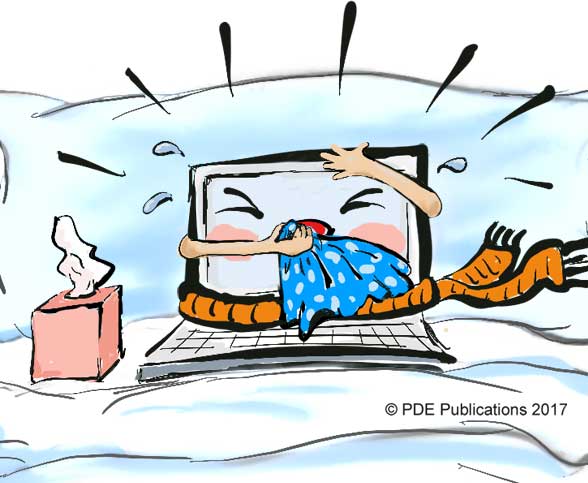
Norton provide a useful definition of a computer virus:
“A computer virus, much like a flu virus, is designed to spread from host to host and has the ability to replicate itself. Similarly, in the same way that viruses cannot reproduce without a host cell, computer viruses cannot reproduce and spread without programming such as a file or document.” [Norton.com]
While you can never guarantee full protection (as computer viruses, like organic viruses, constantly evolve), you can take some very effective steps to protect your computer and more importantly, the personal and other data that your computer contains. The easiest way to go about protecting your computer is to understand the ways in which you are most vulnerable to threat.
In this article we will look at the top 5 computer virus risks you may be taking.
Top 5 ways to get a computer virus:
1. Trusting emails
Opening an attachment from unknown (and sometimes known) senders
Email is probably still the most common way to spread computer viruses. A computer virus needs code to attach on to and this code can be packaged in a file. More often than not this file is an .exe email attachment. If you see an email (it will often prompt you to open the attachments to check an order or review details) and you do not know the sender, then just delete it. Do not click on the link as this can launch the program and thus the virus.
Clicking on a link in an email
Embedding links in emails is a common ‘phishing’ tactic for getting users to visit malicious websites. The site you end up on may be designed to send malicious files/ code to your computer so clicking these links is not worth the risk. If you hover over any of these links in the email (without clicking) you will often see that the actual web address it is pointing to is very different from that written in the email. If you are unsure and the email purports to come form amazon or apple or some other website, then don’t click the link but type the web address directly in your browser as opposed to clicking on any embedded links.
2. Trusting unknown websites
Always proceed with caution when clicking any links on an unknown or untrusted website. Some malicious links can be well-disguised in pop-up windows that may look like your standard Windows popups prompting you to click on the ‘OK’ button. Always read the information on screen before clicking and if unsure, just close the window and the leave the website.
3. Download infected software
Antivirus tools will often flag or quarantine malware or software containing viruses. However, this is by no means foolproof and antivirus tools can miss some malware and even mislabel some good software as malicious. Rather than just relying on the antivirus tools it is important to use both restraint and common sense!
Restraint in that you should be selective in the software you download. Not only can it present a risk to your PC, but it also takes up valuable space on your PC. Common sense will help prevent you from downloading more than you had bargained for. Read each screen carefully, particularly where you are presented with the option of a custom or automatic install. The idea of customizing an install puts people off as it sounds like a lot of unnecessary work, but really all it does is allow you to uncheck any boxes which would give your permission for additional software to be downloaded.
4. Not running an antivirus program or failing to install updates
Viruses are constantly evolving to evade the security measures put in place to protect users. If you do not have an antivirus tool installed, then you have no first line of defense against these viruses. If you don’t keep your antivirus tool or database up-to-date then you are vulnerable to all new developments in the world of viruses and malware. Windows Updates are equally, if not more important. These updates, which are free, often address critical security vulnerabilities and are therefore of vital importance.
Click here if you are having problems with Windows Update as failing to install Windows Updates can leave your PC very vulnerable to attack.
5. Trusting files from other users
In the past this often took the form of files on an external drive or a disk but this is less common now with cloud storage. The real risk from other users files are those streamed and shared from music and movie-sharing websites. These sites are notorious for spreading viruses and malware so proceed with caution!
Now that you know the top 5 ways to get a computer virus, you can take the steps necessary to avoid doing so!