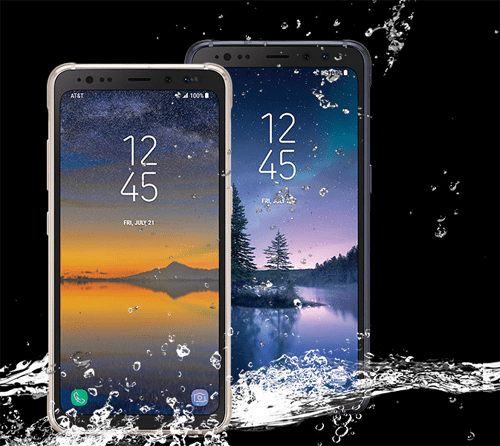
Released in 2017, Galaxy S8 and S8 Plus are two premium Android smartphones with robust features like Bixby voice and Samsung’s powerful camera. The camera and the voice assistant are two of the most battery draining apps on any phone.
If you are going to use these features then you should implement some battery saving strategies in order to extend the battery life of your Galaxy phone. Below are some batteries saving tips that will come handy if you find that your Galaxy S8’s battery is draining too quickly.
Uninstall or disable any battery draining apps
The Galaxy S8 offers plenty of battery customization options. If your battery is draining too fast, you should try to analyse the reasons for this as it is likely you will be able to make some changes that will extend your the battery life on your Samsung Galaxy.
If you suspect one or more apps are draining the battery excessively, the best solution to the problem would be to disable or uninstall the offending app or apps.
Android features built-in system level tools that allow you to detect battery draining apps so that you don’t have to sit for hours to calculate the power consumed by every app on your Galaxy S8.
Below are the steps to follow in order to find which apps are the greatest offenders in using up your battery:
- Go to Settings app
- Tap Device maintenance
- Tap Battery
- Under App power monitor, you will see the app that is consuming most battery
The apps are listed in descending order of power usage so the worst culprits will be at the top of the list. After you have found the worst battery draining apps, you can make an informed decision regarding which apps you should uninstall or disable.
If you don’t want some apps to run continuously in the background, you can put these apps to sleep. After you have done this, these apps will only get activated when you manually start them (by touching the app icon). Here are the steps to follow in order to implement this:
- In the App power monitor screen, select the apps you want to put to sleep
- Tap Save Power and you can put unwanted battery hungry apps to sleep
Adjust the Power saving mode
The Galaxy S8 phones come with an inbuilt power-saving tool that is a very useful feature. However, to get optimal benefit from it, you need to tweak the Power saving mode according to your needs. Here are the steps to customize Power Saving mode.
- Go to Settings menu
- Under Device Maintenance, tap Battery option
- Under Power Savings mode, you will find two battery saving modes: Mid Mode and Max mode
The Mid mode reduces the brightness of the screen and lowers the screen resolution to 2220×1080. It also turns off background network usage. The Max mode lowers the screen resolution even further to 1480×720. It also limits the CPU performance to 70%, thereby improving your phone’s ability to conserve battery power.
Get notifications of system health
Do you know the App power monitor can also be tuned to monitor your smartphone’s health? Here are the steps to follow in order to activate this:
- Go to Advanced settings
- Tap Notification settings
- Make sure the App power monitor is looking at unstable, battery draining, and unused apps
Once you have set this, the App power monitor will alert you when there is an issue.
Lower screen resolution
The Galaxy S8 is fitted with AMOLED screen with a max resolution of 2960×1440. However, this does not mean you should keep the device resolution at the maximum at all times.
Keeping the screen resolution at a higher level drains the battery faster. You can increase the battery life of your phone by a few hours by opting for a lower screen resolution. You can keep the display resolution at 2220×1080 which is more than enough in most circumstances. And whenever needed, you can set a higher resolution but don’t forget to revert to a lower resolution later.
Don’t get carried away by Automatic brightness settings
The Auto-Brightness settings sound good but it can eat into your phone’s battery life. The Auto-brightness feature in Android smartphones including Galaxy S8 phones is not great when it comes to determining the right screen brightness for every situation. Switching off the feature will help saving the battery, as your phone display will not be frequently swinging from darkest to brightest or in-between.
Switch off the Always-On display setting
The Always-On display setting might be useful, but it is demanding on the phone’s battery. According to smartphone experts who have reviewed Galaxy S8 phones, the smartphone with Always-On display feature activated consumes around 0.23 watts on average and 0.13 watts during standby. Even though the Always-On display feature looks power efficient, switching it off can save some battery power. If you want the feature enabled, you can consider scheduling it, such as keeping the display on only when the Galaxy S8 is plugged in.
Activate the “Keep the screen turned off” feature
The Galaxy S8 is fitted with an AMOLED screen that can be quite energy draining. Since the display is sensitive, you might see the display switched on by accidental touch. For example, the display might turn on when you accidentally touch the screen when it is in your pocket.
You would certainly want to avoid turning on the display accidentally. This is where the “Keep the screen turned off” feature comes in handy. With this feature activated, you don’t have to worry about the display turning on accidentally, like when the phone is under a cushion or in your pocket.
Switch off all Voice Assistants
The Google Assistant and Bixby might be helpful, but you don’t need them all the time. You can switch off the voice assistant when you have no use for it.
If you have any other valuable battery-saving tips for your Samsung Galaxy device, please share below!