
Drivers.com

follow us:

facebook twitter
  • Home
  • Download Drivers
  • Drivers Help
  • PC/Mac Resources
  • Software Drivers
  • Mac Fixes and Tips
  • PC Fix Tips
  • Security/ Backup
  • Tablets & Smartphones
  • Tech News
  • Software Drivers
  • Mac Fixes and Tips
  • PC Fix Tips
  • Security/ Backup
  • Tablets & Smartphones
  • Tech News

Resources by Tag

samsung

What is the best flip-phone?

What is the best flip-phone?

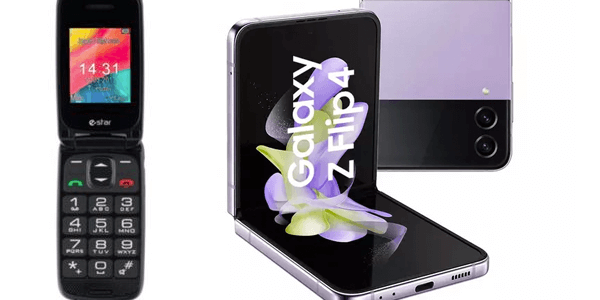
The term “flip phone” can refer to many different types of phones but it generally means those hinged phone where the screen flips closed onto the keypad. Some flip phones are quite basic while the newer ones have screens on the outside of the phone as well as the main screen.
flip phones

This means alerts and other information can be viewed while the flip phone is closed. Because of these variations in technical specifications and therefore price, it can be hard to directly compare flip phones but here are some options that are popular and highly regarded amongst phone users.

  1. Samsung Galaxy Z Flip4: This is a modern flip phone that runs on Android and features a foldable display . It has a beautifully sleek design and powerful specifications, making it a popular choice for those looking for a flip phone without compromising on display.
  2. Nokia 2720 Flip: This is probably the most basic flip phone that is both easy to use and has a very long battery life. It features 4G connectivity, a 2.8-inch screen, and a durable design. A solid and practical phone.
  3. Motorola Razr: Another modern flip phone with a foldable display. The Motorola Razr runs on Android and has a sleek design.
  4. LG Wine 2: This is another basic flip phone that is popular for its large buttons and easy to use interdace. It features all the basic cellular phone needs such 4G connectivity, a 2.8-inch screen, and a 2MP camera.

The best flip phone for you will depend on your needs and of course your budget. You may want a flip phone to easily fit in a pocket or bag and care very little about the look of the phone and the high screen and camera specs. If this is the case a basic flip phone such as the Nokia is likely to suffice. However, if you are looking for a sleek design with high end specifications and good accessory value – then the Samsung Galaxy Flip4 may be the one for you, but start saving as it doesn’t come cheap!

Filed Under: Tablets & Smartphones Tagged With: flip phone, flip4, galaxy, nokia, samsung, smartphone

How to fix wireless connectivity issues in Samsung Printers?

One of the more common problems with Samsung wireless printers, as with most wireless printers, is a connectivity issue. The steps below will help you resolve these connectivity issues in Samsung Wireless Printers.

Before you start with any troubleshooting steps, check whether the Samsung Printer and the router are ON. The next step is to check whether the wireless adapter driver is correctly installed. Here are the steps you need to follow for this:

  1. Click Start button on the Desktop
  2. Type Device Manager in the Search Box
  3. Select Device Manager from the list
  4. Go to Network Adapters and look for any entry with a yellow exclamation mark next to it
  5. If you see a yellow exclamation mark then right-click on the Wireless Adapter and select uninstall
  6. Download and install the latest Wireless Adapter Driver for your printer model from the Samsung website
  7. Install the Driver and reboot the system
  8. Check whether your Samsung Printer is able to connect to your router

If there is no Wireless Adapter installed for your printer, you need set an ad-hoc wireless connection between your Samsung Printer and router. To do this, follow the instructions below.

The minimum requirements to set up ad-hoc wireless connection without using the USB cable are: A Windows 7 PC or higher, a router/access point , software CD provided by Samsung and a Samsung printer installed with wireless interface.

How to manually update Samsung Drivers

Steps to install ad-hoc wireless printer connection

  1. Turn on all three devices: your PC, router and Samsung wireless printer
  2. Insert the software CD into your CD-ROM drive
  3. Click Start > Accessories > Programs > Run
  4. Click on E:Setup.exe where E is the drive letter of CD-ROM
  5. Accept all installation agreements and click Next
  6. In the Printer Connection type window, select Wireless network connection
  7. Click Next
  8. On the “Are you setting up your printer for the first time?” screen, click Yes
  9. On the “Select the Wireless Setup Method” screen, select Using a direct wireless connection
  10. Click Next
  11. When the “Press WPS button on your printer” screen appears, press the WPS button on your printer
  12. When the wireless network setup process is completed, click Next
  13. Follow the on-screen instructions to complete the process

If you are still facing connectivity issues, print a network configuration report of your printer.

  1. Click Start > Settings
  2. Go to Control Panel > Devices and Printers
  3. Right-click your Samsung printer and select printer properties
  4. Click the Port tab
  5. Click Configure Port button
  6. Check the printers IP address
  7. The IP address should be same as IP address on the configuration sheet. If the IP address is different, change the printer’s IP port address.

If you are still having problems with your Samsung Wireless Printer, you can use a Driver Update Tool to diagnose and fix your Driver problems.

Updating Drivers Automatically

Automatic driver update tools offer many benefits, the most important ones being:

  • You can update device drivers automatically
  • The software scans and updates all outdated or missing drivers at one go
  • The tool picks the right drivers for your device and operating system, so you won’t have to worry about installing an incorrect driver by mistake
  • Automatic driver updates are 100% safe

Driver Updater is one of the best driver update tools out there. Outbyte Driver Updater will give you access to a database of over 1 million drivers. It will regularly scan your PC, suggesting new driver versions to install. Driver Updater contains drivers for a variety of Windows devices. With just one click, you can update drivers in your system.

Step 1
Click here to Install and launch the app

Step 2
Scan all devices

Step 3
Install or update drivers automatically


Start Download


Filed Under: PC Fix Tips Tagged With: fix wireless connectivity issues, printer, samsung, wireless

Fix Samsung CLX 3170 Driver Errors

Samsung CLX Errors

The most common Samsung CLX 3170 error you will get while using this multi-function device is that the machine does not print. This post contains information on how to resolve this and some other Samsung CLX 3710 Driver errors that you may encounter.

How to manually update Samsung Drivers

How to resolve the “the machine does not print” error

There can be several reasons why your Samsung CLX 3170 is not able to start a printing job, reasons such as:

  • Printer is not receiving power
  • Problem in connection between your computer and printer
  • This printer is not selected as the default printing device in your computer.
  • Other problem with printer
  • The toner cartridge is not compatible
  • Incorrect Port Setting
  • Printer driver not installed or has become corrupt
  • Problem with Document size

To fix this issue, we recommend you first check if the Samsung CLX 3170 is receiving power. Check the power cord, power switch and power outlet to ensure everything is functioning properly.

Once you have checked your power connections, you need to check the connection between your computer and printer. Disconnect and re-connect the printer cable. To ensure the printer cable works, try connecting your printer to another computer that is functioning properly and try printing a document.

Check whether Samsung CLX 3170 is the default printer or not. If it is not, perform the steps listed below to make it the default printer:

  • Click Start
  • Click Devices and Machines (or Machines and Fax)
  • Locate and right-click “Samsung CLX 3170” and then select “Set as default machine”

In case the Samsung CLX 3170 was already the default printer, or in case the error persists even after it is selected as the default printer, you will need to check if the printer is having a problem related to the toner cartridge or paper. There can be several issues that can affect the proper functioning of your Samsung CLX 3170 printer. You need to check your printer for the following issues

  • The front cover and rear cover of the printer should be closed
  • The paper should be loaded and there should be no paper jams.
  • The toner cartridge should be properly installed. If possible try replacing the toner cartridge.

You need to check your printer is communicating with the correct port. Follow the steps given below to check the port settings for your Samsung CLX 3170.

  • Click on Start -> Control Panel –> System
  • Click on Hardware tab -> Device Manager
  • Under Ports (Com and LPT), go to Printer Port (LPT1) and double-click on it to view its Properties
  • In General section under Device Status you should see message “This device is working properly” which confirms the port settings are correct.

If none of these solutions have worked to resolve the issue, it is more likely the printer drivers have become corrupt or out of date. Try uninstalling and re-installing the printer drivers and printer software.

Every printer has some minimum system requirements which include free hard drive space. The minimum hard drive space requirements for different OS are as follows

Windows 2000 – 600 MB

Windows XP – 1.5GB

Windows Vista – 15GB

Windows 7 – 16GB

Windows Server 2008 – 10 GB

The above mentioned values for free hard drive space are recommended values. If the document size which you are trying to print is big then you need to ensure you have at least the recommended free hard drive space on your computer.

click here to go to  our Samsung drivers page to download Samsung driver updates (this will allow you to run a free Driver Scan)

How to resolve “A print job is extremely slow” issue?

Many things may cause delays in printing with a Samsung CLX 3170. One reason is the print job is too complex. You can resolve the issue by reducing the complexity of the document or changing the print settings of the documents. You can reduce the resolution of the document to 1200dpi (Normal) or 600dpi (Draft). If that doesn’t solve the slow printing issue, try connecting to other computer.

How to resolve “Scanner Locked” error?

Your Samsung CLX 3170 has a lock switch, which you need to set to the unlocked position. If that doesn’t help, switch off the device and start again.

How to fix “Fuser error” messages?

You may notice “Over heat Error (Cycle Power)”, “Low heat error (Cycle Power)”, or “Open heat error (Cycle Power)” message on your Samsung CLX 3170 LCD screen. These errors are related to Fuser and Exit sensor in your device. The solution to this problem is to replace the Fuser and Exit Sensor in your device.

One more common cause of printer errors is outdated or corrupt Samsung CLX 3170 drivers. The issue can be resolved by installing new drivers, which can be downloaded manually from the Samsung website or using a reputable driver update tool. To update your Samsung CLX 3170 drivers automatically click here and select the download link to run a free Drivers Scan.

Filed Under: Software Drivers Tagged With: printer, samsung


  • Recent Posts
  • Popular Posts
        

Read More Posts


Read More Posts

Drivers.com Sites

  • Software Drivers
  • Drivers Ed

About Us

  • Advertise
  • About Drivers
  • Drivers Support
  • Drivers.com Privacy Policy
  • Disclaimer
  • Software Drivers
  • Mac Fixes and Tips
  • PC Fix Tips
  • Security/ Backup
  • Tablets & Smartphones
  • Tech News

© Copyright 2026 PDE Publications Ltd. End User License Agreement (EULA)