Drivers.com

follow us:

facebook twitter
  • Home
  • Download Drivers
  • Drivers Help
  • PC/Mac Resources
  • Software Drivers
  • Mac Fixes and Tips
  • PC Fix Tips
  • Security/ Backup
  • Tablets & Smartphones
  • Tech News
  • Software Drivers
  • Mac Fixes and Tips
  • PC Fix Tips
  • Security/ Backup
  • Tablets & Smartphones
  • Tech News

What Is this song? How do I identify songs or music quickly?

By lisak on April 21, 2023

What Is this song? How do I identify songs or music quickly?

There are many different ways to identify a song quickly and easily.

What is this song? Ways to identify songs:

1. Use your Smartphone assistant:

This is the simplest option for finding out the name of a song while it is playing.

Speed is often key here as you need to get in quickly while the song is still playing, or you may end up having to hum it into your phone afterwards!

If you have a voice activated assistant such as Siri (iPhone), Google assistant (Android) or Bixby (Samsung Android) then you simply need to activate the assistant and say “What’s this song”.

hey siri what song is thisFind name of a song using Siri

Since iOS 14.2 the iPhone has included a built-in Music Recognition powered by Shazam. You can access this feature in the Control Centre of your iPhone or by simply activating Siri using the “Hey Siri” prompt.

While the music is playing you should say something like “Hey Siri, what’s this song” or “Hey Siri, Shazam this music”

Once identified, the details of the song will appear as a notification which you can then choose to open or save.

For more ways to use Siri see the post below:

3 ways your iPhone can change your life

hey google what song is thisFind a song using Google Assistant

To initiate Google Assistant simply hold down the Home button or say “Hey Google, what’s this song”. You can hold the phone near the music source or simply hum or sing part of the song to give the Google Assistant the information it needs.

Google Pixel devices have a ‘Now Playing’ feature. This feature, once enabled, will display details of a song playing on the lock screen of your phone.

Use the Now Playing feature on Google Pixel devices

To enable this feature go to Settings > Sounds & Vibration > Now Playing

Enable Identify songs playing nearby
hi bixby what song is thisFind a song using Samsung Virtual Assistant

To use the Samsung Virtual Assistant to recognise music or songs, simply use a command like “Hi Bixby, What song is this” within range of the music playing.

As with the other voice assistants, you can activate the Samsung Virtual Assistant using a long hold on the relevant button. Alternatively use the voice command “Hi Bixby”.

While the iPhone uses Shazam to power this music recognition feature, it is not clear what Samsung uses but it doesn’t seem to have the same speed as Shazam.


2. Use a music recognition app:

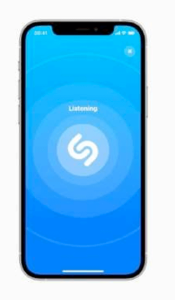
While you are listening to the song or piece of music you can use a music recognition app such as Shazam or SoundHound.

These music recognition apps can identify a song or a piece of music by simply listening to a few seconds of it.
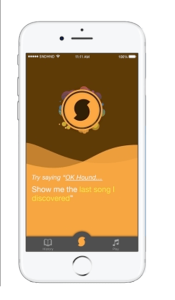
soundhound music recognition app
shazam music recognition app

3. Search the lyrics of the song:

Know some of the lyrics? If you know some of the lyrics to the song you can type them into Google or Bing or another search engine to try to find the name of the song. You could also try speaking the lyrics to a voice assistant such as Google or Alexa (or hum it if you are brave enough!)
The winner from all the above for identifying songs and music is the Google Pixel phone.
The Pixel phone allows you to identify a song playing in the background even without an internet connection and without having to initiate the Google Assistant.

Filed Under: Tablets & Smartphones Tagged With: hey google, pixel phone, shazam, siri, song recognition, soundhound

Fix for zoom audio not working

By lisak on April 19, 2023

Fix for zoom audio not working

Zoom is one of the more popular video conferencing platforms which enables users to communicate using primarily video and audio but with additional features such as screen-sharing and chat functions.

Zoom has become very popular for personal as well as business users. The software generally works very well and is simple to install and use. You can download the Zoom app or simply link to or create a meeting using a web link.

As with all such software, users can occasionally experience problems with audio when using Zoom. These problems are usually related to the users device but there can also be an issue with the actual Zoom settings.

Fix Zoom audio problems

If you are having problems with Zoom audio not working simply follow the troubleshooting steps set out below:

  1. Check basic audio is working: As with all audio issues, the first thing to do is check if your audio is working with other programs. Try clicking on a music file or going to a YouTube link to see if the audio is working
  2. Rule out software issues: If your audio is working on other programs or files then you know this particular issue relates to your sound in Zoom. Try opening Zoom on another device if possible – if it works on another device then you know the problem is with your computer hardware or software settings
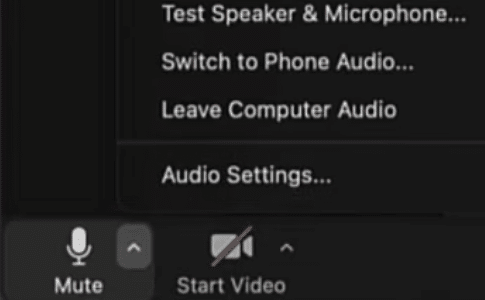
  3. How to check your sound settings in Zoom:  In the lower left corner of the Zoom window click on the arrow next to the microphone icon. Check that the correct microphone and speakers are selected (these are usually the integrated ones on your computer)
    zoom sound settings
  4. Restart the Zoom app or close and reopen the URL used for Zoom: restarting an app can get rid of many glitches so it’s always worth a try!
  5. Restart your computer: As with software, restarting your computer can help fix any glitches in settings so try this solution next
  6. Check for system or software updates: Zoom updates often include both security and big fixes so it is important to keep the software up to date. Your Operating System should also be kept up to date for the same reasons

https://www.drivers.com/update/pc-fix-tips/zoom-error-messages-and-their-solutions/

https://www.drivers.com/update/pc-fix-tips/how-to-fix-common-zoom-video-conferencing-app-problems/

https://www.drivers.com/update/pc-fix-tips/zoom-connection-problems-and-solutions/

Still having problems with Zoom audio?

If your issues with sound on Zoom persist you can search our other articles below or contact Zoom support with specific details of your issue.

Looking for alternatives to Zoom for your videoconferencing requirements? read our post below:

https://www.drivers.com/update/tech-news/top-9-zoom-alternatives-for-video-calling/


Filed Under: Mac Fixes and Tips, PC Fix Tips Tagged With: audio settings, videoconferencing, zoom audio, zoom sound

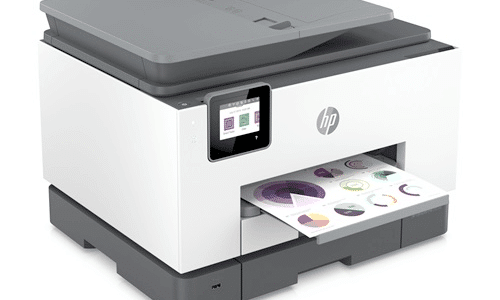
Update the HP OfficeJet Pro 9025e printer driver

By lisak on April 17, 2023

Update the HP OfficeJet Pro 9025e printer driver

HP OfficeJet Pro 9025e printer users may need to update their drivers to avoid issues with their HP printers. These issues can be anything from compromised performance to your HP OfficeJet printer not responding at all.

There are many reasons to update the HP OfficeJet Pro 9025e printer driver. For those experiencing HP printer errors an updated driver will help fix any bugs or issues and also provide enhanced security against any potential vulnerabilities.

HP OfficeJet driver updates will also improve performance and ensure that your printer works at its optimum level.

In this article, we will provide two main methods for finding, downloading and updating the driver for the HP OfficeJet Pro 9025e printer.

There are a number of ways to update your HP Printer Drivers. Follow the steps below to complete your drivers update:

To update the HP OfficeJet Pro 9025e printer driver, do the following:

  1. Go to the HP website
  2. Enter “HP OfficeJet Pro 9025e” in the search box and then click “Submit”
  3. From the list of operating systems, select your OS and then click “Next”
  4. From the “Driver” section you should click the download link corresponding to the latest version of your HP driver
  5. Follow the on-screen instructions to download and install the HP driver you have selected

Alternatively, Hewlett Packard have a Smart app to facilitate driver updates. To use the HP Smart app you will need to install the app either on your desktop or your mobile device and follow the app instructions to install the latest HP driver updates.

If you are having difficulty locating the HP drivers linked to your Operating System, you can use a Driver Update Tool to update your HP and other drivers. This can be very useful for keeping all drivers up-to-date (sound drivers, bluetooth drivers etc.)

To update your HP OfficeJet Pro 9025e printer drivers quickly and easily follow the steps set out below:

Updating Drivers Automatically

Automatic driver update tools offer many benefits, the most important ones being:

  • You can update device drivers automatically
  • The software scans and updates all outdated or missing drivers at one go
  • The tool picks the right drivers for your device and operating system, so you won’t have to worry about installing an incorrect driver by mistake
  • Automatic driver updates are 100% safe

Driver Updater is one of the best driver update tools out there. Outbyte Driver Updater will give you access to a database of over 1 million drivers. It will regularly scan your PC, suggesting new driver versions to install. Driver Updater contains drivers for a variety of Windows devices. With just one click, you can update drivers in your system.

Step 1
Click here to Install and launch the app

Step 2
Scan all devices

Step 3
Install or update drivers automatically


Start Download


Once the printer driver is updated, your HP printer should be back working as normal with the latest features and bug fixes included.

Download HP Drivers

Filed Under: Software Drivers Tagged With: hp driver, HP OfficeJet Pro 9025e, printer driver

  • « Previous Page
  • 1
  • …
  • 5
  • 6
  • 7
  • 8
  • 9
  • …
  • 23
  • Next Page »


  • Recent Posts
  • Popular Posts
        

Read More Posts


Read More Posts

Drivers.com Sites

  • Software Drivers
  • Drivers Ed

About Us

  • Advertise
  • About Drivers
  • Drivers Support
  • Drivers.com Privacy Policy
  • Disclaimer
  • Software Drivers
  • Mac Fixes and Tips
  • PC Fix Tips
  • Security/ Backup
  • Tablets & Smartphones
  • Tech News

© Copyright 2026 PDE Publications Ltd. End User License Agreement (EULA)