Drivers.com

follow us:

facebook twitter
  • Home
  • Download Drivers
  • Drivers Help
  • PC/Mac Resources
  • Software Drivers
  • Mac Fixes and Tips
  • PC Fix Tips
  • Security/ Backup
  • Tablets & Smartphones
  • Tech News
  • Software Drivers
  • Mac Fixes and Tips
  • PC Fix Tips
  • Security/ Backup
  • Tablets & Smartphones
  • Tech News

No sound in Discord

By lisak on May 27, 2021

Discord has become the top voice chat app used by gamers in order to communicate over voice and text. Other VoIP (Voice over Internet Protocol) such as Skype and TeamSpeak have also been popular with gamers.

As with all applications, Discord will have its problems and common issues such as problems with audio input and output, whether this is a problem with the quality of the audio or the device the audio is output to.

If you are having problems with getting sound input or output using Discord, then follow the troubleshooting steps below:

Check that Discord servers are working

There can occasionally be server issues on Discord servers which would impact the ability to connect or the quality of the connection. To check that the Discord servers are working ok, click here.

If there are problems with the Discord server then you will just have to sit it out as nothing you can do will have any impact so just keep checking back, the issues are usually resolved pretty quickly.

Restart Discord!

This always seems very obvious but shutting down and restarting an application can clear a lot of simple issues so it is always worth doing this early on in the troubleshooting process.

Check speakers and microphone settings

Some of the more obvious checks are to make sure you are not muted and that any wired connections are seated correctly. It is important to check Windows sound settings to make sure the speakers and microphone are enabled.
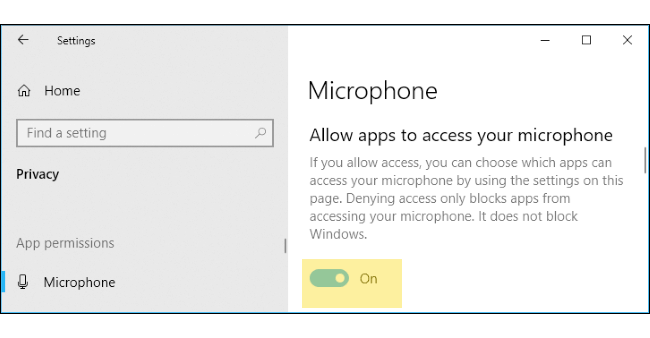
windows 10 microphone access on

Ensure that the application itself is not muted from windows sound settings > mixer > Discord.

Update Discord and restart PC

It is important to make sure Discord is updated. It should auto-update but occasionally may not for some reason. If this is the case then update the software and restart your PC. Even if the software is up-to-date, it is a good idea to restart your PC to clear any issues.

Update sound or audio drivers

Sound drivers need to be updated in order to keep software running effectively. You can download driver updates from the manufacturers website or you can use Windows to check for driver updates.

Updating Drivers Automatically

Automatic driver update tools offer many benefits, the most important ones being:

  • You can update device drivers automatically
  • The software scans and updates all outdated or missing drivers at one go
  • The tool picks the right drivers for your device and operating system, so you won’t have to worry about installing an incorrect driver by mistake
  • Automatic driver updates are 100% safe

Driver Updater is one of the best driver update tools out there. Outbyte Driver Updater will give you access to a database of over 1 million drivers. It will regularly scan your PC, suggesting new driver versions to install. Driver Updater contains drivers for a variety of Windows devices. With just one click, you can update drivers in your system.

Step 1
Click here to Install and launch the app

Step 2
Scan all devices

Step 3
Install or update drivers automatically
 

Start Download


Filed Under: PC Fix Tips Tagged With: audio, discord, sound

Wireless keyboard not working

By lisak on May 21, 2021

Wireless keyboard not working

If your wireless keyboard is not working there are 2 main reasons:

  • the keyboard itself (either power or a problem with the hardware)
  • the connection between the keyboard and the computer you are using (this could be bluetooth, drivers or another connection issue)

Problems with the wireless keyboard

Checking wireless keyboard power

The first thing to check if you cannot get your wireless keyboard to work is power. Your keyboard will have batteries or some form of power source. Check that this is working by looking for an indicator light or by replacing the batteries with ones you know to be working. It may seem obvious but check that you have the batteries inserted the right way (I have made that mistake in the past!)

When you are sure that the power to your keyboard is not the issue, then move on to the next step. However, most of the time this is the problem so double-check – it will save you time down the line!

Checking wireless keyboard hardware issues

This is more difficult to check and really is the last resort when you have checked all other options. If the steps in the next section don’t resolved your wireless keyboard connection issue, then you may have to assume it is a hardware problem and either get it repaired or replaced.

Wireless keyboard connection problem

Wireless keyboard connection setup

If you are setting up your keyboard for the first time then you need to follow the pairing or setup instructions for your specific model of keyboard. Some keyboards will have a receiver that needs to be plugged in to a USB port, others will have a bluetooth pairing button, the connection method depends on your keyboard.

To check if your wireless keyboard is connected or paired, follow the steps set out below:

Go to Windows Settings by clicking on Start menu > click the gear icon near the bottom-left

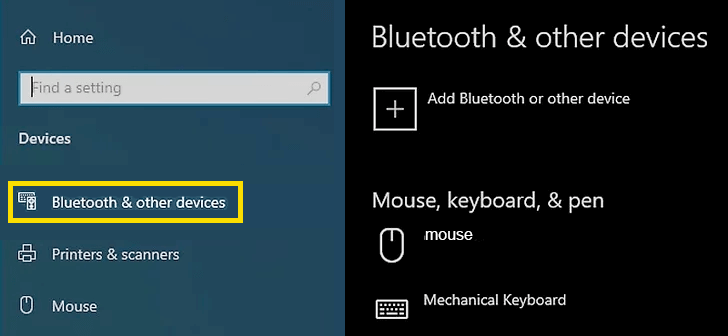
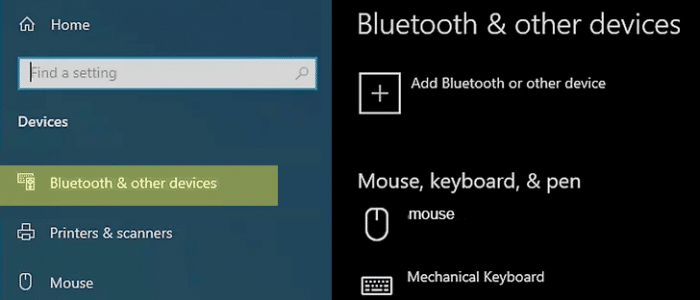
Select Devices > Bluetooth & other devices

windows bluetooth settings

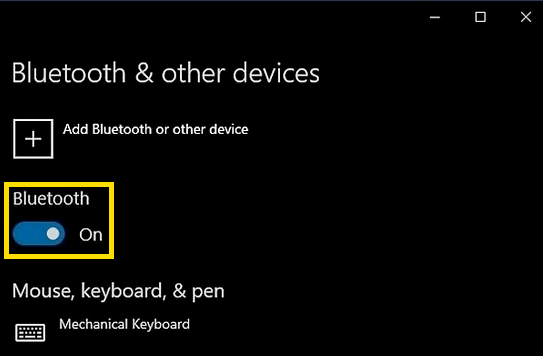
Make sure Bluetooth slider switch is toggled to ‘on’

bluetooth slider toggle on

If you don’t see your wireless keyboard listed, then select ‘Add Bluetooth or other device’ and follow the on-screen instructions. If you don’t see your keyboard listed try turning it off and back on again.

If you are still having problems with your wireless keyboard connection then you may need to check your wireless keyboard drivers. You can check and update your wireless keyboard drivers using Windows or if you wish to use a Driver update tool to automate your driver updates, click on the download link below.

Start Download

Keyboard not working in Windows 10?

Keyboard not typing windows 7, 8, 10

Keyboard and mouse driver updates

Filed Under: PC Fix Tips Tagged With: bluetooth, wireless keyboard

Chrome running slow

By lisak on May 17, 2021

Chrome running slow

Chrome has been rapidly gaining in popularity and now accounts for almost three-quarters of all browser usage. However, this increase in popularity has not been without its issues. The most common issue we are asked about in relation to the Chrome browser is speed. Users are finding Chrome becomes very slow and even freezes or hangs. Below we look into some fixes for this issue.

Internet connection speed

The first thing to do is to eliminate internet speed as a possible cause for this. If you can access email and other online services (not using Chrome) with reasonable speed, and it is just Chrome that appears to be slow then proceed to the next step, if everything is slow then check your broadband or internet speeds as this may be the issue. You may need to update your network drivers to help speed up your PC.

Slow PC or laptop?

If your PC is old or has almost reached its storage capacity this could very likely be causing speed issues across the board. If you have another browser installed on your PC, try accessing sites using this and see if the speed issues are still there. If so, then the problem is with your PC or laptop speed and you can view this post for more advice.

How to speed up Chrome browser

Update to the latest version of Chrome

It is important for security as well as performance to make sure you keep your version of Chrome up-to-date.

To update Chrome:

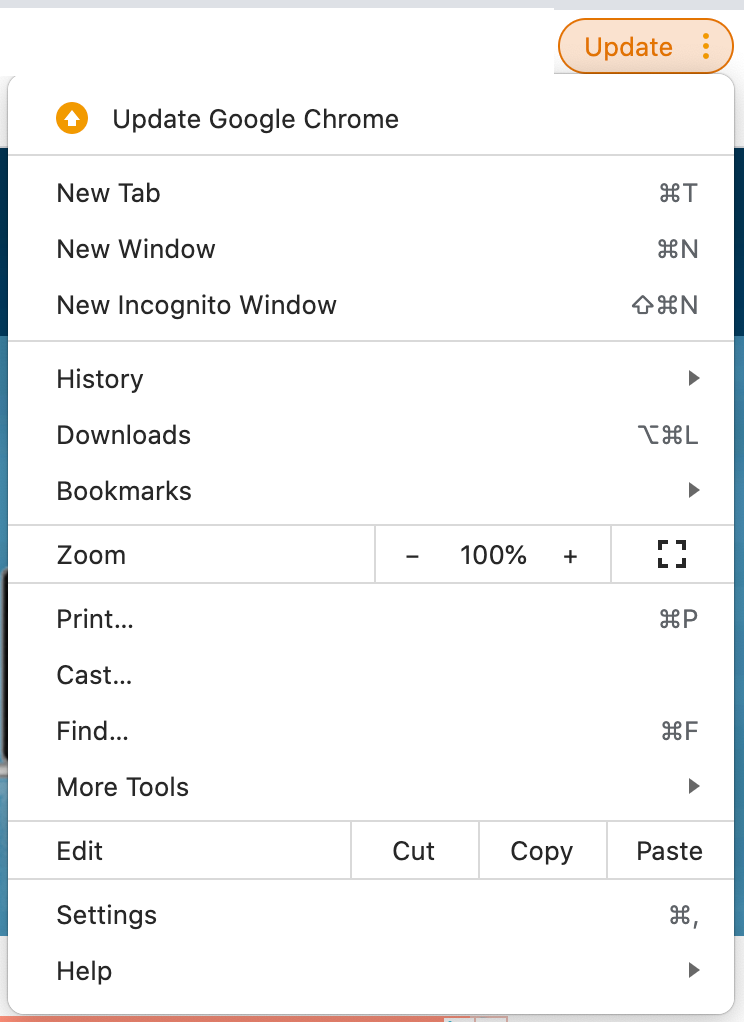
  • When in Chrome select ‘More’ in the top-right corner
  • Select ‘Update Google Chrome’ and if this option is not showing then you are already using the latest version
update google chrome

Too many tabs open in Google Chrome

When you have too many tabs open in Chrome, this can use up a lot of system resources, depending on what pages are being accessed. It is good practice to only keep tabs open when they are being used and not to have too many open at a given time.

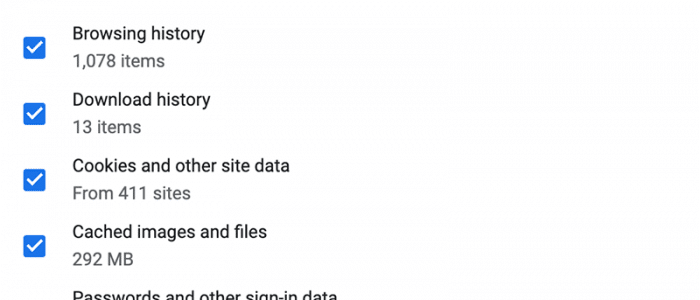
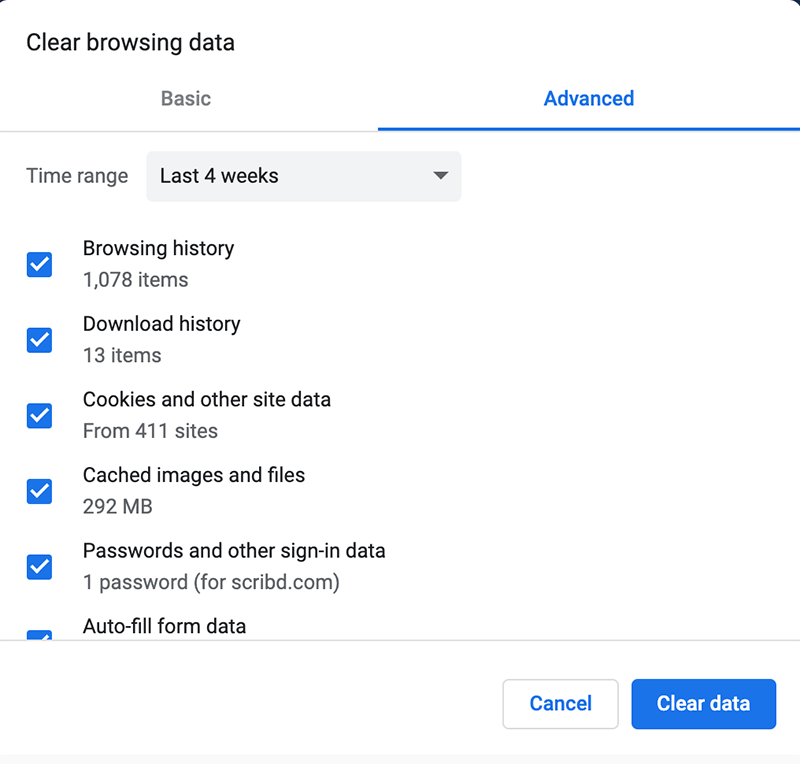
Clear cache in Chrome

clear chrome cache

Chrome stores cached files for a long time so the cache can become very bloated, slowing down the browsing experience and taking up valuable space on your hard drive.

How do I clear my cache in Google Chrome

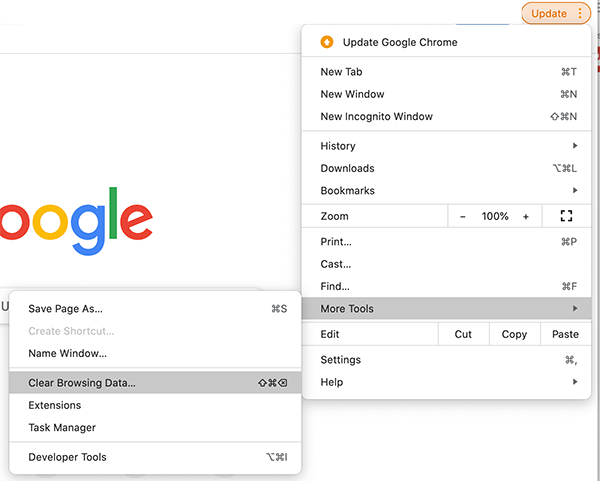
To clear the cache click on the three dots in the top right > select More Tools and Clear Browsing Data and select the time range for the data you want to clear.

clear google cache menu


Clear unused Add-ons

Chrome Add-ons can be hugely useful but they can also slow down the browsing experience if there are too many of them. It is likely that you are not using all the Add-ons you have installed. Check through your Add-ons and delete any that you are no longer using.

To view your Add-ons select the three dot menu in the top right > More Tools > Extensions

You can either choose to ‘remove’ Add-ons from here, or if you are not sure if you still need them, use the slider to toggle to disable them.

Faster Chrome Browser

After carrying out some or all of the above fixes your Chrome browser should be running at a much faster speed. If you are still experiencing speed issues you may need to go through the steps again and be more ruthless with clearing your cache and the number of Add-ons.

Some other relevant posts:

Speed up Windows computer

This site cannot provide a secure connection in Chrome

Fix high CPU usage

Filed Under: Software Drivers Tagged With: browser, chrome, slow, speed

  • « Previous Page
  • 1
  • …
  • 8
  • 9
  • 10
  • 11
  • 12
  • …
  • 23
  • Next Page »


  • Recent Posts
  • Popular Posts
        

Read More Posts


Read More Posts

Drivers.com Sites

  • Software Drivers
  • Drivers Ed

About Us

  • Advertise
  • About Drivers
  • Drivers Support
  • Drivers.com Privacy Policy
  • Disclaimer
  • Software Drivers
  • Mac Fixes and Tips
  • PC Fix Tips
  • Security/ Backup
  • Tablets & Smartphones
  • Tech News

© Copyright 2026 PDE Publications Ltd. End User License Agreement (EULA)