
Drivers.com

follow us:

facebook twitter
  • Home
  • Download Drivers
  • Drivers Help
  • PC/Mac Resources
  • Software Drivers
  • Mac Fixes and Tips
  • PC Fix Tips
  • Security/ Backup
  • Tablets & Smartphones
  • Tech News
  • Software Drivers
  • Mac Fixes and Tips
  • PC Fix Tips
  • Security/ Backup
  • Tablets & Smartphones
  • Tech News

Resources by Tag

apple

“You are already an apple music member” issue

“You are already an apple music member” issue
you are already an apple music member
Trying to get rid of this popup?

A number of users have asked about this issue with Apple music on their iPhones.

The problem:

You already have an Apple music subscription or have just upgraded to one and the above popup appears when you try to view any content with the Music app.

The solution:

We have found a few different solutions for this, so try from the first and move on to the next one if the problem is still not fixed for you.

  1. close the Apple music app and reopen. To close an app you will need to double-click on your home button and then swipe up on the app. Then reopen the Music app to see if this has fixed the issue.
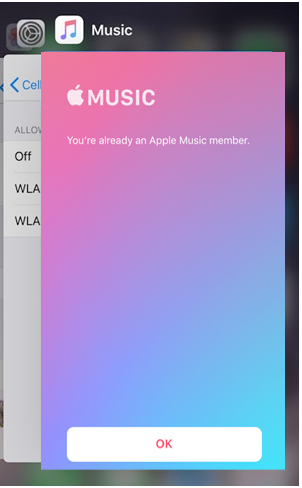
    force close music app
  2. sign out of your apple ID and sign back in again. You can do this via the Settings > [apple ID] > Sign Out. Before signing back in again return to the Music app and click on the ‘For You’ tab, then slick the subscribe for 3 months option. You should be taken to a page where you are prompted for your Apple ID and password again. Enter them and see if this now gives you access to your Apple Music. If this works then you can sign back in again via Settings.
  3. If none of the above options have worked you can go to Settings > General > Reset >Reset All Settings. Before doing this make sure you are backed up to the cloud so you don’t lose any data. If you Apple Subscription is paid for and the problem is not on that end, then this should solve your music access problems.

Filed Under: Software Drivers Tagged With: apple, apps

iOS 11 Preview – Smart, Simple but Advanced

Rule number 1: as with all Operating System updates, we advise you hold off for a couple of weeks at least before updating. This gives time for bugs to be fixed and patched, which is inevitable following a general release.

Rule number 2: always backup before updating – you won’t regret backing up but you most certainly will regret not doing it if things go wrong.

Apple’s iOS is a very rich smartphone ecosystem, packed with varied features and amazing technologies.

This iOS 11 Preview will tell you everything you would want to know about this smart, simple but advanced mobile operating system.

When is iOS11 launching?

iOS 11 launched on September 19 2017 and the update to iOS 11 will be free. However, not all Apple devices will be compatible with this new upgrade.

Below is the list of Apple devices that will be capable of installing iOS 11 after its release:

  • iPhone SE
  • iPhone 5S
  • iPhone 6 and all its variants
  • iPhone 7 and all its variants
  • iPad Pro
  • iPad 5th generation, iPad Air, and iPad Air2
  • iPad Mini 2, 3 and 4
  • iPod Touch 6th Gen

What’s New in iOS 11?

Control Center in iOS 11

If you have been using an iPhone for a long time, you will have noticed several changes in the way iOS lets you access information. The aesthetic changes in iOS 11 are particularly focused on the Control Center. The style of the header for apps has changed. It is much bigger and clearly tells you where you are.

In the new Operating System you will see one large panel of buttons that lets you access the more important functions. One good thing about this new change is the buttons in the Control Center can be customized. However, you have limited options on what you can put in the Control Center.

A pressurized touch expands the Control Center to give you a better view of the options. You can view all notifications you missed by swiping upwards on your lock screen. However, the notifications are not grouped and you might be required to swipe upwards on the lock screen several times to see all pending notifications.

Multitasking in iOS 11

The App Switcher has changed so you will no longer see a horizontal list of “app cards”. Instead, you will see a large grid of app squares neatly arranged on the left of the Control Panel.

The dock can accommodate 13 folder icons or apps and you also have three additional slots that display your recent apps. The dock stays permanently on the screen no matter which app is opened and you can always bring it up by swiping upwards from the bottom of the screen.

The Split view is now easier. You can bring any two apps on the screen side-by-side; first, bring the first app on the screen and then drag the second app and the iOS 11 will create and adjust the Split view mode for you.

The iOS 11 also brings a Slide Over app functionality where you can add one more app on the screen either on one of the apps in the Slide view or let the OS adjust 3 apps on the screen in equal proportions.

Files App in iOS 11

The most significant improvement in iOS 11 is file handling. The new Files App gives you easy access to almost all files in your device except the system files.

The Files App is available for any other app and it is easy to open or move files on the device. The iOS 11 also allows integration with third party files apps like DropBox, Google Drive, Microsoft OneDrive and others.

Earlier, if someone had sent you a PDF file in the mail, you had to perform several steps if you wanted to save it for later. You had only two choices: keep it in a box or save it to iCloud.

Now when you want to access a file, iOS 11 will display an Open dialog which lists applications with which to open the file. You can also drag files from your email and drop them in the folder of your choice.

Improved Siri in iOS 11

Siri is more than a virtual assistant. It is an intelligence concept that Apple has been pushing for the last few years, and Siri in iOS 11 sees significantly improvements.

Apple has been successful in incorporating machine learning in Siri, and it will soon remember your choices and guess your preferences. The machine learning will make Siri more responsive to your behaviors and desires. Armed with intelligence and powered by machine learning, Siri can also respond to your less than straightforward requests like a request to play music in a particular mood, such as ‘happy’, ‘sad’ etc.

Besides machine learning, Siri’s voice algorithm has also been improved. Siri sounds better and the voice is more human than in previous iterations.

If you don’t like hearing Siri, you can also give commands to Siri by typing on the screen. Siri can also work with other apps. For example, Siri can suggest stories from News app or if you register for an event in Safari, Siri will add it to the calendar.

Power tools in iOS 11

Apple has introduced several new enhancements to the iOS to make things simpler for users. For example, taking snapshots on social media networks is common and users will often want to crop photos before uploading.

Earlier, iPhone and iPad users would have to perform several steps to open a snapshot in the Photos app to crop and add any text or graphics. In iOS 11 whenever the user takes a snapshot, the system generates a thumbnail. Clicking on the thumbnail will enable Markup that allows you to crop the photo and write on it. Markup is a system level feature that can be used with or without Pencil.

iOS 11 also brings with it a document scanning feature. The user is not required to install a separate app to scan documents. All they need to do is point their device camera towards the paper document and the device will do the remaining work.

The user is not required to determine the best angle to scan the document, nor worry about light conditions. iOS 11 not only scans the document but it also opens the document in Markup so you can crop or write on it. Below are some new changes in the way of working:

  • Safari features an anti-tracking mechanism that ensures ads do not follow you while surfing.
  • If you are using Apple Maps, you can now scroll with one finger after double tapping the screen.
  • The videos and Photos are saved in a new format that takes up less space.
  • iMessage offers more stickers and add-ons and you can also send money using iMessage
  • The Camera app has also improved with new filters
  • The Live Photo feature has also improved and it is easy to search for a key photo in the clip and apply a filter to it

Summary of iOS 11

The new enhancements introduced in iOS 11 have certainly bridged some gap between traditional computers and the iPad; not all features will be available for iPhone and other devices. The iOS 11 is a step towards building a complex mobile ecosystem which is simpler and more user-friendly.

Filed Under: Tech News Tagged With: apple, ios 11

Why printer goes offline when connected to iOS devices?

Why printer goes offline when connected to iOS devices?

One of the more common printer issues experienced by Apple users is the printer going offline after establishing a connection with iOS devices. The error messages displayed are ‘Printer Not Responding’ or ‘Printer Offline’. If you have an HP printer and are seeing the above error messages, follow the troubleshooting steps set out below:

USB printer connection

The error message ‘Printer Offline’ indicates, the Mac/iOS device is not able to communicate with the printer. There can be several reasons for this error such as the Printer is powered down or the USB cable is not properly seated in the USB slot.  Below are the troubleshooting steps you need to follow in order to fix this USB printer issue with iOS devices:

  1. Power down the printer and remove the USB cable from the rear of the printer
  2. Wait for a few minutes
  3. Press the Power button to switch the Printer back on
  4. Wait for a few seconds
  5. Reconnect the USB cable to the rear of the printer
  6. Ensure the USB cable is secured in the connection slot
  7. If the printer starts printing, let it print

If the above troubleshooting steps don’t resolve the issue, you need to reset the Printer by following steps below:

Reset the USB Printer

  1. With the Printer turned on, remove the power cable from the rear of the printer
  2. Unplug the power cord from the wall socket
  3. Wait for 1-2 minutes
  4. Plug the power cord back in to the wall socket
  5. Reconnect the power cord to the rear of the printer
  6. If the printer does not turn on, press the Power button to switch it on
  7. Try printing some document from the iOS device. If the printer prints, the problems are resolved. Otherwise, follow the further troubleshooting steps below

Remove additional printers from the printer list  

There is a possibility that your iOS device has several printers associated with it. You need to remove all printers in the printer list except the one in idle status. Here are steps you need to follow:

  1. Search the iOS device/Mac for Print
  2. Click Print & Scan, Printers & Scanners, or Print & Fax, in the list of results
  3. Find the printer name in the list that matches with your printer
  4. If you see multiple queues for the same printer, remove all extra printers one at a time
  5. To remove a printer, select the printer and then click the minus (-) button to remove the printer from the list
  6. Leave the printer that shows an idle status

In most cases, the printer problem will be resolved. If the problem still persists, remove the remaining printer from the list by following steps 5-6. Then you will need to add a printer as there will be no printers associated with your device.

Add a Printer to an iOS device

  1. Search the iOS device/Mac for Print
  2. Click Print & Scan, Printers & Scanners, or Print & Fax, in the list of results
  3. Click Add button
  4. Select your Printer model from the Printer list
  5. Select ‘AirPrint’ in Use field with the printer name selected
  6. Click Add to add your printer

Filed Under: Mac Fixes and Tips Tagged With: apple, ios, printer, usb

iOS 10 update – Apple users have their wish list ready

It has been only few months since iOS 9 was released and Apple users have already made their wish list ready for the iOS 10 update. Experts believe Apple is already testing iOS 10 and they see a bigger role for Siri in the next update. While Apple continues with the testing, here are the few things that users can expect in the iOS 10 update.

Customizable Control Center

While the Control Center in iOS is a good feature, users feel that with more customization options it could be improved upon. Currently, you can access Control Center from any app screen. You just have to swipe up from the bottom of the screen. If you have opened an app that has similar swipe gestures, you have to swipe up twice to get the Control Center.

Besides giving access to important settings like Wi-Fi, Bluetooth, Music Player, Rotation lock and screen brightness, the Control Center also gives access to some core apps such as Camera, Calculator, Flashlight, and Timer. Apple fans say not all users use these apps on daily basis.  They want the freedom to choose their favorite apps that can be accessed quickly through Control Center.

Default 3rd party apps

There is no doubt that the default apps such as Mail, Safari and Calendar are good when it comes to performing their desired functions. But there are so many alternatives to default apps that work better. Users want Apple to include an option where they can replace the default apps with 3rd party apps they like.

Hide pre-installed applications

Like every other mobile operating system, iOS also comes with pre-installed apps. It is useful to have pre-installed apps so that we can start using them right away, however, this is not always the case. There are several pre-installed apps that many users seldom use such as Podcast or Tips app. In order to help reduce clutter on the screen, many users suggest Apple provide an option to hide pre-installed apps.

Multi-user support

Android has multi-user support, a feature which Apple fans have wanted for a long time. These days it is common to share your devices with family members. Also, in a professional environment, you might be required to share your iPad with your colleagues. Multi-user support will allow you to easily share your Apple device with another user. Apple has several user authentication options and it is quite possible to have separate user accounts without risk of revealing personal or sensitive information.

While Apple works hard to improve user experience, considering these user requests will make Apple fans happy and make iOS 10 more user-friendly environment.

Filed Under: Mac Fixes and Tips Tagged With: apple, ios10

Macbook Pro battery problems and fixes

Depending on the model, a new MacBook Pro should be getting upwards of 9 hours of battery life. However, this is often not the case. In rare circumstances this can be down to fault in the battery or the MacBook but, more often than not, the problem is in how the MacBook (and battery) is being used.

Number 1 MacBook Pro Battery Killer!

The main culprit of battery life depletion is keeping your MacBook Pro plugged into the mains all the time, even when the battery is charged to 100%.

Your MacBook Pro battery has a limited number of ‘cycles’ which are essentially charges. When you keep your laptop plugged in all the time, the charging continues, even when 100% battery power is reached, so you are working through your finite number of battery cycles.

Keep your MacBook Pro Battery Healthy

As soon as your MacBook is charged to 100%, unplug it and keep it running on the battery until it next needs a charge.

My MacBook Pro Battery life is very low

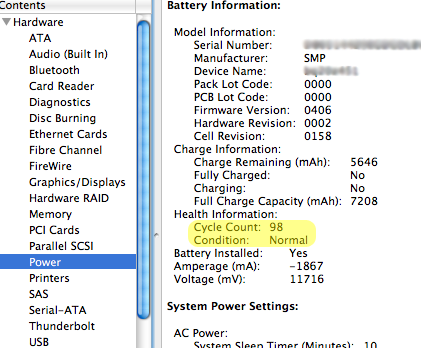
check macbook battery health

If your MacBook Pro has a battery life of a few hours or less, then you need to investigate. The first thing to look at is the battery cycles as mentioned above.

Choose Apple menu > About this mac > More info

On the left contents menu select Hardware > Power

Look for cycle count and condition under Battery Information, condition should be normal if the battery is working well. If the cycle count is approaching or even above 1000, then your battery is seriously depleted and you will be looking at getting a new one soon.

If your battery seems healthy but you seem to be only getting a few hours of charge, then the next thing to look at is your applications.

Applications and MacBook battery life

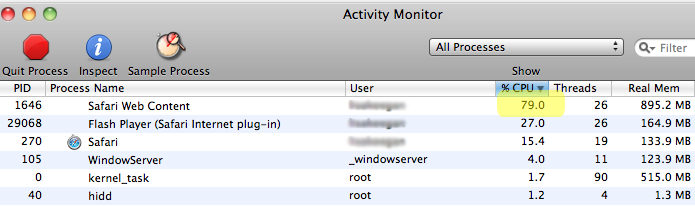
Applications that use up a lot of CPU or processing power are very heavy on the battery of your MacBook Pro. To check if any application is using an undue amount of processing power, go to the Activity Monitor. In the dropdown menu select ‘All Processes’ and sort the column by CPU usage (you can click the % CPU column header to do this). Generally anything using over 50% of CPU should be a red flag and is probably contributing to your short battery life. Close down the culprit program, charge your battery to 100% and see how long it takes to run down the battery without this CPU-hogging application running.

safari high cpu macbook

MacBook Pro gets very hot

When your MacBook pro seems to be overheating it is usually a sign that your CPU is being overworked and resources are being hogged by a rogue application. The actions set out above will help you pinpoint any problems. This can often happen with Snow Leopard users still using Safari. There are no new releases or updates for Safari on Snow Leopard so running the application can cause CPU and stability issues. Try using another browser if you are experiencing these issues.

Tips for a longer battery life on your MacBook Pro

Although we have outlined the main battery-draining culprits above, there are lots of little things you can do to extend and improve the life of your MacBook Pro battery:

  1. use the Software Update feature as there are often battery life enhancement patches and updates (Apple > Software Update)
  2. adjust your screen brightness, even lowering this by a couple of levels can make quite a difference
  3. shut down applications if you are not using them, particular graphics and other processor-intensive programs
  4. restore the energy saver preferences to the default settings
  5. unplug peripheral devices and turn off Bluetooth when not in use

Replacing a battery on your MacBook Pro can be expensive and you will therefore want to avoid having to do so. Following the advice above should help prolong the life of your battery. If you have other battery-saving tips be sure to post them below.

Filed Under: Mac Fixes and Tips Tagged With: apple, battery, mac, macbook

Apple Steps into the World of Music Streaming

As far as the world of music streaming is concerned, Spotify has ruled the roost for the last number of years, with few real competitors. Yet now it seems there is a challenger waiting in the wings, primed to take on Spotify and its market dominance. Spotify is currently the number one music streaming platform but this is under threat from a formidable challenger – Apple. Formidable because there are few companies so adept at successful diversification across a range of technological areas as Apple is.

Apple announced the arrival of its newest product at the WWDC 2015 event and plans to introduce Apple Music into the global market in June 2015. The company plans to launch it on a grand scale with the service becoming available on PCs, Macs and Apple mobile devices in about 100 countries. The company has also announced plans to release Apple Music as an app on android devices with monthly charges of around $US10 .What may come as a welcome surprise to many is Apple’s plan to allow Apple Music subscribers to use the application for free for the first three months. The tech giant is also offering family plans of $15 per month for 6 family members.

What is Apple Music?

Apple Music  will function in two ways:

– a 24/7 Internet Radio called Beats 1

– an on-demand streaming portion that will directly challenge Spotify’s market segment

The Beats 1 Radio is set to be a throwback to the good old days of Radio, featuring a traditional always-on radio station playing tunes chosen by real-time DJs. The live feeds of the Beats 1 Radio will be based in 3 major cities around the world, Los Angeles, New York and London.  Apple has certainly decided not to rest on its laurels and is looking to pack Apple Music with a plethora of features.

Apple Music comes with an innovative interactive service known as Connect which would allow the artists to upload their photos, social media messages and lyrics directly from social media sites such as Twitter, Facebook, and even the official artist websites. Connect would allow the fans to have direct access to their favorite musical personalities, allowing them to like and comment on the posts of their favourite artists.

When the music stops who will be left standing?

Does this signal the end to ‘buying’ music as we know it? Moving to a streaming service like Apple Music allows you to listen to tracks and albums on demand but when the payments stop, so does the music. You never own the music and if you listen to the same 10 tracks every month, the price is the same – every month. Good news for the music industry and record labels but maybe less-so for consumers?

Filed Under: Tech News Tagged With: apple, music

Apple HP & Epson printer drivers updates

Apple has recently released updates for both HP and Epson printer drivers. These driver updates enable compatibility with the latest HP and Epson printers.

If you are using either a HP or Epson printer with a Mac then you should firstly check software updates (Apple Menu > Software Update) to automate the update of the required files.

If your Epson or HP printer is not working and you are having problems locating driver files, then you may need to download the full driver package using the relevant link below (for OS X 10.6 or later)

Important: Only download the updates below if you have first tried the Software Update Utility mentioned above.

Epson driver update Web site
HP driver update Web site

Printer Drivers Updates > Drivers.com Free Drivers Scan

Filed Under: Software Drivers Tagged With: apple, drivers, epson, hp, printer


  • Recent Posts
  • Popular Posts
        

Read More Posts


Read More Posts

Drivers.com Sites

  • Software Drivers
  • Drivers Ed

About Us

  • Advertise
  • About Drivers
  • Drivers Support
  • Drivers.com Privacy Policy
  • Disclaimer
  • Software Drivers
  • Mac Fixes and Tips
  • PC Fix Tips
  • Security/ Backup
  • Tablets & Smartphones
  • Tech News

© Copyright 2026 PDE Publications Ltd. End User License Agreement (EULA)