Drivers.com

follow us:

facebook twitter
  • Home
  • Download Drivers
  • Drivers Help
  • PC/Mac Resources
  • Software Drivers
  • Mac Fixes and Tips
  • PC Fix Tips
  • Security/ Backup
  • Tablets & Smartphones
  • Tech News
  • Software Drivers
  • Mac Fixes and Tips
  • PC Fix Tips
  • Security/ Backup
  • Tablets & Smartphones
  • Tech News

Resources by Tag

epson

Epson printer not printing

When your Epson printer is not printing there are a number of troubleshooting steps you should work through. We start with the most obvious and simple solutions first so make sure to run through the entire list below.

  1. Check your printer is connected:
    Make sure that your power cables are seated correctly, check the actual power outlet is working by checking with another device. Then check that the print is connected either by cable or wirelessly to your computer.
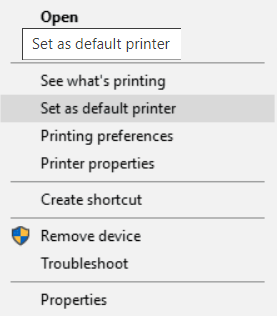
  2. Ensure your Epson printer is the default printer:
    You may have more than one printer on your network or even an old printer listed as the default. To check that your Epson printer is the default printer, go to Control Panel > Devices and Printers
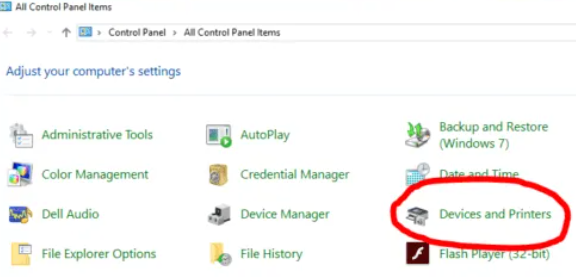
    click devices and printers

    epson default printer

  3. Check your Epson Printer for error messages:
    These messages may appear either on your computer screen or on the screen of the printer itself or both. Take note of any error messages and search either your manual or online to see what the error means.
  4. Check your printers ink or toner levels:
    Your printer is likely to have a display screen which will alert you to low ink or toner levels. If these levels are too low then your printer will not print.
  5. Printer paper jam:
    This is a frustratingly common issue, to check for a paper jam open your printer and look inside, even something small on the printer roller can cause a problem with printing.
  6. Epson printer queue:
    The printer queue is the list of jobs the printer is waiting to complete. Somethings this can get stuck and it is best to just clear the queue and start again.
  7. Restart your computer and printer:
    It is always a good option to restart a device you are having problems with, this can often clear issues. When rebooting it is important to unplug your device for a couple of minutes to ensure it fully clears before being turned back on.
  8. Epson printer driver issues:
    Printer drivers need to be kept updated so you should ensure you have the correct printer driver installed. Click here to view our page on updating Epson printer drivers.
  9. Epson Firmware Updates: Check the Epson website for any firmware updates available for your printer and install them if needed.

Hopefully the above steps will have helped you resolve your Epson printer not printing error. If not, browse some of the articles below for more help.


Fix/ Download Epson Drivers

Troubleshooting EPSON printer problems in Windows 10

Apple HP & Epson printer drivers updates

How to get Epson printer online?


Filed Under: PC Fix Tips Tagged With: epson, printer

How to get Epson printer online?

How to get Epson printer online?

Last updated: May 15, 2024

How do I get my Epson Printer back online?

One of the more common problems faced by Epson printer users is the computer showing the Printer Offline when it is actually on and ready to print. When your Printer shows ‘Offline’, it generally indicates it cannot communicate with the computer. If you are facing a similar problem with your Epson printer, here are some quick solutions to resolve the issue.

Step 1 – Check the connections to your Epson printer

While it may be tempting to start with troubleshooting steps right away, it is not always the right thing to do. It is so obvious that people often overlook this as the first step in troubleshooting any printer issue.

If your printer is showing as offline there is a problem with communication with the computer. The main cause of this problem is a problem with the physical connection such as the cables in the case of a wired connection. One of the most common causes of a Printer Offline error is a loose connection.

For this reason, you should check the USB cable is seated at both ends firmly. If you have an additional USB cable, try replacing it and see if the error is resolved, this will rule out issues with the cable itself. If you can determine there is no problem with the connection, follow the troubleshooting steps set out below.

Step 2 – Set the Epson printer to “Online” manually

Troubleshooting Printer Offline for Windows 7:

  1. Click the Start icon on the bottom left of the screen
  2. Select Control Panel and then Devices and Printers

Troubleshooting Epson Printer Offline for Windows 8.1 and Windows 10:

why is my epson printer not printing
  1. Go to Start > Settings > Devices > Printers and Scanners
  2. Right-click on the Epson printer in the list and select See what’s printing
  3. When a window pops up, select Printer from the bar at the top
  4. From the drop-down menu, select Use Printer online

Step 3- Cancel all pending printing jobs

  1. Right-click on the Epson printer in the list and select See what’s printing
  2. Right-click and select Cancel to remove any print jobs present
  3. Select Use Printer online again
  4. If the error is not resolved, restart the Epson printer and computer again

Step 4- Reinstall Epson Printer

  1. Go to Start > Settings > Devices > Printers and Scanners
  2. Select Epson Printer from list and then select Remove Device
  3. Go to the Epson website and download the latest printer drivers for your Epson printer model
  4. Reinstall the Printer

You can read more information on how to use a Driver Update Tool to automate the Epson Driver Updates.

Automatic driver update tools offer many benefits, the most important ones being:

  • You can update device drivers automatically
  • The software scans and updates all outdated or missing drivers at one go
  • The tool picks the right drivers for your device and operating system, so you won’t have to worry about installing an incorrect driver by mistake
  • Automatic driver updates are 100% safe

Driver Updater is one of the best driver update tools out there. Outbyte Driver Updater will give you access to a database of over 1 million drivers. It will regularly scan your PC, suggesting new driver versions to install. Driver Updater contains drivers for a variety of Windows devices. With just one click, you can update drivers in your system.

Step 1
Click here to Install and launch the app

Step 2
Scan all devices

Step 3
Install or update drivers automatically


Start Download


Click here to go to the Epson Website.

If reinstalling the Printer does not help, you need to remove all Printer Driver and packages following the steps outlined below (ensure you take a full backup before removing or updating any Drivers):

Step 5- Remove all printer drivers and packages

  1. Log into user account with Admin privileges
  2. Go to Start  > All Programs > Accessories > Command Prompt
  3. In the command prompt window, type printui /s /t2. Don’t forget the spaces in the command. This will open the Print Properties window
  4. Remove the Driver and Package for your printer in the list
  5. Reinstall the Printer using the Add a Printer option
Troubleshooting EPSON printer problems in Windows 10
How to get Epson printer online?

Filed Under: Software Drivers Tagged With: epson, printer

Fix Epson printer problems in Windows 10

One of the more common problems faced by Windows 10 users is old software not working with the new operating system. Many Epson printer users have reported that their old printer doesn’t work after upgrading to Windows 10. In this post, we will look at some common Epson printer problems in Windows 10 and the solutions to these problems

Epson Stylus Photo R200 doesn’t work after Windows 10 upgrade

One of the reasons the old Epson printer doesn’t work with Windows 10 is that the operating system tries to use old drivers and associated Epson packages from your previous installation.

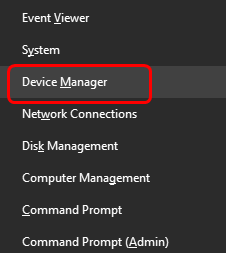
device manager

You need to uninstall the printer using the Add/Remove programs option. Also, remove any Epson related software package from your Windows 10 system. To be on safe side, check the Device Manager for any reference to Epson software by following the steps below:

  1. Go to Desktop
  2. Click on the Start Menu
  3. Type device manager in the Search Box
  4. Click Device Manager from the list of search results
  5. In the Device Manager window, click View > Show Hidden Devices
  6. Check for any Epson related entry and if found, delete it
  7. Disconnect the Epson Printer
  8. Reboot your PC

The basic objective behind these troubleshooting steps is to remove all obsolete Epson software from your Windows 10 system. According to Epson, they have not released any Windows 10 compatible driver for the Epson Stylus Photo R200. However, the printer works well with the native drivers in Windows 10. All you need to do is force Windows 10 to install the native driver instead of using the old driver. Follow the steps given below to install native drivers for Epson Stylus Photo R200.

  1. Restart the PC
  2. Connect the Epson Stylus Photo R200 to your PC through USB
  3. Switch on the printer
  4. Windows 10 will detect the new printer and install native drivers from its database

Windows 10 doesn’t install printer driver when I connect printer

If Windows 10 does not install the printer driver after connecting your printer, you have to manually add the printer by following the steps given below:

  1. Turn your printer on and ensure it is connected to Windows 10 system
  2. Go to Desktop and click Start Menu
  3. Click All apps and scroll down to the Windows system folder
  4. Click on the Windows System folder that reveals Control Panel
  5. Click Control Panel
  6. Select Hardware and Sound > Devices and Printers > Add a Printer
  7. If your printer model does not appear, select The printer that I want isn’t listed
  8. Click Add a local printer or network with manual settings > Next
  9. Follow the on-screen instructions to install the printer
How to get Epson printer online?
Apple HP & Epson printer drivers updates

Filed Under: PC Fix Tips Tagged With: epson, fix Epson printer issue in windows 10, printer, Windows 10

How to fix Epson scanner-printer problems in windows 8

Below are some common issues related to Epson printers and scanners and some easy troubleshooting steps to help resolve these issues.

Problem 1: Windows 8 is not installing printer driver after connecting printer

If your Windows 8 machine is not detecting and installing the Epson Printer Driver automatically, then you need to install the printer manually following the steps set out below.

  1. Switch on the Epson printer and connect it to the Windows 8 system
  2. Switch on your PC
  3. Go to Desktop
  4. Right-click on the Start button and click Control Panel
  5. Click Hardware & Sound
  6. In the Hardware & Sound window, click Devices and Printers
  7. Click Add a Printer
  8. If your printer model does not appear in the list, select “The printer that I want isn’t listed”
  9. In next window, select Add a local printer or network with manual settings
  10. Click Next and follow the on-screen instructions to install the printer

Problem 2: Don’t have Windows 8 Driver for Printer and unable to install Windows 7 Printer Driver in compatibility mode

It is quite common for Windows compatibility assistant to appear when you try to install Windows 7 Drivers for your printer. You need to follow the steps set out below to install Windows 7 Printer Drivers in compatibility mode.

  1. Right-click on the Driver executable (.exe) file
  2. Select Properties
  3. Go to the Compatibility tab
  4. Under compatibility mode, select Windows 7 from the drop-down list
  5. Click Apply > OK
  6. Follow the on-screen instructions to install the Printer Driver in compatibility mode
  7. Restart your PC

Problem 3:  Windows 8 is using in-box driver. How to update Printer Driver for old Epson printer?

Sometimes the in-box driver in windows prevents you from using all functionality and features of your Epson Printer. To overcome this problem, you can install the Windows 7 Driver until Epson releases the Windows 8 Driver for your printer model

  1. Go to the Epson printer manufacturer website and download Windows 7 Driver for the old Epson printer model you have
  2. When you try to install Windows 7 Drivers, the Program Compatibility Assistant dialog pops up
  3. Click Run the program without getting help
  4. Follow on-screen instructions to install the Printer Drivers

You can periodically check the Epson website for the latest Drivers for Windows 8 and install them. Alternatively, you can use a  reliable driver update tool, which will download the latest Epson printer driver for Windows 8 as soon as the manufacturer releases them. It will also keep these and your other device Drivers up to date so it is one less thing to worry about.

Filed Under: PC Fix Tips Tagged With: epson, Fix Epson Printer Errors in Windows 8, printer, scanner, windows 8

Troubleshooting EPSON printer problems in Windows 10

Epson has released a list of devices compatible with Windows 10 and the company has also released compatible Epson drivers for different printer models.  However, some users have complained of experiencing problems with their Epson device, even when the model appears in the list of compatible devices on the Epson website.

Here we take a look at some common Epson printer problems in Windows 10 and solutions to these problems.

Problem 1 – Printer driver does not install when I connect the printer to Windows 10 system

Solution – To fix this Epson Drivers issue, do the following

  1. Ensure the printer is on and connected to the Windows 10 system
  2. Switch on your Windows 10 system
  3. Right-click on Start Menu
  4. Select Control Panel
  5. Select Hardware and Sound -> Devices and Printers
  6. If you do not see your printer listed, select “Add a printer”
  7. If your printer model does not appear in the “Add a Printer” list, select “The printer that I want isn’t listed”
  8. Click “Add a local printer or network with manual settings”
  9. Click Next
  10. Follow the on-screen instructions to install the printer

Problem 2 – The Epson software is missing after Windows 10 upgrade

 Solution – The Windows 10 upgrade might have uninstalled your Epson Software. To resolve the issue, do the following

  1. Go to the Epson website for your region and go to the main Epson Support page
  2. Select your product category
  3. Select your Epson product
  4. Select Drivers & Downloads -> Drivers and Utilities Combo Package -> Download Now
  5. Click on the downloaded file and follow the on-screen instructions to install the Epson software

Problem 3 – Wireless printer does not work after upgrading to Windows 10

Fix issue with Epson Wireless printer in Windows 10

The first thing you need to do is go to the Epson website and download compatible drivers for your Epson wireless printer. Download and install the Epson printer driver and see if the issue is resolved. If the issue persists, do the following.

Some antivirus programs do not work well with Windows 10. We suggest you uninstall any third party antivirus software you are using and use Windows Defender that is built-in to Windows 10. Here are the steps to activate Windows Defender:

  1. In the search bar, type Windows Defender
  2. Select Windows Defender from the list of results

Problem 4- Epson printer does not work when connected through USB connection

Fix problem with Epson printer and USB connection – To fix the issue, do the following

  1. Right-click on the Windows icon on the task bar
  2. Click Control Panel
  3. Go to Devices and Printers
  4. Right-click on your printer
  5. Click on Printer properties
  6. Click Ports
  7. Change from LPT1 to USB 001

Feel free to post below if you have any solutions or issues relating to Epson Printers in Windows 10.

How to get Epson printer online?

Filed Under: PC Fix Tips Tagged With: epson, printer, Windows 10

Fix Epson LW-600P Label Printer Errors

Epson LW-600P is a small device designed specifically for printing labels. Like all devices the LW-600P can be prone to an error or two every now and then. The post below sets out solutions to common Epson LW-600P errors.

Solution for Epson LW-600P not recognized by your computer error

In some scenarios, the iLabel software will report an error which mentions missing label printer. The error generally means that the label printer is not recognized by your computer. There can be several reasons for this error which may include corrupted or missing Epson drivers. Before you start any troubleshooting steps, you need to ensure your system meets the minimum requirements for the Epson LW-600P.

Fix/ Download Epson Drivers

Below are the minimum system requirements for the Epson LW-600P:

Supported operating systems

  • Windows XP (32 bit or 64 bit) with Service Pack 3
  • Windows Vista (32 bit or 64 bit) with Service Pack 2
  • Windows 7 (32 bit or 64 bit) with Service Pack 1
  • Windows 8.x (32 bit or 64 bit)

Minimum Hard drive space – 300 MB

Minimum Display Resolution- 1024 × 768 pixels or higher

If your system meets the minimum system requirements, first check whether the printer is installed or not (installed printers are listed in Devices and Printers window).

  1. Click Start
  2. In Start menu, click Devices and Printers

The best way to resolve this problem is  by uninstalling and reinstalling the printer. Follow the steps set out below to uninstall and reinstall the printer.

  1. Click “Start”
  2. Click “Control Panel”
  3. Click “System and Security”
  4. Under System, click “Device Manger”
  5. Double-click “Universal Bus Controllers” to expand the list
  6. Double-click “USB Printing Support” and select “Uninstall” from Driver Tab.  You need to uninstall drivers for all USB printing support in the list
  7. Remove iLabel software and any other applications related to Epson LW-600P
  8. Disconnect Epson LW-600P and restart the system
  9. Connect Epson LW-600P printer to your computer

Windows will automatically detect new hardware and start the add new hardware wizard

  1. Select “Advanced option” and click Next
  2. Click “Show all devices” and click Next
  3. Click “Browse” and navigate to the directory where the driver files are located
  4. Select the driver file and click on Open
  5. Click OK
  6. Follow the on-screen instructions on the next two wizard screen until Windows notifies you of successful completion of device installation
  7. Click Finish
  8. You should see your Epson LW-600P under Devices and Printers list

If you find manual updating of drivers a cumbersome process, click here to go to the Epson Drivers page and download our recommended Driver Update Tool and run a free driver scan for your Epson LW-600P drivers.

Filed Under: Software Drivers Tagged With: epson, printer

Apple HP & Epson printer drivers updates

Apple has recently released updates for both HP and Epson printer drivers. These driver updates enable compatibility with the latest HP and Epson printers.

If you are using either a HP or Epson printer with a Mac then you should firstly check software updates (Apple Menu > Software Update) to automate the update of the required files.

If your Epson or HP printer is not working and you are having problems locating driver files, then you may need to download the full driver package using the relevant link below (for OS X 10.6 or later)

Important: Only download the updates below if you have first tried the Software Update Utility mentioned above.

Epson driver update Web site
HP driver update Web site

Printer Drivers Updates > Drivers.com Free Drivers Scan

Filed Under: Software Drivers Tagged With: apple, drivers, epson, hp, printer


  • Recent Posts
  • Popular Posts
        

Read More Posts


Read More Posts

Drivers.com Sites

  • Software Drivers
  • Drivers Ed

About Us

  • Advertise
  • About Drivers
  • Drivers Support
  • Drivers.com Privacy Policy
  • Disclaimer
  • Software Drivers
  • Mac Fixes and Tips
  • PC Fix Tips
  • Security/ Backup
  • Tablets & Smartphones
  • Tech News

© Copyright 2026 PDE Publications Ltd. End User License Agreement (EULA)