
Drivers.com

follow us:

facebook twitter
  • Home
  • Download Drivers
  • Drivers Help
  • PC/Mac Resources
  • Software Drivers
  • Mac Fixes and Tips
  • PC Fix Tips
  • Security/ Backup
  • Tablets & Smartphones
  • Tech News
  • Software Drivers
  • Mac Fixes and Tips
  • PC Fix Tips
  • Security/ Backup
  • Tablets & Smartphones
  • Tech News

Resources by Tag

scanner

ScanSnap iX500 driver

ScanSnap iX500 driver

Has your ScanSnap iX500 scanner stopped working on Windows 10 or Windows 11?

ScanSnap iX500 is a popular scanner model by Ricoh – formerly Fujitsu. All devices require software updates and if you are having issues with your scanner it may be the result of a Driver issue. In recent Operating Systems Fujitsu updated their software and ScanSnap home has ScanSnap Manager instead of the previous ScanSnap Home.

Download ScanSnap software

You can download the updated software driver directly from the Ricoh website. To do so follow the steps set out below.

  1. Go to the Ricoh software downloads page 
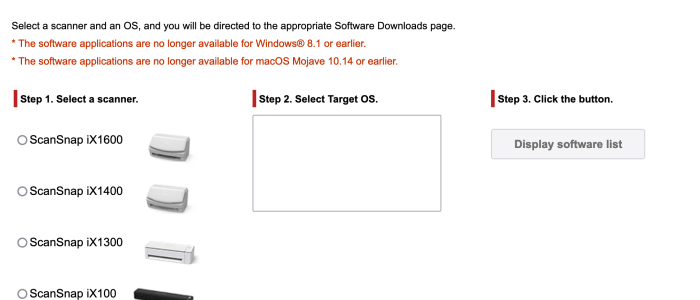
  2. download ricoh scanner driversScroll down to ‘Discontinued Scanners’ and select ScanSnap iX500
  3. download ricoh scanner driverNext, select your Windows Operating System in the dropdown list and then click the Display software list button
  4. Under Setup Programs, click the Download link next to the SnapScan Home Download Installer 2.22.0
  5. rich scansnap ix500 fixSelect the location to download the software update to and then click the Download Installer
  6. Once downloaded locate the file and double-click on it to launch it
  7. Follow the on-screen instructions to install the ScanSnap Home software.
  8. Restart your computer when finished and your install should be complete!

Install Ricoh ScanSnap iX500 driver

Once you have installed ScanSnap Home you can then install the ScanSnap iX500 driver.

  1. Open ScanSnap Home software.
  2. Select the iX500 model and click Start setup
  3. Ensure the iX500 scanner is connected to your computer and the device is powered on
  4. When the device is installed click Finish

Automatically update Ricoh Scanner Drivers

If you prefer an easier and faster automatic driver update option, then click on the link below to download a Driver Update Tool which will take care of all driver updates for you.

Automatic driver update tools offer many benefits, the most important ones being:

  • You can update device drivers automatically
  • The software scans and updates all outdated or missing drivers at one go
  • The tool picks the right drivers for your device and operating system, so you won’t have to worry about installing an incorrect driver by mistake
  • Automatic driver updates are 100% safe

Driver Updater is one of the best driver update tools out there. Outbyte Driver Updater will give you access to a database of over 1 million drivers. It will regularly scan your PC, suggesting new driver versions to install. Driver Updater contains drivers for a variety of Windows devices. With just one click, you can update drivers in your system.

Step 1
Click here to Install and launch the app

Step 2
Scan all devices

Step 3
Install or update drivers automatically
 

Start Download


https://www.drivers.com/update_scanner_drivers_main/

Filed Under: Software Drivers Tagged With: ricoh, scanner

How to fix Epson scanner-printer problems in windows 8

Below are some common issues related to Epson printers and scanners and some easy troubleshooting steps to help resolve these issues.

Problem 1: Windows 8 is not installing printer driver after connecting printer

If your Windows 8 machine is not detecting and installing the Epson Printer Driver automatically, then you need to install the printer manually following the steps set out below.

  1. Switch on the Epson printer and connect it to the Windows 8 system
  2. Switch on your PC
  3. Go to Desktop
  4. Right-click on the Start button and click Control Panel
  5. Click Hardware & Sound
  6. In the Hardware & Sound window, click Devices and Printers
  7. Click Add a Printer
  8. If your printer model does not appear in the list, select “The printer that I want isn’t listed”
  9. In next window, select Add a local printer or network with manual settings
  10. Click Next and follow the on-screen instructions to install the printer

Problem 2: Don’t have Windows 8 Driver for Printer and unable to install Windows 7 Printer Driver in compatibility mode

It is quite common for Windows compatibility assistant to appear when you try to install Windows 7 Drivers for your printer. You need to follow the steps set out below to install Windows 7 Printer Drivers in compatibility mode.

  1. Right-click on the Driver executable (.exe) file
  2. Select Properties
  3. Go to the Compatibility tab
  4. Under compatibility mode, select Windows 7 from the drop-down list
  5. Click Apply > OK
  6. Follow the on-screen instructions to install the Printer Driver in compatibility mode
  7. Restart your PC

Problem 3:  Windows 8 is using in-box driver. How to update Printer Driver for old Epson printer?

Sometimes the in-box driver in windows prevents you from using all functionality and features of your Epson Printer. To overcome this problem, you can install the Windows 7 Driver until Epson releases the Windows 8 Driver for your printer model

  1. Go to the Epson printer manufacturer website and download Windows 7 Driver for the old Epson printer model you have
  2. When you try to install Windows 7 Drivers, the Program Compatibility Assistant dialog pops up
  3. Click Run the program without getting help
  4. Follow on-screen instructions to install the Printer Drivers

You can periodically check the Epson website for the latest Drivers for Windows 8 and install them. Alternatively, you can use a  reliable driver update tool, which will download the latest Epson printer driver for Windows 8 as soon as the manufacturer releases them. It will also keep these and your other device Drivers up to date so it is one less thing to worry about.

Filed Under: PC Fix Tips Tagged With: epson, Fix Epson Printer Errors in Windows 8, printer, scanner, windows 8

Five Mistakes To Avoid When Buying A New Printer

buying a new printer

Buying the right printer can make everyday printing tasks cheaper and easier. Buying the wrong printer will result in a lot of frustration and possibly an expensive piece of hardware gathering dust on a shelf. In order to help guide you in making the right choice when buying a new printer, we have put together a list of the top 5 mistakes people make when buying a new or replacing an old printer.

Mistake #1 – getting hung-up on the ticket price

When buying a new printer, it is important to make your assessment based on the overall value rather than the ticket price alone. Printers can be cheap and capable of doing the job, yet the cost of running a cheap printer (taking into account consumables such as ink) can more than outweigh any savings you make on the initial purchase price. It may make more sense to spend more on the initial piece of hardware and save money on cheaper, more widely available ink cartridges or other consumables.

Mistake #2 – A printer is a printer

This is a common misconception. There are many different technologies and types of printers e.g. Laser printers and Inkjet printers serving very different purposes. Buying a single functioning type of printer instead of an all-in-one may be a big mistake if you think you may need a scanner or copier. Think about what you will use your printer for before committing to a purchase e.g. an Inkjet printer that can only print documents will prove useless when it comes to printing photographs. A photo printer will be equally useless when you find the need to scan a document.

Mistake #3 – getting a great deal on an old printer

Some older printers may not be supported by newer Operating Systems, so even a free printer in this case is not a good deal if it is not compatible with your system. Not all printers work with all operating systems and not all printers support the latest technology or vice versa. It is best to buy a new printer rather than an older printer since it will most likely support older and newer computers and Operating Systems. The specifications of a new printer will set out the Operating Systems it will work with (may be PC and Mac compatible or may just be Windows 7 and Windows 8 compatible – this is an important section to read)

Mistake #4 – Not considering where the printer will ‘live’

The dimensions and the weight of a printer will vary greatly depending on its type and functions. If you are restricted to a small shelf space, there are certain designs of printers which are very narrow with collapsible feed trays. Similarly, if you plan to keep the printer on the top shelf of a wardrobe in your bedroom, then you will want to make sure that it has wireless functionality.

Mistake #5 – Not thinking about what you need the printer for

Research is essential in choosing the right printer. Researching the right printer does not have to mean hours of review-reading online or even meticulously comparing specifications. Research is simply deciding what you need the printer for, e.g. mostly text documents, some photographs and a scanning function, and where you will store the device e.g. on a desk or a shelf. If you don’t need to print hundreds of documents at a time and need an affordable option that will also allow for printing in colour, then an Inkjet printer is probably going to be the best option. To narrow the options down further you will then need to research the running cost of various models (ink, toner etc.)

The right printer can be a great asset so it is worth taking the time to research your printing needs, and what type and model will meet those needs.

What Printer? Choosing a new Printer in 4 easy steps!

Filed Under: PC Fix Tips Tagged With: printer, scanner


  • Recent Posts
  • Popular Posts
        

Read More Posts


Read More Posts

Drivers.com Sites

  • Software Drivers
  • Drivers Ed

About Us

  • Advertise
  • About Drivers
  • Drivers Support
  • Drivers.com Privacy Policy
  • Disclaimer
  • Software Drivers
  • Mac Fixes and Tips
  • PC Fix Tips
  • Security/ Backup
  • Tablets & Smartphones
  • Tech News

© Copyright 2026 PDE Publications Ltd. End User License Agreement (EULA)