Drivers.com

follow us:

facebook twitter
  • Home
  • Download Drivers
  • Drivers Help
  • PC/Mac Resources
  • Software Drivers
  • Mac Fixes and Tips
  • PC Fix Tips
  • Security/ Backup
  • Tablets & Smartphones
  • Tech News
  • Software Drivers
  • Mac Fixes and Tips
  • PC Fix Tips
  • Security/ Backup
  • Tablets & Smartphones
  • Tech News

Resources by Tag

printer

Five Mistakes To Avoid When Buying A New Printer

buying a new printer

Buying the right printer can make everyday printing tasks cheaper and easier. Buying the wrong printer will result in a lot of frustration and possibly an expensive piece of hardware gathering dust on a shelf. In order to help guide you in making the right choice when buying a new printer, we have put together a list of the top 5 mistakes people make when buying a new or replacing an old printer.

Mistake #1 – getting hung-up on the ticket price

When buying a new printer, it is important to make your assessment based on the overall value rather than the ticket price alone. Printers can be cheap and capable of doing the job, yet the cost of running a cheap printer (taking into account consumables such as ink) can more than outweigh any savings you make on the initial purchase price. It may make more sense to spend more on the initial piece of hardware and save money on cheaper, more widely available ink cartridges or other consumables.

Mistake #2 – A printer is a printer

This is a common misconception. There are many different technologies and types of printers e.g. Laser printers and Inkjet printers serving very different purposes. Buying a single functioning type of printer instead of an all-in-one may be a big mistake if you think you may need a scanner or copier. Think about what you will use your printer for before committing to a purchase e.g. an Inkjet printer that can only print documents will prove useless when it comes to printing photographs. A photo printer will be equally useless when you find the need to scan a document.

Mistake #3 – getting a great deal on an old printer

Some older printers may not be supported by newer Operating Systems, so even a free printer in this case is not a good deal if it is not compatible with your system. Not all printers work with all operating systems and not all printers support the latest technology or vice versa. It is best to buy a new printer rather than an older printer since it will most likely support older and newer computers and Operating Systems. The specifications of a new printer will set out the Operating Systems it will work with (may be PC and Mac compatible or may just be Windows 7 and Windows 8 compatible – this is an important section to read)

Mistake #4 – Not considering where the printer will ‘live’

The dimensions and the weight of a printer will vary greatly depending on its type and functions. If you are restricted to a small shelf space, there are certain designs of printers which are very narrow with collapsible feed trays. Similarly, if you plan to keep the printer on the top shelf of a wardrobe in your bedroom, then you will want to make sure that it has wireless functionality.

Mistake #5 – Not thinking about what you need the printer for

Research is essential in choosing the right printer. Researching the right printer does not have to mean hours of review-reading online or even meticulously comparing specifications. Research is simply deciding what you need the printer for, e.g. mostly text documents, some photographs and a scanning function, and where you will store the device e.g. on a desk or a shelf. If you don’t need to print hundreds of documents at a time and need an affordable option that will also allow for printing in colour, then an Inkjet printer is probably going to be the best option. To narrow the options down further you will then need to research the running cost of various models (ink, toner etc.)

The right printer can be a great asset so it is worth taking the time to research your printing needs, and what type and model will meet those needs.
What Printer? Choosing a new Printer in 4 easy steps!

Filed Under: PC Fix Tips Tagged With: printer, scanner

What Printer? Choosing a new Printer in 4 easy steps!

Top considerations when buying a new Printer

help with printers

There are many things to consider when buying a new printer. The first thing you need to be aware of is the different printer technologies (inkjet, Laser) available. It is vital to differentiate between the different types of printers too (Document, photo printers etc.). The most important factor is whether the printer is for home or office use as this will determine the printer technology you opt for, Inkjet Printers are generally for home use whereas Laser Printers are more often for office or high-frequency use.

Manufacturers such as Xerox, Epson, Hewlett Packard and Canon are well-regarded Printer brands. You may find a very cheap brand of printer but the replacement ink cartridges could cost you the price of a new printer! This is why it is important to understand what you need in a printer and then look at what you are likely to pay for that printer and for any related consumables (such as ink or toner).

Printer Technologies

Inkjet Printers

Inkjet printers are the most common printers for home or lower-frequency use. These printers are more compact and lightweight and are less expensive to maintain.

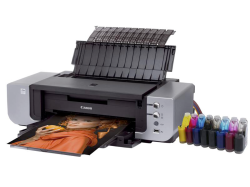
inkjet printers


Types of Inkjet Printers:

– Document Printers

These Inkjet printers only print documents either in colour or black and white e.g. word documents, e-mails, web pages etc.

– Photo Printers

Photo printers are capable of printing high quality and high resolution photos that will look similar to developed photos.

– All-in-One Printers

Often abbreviated as AiO, these printers are multi-functional with the ability to print and copy documents as well as scanning and faxing functions. Most printers on the market today are AiO.

Laser Printers

Laser printers are the obvious solution for corporations, schools and anywhere requiring high frequency or high capacity printing. Laser printers are relatively fast and suitable for high quantity print jobs. Laser printers can come in black and white or colour.

laser printers

Types of Laser Printers

Document Printers

Similar to Inkjet Document printers, these printers print anything from word documents, excel sheets to emails and web pages.

All-in-One Printers

AiO Laser printers are used to make copies, scan and print.

Inkjet Printers vs. Laser Printers

Inkjet Printers are smaller in size and are cheaper in comparison to Laser printers. Their ink cartridges are much cheaper and easier to replace. Although cheap, Inkjet printers don’t use ink very efficiently and are slower at printing documents. They are the best choice for the average home or home-office user.

Laser Printers use toner more efficiently than ink is used by Inkjet printers. Laser Printers print documents at a much greater speed. These printers are bulky and more expensive and can also be quite noisy. Overall, Laser printers are longer lasting and are the best choice when it comes to environments where the demands for printing speed and capacity are likely to be high.

After considering which printer technology and type of printer, there are just 4 steps to choosing the printer that is right for you.

continue to part 2 >>

Filed Under: PC Fix Tips Tagged With: printer

What Printer? Choosing a new Printer in 4 easy steps! [Part 2]

<< back to part 1

4 Steps to choosing the right Printer

Step 1: Decide if speed will be a major factor

A printer’s speed is rated in PPM or pages per minute. It can be a very important factor to consider when buying a printer. However, when printing coloured documents, the pages printed per minute will be fewer than when printing in black and white. Laser printers have a faster PPM than Inkjet printers.

Step 2: Research the Ink and Toner costs

Some manufacturers require the customer to buy ink cartridges directly from them otherwise the warranty would be voided. Be wary of the fact that if the printer will be used very frequently, the cost of ink would greatly outweigh that of the printer. It is also important to distinguish whether ink or toner is used with the selected printer. Also, if the cartridges are ink or ink and nozzles, keep in mind that ink and nozzles will cost more than just ink.

Step 3: Is resolution important – will you be printing photos?

When it comes to resolution dots per Inch or DPI is the measuring unit. The higher the resolution, the better the quality. This is an essential factor to consider especially if you plan to use the printer to print photos.

4. Is the type of connectivity (e.g. Wireless) a factor?

There are three main ways a printer can be connected to a computer. A parallel port connection can be found in older printers. More recent printers offer parallel and USB connections. The third method is to connect via your network or over WiFi. A Wireless Printer can be very useful if the space for your printer is limited and you want to keep it stored away on a shelf or somewhere other than where your computer is.

Conclusion

1. Inkjet Printers are recommended for home use whereas Laser Printers are more suited to the higher-usage office environment

2. The speed of a printer determines the number of pages that can be printed in a minute (PPM) and it is advisable to research the cost of consumables such as ink or toner

3. Dots per inch (DPI) measures the printer’s print quality or resolution. The higher the DPI, the more detailed the image, this will not matter if printing text documents but will matter hugely for photos

4. Printers use three methods to connect to the computer (parallel port, USB, network), many users prefer a wireless option for flexibility

Filed Under: PC Fix Tips Tagged With: printer

HP Printer Not Printing

Before you start troubleshooting your HP Printer, check the three most obvious and common culprits first!

Top 3 HP Printer Problems

1. The HP Printer is not plugged in or there is a problem with the power outlet 2. The printer is out of ink and/ or paper 3. The HP Printer is not connected to your computer (USB or Ethernet cable), or if printing via a wireless connection, there is a problem with the WiFi If you have checked the above issues and are confident that the cause of your printer problems lies elsewhere, then read on for more HP Printer troubleshooting tips. When your HP Printer fails to print, the reason for this failure falls into one of two categories, software or hardware. A hardware issue is one that relates to the actual hardware, in this case the printer. A software issue relates to programs or communication between devices (such as the communication between your Computer and HP Printer). It can be unclear which category a problem falls into so we have tried to clarify the possible HP Printer issues below.

HP Printer Hardware Issue

A printer hardware issue is likely to be a physical problem with the printer. This can be as simple as a cable not plugged in fully or it can be a more complex mechanical problem. Our advice is always to check the obvious first. Is there power going to the printer? If not, rule out other power issues such as problems with fuses or sockets before assuming the problem is with the HP Printer. Is paper getting stuck? Is there an unusual sound from the printer that may point to mechanical problems? HP Printer hardware problems are beyond the remit of this article but our advice would be to detail the symptoms of the problem before trying to troubleshoot it. Note the circumstances under which the errors/ problems occur. Sometimes, issues that seem mechanical can actually be software or Driver-related. For example, if your printer is not responding at all to print commands, this does not necessarily mean the printer is broken, it is most likely an issue with the communication between the computer and printing device.

HP Printer Software Issue

If your HP Printer is not printing, not recognized by your computer or behaving/ printing erratically then the problem may be with your HP Printer Drivers. You should keep your Drivers up-to-date to ensure all your devices run efficiently and effectively. Drivers may be out of date or may become corrupt over time. Also, the addition of new software or an upgrade to a new Operating System may cause problems with Device Drivers such as HP Print Drivers.

This software will scan your computer for missing or out-of-date Drivers and the Drivers report will tell you what Drivers you need to update. You can use this information to search for and download these Drivers yourself, or you can register a Driver Update Tool and automate all your HP Printer and other Driver Updates.

Filed Under: PC Fix Tips Tagged With: hp, printer

How do Printer Drivers Work?

Updated Printer Driver

Printer Drivers are essentially small software programs which allow your Printer to communicate with your computer.

Different Operating Systems will use different Printer Drivers and the Drivers are also specific to the brand, type and model of Printer. So a HP Photosmart 5510 running on Windows 7 will need a different Printer Driver to HP Photosmart b110 also running on Windows 7. This would in turn need a different Driver when running on Windows 8.

Basically Printer Drivers are very specific and the vast majority of the problems we hear about relate to incompatible, out-of-date, corrupt or missing Printer Drivers.

You essentially have 2 options if your Printer Drivers need to be updated. You can go to the manufacturers website and locate, download and install the Drivers yourself (the older Drivers may be difficult to locate in this manner), or you can use a Driver Update Tool to automate this process. It all depends on how much time you are willing to spend on it and also how confident you feel updating the Drivers yourself.

How can I fix Drivers problems?

  1. You can try to track down an updated version of your Printer Drivers if you know the manufacturer and type of driver required.
  2. use a driver update tool (this will apply to all your required Drivers and not just the Printer Drivers)

Common Printer Driver Problems

While Driver errors are very common and can be the reason for your Printer problems, they are not always the issue. Click here to view our article on general Printer problems. We also have additional articles on the more common printer errors such as Lexmark Printer Driver Errors. To view a list of the most common manufacturers go to our homepage at Drivers.com, you can then click on any of the links to get more details on that particular device or manufacturer.

Filed Under: Software Drivers Tagged With: driver, printer

Fix Epson LW-600P Label Printer Errors

Epson LW-600P is a small device designed specifically for printing labels. Like all devices the LW-600P can be prone to an error or two every now and then. The post below sets out solutions to common Epson LW-600P errors.

Solution for Epson LW-600P not recognized by your computer error

In some scenarios, the iLabel software will report an error which mentions missing label printer. The error generally means that the label printer is not recognized by your computer. There can be several reasons for this error which may include corrupted or missing Epson drivers. Before you start any troubleshooting steps, you need to ensure your system meets the minimum requirements for the Epson LW-600P.

Fix/ Download Epson Drivers

Below are the minimum system requirements for the Epson LW-600P:

Supported operating systems

  • Windows XP (32 bit or 64 bit) with Service Pack 3
  • Windows Vista (32 bit or 64 bit) with Service Pack 2
  • Windows 7 (32 bit or 64 bit) with Service Pack 1
  • Windows 8.x (32 bit or 64 bit)

Minimum Hard drive space – 300 MB

Minimum Display Resolution- 1024 × 768 pixels or higher

If your system meets the minimum system requirements, first check whether the printer is installed or not (installed printers are listed in Devices and Printers window).

  1. Click Start
  2. In Start menu, click Devices and Printers

The best way to resolve this problem is  by uninstalling and reinstalling the printer. Follow the steps set out below to uninstall and reinstall the printer.

  1. Click “Start”
  2. Click “Control Panel”
  3. Click “System and Security”
  4. Under System, click “Device Manger”
  5. Double-click “Universal Bus Controllers” to expand the list
  6. Double-click “USB Printing Support” and select “Uninstall” from Driver Tab.  You need to uninstall drivers for all USB printing support in the list
  7. Remove iLabel software and any other applications related to Epson LW-600P
  8. Disconnect Epson LW-600P and restart the system
  9. Connect Epson LW-600P printer to your computer

Windows will automatically detect new hardware and start the add new hardware wizard

  1. Select “Advanced option” and click Next
  2. Click “Show all devices” and click Next
  3. Click “Browse” and navigate to the directory where the driver files are located
  4. Select the driver file and click on Open
  5. Click OK
  6. Follow the on-screen instructions on the next two wizard screen until Windows notifies you of successful completion of device installation
  7. Click Finish
  8. You should see your Epson LW-600P under Devices and Printers list

If you find manual updating of drivers a cumbersome process, click here to go to the Epson Drivers page and download our recommended Driver Update Tool and run a free driver scan for your Epson LW-600P drivers.

Filed Under: Software Drivers Tagged With: epson, printer

Solution to Canon Pixma MX340 printer errors

You have an urgent print job lined up, but the Canon MX340 goes dead the moment you issue the print command. Sound familiar? Then the following guide will help, it outlines effective solutions to common printing issues.

Canon Pixma – common errors and fixes

Solution for Printing does not start issue

There can be several reasons for the printer not starting a job. The primary step in resolving it is to check the physical connections, such as power and USB connection.

Follow the steps given below to check the physical connections.

Step 1- Checking Printer Connections

Ensure the printer is on and receiving power. Next check the connection between your multi-function device and computer.

If you have connected your printer to the USB hub, remove it and directly connect it to the USB port in your computer. If the USB cable shows signs of wear and tear, you must get a new one.

Step 2 – Setting Canon Pixma MX340 as default printer

If you are giving the print command from your computer, ensure Canon Pixma MX340 is your default printer. Follow the steps given below to make Canon Pixma MX340 your default printer.

  1. Click Start
  2. Click Devices and Printers in Start Menu
  3. You should see Canon Pixma MX340 listed in the Printer and Faxes device list. Right-click Canon Pixma MX340 and select “Set as Default printer”
  4. You should see a checkmark near “Canon Pixma MX340” which signifies the computer has set the multi-function device as your default printer.

Step 3 – Setting right printing port

  1. Click Start
  2. Click Devices and Printers in Start Menu.
  3. Under Printer and Faxes, right-click Canon Pixma MX340.
  4. Click Printer Properties. The Canon Pixma MX340 properties dialog box opens
  5. Click Ports.
  6. In the list of ports look for the port named USBnnn (where n is a number).
  7. You should see a check mark in the box besides USBnnn and your printer name in the Printer field in the list. (The printer name is displayed as CNBJNP_xxxxxxxxxx where xxxx is a number)
  8. Click Apply -> Ok

If the printer does not print even after you’ve set the right port, you will be required to uninstall printer drivers and install again.

  1.  Go to Start -> Control Panel
  2. Go to Hardware and Sound
  3. Under Device and Printers, click “Device Manager”
  4. Click “+” sign to expand Universal Serial Bus Controllers”
  5. Right-click on Printer in the list and select “Update Driver”
  6. The Update Driver Wizard will be initiated by Windows, follow the steps given below to update drivers
  7. Click “Browse my computer for driver software.”
  8. Scroll down the list in drop-box and select “Let me pick from a list of device drivers on my computer”
  9. Click “Have Disk”
  10. Click “Browse” and navigate to the folder where drivers are located.
  11. Click “Ok”

If you do not have Driver CD, click here to download our recommended Driver Update Tool and run a free driver scan for your Canon Pixma MX340 drivers (click the download button at the top of the page).

Filed Under: Software Drivers Tagged With: canon, printer

Fix HP Officejet Pro 8600 “No Computer Detected” or “Connection Error” message

HP OfficeJet Pro 8600 Driver Download

HP OfficeJet Connection Error

While HP Officejet Pro 8600 all-in-one printers are among the best in their category, one complaint user have had with them is of frequently receiving a “No Computer Detected” or “Connection Error” message. Below are some common causes of this error and solutions to these problems.

Causes of HP errors

For Wired (Ethernet) or Wireless connection

Your computer restarted or was shut down and Scan to Computer connection was disabled

Your computer was in hibernation mode, sleep mode, or in standby mode and the Scan to Computer connection was disabled

After you ran the initial software installation, the Scan to Computer connection remained disabled

You did not install the HP Software program, or the software program was not installed correctly

For USB connection

You did not install the HP Software program, or the software program was not installed correctly

There is some problem in the USB connection

Solution for Wired Ethernet connection

Check if the HP software is installed on your computer. If not, install the HP software and choose the right type of connection while installing the software.

If the HP software is already installed, restart the computer, HP Officejet Pro 8600 and all attached network devices and see if the problem is resolved. If the connection error persists, try uninstalling and reinstalling the HP software. After reinstalling the HP software, check the Network configuration of your all-in-one device. To do so, follow these steps:

  • On Printer Control Panel, press Right Arrow > Setup
  • Press the Down arrow on the screen and Select Reports
  • Select Network configuration page and your device will print all network settings on a page.
  • The Network configuration page should list a valid IP address. If the IP address is missing, check the wired connection and the Ethernet port for any fault by changing the Ethernet wire.

For Wireless Connection

Resolving a wireless connection issue between your HP Officejet Pro 8600 and the computer starts with checking the entries in the Network configuration page. Take a print of the Network settings by following the steps given above. The Network configuration page should list a valid IP address. If not, try moving your HP Officejet Pro 8600 closer to the router and try connecting to the router using the Wireless Setup wizard. Follow the steps given below to connect your All-in-one device wirelessly.

On your printer control panel, press Right Arrow > Setup

  • Select Network  > Wireless Setup Wizard and Continue
  • You should see your Network SSID in the list. Select right Network SSID
  • If you do not see your Network SSID, press Down Arrow on the Network SSID screen, select Enter New Network Name, then enter a Network SSID and let printer scan for the Network. Next, enter a password when prompted.

For USB connection

To resolve the issue, try connecting to a different USB port in your computer. Try changing the USB wire connecting your printer and computer. If the problem persists after checking the physical connections, uninstall and reinstall the HP software.

HP Officejet Pro 8600 errors can also occur due to missing or corrupt drivers. So keep your printer drivers up to date. An easy way of doing this is by using a driver update tool.

View Driver Update Tools Here

Filed Under: Software Drivers Tagged With: hp, network, printer

Fix Samsung CLX 3170 Driver Errors

Samsung CLX Errors

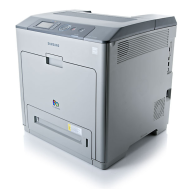
The most common Samsung CLX 3170 error you will get while using this multi-function device is that the machine does not print. This post contains information on how to resolve this and some other Samsung CLX 3710 Driver errors that you may encounter.

How to manually update Samsung Drivers

How to resolve the “the machine does not print” error

There can be several reasons why your Samsung CLX 3170 is not able to start a printing job, reasons such as:

  • Printer is not receiving power
  • Problem in connection between your computer and printer
  • This printer is not selected as the default printing device in your computer.
  • Other problem with printer
  • The toner cartridge is not compatible
  • Incorrect Port Setting
  • Printer driver not installed or has become corrupt
  • Problem with Document size

To fix this issue, we recommend you first check if the Samsung CLX 3170 is receiving power. Check the power cord, power switch and power outlet to ensure everything is functioning properly.

Once you have checked your power connections, you need to check the connection between your computer and printer. Disconnect and re-connect the printer cable. To ensure the printer cable works, try connecting your printer to another computer that is functioning properly and try printing a document.

Check whether Samsung CLX 3170 is the default printer or not. If it is not, perform the steps listed below to make it the default printer:

  • Click Start
  • Click Devices and Machines (or Machines and Fax)
  • Locate and right-click “Samsung CLX 3170” and then select “Set as default machine”

In case the Samsung CLX 3170 was already the default printer, or in case the error persists even after it is selected as the default printer, you will need to check if the printer is having a problem related to the toner cartridge or paper. There can be several issues that can affect the proper functioning of your Samsung CLX 3170 printer. You need to check your printer for the following issues

  • The front cover and rear cover of the printer should be closed
  • The paper should be loaded and there should be no paper jams.
  • The toner cartridge should be properly installed. If possible try replacing the toner cartridge.

You need to check your printer is communicating with the correct port. Follow the steps given below to check the port settings for your Samsung CLX 3170.

  • Click on Start -> Control Panel –> System
  • Click on Hardware tab -> Device Manager
  • Under Ports (Com and LPT), go to Printer Port (LPT1) and double-click on it to view its Properties
  • In General section under Device Status you should see message “This device is working properly” which confirms the port settings are correct.

If none of these solutions have worked to resolve the issue, it is more likely the printer drivers have become corrupt or out of date. Try uninstalling and re-installing the printer drivers and printer software.

Every printer has some minimum system requirements which include free hard drive space. The minimum hard drive space requirements for different OS are as follows

Windows 2000 – 600 MB

Windows XP – 1.5GB

Windows Vista – 15GB

Windows 7 – 16GB

Windows Server 2008 – 10 GB

The above mentioned values for free hard drive space are recommended values. If the document size which you are trying to print is big then you need to ensure you have at least the recommended free hard drive space on your computer.

click here to go to  our Samsung drivers page to download Samsung driver updates (this will allow you to run a free Driver Scan)

How to resolve “A print job is extremely slow” issue?

Many things may cause delays in printing with a Samsung CLX 3170. One reason is the print job is too complex. You can resolve the issue by reducing the complexity of the document or changing the print settings of the documents. You can reduce the resolution of the document to 1200dpi (Normal) or 600dpi (Draft). If that doesn’t solve the slow printing issue, try connecting to other computer.

How to resolve “Scanner Locked” error?

Your Samsung CLX 3170 has a lock switch, which you need to set to the unlocked position. If that doesn’t help, switch off the device and start again.

How to fix “Fuser error” messages?

You may notice “Over heat Error (Cycle Power)”, “Low heat error (Cycle Power)”, or “Open heat error (Cycle Power)” message on your Samsung CLX 3170 LCD screen. These errors are related to Fuser and Exit sensor in your device. The solution to this problem is to replace the Fuser and Exit Sensor in your device.

One more common cause of printer errors is outdated or corrupt Samsung CLX 3170 drivers. The issue can be resolved by installing new drivers, which can be downloaded manually from the Samsung website or using a reputable driver update tool. To update your Samsung CLX 3170 drivers automatically click here and select the download link to run a free Drivers Scan.

Filed Under: Software Drivers Tagged With: printer, samsung

Fix Dymo LabelWriter 400 Turbo driver errors

What is Dymo LabelWriter 400 Turbo

Dymo LabelWriter 400 Turbo is a device specifically used to print labels. The device is connected to a computer with a USB cable or through a Serial port.

Most of the errors encountered by Dymo LabelWriter Turbo 400 are related to connectivity. This post lists some common errors that you may encounter while using the Dymo device and simple solutions for these problems.

Fix problem where USB-connected LabelWriter fails to print

One of the reasons for LabelWriter not printing is the labels are not properly loaded in the spool. If that is the case, then you need follow the steps given below to resolve the issue.

  • Remove the power supply chord from the power outlet. Wait for 30 seconds and reconnect the power supply chord.
  • Start DYMO LabelWriter
  • Go to Start->Control Panel -> Printer and Faxes
  • Click on File and Select Change Printer
  • Select Label Writer 400 Turbo from the list and print a label.

Note: It is necessary that you update the Firmware in the Dymo LabelWriter 400 Turbo to avoid any further issues. You need to use the LabelWriter Firmware Updater utility and follow the on-screen instructions to update the LabelWriter firmware.

Fix problem where Serial port-connected LabelWriter is Not Printing

You are more likely to experience this issue if you have Port (COM & LPT) monitoring utilities or HotSync(R) Manager application installed on your computer. These programs are known to prevent communication between your computer and LabelWriter 400 Turbo. One of the ways to resolve this issue is by disabling these utilities when you print with LabelWriter. Another solution to this problem is to configure the Port settings to ensure proper communication between your system and LabelWriter.

Follow the steps given below to configure the Port settings

  • Click on Start-> Control Panel -> Printer and Faxes
  • Locate DYMO LabelWriter printer in the Printer folder, right-click it, and select Properties
  • The settings should match as given below
    BPS Data – 115200
    Bits – 8
    Parity – None
    Stop Bits – 1
    Flow Control – Hardware
  • Make the necessary changes if required and click OK

Solution for Error Message when sending Print jobs

If you are getting an error message while sending print jobs, try unplugging the device and plug it in again. The majority of the time, it is a temporary issue which gets resolved after unplugging and plugging in the device again.

How to fix the error “Cannot install this device. No driver found for this device.” when displayed at the end of the installation. (D060003)

There can be several reasons for this error such as your system is unable to load the latest Driver for the LabelWriter. To resolve this error, follow the steps below.

  • Go to C:WINDOWSINF and look for NTPRINT.INF file
  • Rename it to NTPRINT.OLD
  • Go to C:WINDOWSServicePackFilesi386 and copy the NTPRINT.INF to C:WINDOWSINF folder
  • If there is no ServicePackFiles folder, you need to install Service Pack available for your Windows OS.
  • Delete INFCACHE.1
  • Reboot and install Dymo LabelWriter 400 Turbo again.

Dymo LabelWriter 400 Turbo Drivers are vital to enable proper communication between your system and the printer. Therefore, it is strongly recommended you keep the Drivers up-to-date in order to prevent any errors.

To update your Dymo LabelWriter 400 Turbo Drivers automatically, try using a driver update tool.

View Driver Update Tools Here

Filed Under: Software Drivers Tagged With: label, printer

  • « Previous Page
  • 1
  • 2
  • 3
  • 4
  • 5
  • 6
  • Next Page »


  • Recent Posts
  • Popular Posts
        

Read More Posts


Read More Posts

Drivers.com Sites

  • Software Drivers
  • Drivers Ed

About Us

  • Advertise
  • About Drivers
  • Drivers Support
  • Drivers.com Privacy Policy
  • Disclaimer
  • Software Drivers
  • Mac Fixes and Tips
  • PC Fix Tips
  • Security/ Backup
  • Tablets & Smartphones
  • Tech News

© Copyright 2026 PDE Publications Ltd. End User License Agreement (EULA)