
Drivers.com

follow us:

facebook twitter
  • Home
  • Download Drivers
  • Drivers Help
  • PC/Mac Resources
  • Software Drivers
  • Mac Fixes and Tips
  • PC Fix Tips
  • Security/ Backup
  • Tablets & Smartphones
  • Tech News
  • Software Drivers
  • Mac Fixes and Tips
  • PC Fix Tips
  • Security/ Backup
  • Tablets & Smartphones
  • Tech News

Resources by Tag

driver

Fix USB Device Not Recognized Issue

This is an error encountered by users when trying to access a USB device such as a mouse, hard drive or other USB-connected device. There are a number of possible causes and we will start with the simplest solution first (and it often works!) –

turn your computer off and back on again!

Restart your PC

While it seems like an overly-simplistic solution, turning your computer off (and unplugging it to cut all power to motherboard) can help to reset the motherboard which links to all devices including the USB ports. So turn off your computer, unplug all devices (particularly USB devices) unplug the computer, have a cup of coffee and start it all up again. Hopefully this will solve your USB device error. If not, make yourself another cup and read on.

Restart USB device

As well as restarting your PC, you need to restart your USB device that is causing the error. If you have already restarted your PC with the USB device unplugged, then just plug the device back in to see if the error still occurs. If you are still seeing the error, try another USB port. If another USB port works then you can assume the problem is with the original USB port and not your device.

If you are seeing the same error with other USB ports then you will need to read on to troubleshoot further (rule out the problem being with the device itself or the USB cable by testing a different USB device/ cable in the same USB port)

Update Drivers

The Drivers for your USB device or motherboard may need to be updated. Go to the device manager for your USB Drivers and for Motherboard Drivers go to the manufacturers website to see if they provide the latest download, if not you can download our Driver Update Tool and run a drivers scan to check the name of the drivers and then either search the web for the Drivers, or register the software to let the program do this for you.

Change USB root hub settings
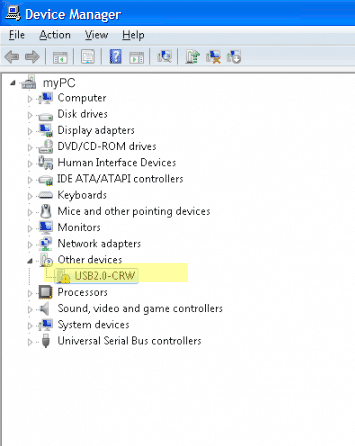
usb device manager driver update

To change the USB root hub settings you will go into Device Manager and under Universal Serial Bus Controllers, select USB root hub. Right-click on this and view properties. Go to the Power Management tab and uncheck the option allow the computer to turn off this device to save power.
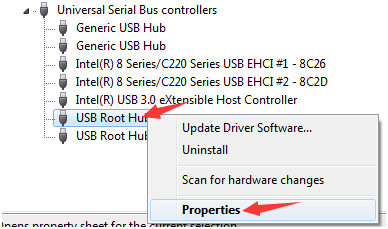
usb properties

Microsoft have a useful article in relation to USB hubs causing instability with regard to this power management feature.

If none of the above solutions helped fix your USB device not recognized error, the get in touch via the comments section below and we will do our best to help you.

Filed Under: Software Drivers Tagged With: driver, usb

How do Printer Drivers Work?

Updated Printer Driver

Printer Drivers are essentially small software programs which allow your Printer to communicate with your computer.

Different Operating Systems will use different Printer Drivers and the Drivers are also specific to the brand, type and model of Printer. So a HP Photosmart 5510 running on Windows 7 will need a different Printer Driver to HP Photosmart b110 also running on Windows 7. This would in turn need a different Driver when running on Windows 8.

Basically Printer Drivers are very specific and the vast majority of the problems we hear about relate to incompatible, out-of-date, corrupt or missing Printer Drivers.

You essentially have 2 options if your Printer Drivers need to be updated. You can go to the manufacturers website and locate, download and install the Drivers yourself (the older Drivers may be difficult to locate in this manner), or you can use a Driver Update Tool to automate this process. It all depends on how much time you are willing to spend on it and also how confident you feel updating the Drivers yourself.

How can I fix Drivers problems?

  1. You can try to track down an updated version of your Printer Drivers if you know the manufacturer and type of driver required.
  2. use a driver update tool (this will apply to all your required Drivers and not just the Printer Drivers)

Common Printer Driver Problems

While Driver errors are very common and can be the reason for your Printer problems, they are not always the issue. Click here to view our article on general Printer problems. We also have additional articles on the more common printer errors such as Lexmark Printer Driver Errors. To view a list of the most common manufacturers go to our homepage at Drivers.com, you can then click on any of the links to get more details on that particular device or manufacturer.

Filed Under: Software Drivers Tagged With: driver, printer


  • Recent Posts
  • Popular Posts
        

Read More Posts


Read More Posts

Drivers.com Sites

  • Software Drivers
  • Drivers Ed

About Us

  • Advertise
  • About Drivers
  • Drivers Support
  • Drivers.com Privacy Policy
  • Disclaimer
  • Software Drivers
  • Mac Fixes and Tips
  • PC Fix Tips
  • Security/ Backup
  • Tablets & Smartphones
  • Tech News

© Copyright 2026 PDE Publications Ltd. End User License Agreement (EULA)