Drivers.com

follow us:

facebook twitter
  • Home
  • Download Drivers
  • Drivers Help
  • PC/Mac Resources
  • Software Drivers
  • Mac Fixes and Tips
  • PC Fix Tips
  • Security/ Backup
  • Tablets & Smartphones
  • Tech News
  • Software Drivers
  • Mac Fixes and Tips
  • PC Fix Tips
  • Security/ Backup
  • Tablets & Smartphones
  • Tech News

Dell Drivers And Downloads – All You Wanted To Know About Them

By Susan C on June 17, 2020

Dell Drivers And Downloads – All You Wanted To Know About Them

When it comes to downloading drivers, it’s important you use only trusted sources. Many websites push malware or spyware disguised as genuine programs or software.

If you’re looking for a way to download Dell monitor driver, you’ve come to the right place. In this post, we’re discussing three safe ways to download Dell drivers. While you can choose any of these three methods, we strongly recommend the third method because it’s easy, fast, and completely safe.

Solution 1 – Update Dell Monitor Driver using Device Manager

Windows computers come with a built-in program called Device Manager that allows you to install, uninstall, and roll-back drivers.

Here are the steps you need to follow to update your Dell Monitor Driver using Device Manager.

  • Press Win + R keys simultaneously to launch Run box
  • Type devmgmt.msc and press the OK button
  • In the device manager window, expand Monitors. Next right-click Update Driver Software…
  • In the next window, select the first option, which is Search automatically for updated driver software
  • Windows will locate and update the driver on its own. Simply follow on-screen instructions (if any)
  • Restart Windows if required

Note: While this is a pretty straightforward and simple way, it’s not the most recommended. Microsoft may fail to locate the latest driver, in which case you’ll get this message – The driver software for your device is already installed. If you get this message, you should try the 2nd or 3rd option.

Solution 2 – Download Dell Monitor Driver from dell.com

Another safe way to download dell driver for your monitor is via Dell’s official website. Here are the steps to follow.

  • Navigate to Dell Product Support Center
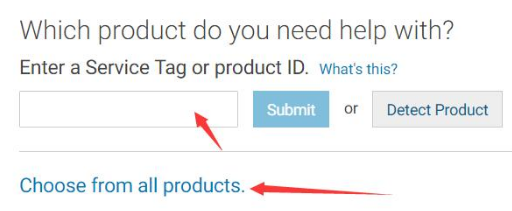
  • Next either click Choose from all products or enter the Dell Monitor ID in the search box

  • Click Drivers & Downloads and then click Change OS to select your system

  • Now expand Monitor & Displays and click Download
  • Once the driver installer file is downloaded, double-click it and follow onscreen instructions to complete installation
  • Restart Windows

Now, let’s check out the last method, which is much quicker and easier than the other two listed methods.

Solution 3 – Download Dell Monitor Driver automatically

Automatic driver update tools offer many benefits, the most important ones being:

  • You can update device drivers automatically
  • The software scans and updates all outdated or missing drivers at one go
  • The tool picks the right drivers for your device and operating system, so you won’t have to worry about installing an incorrect driver by mistake
  • Automatic driver updates are 100% safe

Driver Updater is one of the best driver update tools out there. Outbyte Driver Updater will give you access to a database of over 1 million drivers. It will regularly scan your PC, suggesting new driver versions to install. Driver Updater contains drivers for a variety of Windows devices. With just one click, you can update drivers in your system.

Step 1
Click here to Install and launch the app

Step 2
Scan all devices

Step 3
Install or update drivers automatically

 

Start Download


Filed Under: PC Fix Tips Tagged With: Dell Monitor Driver

Your Connection Is Not Private Error (Solved)

By Susan C on June 11, 2020

Are you getting the following error: Your connection is not private. Attackers might be trying to steal your information?

If you said yes, this post is just for you.

In this post, we will show several ways in which you can solve this error on a Windows 10 or Windows 7 computer. You don’t have to try all the discussed solutions. Start from the first one and move to the second one and so forth until the issue gets resolved.

Solution 1 – Fix Date and Time of Your Computer

One of the most common causes for the titled issue is wrong date and time settings.

Here are the steps you need to perform to correct date and time settings of your computer.

  • Right-click on the date and time section in your system tray (bottom right-hand corner)
  • Click Adjust date/time
  • Update the date and time to your real time zone

Solution 2 – Get Rid of Browsing Data

Having excess browsing data may lead to errors such as the titled one. Here are the steps you need to perform to clear the browsing data:

  • Open Google Chrome
  • Click the three dots icon at the top right-hand corner
  • Click Settings
  • Scroll down and select Show advanced settings…
  • Navigate to Privacy section and select Clear browsing data
  • Choose the browsing history you want to remove and click Clear browsing data
  • Relaunch Google Chrome

Solution 3 – Change the Settings of the Antivirus Program

Sometimes, this issue is triggered by the installed antivirus software. In case you are sure about the genuineness of the sites you are visiting, you can “turn OFF the Scan SSL” option. In case you don’t see any such setting, temporarily disable the antivirus software. However, do that only if you completely trust the sites you are visiting.

Solution 4 – Open Chrome in Incognito Mode

Last but not the least, try launching Google Chrome in the incognito mode. To do that, press Ctrl + Shift + N. Now enter the URL of the website you wanted to visit. In case the webpage opens up without any problem, chances are the problem is occurring because of some issue with an extension.

  • Click the three dots icon on the top right-hand corner. Click Settings
  • Click Extensions in the left pane. All the installed extensions will appear on your screen
  • Check if any extension is interfering with the SSL connection. If you find any, uncheck the Enable box next to it. Check all the extensions as it is possible more than one might be interfering

Filed Under: Software Drivers

Top 9 Zoom Alternatives for Video Calling

By Susan C on June 5, 2020

Top 9 Zoom Alternatives for Video Calling

What are the best alternatives to Zoom for video calling?

This is a very common question these days. While it might seem at the moment like Zoom is the only video calling software out there, there are plenty of alternatives.

Zoom has recently been in the headlines due to security vulnerabilities (read our post on tips for Zoom safety and privacy). If you have privacy concerns, can’t access Zoom or are having issues with Zoom error messages (Zoom error messages and solutions) for some reasons or just want to try out something different, then read on to find out the best alternatives.


Best alternatives to Zoom

Skype

skype videoconferencing software

Remember Skype? Skype is still one of the more popular video chat software programs and it has come up with a new feature that can give Zoom a run for its money – Skype Meet.

Pros:

While not as feature rich as Zoom, Skype Meet is free and can be used on Windows, Android, iOS, Mac, and web. Another very impressive feature is that it can accommodate up to 50 users. Users can simply sign in with a link, which makes it very user-friendly, even for those new to video conferencing software. This basically means users can log in even if they don’t have a Skype account which will be a big selling point.

Cons:

Skype Meet has a text chat window, but that’s just about it. You won’t get to enjoy the meeting organization tools that you find in Zoom.

Main features of Skype:

  • Ability to share presentations
  • Record calls for up to 30 days
  • Can blur the background (very important for privacy and for those of us without the perfect bookcase background!)

GoToMeeting

gotomeeting videoconferencing software

First things first, GoToMeeting is not a free app.

Pros:

Now that we have got that out of the way, let’s see what it has to offer. For starters, you get all the basic goodies you expect from a video conferencing software—namely, screen-sharing, audio and video sessions, and a mobile app for both Android and iOS.

Cons:

The main drawback for most users for this app is that it is not free.

The standard version, which will set you back by $14/month or $12/month annually, allows up to 150 members per meeting, which is pretty good. The business plan tier, on the other hand, can accommodate up to 250 participants and come with a price tag of $19/month. If yours is a large business, perhaps the Enterprise plan may be best for you. It allows up to 3,000 users.

Main features of GoToMeeting:

  • Mobile app for both Android and iOS
  • The standard version allows 150 users
  • Screen-sharing

Microsoft Teams

microsoft teams software

This video conferencing software is one of the top alternatives to Zoom and comes built-in with Office 365. That said, anyone can use the free version of Microsoft Teams; all that is needed is an email address. The basic plan allows up to 300 users, group and one-on-one audio/video calls, guest access, file sharing (10GB per team), and screen sharing.

Pros:

If you want a more robust set of features, check out its business plans. Each team user can share up to 1TB of files and collaborate with others using SharePoint Online and desktop Office programs. The business plans also support training sessions and online webinars, besides giving Administrators access to management, compliance, and security tools.

Cons:

The file structure and permissions settings can be initially confusing. For the uninitiated there is a bit of a learning curve.

Main features of Microsoft Teams:

  • Basic plan allows up to 300 users
  • File sharing (10GB per team) in the free plan
  • Screen Sharing

Cisco Webex

cisco webex app

This application has been around for nearly three decades and primarily serves businesses.

Pros:

The free version offer a pretty good set of features and is certainly worth a look. For the present emergency situation, Cisco has increased the participant limit of its free version to 100 (previously 50). It has also removed the 40-min limit and included call-in abilities.

Cons:

Webex has a free basic plan but there is a fee for the Call Me feature.

Main features of Cisco Webex:

  • 100 participants can join simultaneously
  • Unlimited meeting time
  • Call-in for audio

Jitsi Meet

jitsi videoconferencing software

An open-source platform, Jitsi Meet let’s you meet anyone online at a single click. Simply go to its site and click the “Go” button.

Pros:

While most users would be satisfied with the quick web version, the more tech-savvy can build up their own video app via Jitsi Videobridge. That said, the free version has features that compete with well-known apps, namely chat, the ability to throw away unwanted (or unruly) users, session recording.

Cons:

Administrative functions need work.

Main Features of Jitsi Meet:

  • Private or public chat
  • 75 participants can joint at a time
  • Integrates with Google Calendar, Office 365, and Slack

Google Meet

google meet videoconferencing software

Until recently, this application (previously known as Hangouts Meet) was available only to those who subscribed to G suite (Google’s paid service). However, starting early May 2020, Google made this app available for all its Gmail service users.

Pros:

This app allows you to easily video chat with your family, friends, and colleagues, as long as they have a Google account — a prerequisite for using Google Meet.

To start a meeting, go to Google Meet, click the “Join or start a meeting” button, name your meeting (if you want to), and send the invites. Google Meet, like other video conferencing tools, let you schedule a meeting. You can do that using Google Calendar. Security features included in the app include the ability to kick out unruly participants.

Cons:

You will need to have a Google account to use this.

Main Features of Google Meet:

  • 100 participants can join at a time
  • Unlimited meeting time (till 30th September; after which there will be a 60-min limit)

Facebook Messenger Rooms

facebook messenger videoconferencing software

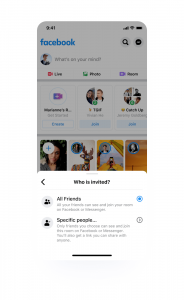
You can trust Facebook to fight for its digital territory. Precisely for this reason, it’s beefing up the video chat feature with Messenger Rooms, which allows Facebook users to create private or public video chat rooms. This will help secure it’s position as one of the top alternatives to Zoom.

Pros:

Up to 50 people can join a chat room and there’s no time limit on meetings. In comparison, Zoom allows a maximum of 100 people and there’s a 40-min limit on its meetings. Facebook is also allowing non-Facebook users to participate a meeting via a Messenger Room using a link.

Just like in Zoom and other video conferencing apps,  Messenger Room creators can kick out unruly participants any time.

Cons:

Facebook Messenger Rooms has one noticeable drawback. End to end encryption is missing. That said, Facebook says it is not going to eavesdrop on any calls.

Main Features of Facebook Messenger Rooms:

  • 50 people can join a meeting at a time
  • No time limit on meetings
  • Participants can use augmented reality filters

BlueJeans

bluejeans videoconferencing software

Looking for a high-quality streaming option for smaller teams? If yes, BlueJeans may be right up your alley.

Pros:

BlueJeans is a cloud-based video conferencing service that offers three plans — Me, My Team, and My Company. The first plan costs $19.98 per user and allows up to 50 users. The My Team plan will set you back by $23.99/month per host and allows 10 hrs of meeting recordings. It also offers a common dashboard which up to 75 attendees can use. The MyCompany plan has a limit of 150 users and allows access to a room system calendar.

Cons:

Doesn’t offer a free trial for paid plans.

Main Features of BlueJeans:

  • HD content sharing
  • Interactive dashboards
  • Meeting recording

Whereby

whereby videoconferencing software

Pros:

The free version is pretty limited, but nevertheless it can be a good option for catching up with your close friends. You get a single meeting room and no more than 4 users can join at one time. However, you get the ability to lock a room, choose your own URL (provided someone else has not already taken it), share a screen, and kick out or mute users.

Cons:

As the free version has limited features, you may need to upgrade to the pro version. It allows up to 12 users per meeting and gives you three meeting rooms instead of one. You’ll have to cough up $9.99 per month for the pro version.

Main Features of Whereby:

  • YouTube integration
  • Screen-sharing
  • You can “lock” rooms

As you can see from the above, there are lots of videoconferencing alternatives to Zoom out there. It is just a matter of finding which one best suits your needs.

Filed Under: Tech News Tagged With: bluejeans, cisco webex, facebook messenger, google meet, microsoft teams, skype, videoconferencing, whereby, zoom

  • « Previous Page
  • 1
  • …
  • 91
  • 92
  • 93
  • 94
  • 95
  • …
  • 189
  • Next Page »


  • Recent Posts
  • Popular Posts
        

Read More Posts


Read More Posts

Drivers.com Sites

  • Software Drivers
  • Drivers Ed

About Us

  • Advertise
  • About Drivers
  • Drivers Support
  • Drivers.com Privacy Policy
  • Disclaimer
  • Software Drivers
  • Mac Fixes and Tips
  • PC Fix Tips
  • Security/ Backup
  • Tablets & Smartphones
  • Tech News

© Copyright 2026 PDE Publications Ltd. End User License Agreement (EULA)