


When it comes to downloading drivers, it’s important you use only trusted sources. Many websites push malware or spyware disguised as genuine programs or software.
If you’re looking for a way to download Dell monitor driver, you’ve come to the right place. In this post, we’re discussing three safe ways to download Dell drivers. While you can choose any of these three methods, we strongly recommend the third method because it’s easy, fast, and completely safe.
Solution 1 – Update Dell Monitor Driver using Device Manager
Windows computers come with a built-in program called Device Manager that allows you to install, uninstall, and roll-back drivers.
Here are the steps you need to follow to update your Dell Monitor Driver using Device Manager.
- Press Win + R keys simultaneously to launch Run box
- Type devmgmt.msc and press the OK button
- In the device manager window, expand Monitors. Next right-click Update Driver Software…
- In the next window, select the first option, which is Search automatically for updated driver software
- Windows will locate and update the driver on its own. Simply follow on-screen instructions (if any)
- Restart Windows if required
Note: While this is a pretty straightforward and simple way, it’s not the most recommended. Microsoft may fail to locate the latest driver, in which case you’ll get this message – The driver software for your device is already installed. If you get this message, you should try the 2nd or 3rd option.
Solution 2 – Download Dell Monitor Driver from dell.com
Another safe way to download dell driver for your monitor is via Dell’s official website. Here are the steps to follow.
- Navigate to Dell Product Support Center
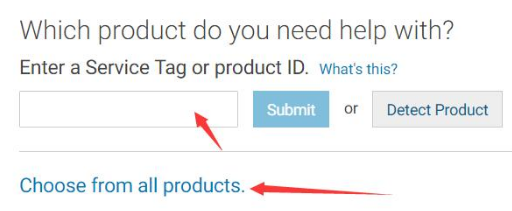
- Next either click Choose from all products or enter the Dell Monitor ID in the search box
- Click Drivers & Downloads and then click Change OS to select your system

- Now expand Monitor & Displays and click Download
- Once the driver installer file is downloaded, double-click it and follow onscreen instructions to complete installation
- Restart Windows
Now, let’s check out the last method, which is much quicker and easier than the other two listed methods.
Solution 3 – Download Dell Monitor Driver automatically
Automatic driver update tools offer many benefits, the most important ones being:
- You can update device drivers automatically
- The software scans and updates all outdated or missing drivers at one go
- The tool picks the right drivers for your device and operating system, so you won’t have to worry about installing an incorrect driver by mistake
- Automatic driver updates are 100% safe
Driver Updater is one of the best driver update tools out there. Outbyte Driver Updater will give you access to a database of over 1 million drivers. It will regularly scan your PC, suggesting new driver versions to install. Driver Updater contains drivers for a variety of Windows devices. With just one click, you can update drivers in your system.
Step 1
Click here to Install and launch the app
Step 2
Scan all devices
Step 3
Install or update drivers automatically
Leave a Reply