Drivers.com

follow us:

facebook twitter
  • Home
  • Download Drivers
  • Drivers Help
  • PC/Mac Resources
  • Software Drivers
  • Mac Fixes and Tips
  • PC Fix Tips
  • Security/ Backup
  • Tablets & Smartphones
  • Tech News
  • Software Drivers
  • Mac Fixes and Tips
  • PC Fix Tips
  • Security/ Backup
  • Tablets & Smartphones
  • Tech News

How to Optimize Windows 11 PC for Gaming Performance?

By Susan C on November 7, 2025

How to Optimize Windows 11 PC for Gaming Performance?

Windows 11 computers come with decent gaming capability out of the box. However, your PC’s default settings may not be able to keep up with the load put on it by heavy-duty games.

What to do then (especially if you don’t want to spend money on hardware upgrade)?

The answer is simple: Optimize your system for peak gaming performance. Follow the tips shared in this post for seamless gaming performance on your Windows 11 PC.

Tip #1 – Disable Startup Applications

When your computer boots, several applications start automatically with it. In most cases startup apps don’t affect gaming performance. However, applications with heavy resource consumption (CPU, GPU, RAM, and disk space) can certainly have a negative impact.

If you suspect a startup application of bringing down your PC’s gaming performance, consider disabling it. Here’s what to do.

  • Press Ctrl + Shift + Del (or Ctrl + Shift + Esc)
  • Click Task Manager
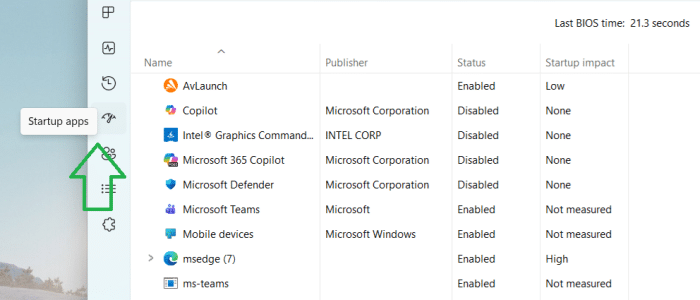
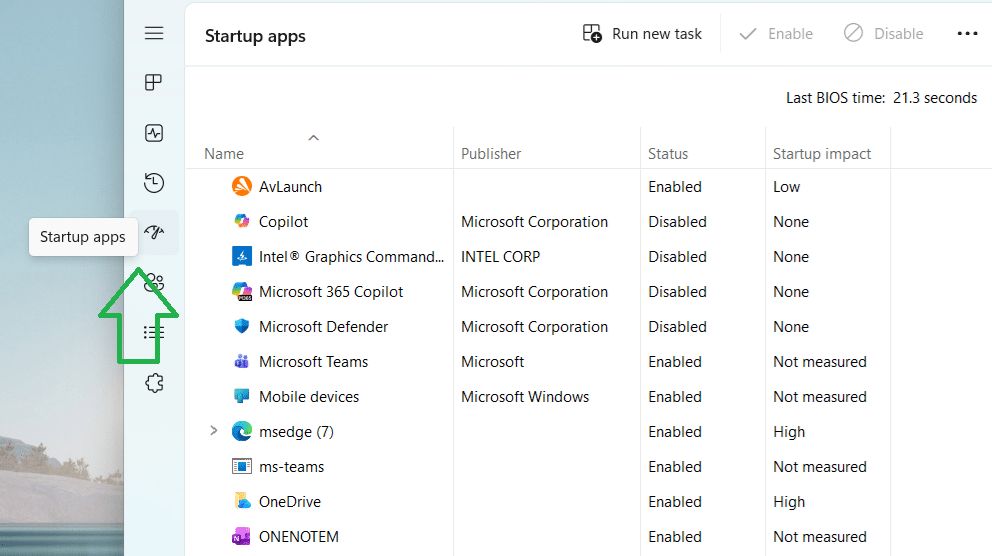
  • Click Startup apps (If you don’t see this entry, click its icon in the left-hand side pane as shown in the image below)
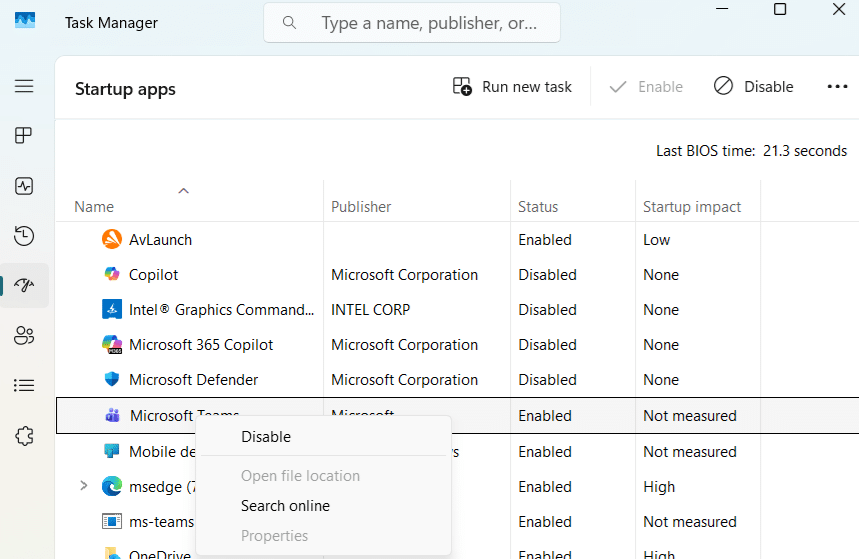
  • Right click any app you want to disable and then choose Disable
Tip #2 – Disable Resource-hogging Apps

Disabling apps with heavy resource consumption before launching and playing a game can improve your gaming experience.

Here’s what to do:

  • Press Ctrl + Shift + Esc
  • Click Task Manager
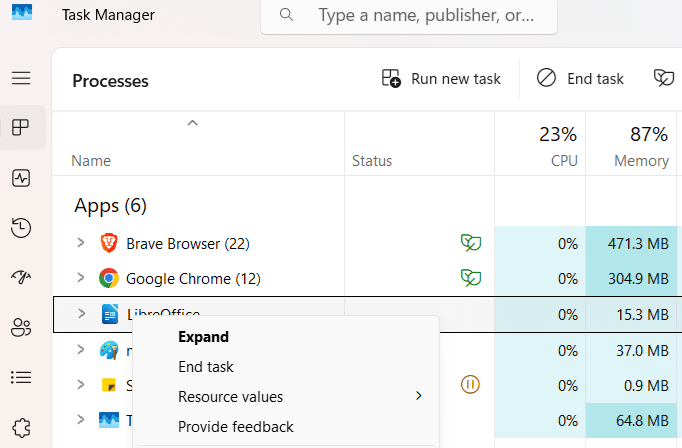
  • You can sort the running processes by Memory or CPU usage
  • Right-click any resource-hogging app and choose End Task
Go through the entire list of processes and disable all unnecessary apps.

Tip #3 – Turn off Visual Effects

Visual effects and special animations give your PC’s look a boost, but this comes at a cost. These effects eat up more-than-reasonable amount of system resources. If you think you’ll not miss them, disable them to improve PC performance by following the steps listed below.

  • Type “settings” in the Search bar and hit Enter
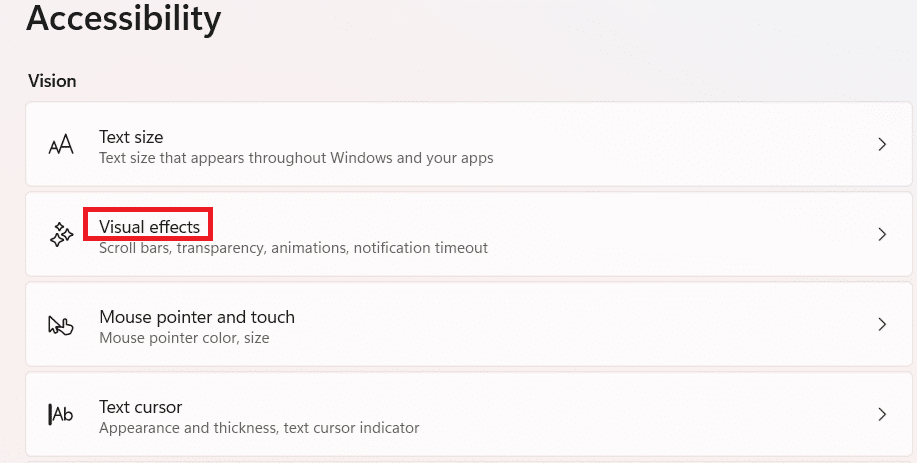
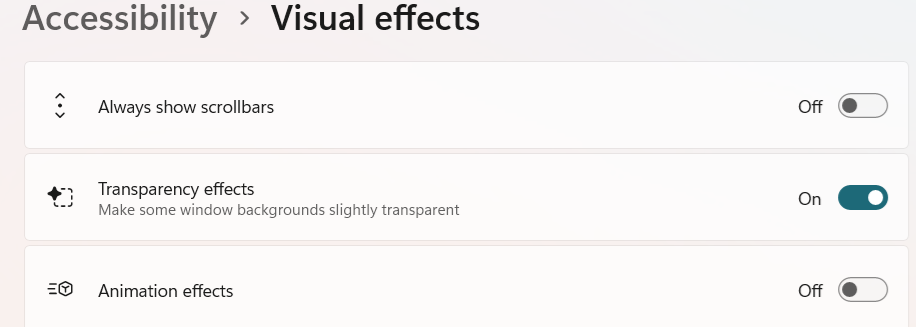
  • Click Accessibility in the left-hand side pane and then click Visual effects
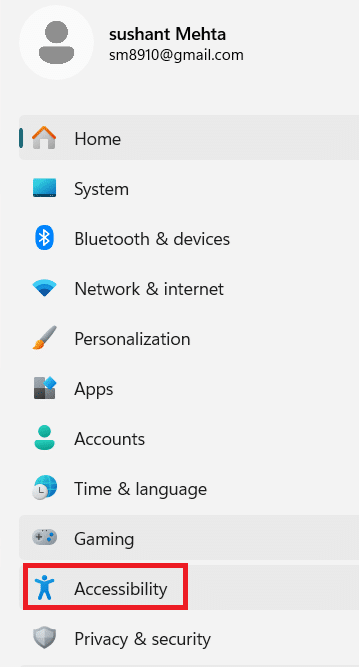
  • Finally, toggle off Animation Effects

In case fonts and cases looks awkward, enable effects that are related to fonts and shadows. These effects have very little impact on PC performance.

Tip #4 – Make Sure Game Mode is Activated

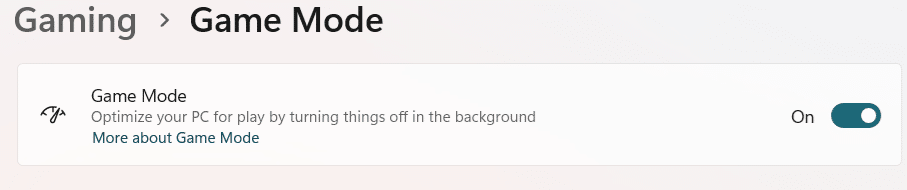
Just like Windows 10, Windows 11 features Game Mode for uninterrupted gaming experience. If activated, Game Mode optimizes the PC for gaming and improves frame rates.

Here’s how to activate this feature:

  • Type “settings” in the Search bar and hit Enter
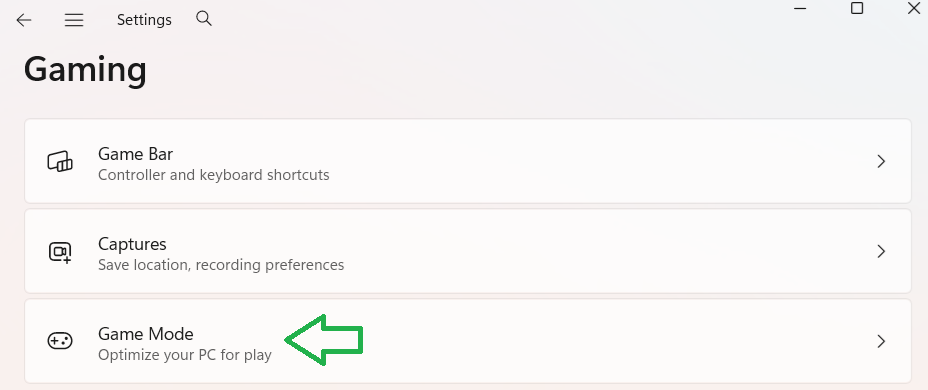
  • Select Gaming in the left-hand side pane and then choose Game Mode
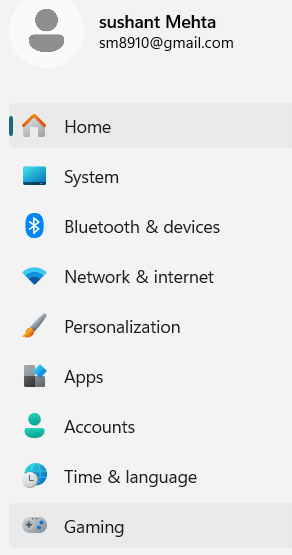
  • Toggle on the switch next to Game Mode entry
Tip #5 – Enable the Ultimate Performance Power Plan

If you’re experiencing minor stutters while play games, enabling the Ultimate Performance power plan is a good idea. When it comes to performance, there’s not much difference in Ultimate Performance mode and High Performance mode. The former just doesn’t let even enabling of passive power saving feature. Hence, it is recommended for avoiding small interferences, such as when the frame time is not stabilized.

To enable this feature, you need to open Command Prompt (type “command prompt” in the Search bar in the taskbar at the bottom of your screen and hit Enter) and run the following command:

Next, type “power plan” in the Search bar and select Choose a power plan. Now, choose Ultimate Performance. If you can’t see the Ultimate Performance option, click the Show additional plans and then select this option.

You should enable this option only when needed. That’s because it requires high power and can lead to fan noise, heating issues, and reduced battery life.

Tip #6 – Choose Dedicated GPU for gaming

If you have a gaming laptop, you’re likely to have a dual GPU setup, which uses a dedicated GPU as well as an integrated one. Even though the system is designed to automatically switch over to a dedicated GPU when you are playing game, sometimes this doesn’t happen. In that case, you can manually force games to make use of a dedicated GPU (which is more powerful than an integrated GPU) whenever you launch them.

Here’s what to do:

  • Type “settings” in the Search bar and hit Enter
  • Click Display and then Graphics
  • Click Add desktop app to ensure the executable file of your game is added to the list
  • Next, choose the High Performance option within the GPU preference option of this computer game
  • Repeat these steps for all computer games

Tip # 7 – Turn on Hardware-accelerated GPU Scheduling

This feature allows the GPU to handle its task scheduling. This, in turn, reduces the CPU’s workload. Enabling this feature can improve performance in games that are particularly CPU-intensive. That said, the degree of improvement depends on the installed hardware.

Follow these steps to turn on hardware-accelerated GPU scheduling:

  • Type “settings” in the Search bar in the taskbar and hit Enter
  • Click System in the left-hand side pane
  • Click Display
  • Click Graphics and turn on Hardware-accelerated GPU scheduling listed in the Advanced Graphics settings

Tip #8 – Update the Graphics Card Driver

For optimal gaming performance, you need up-to-date graphics card driver. While Windows does update device drivers, you can’t completely rely on it.

To get the latest graphics driver, you can either download it manually from the GPU manufacturer website and then install it. Alternately, you can use a reliable third-party tool that will do all the legwork for you and install the latest driver with just a single click.

Filed Under: PC Fix Tips

How to Fix Canon Printer Error B203?

By Susan C on October 27, 2025

Canon Printer Error B203 could occur due to several reasons such as:

  • Problems with empty ink cartridges
  • Printhead issues
  • Internal faults
  • Outdated printer driver

Several solutions can resolve this error, and receiving this error doesn’t necessarily mean you need a new printer or an expert’s help.

Fix #1 – Calibrate Ink Carrier

Here’s what to do:

  • Open your printer’s operational panel
  • Press the ON button
  • Wait until the printhead enters the replacement position. Once that happens, quickly close the panel

Fix #2 – Check if There’s a Paper Jam

Perform these steps to check if there’s a paper jam.

  • Turn your Canon printer on
  • Remove its power cord
  • Open your Canon printer’s cover
  • Next, gently move the FINE cartridge to right and take out the jammed paper slowly
  • Once you’ve removed the jammed paper, check if there are any left pieces
  • Finally, slowly take out the jammed paper from your Canon printer’s rear paper tray

Fix #3 – Replace Ink Cartridges

If the problem still persists, replacing the ink cartridges may help. Here’s what to do:

  • Turn your Canon Printer on
  • Open its cover
  • Wait until the FINE cartridge comes to its replacement position
  • Remove the cartridge by gently pushing the lock lever down
  • Insert new cartridge and gently push it back
  • Finally, push cartridge lock lever up and close the printer’s cover

Fix #4 – Run the Printer Troubleshooter

The built-in troubleshooter tool in Windows can help fix technical issues. If none of the above solutions has worked for you, the printer troubleshooter is worth a try.

Here’s what to do:

  • Type “settings” in the Search bar in the taskbar and hit Enter
  • Click System in the left-hand side pane
  • Scroll down and click Troubleshoot in the right-hand side pane
  • Click Other Troubleshooters
  • Click the Run button next to the Printer entry
  • Wait for Windows to identify and troubleshoot the underlying issue

If Windows Troubleshooter couldn’t identify an issue, you should consider updating the printer driver. Outdated printer driver can cause various issues, including the Error B203.

Fix #5 – Update the Printer Driver

You can update the Canon printer driver manually or automatically. The automatic method is not only much simpler but also much faster. Nevertheless, we have listed both methods, so you can pick the one that you suits you better.

Update the printer driver manually

  • Type “device manager” in the Search bar in the taskbar and hit Enter
  • Locate and expand the Printer category
  • Right-click your Canon printer and then select Update driver
  • In the next Window, click the “Search automatically for drivers” option and wait for Windows to install the latest printer driver

Update the printer driver automatically

Download and install a reliable driver update software tool and update the printer driver with just a single click.

Filed Under: PC Fix Tips Tagged With: Canon Printer Error

Want to Manage Startup Programs? Learn How

By Susan C on October 18, 2025

Want to Manage Startup Programs? Learn How

Startup programs are launch themselves automatically when you boot your PC—hence the name. However, not all of these programs need to start with your computer. You can stop these apps from running automatically when Windows 11 boots to streamline the PC startup time.

How to turn startup programs on and off

The fastest and the easiest way to manage startup programs on Windows 11 is via the Settings app.

Here’s what to do:

  • Type settings in the Search bar in the taskbar and hit Enter or click the Start menu in the taskbar and then select Settings

  • In the left-hand side pane, click Apps
  • Select Startup in the right-hand side pane

  • The name of all the apps that are configured to run automatically when Windows boots will be listed. You can sort the list by Name, Status, or Status Impact using the Sort by drop-down menu
  • Go through each listed application and toggle if off if you don’t want it to launch automatically on startup (or toggle on to ensure it starts when Windows boots)

Typically, the more number of apps run automatically when the computer boots the greater the startup time. So if your computer takes longer than usual to boot, removing unnecessary apps, such as Spotify or Copilot, can speed up the boot process. Some of the apps you wouldn’t want to toggle off in the Startup Apps list include your antivirus tool, Microsoft firewall, OneDrive etc.

Disable or Enable Startup Apps via Task Manager

You can enable or disable startup apps from Task Manager also. Here’s what to do:

  • Press CTRL + ALT + DEL
  • Select Task Manager
  • Click the Startup apps icon (see the image below)

  • Right-click an app to enable or disable it

Well, that’s just about disabling or enabling a startup app. Preventing non-critical apps or not-frequently-used apps from automatically running with Windows is a smart decision — as is keeping your device drivers up to date. The fastest way to update device drivers is by using a third-party security tool.

Leave us a comment below if you’ve any question and share the post so that others can benefit from it as well.

Filed Under: PC Fix Tips Tagged With: manage startup apps

  • 1
  • 2
  • 3
  • …
  • 189
  • Next Page »


  • Recent Posts
  • Popular Posts
        

Read More Posts


Read More Posts