Drivers.com

follow us:

facebook twitter
  • Home
  • Download Drivers
  • Drivers Help
  • PC/Mac Resources
  • Software Drivers
  • Mac Fixes and Tips
  • PC Fix Tips
  • Security/ Backup
  • Tablets & Smartphones
  • Tech News
  • Software Drivers
  • Mac Fixes and Tips
  • PC Fix Tips
  • Security/ Backup
  • Tablets & Smartphones
  • Tech News

How to Fix “Your PC Did Not Start Correctly” Error?

By Susan C on October 4, 2025

Encountering “Your PC did not start correctly” error for the first time and have no idea how to fix it.

Don’t worry. We’ve got you covered. This post shows effective DIY methods to fix the issue.

How to troubleshoot “Your PC did not start correctly” issue?

The error occurs when Windows fail to boot normally. Quite often, restarting the system fix the issue. So, go ahead, and restart Windows and check if it boots normally.

If it doesn’t, try the following solutions in the order they’re listed.

Fix #1 – Startup Repair Tool

A Windows system comes with several built-in tools. One such tool is Startup Repair. It fixes many problems — such as corrupted boot data, damaged MBR and missing files — that can prevent Windows from booting normally.

Here’s how to use the Startup Repair tool from the error screen.

  • Choose Advanced Options
  • Next, select Troubleshoot, followed by Advanced Options and then finally Startup Repair
  • Log into your user account and wait until the repair tool has done its job

Now, restart the system and check if the system boots normally.

Fix #2 – Safe Mode

In Safe Mode, Windows boots with a minimal set of basic files and device drivers. This, in turn, helps troubleshoot issues preventing a Windows system from starting normally.

Here’s how to boot into Safe Mode from the error screen:

  • Select Advanced Options
  • Select Troublehsoot, followed by Advanced Options, then Startup Settings, and finally Restart

If you’re able to boot into Safe Mode successfully, get rid of any recently-installed Windows updates that may be preventing your system from booting normally.

Here’s what you need to do:

Windows 11

  • Select Settings
  • Go to Windows Update and click Update history
  • Select Uninstall updates and then click the Uninstall option next to the most recent Windows update

Windows 10

  • Select Settings
  • Select Update & Security, followed by Windows Update, View update history, and then Uninstall updates
  • Right-click the most-recently installed Windows update and select Uninstall

Fix #3 – System Restore

If your PC is not booting normally because of changes made by an app, you, or another user, performing a System Restore may fix the issue. To access this utility from the error screen, first select Advanced options and then choose System Restore.

Next, select an appropriate restore point from the list and follow the on-screen prompts. Windows will restore itself to the selected previous state.

Note: System Restore option is available only if your system has one or more restore points. If there are no restore points, the option will not be available. That said, Windows usually create a restore point automatically during important system events, like system updates. Therefore, you may have a restore point even if you don’t remember creating one yourself.

If the error persists after performing a System Restore or this option is unavailable, there’s a good chance the error is due to a hardware failure. We recommend you to contact the manufacturer, especially if the warranty period has not expired, or a local computer repair technician.

What causes the “You PC did not start correctly” error?

Possible causes include:

  • Loss of power during the boot process
  • Recently-installed Windows updates
  • Incorrect configurations
  • Corrupted drivers
  • Hardware failure

Since bad drivers is one of the reason behind the “Your PC did not start correctly” error (and so many other errors), it’s smart to keep the device drivers up-to-date. The most convenient way to update drivers is by using an advanced third-party tool, such as Driver Updater.

Driver Updater is reliable, fast, and accurate. With a single click, it updates all outdated drivers on your system.
 

Filed Under: PC Fix Tips Tagged With: Startup Error

Two Simple Hacks to Stop Microsoft Store from Forcing App Updates

By Susan C on October 4, 2025

Two Simple Hacks to Stop Microsoft Store from Forcing App Updates

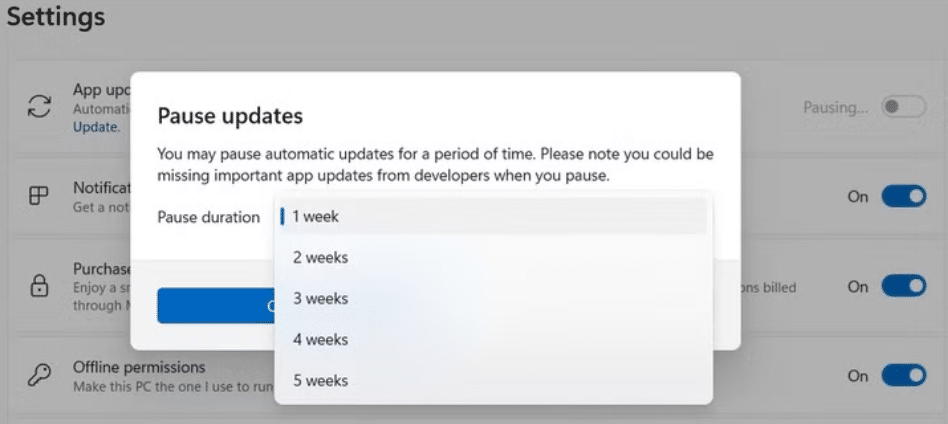
When it comes to Microsoft Store app updates, you can no longer turn them off. So, whenever an update is released for a Microsoft Store app, the system downloads and installs it automatically. Thankfully, two workarounds allow you to prevent Microsoft Store from automatically install app updates.

Why you can longer turn off Microsoft Store app updates?

Before this change happened, you could permanently disable app updates. All you had to do was open Microsoft Store, click your profile icon, select Settings, and then toggle off the “App Update” option.

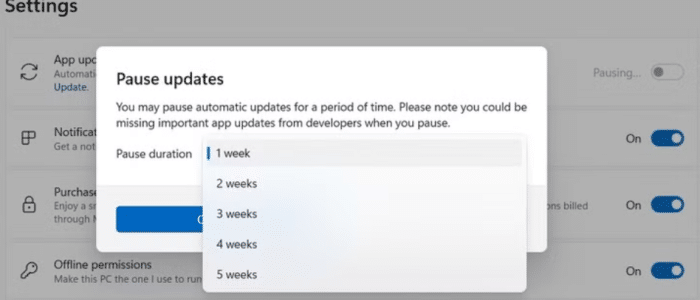
While you can still toggle off the “App Update” option, but it doesn’t completely stop updates. Instead, it only lets you pause updates. Microsoft has set a pause duration from one to five weeks.

If you’re wondering why Microsoft Store no longer allows you to permanently disable app updates, you’re not alone. Many users have been asking the same question since the change happened. Yet, Microsoft has not released any official statement so far. All the same, most experts believe the move is for security purposes. Updates patch up any vulnerabilities that may exist in the app that hackers could exploit.

There’s no denying that keep apps up-to-date is a good thing, but Microsoft’s gone a bit overboard by reducing user freedom to control updates. It’s like Microsoft is the boss of your computer, and you can access only those things that it permits.

That said, if you don’t want Microsoft Store from updating your apps, you can follow either of the following two hacks.

Turn Off Microsoft Store Updates Through Registry Editor

You can use the Registry Editor to disable Microsoft Store updates, regardless of what Windows version you have. The Registry Editor allows you to put the brakes on app updates for much longer than the current 5-week limit. For instance, you can disable the updates till 2045!

Note: Make changes to Windows Registry only if you’re comfortable using it. A single mistake can greatly impact your system. Before trying out the steps listed below, create a registry backup. This allows you to restore registry to its previous working state in case a wrong edit is made.

Here’s how to pause Microsoft Store app updates via Registry:

  • Type “run” in the Search bar in the taskbar
  • In the Run dialog box, type regedit and hit Enter
  • Click the Yes option in the User Access Control Window
  • In the Registry Editor window, go to this location:

  • In the right-hand side pane, double-click the “AutoUpdatePauseEndTime”
  • In the Value data box, enter the date you want to put app updates on hold until
  • For example, you can enter 2045-12-31 to disable app updates until the end of 2045
  • Once you’ve made the changes, click OK

That’s it. Microsoft won’t install app updates till the date entered by you.

Turn Off Apps Auto-Update via Local Group Policy Editor

Another workaround is to stop Microsoft Store app auto update feature using the Local Group Policy Editor. However, this is possible only if you’re running Professional version or a higher version of Windows.

With this method you can turn off app auto-update permanently, unlike the Windows Registry workaround that allowed you to disable updates for several years but not indefinitely.

If you have the Professional version of Windows, perform these steps to indefinitely turn off app auto-update:

  • Press Win + R keys to open the Run dialog box
  • Type gpedit.msc in the Search bar and hit Enter
  • Select Computer Configuration in the left-hand side bar
  • Go to Administrative Templates > Windows Components > Store
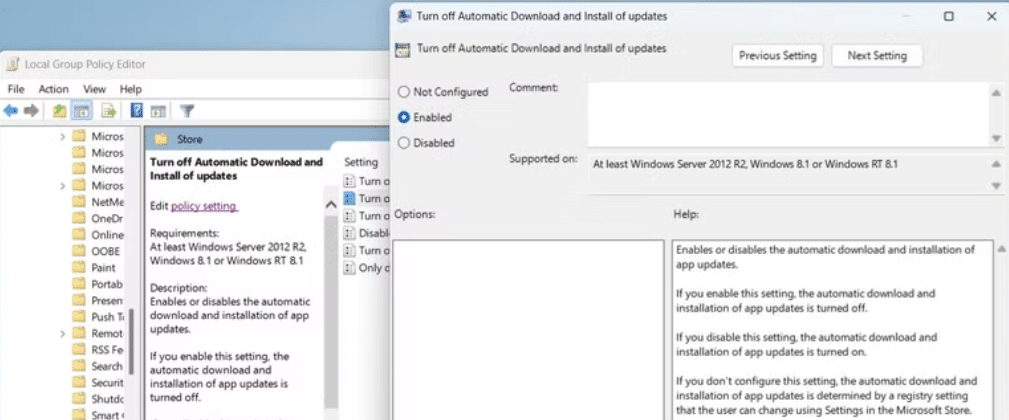
  • You’ll see a policy called “Turn off automatic download and install updates”. Double-click it and then select Enabled

  • Click the Apply button and then click OK

Now restart your system and Microsoft Store apps will no longer be updated automatically.

As said before, it’s a good practice to regularly update your apps, since that help fix any known bugs and glitches. Nonetheless, in certain situations, for instance to avoid compatibility issues, you may want to turn off the automatic app update feature. You can use either of the above methods to achieve that.

One last thing: Microsoft app updates are one thing and driver updates another. Device drivers should be updated regularly, without exception. The easiest and simplest method to update your device drivers is by using an advanced driver update tool. We recommend using Driver Updater. 


Filed Under: PC Fix Tips Tagged With: Stop App Updates

How to Turn off Mouse Acceleration in Windows 11?

By Susan C on September 10, 2025

How to Turn off Mouse Acceleration in Windows 11?

Is your mouse zooming across the screen even when you barely move your hand? That’s due to mouse acceleration. If it’s messing up your control over your mouse, worry not.

In this post, we’ll show you how to turn off the mouse acceleration feature in Windows 11.

What are the steps for disabling mouse acceleration?

Here’s how you can turn off mouse acceleration if it’s driving you crazy.

  • Type mouse settings in the Search bar in the middle of the taskbar at the bottom of your screen and hit Enter
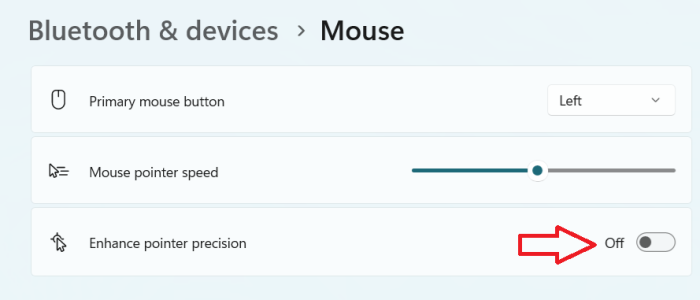
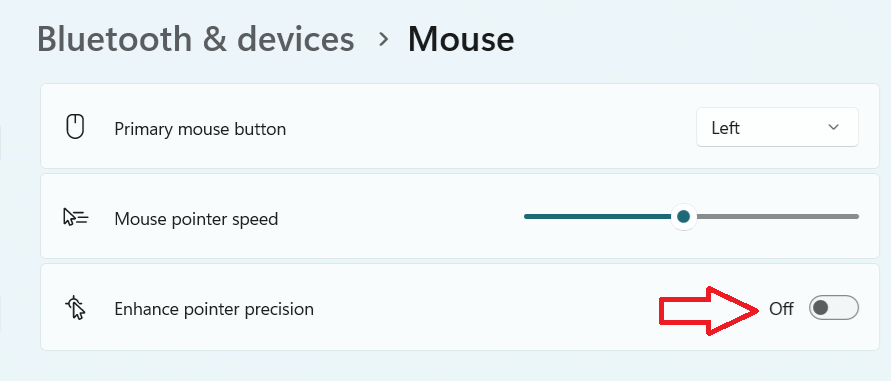
  • In the right-hand side pane, toggle off Enhancer pointer precision

Windows doesn’t have an option named “Mouse Acceleration”. Instead, it has a feature called Enhance pointer precision in the mouse settings screen. The Enhance pointer precision feature is Window’s version of mouse acceleration. In short, disabling the Enhancer pointer precision will turn off mouse acceleration.

How can I enable mouse acceleration?

If you want to enable mouse acceleration, just follow the steps listed in the previous section and toggle on the Enhancer pointer precision feature.

Is mouse acceleration a good thing?

There’s no one fixed answer to this question. If you’ve never noticed it, mouse acceleration is probably not a problem and keeping it won’t affect your PC experience.

If you’re wondering what mouse acceleration is, here’s the answer:

Mouse acceleration adjusts the rate at which your mouse pointer moves based on the speed at which you physically move the mouse.

If you move the mouse from, say, point A to B, the mouse cursor will move faster across the screen when mouse acceleration is enabled than when it is disabled. That in itself may not be a problem, if it was possible to predict how much acceleration you’ll get with this feature turned on.

Gamers, especially those who like playing fast-paced games, usually don’t like this kind of inconsistency. That’s because it can (and typically does) affect their in-game accuracy. Most gamers opt to disable this feature for better accuracy in games.

Another thing that can severely affect your gaming experience is an outdated graphics card driver. It can cause issues such as visual glitches, low frame rates, stuttering, and lagging. Therefore, make sure you have the latest graphics card driver.

The simplest way of keeping your drivers is up-to-date is by using an advanced driver update tool, such as Driver Updater. It is fast, reliable, and accurate. A single click and the software automatically scans your system for outdated (or corrupt) drivers and install their latest version.

Automatic driver update tools offer many benefits, the most important ones being:

  • You can update device drivers automatically
  • The software scans and updates all outdated or missing drivers at one go
  • The tool picks the right drivers for your device and operating system, so you won’t have to worry about installing an incorrect driver by mistake
  • Automatic driver updates are 100% safe

Driver Updater is one of the best driver update tools out there. Outbyte Driver Updater will give you access to a database of over 1 million drivers. It will regularly scan your PC, suggesting new driver versions to install. Driver Updater contains drivers for a variety of Windows devices. With just one click, you can update drivers in your system.

Step 1
Click here to Install and launch the app

Step 2
Scan all devices

Step 3
Install or update drivers automatically


Start Download


Filed Under: PC Fix Tips Tagged With: mouse acceleration

  • « Previous Page
  • 1
  • 2
  • 3
  • 4
  • …
  • 189
  • Next Page »


  • Recent Posts
  • Popular Posts
        

Read More Posts


Read More Posts

Drivers.com Sites

  • Software Drivers
  • Drivers Ed

About Us

  • Advertise
  • About Drivers
  • Drivers Support
  • Drivers.com Privacy Policy
  • Disclaimer
  • Software Drivers
  • Mac Fixes and Tips
  • PC Fix Tips
  • Security/ Backup
  • Tablets & Smartphones
  • Tech News

© Copyright 2026 PDE Publications Ltd. End User License Agreement (EULA)