Drivers.com

follow us:

facebook twitter
  • Home
  • Download Drivers
  • Drivers Help
  • PC/Mac Resources
  • Software Drivers
  • Mac Fixes and Tips
  • PC Fix Tips
  • Security/ Backup
  • Tablets & Smartphones
  • Tech News
  • Software Drivers
  • Mac Fixes and Tips
  • PC Fix Tips
  • Security/ Backup
  • Tablets & Smartphones
  • Tech News

How to Fix Lenovo camera isn’t working?

By Susan C on September 10, 2025

How to Fix Lenovo camera isn’t working?

You’ve an important business video meeting that’s just about to start when you suddenly find to your horror that the Lenovo camera isn’t working. Thankfully, your smartphone was able to save the day, but zoom meetings on a smartphone’s small screen are just not the same as on a laptop with a great mic.

Lest your Lenovo camera doesn’t leave you high and dry (when you need it most), we’ve prepared a guide to troubleshoot the “Lenovo camera not working” issue. So, without further ado, let’s jump right into the solutions.

Fix #1 – Ensure the camera is turned on

Lenovo models from 2008 onwards include a switch right next to the camera covers. If it’s turned off, all you’ll get is a blank image in Zoom (and other such apps).

Fix #2 – Review your app’s settings

Make sure the app you’re using is set to use the laptop’s camera. Generally, video communications apps pick the system’s camera by default. But it won’t hurt to ensure that your Lenovo’s camera is set as the default camera for Zoom or any other app you’re using.

Fix #3 – Check the camera’s privacy settings

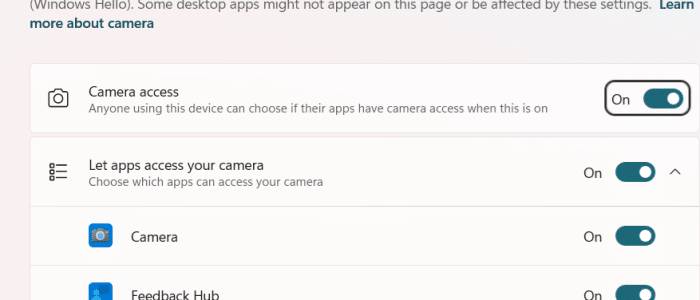
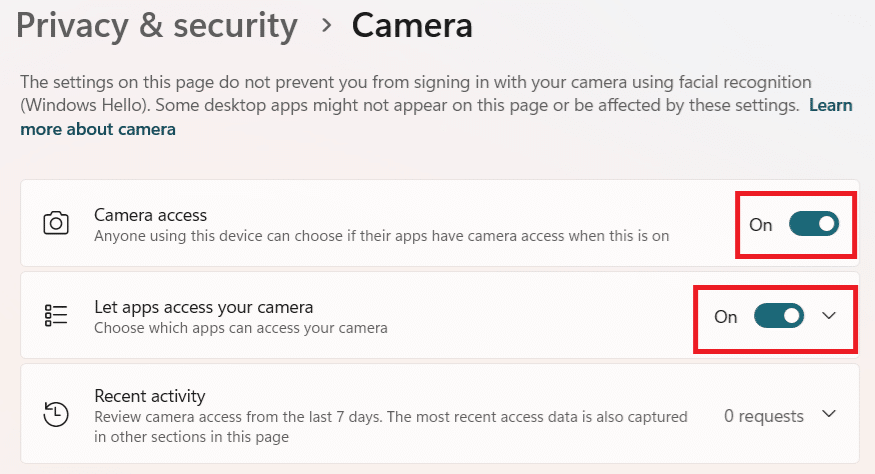
Type camera privacy settings in the Search bar located in the middle of your taskbar. In the Settings app, make sure Camera access and Let apps access your camera are turned on (both are located in the right pane).
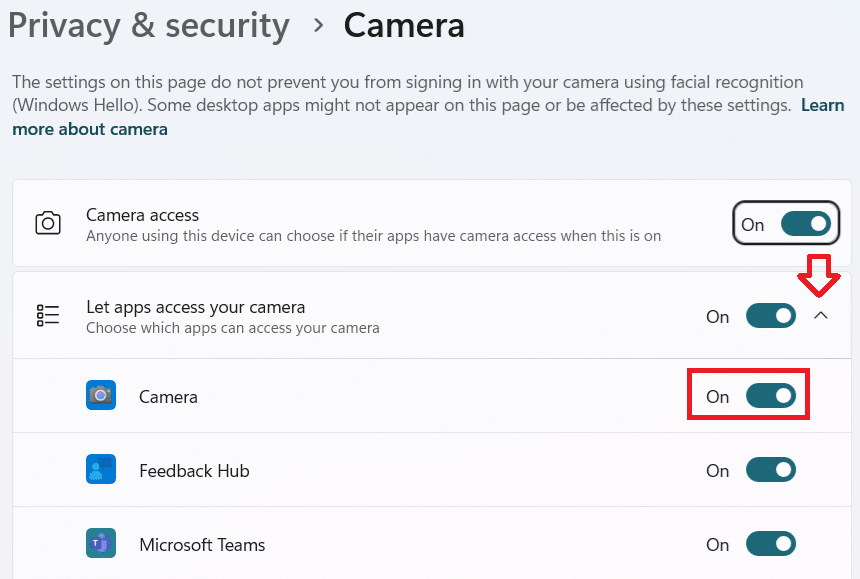
Next, expand the drop-down menu in Let apps access your camera field (it is an arrow that’s pointing downward) and ensure the desired program is in this apps list.
Fix #4 – Restart the laptop

Maybe your laptop’s camera is not working due to a temporary glitch with the background software using it or some other program. If that’s the case, restarting the system may fix the issue.

Fix #5 – Fix software conflicts

If the problem still persists, check whether the camera’s in-use light is turned on. If that’s the case, you can safely assume another program is using the system’s camera. The camera can be used by only one app at a time. Close the other program that’s using the laptop’s camera before turning on Zoom.

If that program is stuck, you can force quit it by following these steps:

  • Press Ctrl + Shift + Esc to open the Task Manager
  • Locate the program in the Apps or Background processes list in the left-hand side
  • Right-click the program and select End Task

Note: In case the laptop’s camera is being shown as in use, but you can’t locate any app that’s using it, it is possible that a malicious program is using it. We recommend running a deep virus scan using a reliable antivirus software.

You can use Microsoft Defender (which is built into Windows for real-time malware protection), if it is turned on. Alternately, you can download and install a third-party antivirus software. Make sure you run a deep virus and not a quick scan. The former is more comprehensive, checking both running and idle processes, as well as dormant threats residing in each and every nook and corner.

A comprehensive virus scan thoroughly checks your computer’s memory, system locations, and storage devices to locate and remove malware, including, but not limited to, ransomware, spyware, virus, and worms.

Fix #6 – Check for and install any pending updates

Type “windows updates” in the Search bar in the taskbar and hit enter. In the Windows Update window if you see any important update pending, install it. You may have to restart the laptop after the update.

Fix #7 – Manually reinstall the camera

Here’s what to do:

  • Type “device manager” in the Search bar and hit Enter
  • Look for and expand the Cameras section
  • Right-click Integrated Camera (or Integrated Webcam) and select Uninstall Device
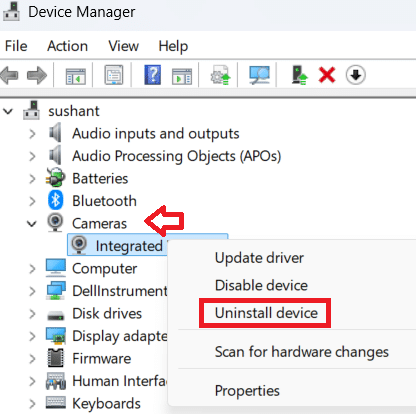
  • Next, check the Delete Driver Software
  • Now in the Action menu (located at the top), choose Scan for Hardware Changes
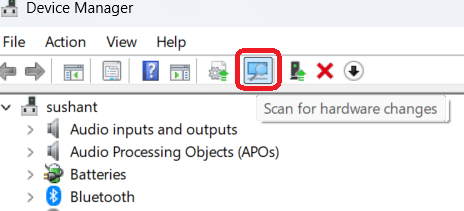
You should be able to see the integrated camera entry again. Now check if the problem is fixed.

Fix #8 – Install the latest drivers

You can do this manually by visiting Lenovo’s support page. Go to PC support category and then choose Detect Product. This will download Lenovo Support Bridge. Once you have installed and launched the software, it will scan for new driver updates. If new updates are found, install them.

The other (and perhaps much easier) way to install the latest drivers is by using an advanced third-party tool such as Driver Updater.

Automatic driver update tools offer many benefits, the most important ones being:

  • You can update device drivers automatically
  • The software scans and updates all outdated or missing drivers at one go
  • The tool picks the right drivers for your device and operating system, so you won’t have to worry about installing an incorrect driver by mistake
  • Automatic driver updates are 100% safe

Driver Updater is one of the best driver update tools out there. Outbyte Driver Updater will give you access to a database of over 1 million drivers. It will regularly scan your PC, suggesting new driver versions to install. Driver Updater contains drivers for a variety of Windows devices. With just one click, you can update drivers in your system.

Step 1
Click here to Install and launch the app

Step 2
Scan all devices

Step 3
Install or update drivers automatically
 

Start Download


Filed Under: PC Fix Tips Tagged With: Lenovo camera issues

How to Fix Acer Laptop Won’t Turn On?

By Susan C on August 26, 2025

How to Fix Acer Laptop Won’t Turn On?

Acer laptops are very popular for both work and students, but just like any other device they can experience technical issues. If your Acer laptop won’t turn on there may be a simple fix. It is a matter of working through the troubleshooting steps in order to solve the problem.

How to troubleshoot Acer Laptop not working issue?

We’ve prepared a comprehensive step-by-step guide to help fix your Acer laptop issue. Start with the simple fixes and work your way up to more complex ones to fix the issue in the most efficient manner.

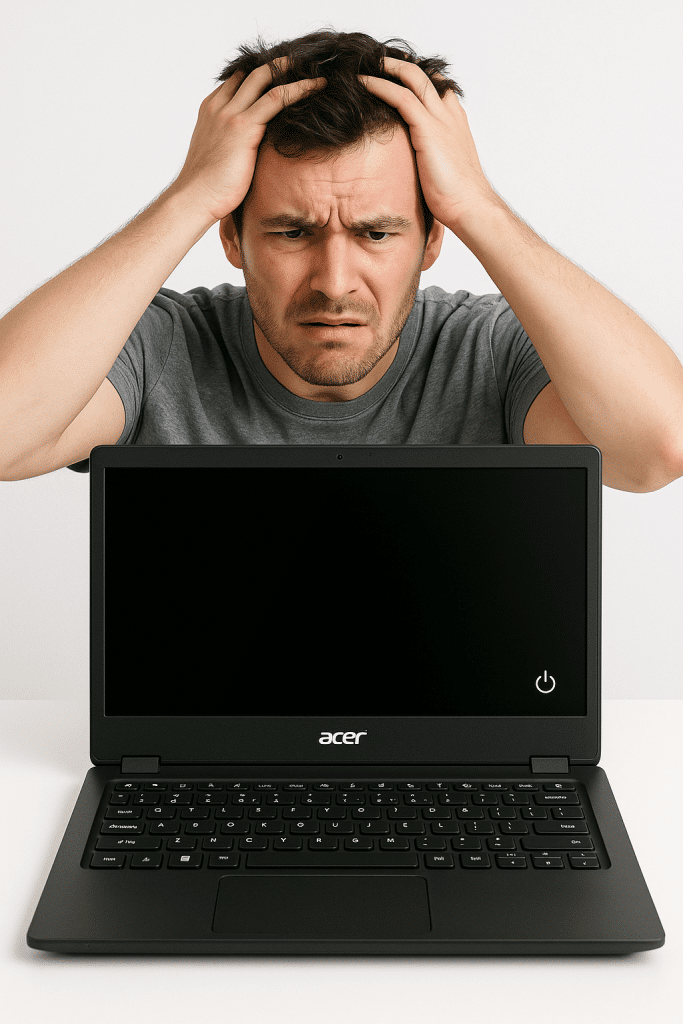
acer laptop frustrated user

Fix #1 – Check the power adapter, battery, and charging port

If your laptop suddenly stops working, it’s worth checking the key power components, namely the battery, power adapter, and charging port. If any of the power components are not working properly, your laptop may have a problem starting up.

Step 1 – Check whether the laptop charger has any noticeable signs of damage, like a kink in the connectors or worn out wires.

Step 2 – Plug the laptop adapter into another power socket to rule out any outlet issues.

Step 3 – When you connect the adapter to the laptop, is the indicator light turning on?

Step 4 – Those with laptops with removable batteries should take out their laptop battery and then see if their device is powering on using just the adapter.

Step 5 – If that doesn’t work, unplug your laptop charger and try to start the system using only its battery.

If none of the above solutions worked for you, a hard reset may help.

Solution #2 – Perform a hard reset of your Acer laptop

To perform a hard reset of your Acer laptop:

  • Unplug your laptop charger
  • Next, remove all external devices connected, as well as the laptop batter if it is removable
  • Press down the power button and hold it for roughly 30 to 60 seconds to drain out any residual static electricity present in the laptop
  • Plug in the power adapter and then reconnect its battery (if you had removed it)
  • Now, turn on your Acer laptop to see whether the problem is fixed

Solution #3 – Correct BIOS Misconfiguration

If the BIOS settings are incorrect, your laptop might not turn on. Boot Windows in BIOS and check if there’s a fix to the issue.

  • Restart the laptop and press down F2 as the first logo screen appears
  • Check that the BIOS menu’s Boot tab is configured to launch the system from the primary hard drive
  • Next, under the “Main” section, switch off “Fast Boot”
  • There is also an option to reset BIOS to its default configuration (factory settings). If you think resetting BIOS will help, choose “Exit” and then “Load Setup Defaults”. Now press “Yes” or F9 and Enter keys simultaneously

Solution #4 – Perform battery reset

As a last resort, perform a battery reset. If that too doesn’t work, it would be best to contact an Acer repair center or a local computer repair technician.

To carry out a battery reset on your Acer laptop:

Insert a straightened paper clip into your laptop’s battery reset hole and hold the click for roughly 5 seconds.

The battery reset button is located on the bottom of the laptop. The button is often pinhole size and labeled with a battery symbol. However, not every Acer laptop has this feature.

What prevents my Acer laptop from turning on?

Many things could prevent your laptop from turning on. The most common ones are:

  • A damaged laptop charger, battery, or cable
  • Defective or incorrect BIOS configuration
  • An overheated CPU
  • A serious hardware problem, like a faulty motherboard or RAM

Conclusion

Often the Acer laptop not turning on issue occur due to simple problems. In most cases, you should be troubleshoot the issue using one of the solutions listed above. If your laptop still won’t power on, asking an expert to look at it would be a good idea.

Frequently Asked Questions

  • How can I reset my laptop if it doesn’t power on?

If your Acer laptop is not powering on, a force reset is a good idea. Press down and hold the power button for roughly 10-30 seconds. After your laptop has shut down, wait for a few minutes and then press the power button and check if it is booting properly.

  • Where can I find my Acer laptop’s battery reset pinhole?

It is located on the bottom of the laptop and typically has a battery symbol near it.

  • My Acer laptop is not turning on even when the blue light is on — what should I do?

This commonly happens because of missing, outdated, or corrupt graphic driver. Updating your graphic card driver will likely fix the issue. While you can update device drivers manually if you want, we recommend using a reliable third-party tool, such as DriverUpdater. The reason is simple: DriverUpdater updates an outdated graphic driver (as well as other outdated drivers) with just a single click.

https://www.drivers.com/fix_install_acer_drivers/

Automatic driver update tools offer many benefits, the most important ones being:

  • You can update device drivers automatically
  • The software scans and updates all outdated or missing drivers at one go
  • The tool picks the right drivers for your device and operating system, so you won’t have to worry about installing an incorrect driver by mistake
  • Automatic driver updates are 100% safe

Driver Updater is one of the best driver update tools out there. Outbyte Driver Updater will give you access to a database of over 1 million drivers. It will regularly scan your PC, suggesting new driver versions to install. Driver Updater contains drivers for a variety of Windows devices. With just one click, you can update drivers in your system.

Step 1
Click here to Install and launch the app

Step 2
Scan all devices

Step 3
Install or update drivers automatically
 

Start Download


Filed Under: PC Fix Tips Tagged With: Acer laptop

How to Fix Operating System Not Found (7 DIY Solutions)

By Susan C on August 23, 2025

How to Fix Operating System Not Found (7 DIY Solutions)

We all have been there. You sit at your system to start a new day, but it refuses to boot and instead shows a black screen with an ugly message that reads “Operating System Not Found”.

You start to panic. What will happen to your documents. Will you be able to recover them?

Scary as the situation looks, you’ll be probably okay. There’s every reason to believe your files are not gone and things will soon (or sometimes a little later than ‘soon’) return to normal.

Continue reading to find out how to troubleshoot ‘Operating System Not Found’ error.

How to fix Operating System Not Found Error?

Try the solutions listed below in the order they appear. We’ll start with a couple of simple things before moving on to the solutions that are a little complex.

Solution #1 – Reboot your system

At the risk of sounding cliche, restarting the computer frequently fix temporary glitches. Power off your computer and power it on to check if you’re now able to boot.

Didn’t help? Give the next solution a try.

Solution #2 – Remove unnecessary flashy drives

If you’ve a flashy drive connected to your system or there’s a disc in your disc drive, remove them. There’s a chance your system might be looking for a suitable operating system on those devices and returning the titled error on not finding one.

Solution #3 – Test your hard drive

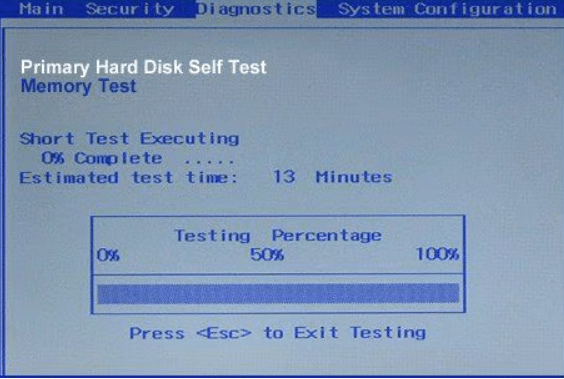
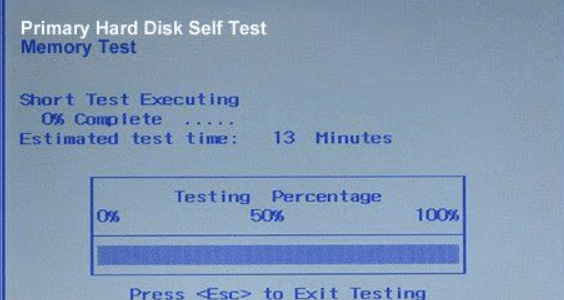
The next step is to test the hard drive. The BIOS include a Hard Disk Self Test for verifying the hard drive’s integrity.

Here’s what to do:

  • Restart your computer by repeatedly pressing Del, F2, F10, or Esc or the indicated key in your computer’s manual
  • Go to the Diagnostic tab and choose Primary Hard Drive Self Test option and then hit Enter

  • Windows will run a thorough inspection that may take a little while and provide a detailed report of its findings

If everything is fine with your hard drive, it’s time to reset the BIOS.

Solution #4 – Reset the BIOS

Here’s what to do:

  • Remove each and every external device that’s connected to your computer
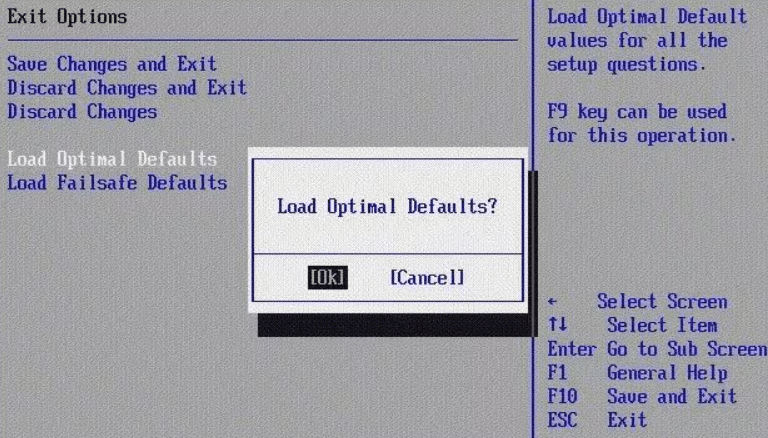
  • Open the BIOS setting and choose the Exit tab
  • Now enable Load Optimal Default (It’s possible the option is named differently on your PC. Common alternatives include Get Default Value and Load Setup defaults

  • Select Save Changes and then the Exit option after the default settings have loaded properly

Solution #5 – Repair MBR using the installation CD or DVD

Virus infections can badly damage MBR, preventing your Windows from booting. Here’s how to repair MBR with the installation CD or DVD.

  • Insert the installation disc to enter Boot Mode
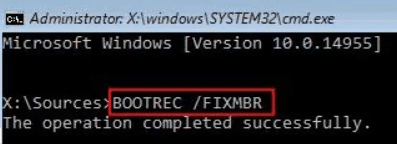
  • Go to Windows Setup and kickstart the repair process by typing the following command:

Solution #6 – Disable or Enable UEFI Secure Boot

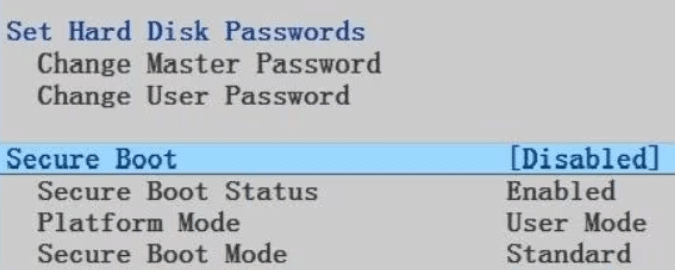
Every computer has Secure Boot enabled or comes with UEFI firmware. However, at times the firmware may fail to work properly, leading to a black screen of death error.

Try enabling or disabling it to check if that fixes the issue:

  • Enter BIOS by rebooting Windows and repeatedly pressing the Del, F2, F10, F12, Esc or the indicated key listed in your computer’s manual
  • Go to the Security tab
  • Locate the option called ‘Secure Boot’ (You’ll have to use the arrow keys on the keyboard to navigate menu options) and select Disabled

Solution #7 – Activate Windows Partition

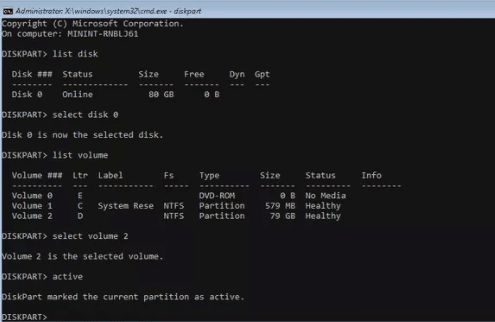
If Windows partition has become disabled, your system won’t boot. Use the diskpart command to activate Windows partition.

Here’s what to do:

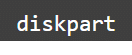
  • With the help of diskpart command you can activate the partition on which Windows is installed

  • Once you have accessed command prompt from your installation CD, enter the following command

  • Next, type the following command

  • Select the disk on which the Windows system is installed using the following command (in most cases, the list contains only one disk)

  • Select the partition of the selected disk on which Windows is installed using the command listed below

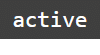
  • Use this command to make the volume active

Windows should now start normally. But if it doesn’t, contacting your local computer repair technician might be a good idea.

Keep in mind Windows errors can occur at any time and the best strategy to deal with them is to take concrete steps to prevent them from arising in the first place. One such action is updating your device drivers on a regular basis. While you can do this manually, the procedure is time-consuming. A better option is to use a reliable third-party tool, such as Driver Updater.

Automatic driver update tools offer many benefits, the most important ones being:

  • You can update device drivers automatically
  • The software scans and updates all outdated or missing drivers at one go
  • The tool picks the right drivers for your device and operating system, so you won’t have to worry about installing an incorrect driver by mistake
  • Automatic driver updates are 100% safe

Driver Updater is one of the best driver update tools out there. Outbyte Driver Updater will give you access to a database of over 1 million drivers. It will regularly scan your PC, suggesting new driver versions to install. Driver Updater contains drivers for a variety of Windows devices. With just one click, you can update drivers in your system.

Step 1
Click here to Install and launch the app

Step 2
Scan all devices

Step 3
Install or update drivers automatically
 

Start Download


Filed Under: Software Drivers Tagged With: operating system not found

  • « Previous Page
  • 1
  • 2
  • 3
  • 4
  • 5
  • …
  • 189
  • Next Page »


  • Recent Posts
  • Popular Posts
        

Read More Posts


Read More Posts

Drivers.com Sites

  • Software Drivers
  • Drivers Ed

About Us

  • Advertise
  • About Drivers
  • Drivers Support
  • Drivers.com Privacy Policy
  • Disclaimer
  • Software Drivers
  • Mac Fixes and Tips
  • PC Fix Tips
  • Security/ Backup
  • Tablets & Smartphones
  • Tech News

© Copyright 2026 PDE Publications Ltd. End User License Agreement (EULA)