
Drivers.com

follow us:

facebook twitter
  • Home
  • Download Drivers
  • Drivers Help
  • PC/Mac Resources
  • Software Drivers
  • Mac Fixes and Tips
  • PC Fix Tips
  • Security/ Backup
  • Tablets & Smartphones
  • Tech News
  • Software Drivers
  • Mac Fixes and Tips
  • PC Fix Tips
  • Security/ Backup
  • Tablets & Smartphones
  • Tech News

Windows 11 Not Detecting Headphones? Here’s What To Do

By Susan C on July 22, 2025

Windows 11 Not Detecting Headphones? Here’s What To Do

Is your Windows 11 system giving you a hard time with the headphones? Well, we can understand your frustration, but it is nothing to fret about.

This guide will walk you through some of the common reasons why Windows fail to detect headphones and provide you with some tried-and-tested fixes.

Sounds good? Let’s get started.

Fix #1 – Check the volume settings

We know, this is very basic, but you’d be surprised to know how many users accidentally mute the sound and then worry there’s something wrong with their headphones or the system.

Use the volume keys on your keyboard to increase the volume. If the problem persists, check whether your headphone has a built-in power button. If it does, ensure that is turned on. Many modern headphones have an inbuilt power switch, which, if switched off, will not let the headphones connect with a device.

Fix #2 – Check the headphone’s cable

Inspect the headphone’s cable for wear and tear. If you find any, replacing it may fix the issue.

Fix #3 – Use Windows 11 volume mixer

Here’s what to do:

  • Click the Windows icon in the taskbar
  • Type settings in the Search bar and hit Enter
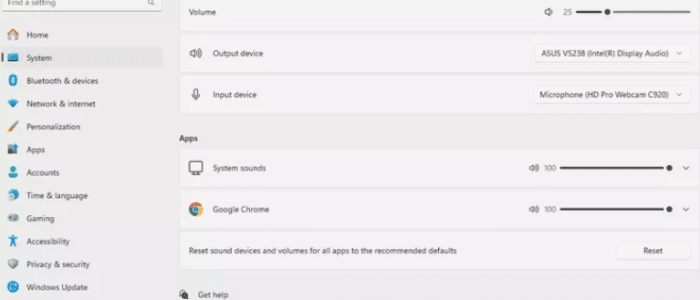
  • Click System > Sound > Volume mixer

  • In the drop-down menu next to the Output device entry, select your headphones

Fix #4 – Charge the headphones

Are you using Bluetooth headphones? If so, make sure they are charged. In case of no power, the headphones won’t work.

The other thing you may give a try is removing the headphones from list of Bluetooth apps and then re-adding them. You can do this from the Settings app.

Fix #5 – Use another USB port

If you connect the headphones via a USB port, try out a different USB port. A faulty USB port may prevent your headphones from connecting.

Fix #6 – Run a troubleshooter

Windows 11 include several inbuilt troubleshooters to help fix and troubleshoot common problems. If none of the above solutions have worked for you, try running a built-in troubleshooter.

Here’s what to do:

  • Click the Windows icon in the taskbar, type settings in the Search bar, and hit Enter
  • In the Settings app, click System in the left-hand pane
  • Scroll down till you see Troubleshoot in the right-hand pane and then click it

  • Click Other Troubleshooters in the next window under the Options heading

  • Click the Run button next to the Audio entry

  • Wait for Windows to fix the error

If Windows is unable to troubleshoot the issue, check whether your Windows system is up-to-date. If that doesn’t work either, head to the next fix.

Fix #7 – Update your headphone’s firmware

Fancy headphones with advanced features such as noise-cancelling typically require firmware updates, which you can install using an app or directly from the manufacturer website.

Fix #8 – Update other device drivers

If you’ve the latest firmware and drivers for your headphone, it’s possible other devices related to the headphone require a driver update. The easiest way to update device drivers is by using a reliable third-party tool, such as Driver Updater. It has been around for some years now and liked by both the average user and computer experts. With just a single click, Driver Updater scans your system for outdated drivers and updates them.

Automatic driver update tools offer many benefits, the most important ones being:

  • You can update device drivers automatically
  • The software scans and updates all outdated or missing drivers at one go
  • The tool picks the right drivers for your device and operating system, so you won’t have to worry about installing an incorrect driver by mistake
  • Automatic driver updates are 100% safe

Driver Updater is one of the best driver update tools out there. Outbyte Driver Updater will give you access to a database of over 1 million drivers. It will regularly scan your PC, suggesting new driver versions to install. Driver Updater contains drivers for a variety of Windows devices. With just one click, you can update drivers in your system.

Step 1
Click here to Install and launch the app

Step 2
Scan all devices

Step 3
Install or update drivers automatically
 

Start Download


Filed Under: PC Fix Tips Tagged With: Headphone issues

How to Fix Code 19 “Windows cannot start this hardware device” Error

By Susan C on July 20, 2025

How to Fix Code 19 “Windows cannot start this hardware device” Error

Computer errors wouldn’t be so frustrating if they included a description about what’s need to be done to fix them. All the same, even the most cryptic error codes can often be resolved fairly quickly. One such error code is the Code 19 error, which is accompanied by the error message: “Windows cannot start this hardware device.”

At a first glance, it’s almost impossible to make heads or tails of it, but thankfully the issue is easily resolvable. The Error Code 19 is not limited to one or a handful of hardware devices; instead, it can occur with almost any hardware device, though most commonly it appears on keyboards, USB devices, and optical drivers such as CD and DVD drives.

This post shows 6 effective ways to troubleshoot Error Code 19.

Solution #1 – Restart Windows

You’ve probably heard this before: temporary glitches can cause random errors. The solution? A simple system restart.

If you haven’t already done so, save any unsaved work (if possible) and reboot Windows. Now, check if things are back to normal.

Solution #2 – Reinstall the driver of the problematic device

From this point onward, the fixes will get a bit technical—but nothing that you can’t handle since we’ll walk you through all the steps.

Here’s what to do:

  • Click the Start icon in the taskbar, type device manager in the Start Search bar, and hit Enter
  • Locate the device, right-click it, and select Uninstall device
  • Tick the checkbox before Attempt to remove the driver for this device
  • Once you’re done, restart Windows
  • Upon restart, Windows will automatically reinstall the correct driver for the devices

Check if the issue is fixed. If not, you may need to update the device drivers.

Solution #3 – Update the device drivers

Outdated, faulty, or corrupt device drivers can trigger various issues, including Error Code 19. The fix is simple and straightforward: update the device drivers.

How can I do that? Glad you asked.

You can update device drivers automatically using Driver Updater, which automatically scans your system for outdated drivers and updates them.

The other method is to open Device Manager and update the driver manually. Here’s what to do:

  • Click the Windows icon and type device manager in the Search bar and hit Enter
  • In the Device Manager window, locate the device, right-click it, and select Update driver

  • In the next window, select Search automatically for drivers

  • Windows will scan the system and install the best available driver

If installing the latest driver, Windows displays a message stating that the best available driver is already installed, there could be two possibilities:

  • You already have the latest driver
  • Windows doesn’t have a new driver version

To rule out the second possibility, go to the manufacturer’s website and check if they have a newer driver version. You can check the version of the driver installed on your PC by performing these steps:

  • In the Device Manager window, right-click the hardware device
  • Select Properties

  • Click the Driver tab to view the Driver version and other driver-related details

If a new driver version is available on the manufacturer website, download it. Once the download is complete, double-click the file and follow on-screen instructions to complete installation. If a User Access Window pops up, simply click Yes.

After you’ve installed the latest driver, check whether the issue is solved.

Solution #4 – Use Registry Editor

Here’s what to do:

  • Press Win + R keys
  • Type regedit in the Run dialog box
  • In the left-hand pane of Registry Editor, look for HKEY_LOCAL_Machine folder
  • Click CurrentControlSet folder and then go to Control folder
  • Expand the Control folder, select Class, and click {4d36e965-e325-11ce-bfc1-08002be10318}
  • In the right-hand pane, locate these two files: UpperFilters, LowerFilters
  • Right-click these files one by one and click Delete

7/

  • Exit the Registry Editor
  • Restart Windows

Solution #5 – Uninstall iTunes

As you may know, iTunes, App’s flagship music app, can be seamlessly used on Windows too. While there’s no doubt that iTunes is a great software, at times it can trigger issues in Windows.

Some users have reported that iTunes messed up with their system registry, triggering a Code 19 error. If none of the above solutions have worked for you, and you have iTunes installed on your Windows computer, uninstalling iTunes might be a good option.

  • Press Win + R keys
  • Type control panel and hit Enter
  • Click the drop-down menu next to View by (in the top right-hand corner) to select Large icons
  • Click Programs and Features
  • Locate iTunes and uninstall it
  • Restart Windows

If the error doesn’t appear on restart, you can safely assume iTunes was the culprit. However, that doesn’t mean you can’t use iTunes on your Windows PC. In most cases, reinstalling iTunes doesn’t cause the error to resurface.

Solution #6 – Use System Restore

As a last resort, perform a system restore to fix the Code 19 error. Here’s what to do:

  • Click Start, type create a restore point in the Search bar, and hit Enter
  • Click System Restore
  • Click Next
  • Select the restore point to undo any recent Driver Manager-related changes

Windows takes some time to complete System Restore. Therefore, run this operation only when you can afford do be away from your computer for a while. In addition, make sure the laptop charger is plugged in. Do not shut down the system while System Restore is running.

How to update device drivers automatically?

Outdated drivers can cause various errors, including the Code 19. Consequently, it’s important to keep the device drivers up-to-date all the time. The most convenient (not to mention also the fastest) way to do this is by using Driver Updater.

Automatic driver update tools offer many benefits, the most important ones being:

  • You can update device drivers automatically
  • The software scans and updates all outdated or missing drivers at one go
  • The tool picks the right drivers for your device and operating system, so you won’t have to worry about installing an incorrect driver by mistake
  • Automatic driver updates are 100% safe

Driver Updater is one of the best driver update tools out there. Outbyte Driver Updater will give you access to a database of over 1 million drivers. It will regularly scan your PC, suggesting new driver versions to install. Driver Updater contains drivers for a variety of Windows devices. With just one click, you can update drivers in your system.

Step 1
Click here to Install and launch the app

Step 2
Scan all devices

Step 3
Install or update drivers automatically


Start Download


Filed Under: PC Fix Tips Tagged With: Error code 19

How to Fix the OBS Game Capture Black Screen Issue?

By Susan C on July 13, 2025

Running into the dreaded OBS game capture black screen when you try to record or stream gameplay?

You’re not alone. This is a pretty common bug, but thankfully it doesn’t take much to fix it.

In this post, we’ll show you 10 effective ways to troubleshoot the OBS game capture not working issue.

Solution #1 – Run OBS as an administrator

Many users have reported facing the OBS black screen issue when the game is being run as administrator privileges while OBS is running with standard user privileges. To successfully troubleshoot the issue, simply run OBS as administrator.

If you’re wondering how to do that, here’s what to do:

  • Right-click the OBS shortcut on the desktop and choose Run as administrator
  • Click the Yes button in the User Access Control Window

Now, launch a game and start a new Game Capture source to check if the gameplay is appearing in the OBS preview window. If you’re still getting a black screen, try the next solution.

Solution #2 – Update the graphics driver

Did you know outdated or faulty graphics drivers can cause various issues, including OBS game capture black screen?

That’s why it’s important to always keep device drivers up-to-date.

You can update graphics driver manually or automatically. We prefer the second method since it doesn’t require any technical knowledge and is quick and easy. All you need is a reputable driver update tool, such as Driver Updater. Check out the last section of this blog post for more information on this amazing tool.

But if you’re someone who likes doing things themselves, follow these steps to manually update your graphics card driver.

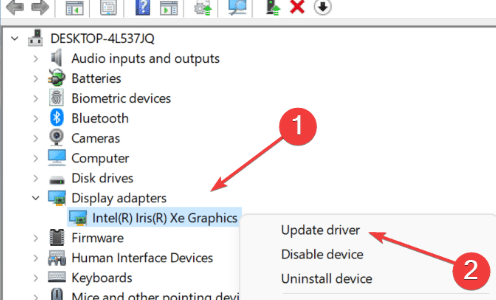
  • Click the Start icon in the taskbar, type device manager in the Search bar, and hit Enter
  • Locate and expand the Display adapters node
  • Right-click your graphics card and select Update driver
  • Select Search automatically for drivers and wait for Windows to install the latest driver version

If you receive a message stating that the best driver version is already installed, it might be worth the while to check the manufacturer’s website for a new release.

Here’s what to do:

Step 1 – Find out the driver version you’re currently using.

  • Open Device Manager, right-click your graphics card, and select Properties
  • Click the Driver tab to find out the Driver Version and other driver-specific details

Step 2 – Search the manufacturer website for the latest driver

  • Open a web browser and navigate to the manufacturer website
  • Search for the latest driver version for your graphics card model

If a new driver version is available, download and install it.

Step 3 – Download and install the latest driver version

  • Select the latest driver version and click the Download button
  • Save the driver file on a suitable location (such as the desktop)
  • Once the download is complete, double-click the driver file to launch installation
  • If a User Access Control window pops-up, click the Yes button
  • Follow on-screen prompts to complete the installation

Solution #3 – Switch GPU

Still having trouble with OBS not capturing a game? Check whether it’s using the right graphics card or not.

If a high-performance GPU is powering your game (you know, the one that makes everything look crispier and smoother) while OBS is configured to capture your system’s integrated GPU (which, obviously, is no match to a high-performance GPU), then it won’t be able to capture your gameplay.

How to fix the issue? You may ask.

The answer is simple: Change your system’s GPU setting.

  • Click the Windows icon in the taskbar, type settings in the Search bar, and hit Enter
  • Click Display > Advanced Graphics
  • Select OBS Studio from the list of apps and then click Options
  • Select High Performance and click the Save button

Solution #4 – Remove the Hook folder and then reinstall OBS

Has your OBS Game Capture stopped working suddenly (especially after an update)? If so, probably some pesky leftover files are causing trouble.

The main suspect? The obs-studio-hook folder. It may be full of outdated or conflicting data that’s messing with how OBS capture games. Here’s a quick fix: just get rid of this folder and reinstall OBS.

Here’s what to do.

  • Exit OBS
  • Press Windows + R keys to launch the Run dialog box
  • Type %programdata% and then hit Enter
  • In the right-side pane, locate the obs-studio-hook folder, right-click it, and select Delete
  • Open a web browser and navigate to OBS Studio website
  • Download the newest stable version for your computer
  • Launch the installer and follow on-screen prompts to install OBS again
  • When installation is complete, reboot Windows and check if the game capture feature is working properly

Solution #5 – Turn off conflicting software

OBS may fail to record a game video if another app is getting in its way. This typically happens when another video capture or streaming program is running in the background. No worries, though. Turning off the problematic app will fix the issue.

To figure out which app is causing trouble, open Task Manager. You can find any conflicting app there and turn it off.

  • Press Ctrl + Shift + Del
  • Go through the list of programs that are running
  • Right-click any conflicting software (look for apps that perform a streaming function or video capture like OBS) and select End task

Solution #6 – Disable game overlays

Some users have reported that game overlays like those from Discord, Steam, Xbox Game Bar, or GeForce Experience can at times come in the way of OBS, causing Game Capture to either fail or display the dreaded black screen.

To fix the issue, disable any active game overlays while OBS is running. Here’s how you can turn off common game overlays.

Disable Steam Overlay:

  • Launch Steam
  • Choose the tab LIBRARY
  • Right-click Assassin’s Creed Shadows and choose Properties
  • Click General in the left pane and untick the Enable the Steam Overlay while in-game checkbox
  • Apply the changes and then exit Steam

Disable Geforce Experience in-game Overlay:

  • Launch GeForce and click Settings
  • In the General tab, turn off the IN-Game OVERLAY toggle
  • Save the changes
  • Exit GeForce

Disable Ubisoft Overlay

  • Launch Ubisoft Connect
  • Go to Settings
  • Go to General menu and in the right pane untick the Enable in-game overlay for supported games
  • Click Close

Disable Discord Overlay

  • Launch Discord
  • Go to User Settings
  • Click Game Overlay
  • Toggle off the Enable in-game overlay option
  • Save the changes and then exit Discord

Solution #7 – Change DirectX

Can’t record a specific game with OBS while it works fine for other games? Most likely the problem lies with DirectX. Frame issues can cause some games using DirectX 12, like Fortnite, when you record them with OBS.

What’s it to be done? You might be wondering.

The answer is simple: Check whether your game settings have a DirectX 11 option. If it does, switching to DirectX 11 may fix the issue.

Solution #8 – Disable Game Mode

Who doesn’t want their games to run smoother and look better? There are many ways to achieve the desired result, using Windows’ Game Mode being one of them.

But here’s a catch: Windows Game Mode can mess with OBS sometimes. The result? Instead of having your game video recorded, you may end up staring at the OBS game capture black screen. Talk about a bummer for content creators and streamers!

Fortunately, the issue can be fixed easily. Just follow the steps listed below:

  • Go to the Start menu
  • Choose Settings
  • Head to Gaming and switch off Game Mode

Solution #9 – Switch to Borderless or Windowed Mode

Some games in Fullscreen Exclusive mode can be a bit tricky for OBS to capture. As a result, the game might not appear in OBS preview or you may find yourself staring at a black screen. No worries, though. There’s an easy fix: Just access the game’s graphics settings and look for something like “Screen Mode” or “Display Mode”. Switch it to “Borderless Fullscreen” or “Windowed” from “Fullscreen”.

Once you’ve saved the changes, go back to OBS and check whether the capture is working properly.

Solution # 10 – Turn off hardware acceleration in Chrome

Some users have reported facing issues with gameplay recording when hardware acceleration is enabled in Google Chrome. In order to disable hardware acceleration, first open Chrome. Next, perform these steps:

  • Click the hamburger menu (three-lined icon) at the upper right corner of your Chrome window
  • Select Settings
  • Now, choose Advanced and then head to System
  • Toggle off Use hardware acceleration when available

How to install device drivers automatically?

Use an advanced third-party tool such as Driver Updater to install outdated device drivers with a single mouse click.

Automatic driver update tools offer many benefits, the most important ones being:

  • You can update device drivers automatically
  • The software scans and updates all outdated or missing drivers at one go
  • The tool picks the right drivers for your device and operating system, so you won’t have to worry about installing an incorrect driver by mistake
  • Automatic driver updates are 100% safe

Driver Updater is one of the best driver update tools out there. Outbyte Driver Updater will give you access to a database of over 1 million drivers. It will regularly scan your PC, suggesting new driver versions to install. Driver Updater contains drivers for a variety of Windows devices. With just one click, you can update drivers in your system.

Step 1
Click here to Install and launch the app

Step 2
Scan all devices

Step 3
Install or update drivers automatically


Start Download


Filed Under: PC Fix Tips Tagged With: OBS Capture Black Screen

  • « Previous Page
  • 1
  • 2
  • 3
  • 4
  • 5
  • 6
  • …
  • 189
  • Next Page »


  • Recent Posts
  • Popular Posts
        

Read More Posts


Read More Posts

Drivers.com Sites

  • Software Drivers
  • Drivers Ed

About Us

  • Advertise
  • About Drivers
  • Drivers Support
  • Drivers.com Privacy Policy
  • Disclaimer
  • Software Drivers
  • Mac Fixes and Tips
  • PC Fix Tips
  • Security/ Backup
  • Tablets & Smartphones
  • Tech News

© Copyright 2026 PDE Publications Ltd. End User License Agreement (EULA)