


Is your Windows 11 system giving you a hard time with the headphones? Well, we can understand your frustration, but it is nothing to fret about.
This guide will walk you through some of the common reasons why Windows fail to detect headphones and provide you with some tried-and-tested fixes.
Sounds good? Let’s get started.
Fix #1 – Check the volume settings
We know, this is very basic, but you’d be surprised to know how many users accidentally mute the sound and then worry there’s something wrong with their headphones or the system.
Use the volume keys on your keyboard to increase the volume. If the problem persists, check whether your headphone has a built-in power button. If it does, ensure that is turned on. Many modern headphones have an inbuilt power switch, which, if switched off, will not let the headphones connect with a device.
Fix #2 – Check the headphone’s cable
Inspect the headphone’s cable for wear and tear. If you find any, replacing it may fix the issue.
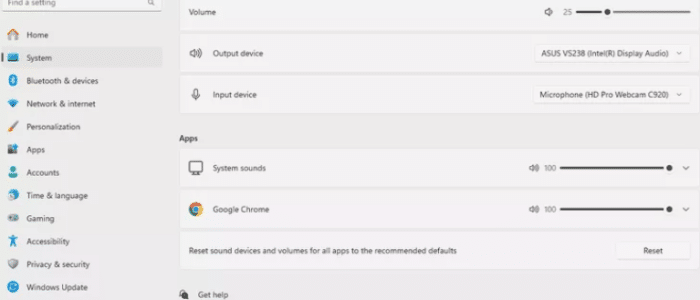
Fix #3 – Use Windows 11 volume mixer
Here’s what to do:
- Click the Windows icon in the taskbar
- Type settings in the Search bar and hit Enter
- Click System > Sound > Volume mixer

- In the drop-down menu next to the Output device entry, select your headphones
Fix #4 – Charge the headphones
Are you using Bluetooth headphones? If so, make sure they are charged. In case of no power, the headphones won’t work.
The other thing you may give a try is removing the headphones from list of Bluetooth apps and then re-adding them. You can do this from the Settings app.
Fix #5 – Use another USB port
If you connect the headphones via a USB port, try out a different USB port. A faulty USB port may prevent your headphones from connecting.
Fix #6 – Run a troubleshooter
Windows 11 include several inbuilt troubleshooters to help fix and troubleshoot common problems. If none of the above solutions have worked for you, try running a built-in troubleshooter.
Here’s what to do:
- Click the Windows icon in the taskbar, type settings in the Search bar, and hit Enter
- In the Settings app, click System in the left-hand pane
- Scroll down till you see Troubleshoot in the right-hand pane and then click it

- Click Other Troubleshooters in the next window under the Options heading

- Click the Run button next to the Audio entry

- Wait for Windows to fix the error
If Windows is unable to troubleshoot the issue, check whether your Windows system is up-to-date. If that doesn’t work either, head to the next fix.
Fix #7 – Update your headphone’s firmware
Fancy headphones with advanced features such as noise-cancelling typically require firmware updates, which you can install using an app or directly from the manufacturer website.
Fix #8 – Update other device drivers
If you’ve the latest firmware and drivers for your headphone, it’s possible other devices related to the headphone require a driver update. The easiest way to update device drivers is by using a reliable third-party tool, such as Driver Updater. It has been around for some years now and liked by both the average user and computer experts. With just a single click, Driver Updater scans your system for outdated drivers and updates them.
Automatic driver update tools offer many benefits, the most important ones being:
- You can update device drivers automatically
- The software scans and updates all outdated or missing drivers at one go
- The tool picks the right drivers for your device and operating system, so you won’t have to worry about installing an incorrect driver by mistake
- Automatic driver updates are 100% safe
Driver Updater is one of the best driver update tools out there. Outbyte Driver Updater will give you access to a database of over 1 million drivers. It will regularly scan your PC, suggesting new driver versions to install. Driver Updater contains drivers for a variety of Windows devices. With just one click, you can update drivers in your system.
Step 1
Click here to Install and launch the app
Step 2
Scan all devices
Step 3
Install or update drivers automatically