Drivers.com

follow us:

facebook twitter
  • Home
  • Download Drivers
  • Drivers Help
  • PC/Mac Resources
  • Software Drivers
  • Mac Fixes and Tips
  • PC Fix Tips
  • Security/ Backup
  • Tablets & Smartphones
  • Tech News
  • Software Drivers
  • Mac Fixes and Tips
  • PC Fix Tips
  • Security/ Backup
  • Tablets & Smartphones
  • Tech News

Fix: Computer Restarts When Playing Games (Not Overheating)

By Susan C on June 28, 2025

Fix: Computer Restarts When Playing Games (Not Overheating)

We all have been there: one minute you’re gaming with gusto and another minute you’re scratching your head with frustration as your PC abruptly restarts. Although overheating is a frequent culprit, many of us face this issue even when our computers are perfectly cool.

This raises the question: what other underlying factors contribute to this issue?

Some of the common factors apart from overheating that can cause your computer to restart mid-game are:

  • Outdated or corrupt graphics card drivers
  • Issues with Power Supply Unit
  • Misconfigured settings
  • A CPU that’s working at full throttle

How to Stop Computer From Abruptly Restarting When Playing Games?

First things first, ensure your computer meets the minimum requirements. Next, follow the solutions listed below in the order they appear:

Solution #1: Update the graphics driver

You can update the graphics driver manually or automatically. The automatic method is the easiest and requires a third-party tool, such as Driver Updater. With just a single click, Driver Updater locates all outdated drivers on a PC and updates them. More information about the software, along with its download link, can be found in the last section of the post.

But what if you are the DIY type?

In that case, follow these steps:

  • Click the start icon in the taskbar at the bottom of your screen
  • Type device manager in the Search bar and hit Enter
  • In the Device Manager window, locate and expand the Display adapters category

  • Right-click your graphics card and select Update driver

  • In the Update driver window, click Search automatically for drivers

  • Wait for Windows to install the latest driver

If you see a message that states something like: “Windows has determined the best driver version for this device is already installed”, you can check the manufacturer website for the latest driver version. If you find it, download and install it.

Solution #2: Turn off automatic restart

Here’s what to do:

  • Click the Windows icon in the taskbar
  • Type view advanced system settings in the Search bar and hit Enter
  • Click the Settings button under the subheading: Startup and Recovery

  • Now untick the Automatically restart option under System failure and then click OK

Solution #3: Disable Overclocking

Overclocking refers to running computer components, such as the GPU or CPU, at higher speeds than their default. While overclocking can give your PC performance a shot in the arm, it can also lead to issues, like computer restarting mid-game.

Note: If you’re not using overclocking, head over to the next solution.

You can disable overclocking by performing these steps:

  • Access Power Settings:

  • Reset Power Settings:

  • Reset Processor Values:

Solution #4: Do a System Restore

If you’re still facing the issue, do a system restore. It will revert any changes made to your system, which in turn should fix the issue.

How can I stop my PC from overheating while gaming?

Common reasons for PC overheating are:

  • High CPU usage
  • Insufficient RAM
  • Faulty computer fan
  • Insufficient space around CPU for hot air to dissipate
  • Dust build-up

Try these fixes if your computer is overheating:

  • Improve computer speed: Running a deep virus scan, installing all important Windows updates, freeing up disk space (if it is overcrowded), and freeing up RAM and optimizing its usage are some of the things you can do to boost your computer’s performance.
  • Remove unnecessary apps: Low storage space on hard disk can contribute to overheating. Remove unnecessary apps and files to free up disk space.
  • Control CPU fan speed: This is something you can do easily using a third-party software tool.

How to automatically update device drivers using Driver Updater

A third-party software, such as Driver Updater, is the most effective, not to mention the easiest, way to keep drivers up-to-date.

Automatic driver update tools offer many benefits, the most important ones being:

  • You can update device drivers automatically
  • The software scans and updates all outdated or missing drivers at one go
  • The tool picks the right drivers for your device and operating system, so you won’t have to worry about installing an incorrect driver by mistake
  • Automatic driver updates are 100% safe

Driver Updater is one of the best driver update tools out there. Outbyte Driver Updater will give you access to a database of over 1 million drivers. It will regularly scan your PC, suggesting new driver versions to install. Driver Updater contains drivers for a variety of Windows devices. With just one click, you can update drivers in your system.

Step 1
Click here to Install and launch the app

Step 2
Scan all devices

Step 3
Install or update drivers automatically
 

Start Download


Filed Under: PC Fix Tips Tagged With: PC abruptly restarts

Why Laptop Battery Estimates Aren’t Accurate and How to Boost Accuracy?

By Susan C on June 28, 2025

Ever wondered why the estimate time on your laptop’s battery life keeps changing, even when the charge percentage doesn’t? It’s not just you—a bunch of things can cause those estimates to jump around. Let’s dive into how your laptop calculate the battery estimate time and some tricks to get an accurate idea of how long you’ve got before you need to plug in.

How Laptop Battery Estimates are Calculated?

The operating system (OS) uses both hardware and software to calculate the estimate time on the battery life. Battery Management System (or BMS for short), which is present inside the laptop battery, keep tracks of things such as battery health, temperature, and current draw.

The OS uses the information provided by laptop sensors and BMS to figure out current power consumption and battery capacity. Once that’s done, it provides an estimate based on your current power consumption.

Here’s an example: If your laptop is using 30 watts of power and the total charge left is 90 watts, it’s likely to predict roughly 3 hours of battery life is left.

If the usage doesn’t fluctuate, your laptop’s prediction will hold good. But the usage consistently fluctuates as you use your system, resulting in inaccurate battery estimates. That’s why newer laptops have fancy battery systems. Some of them even provide estimates based on how you usually use the laptop.

Let’s say you are a big fan of gaming on your laptop. Even if you’re not gaming now, the estimated battery time will be less because of historical consistencies in your usage.

Factors That Can Throw off Battery Time Estimates

The accuracy of battery time estimates depend on several factors. Let’s look at the main culprits that can throw off these calculations.

Frequent Changes in Usage Patterns

While your system takes into account your past usage when estimating the battery life, what you’re doing right now matters most. Launch a heavy-duty app or a game, and you’ll see that estimate dropping fairly quickly.

Jumping between programs and apps that consume different amounts of system resources can also throw off the battery estimates. Usually, this isn’t a big deal as you know what you’re running. However, problems occur when some background process or app start guzzling power without your noticing. That’s when you might be scratching your head, wondering why the battery is draining significantly faster than estimated.

Background tasks like app updates, Windows updates, and cloud storage synchronization a can seriously affect resource usage. When behind-the-scenes works such as these are being done, the battery estimates may be way off, even when the system is not being used actively. If you find the battery unexpectedly draining faster than expected, take a quick peek at what’s running in the background first.

Poor Battery Health

With time, your laptop’s battery health naturally declines, which basically means it starts draining faster than before. But the thing is, your laptop doesn’t take into account a faulty battery or severely degraded battery. Therefore, when your battery’s capacity starts falling, it becomes harder for the system to predict how much juice is left, resulting in inaccurate estimates.

Moreover, a faulty battery might struggle to keep up when you’re pushing your laptop hard. At such times, you’ll see sudden drops in battery estimate time.

High or low battery temperature

Lithium-ion batteries prefer room temperature—that’s when they work best. Too hot or too cold and impact efficiency, resulting in some pretty off-base battery time estimates.

In high temperature, the battery’s efficiency reduces and its discharge rate increases. This, in turn, throws off the battery management system’s estimates, resulting in faulty estimates. Therefore, try your best to ensure the device doesn’t overheat. Besides causing inaccurate battery estimates, overheating can harm the battery itself.

What Can You Do to Improve Battery Time Estimate Accuracy?

While it’s impossible to get a perfect battery time estimate, there are a few things you can do if your laptop’s battery estimates are way off target.

Step 1 – Update Device Drivers

Since several hardware components affect battery time estimates, it’s important you keep their drivers up-to-date. The most hassle-free way to keep device drivers current is by using an advanced third-party tool, such as Driver Updater.

Driver Updater scans your system for outdated drivers and updates them automatically with a single click. You can find more information about this software and its download link in the last section of the post.

But what if I want to update drivers manually? You may ask.

Well, in that case, first make sure you are comfortable using Device Manager, an in-built utility that allows you to update device drivers, among other things. Next, ensure that the drivers for devices listed under the Software Devices, Sensors, and Batteries sections are up-to-date.

Step 2 – Recalibrate the battery

Most laptops use lithium-ion batters that typically don’t require recalibration. However, it can be prove beneficial when you’re encountering timing inaccuracies. If you’re consistently getting inaccurate battery time estimates, performing a recalibration may do the trick.

Here’s what to do:

  • First, charge your laptop battery to 100%.
  • Keep the device plugged in for additional 30 mins.
  • Unplug the laptop and use it till it switches off because of low battery.
  • Plug-in the laptop again and charge the battery to its full capacity without any interruption. If you want, you can use the device while it’s getting charged.

This will complete the recalibration process and possibly improve battery time estimates. That said, don’t repeat these steps too often because it can damage the battery.

Step 3 – Make sure the battery is in good health

Battery health is usually the reason behind inaccurate battery estimates, since it degrades with time. Fortunately, checking your laptop battery’s health is not difficult. Many third-party tools are available for this. You can use anyone that has been around for some time and overall has positive reviews.

That’s it about improving battery estimates. Let us know which of these methods you used to improve estimated time accuracy by leaving a comment below.

Use Driver Updater to Keep Device Drivers Up-to-date

As said earlier, using a third-party tool such as Driver Updater is the best way to keep drivers up-to-date.

Automatic driver update tools offer many benefits, the most important ones being:

  • You can update device drivers automatically
  • The software scans and updates all outdated or missing drivers at one go
  • The tool picks the right drivers for your device and operating system, so you won’t have to worry about installing an incorrect driver by mistake
  • Automatic driver updates are 100% safe

Driver Updater is one of the best driver update tools out there. Outbyte Driver Updater will give you access to a database of over 1 million drivers. It will regularly scan your PC, suggesting new driver versions to install. Driver Updater contains drivers for a variety of Windows devices. With just one click, you can update drivers in your system.

Step 1
Click here to Install and launch the app

Step 2
Scan all devices

Step 3
Install or update drivers automatically
 

Start Download


Filed Under: PC Fix Tips Tagged With: laptop battery

What is Windows 11 S Mode?

By Susan C on June 27, 2025

What is Windows 11 S Mode?

Windows 11 S Mode is a version of Windows that priorities security and performance by only running apps from the Microsoft Store.

It offers better security, performance, and battery life, but restricts your access to system tools and apps not available in Microsoft Store.

In this post, we’ll tell you everything you need to know about Windows S Mode, including its pros and cons. This will allow you to make an informed decision about whether its right for you. We’ll also show you how to get out of Windows S Mode if you don’t find it to your liking.

What Is Windows 11 S Mode?

Windows 11 S Mode is a streamlined version of Windows 11 and provides better battery life, performance, and security. It runs only Microsoft Store apps and restricts use of other software, making it a good fit for casual users or students. And since these users rarely access system tools (such as Command Prompt), they are not likely to miss them.

However, if you are someone who likes to use apps from outside the Microsoft store or access system tools, Windows 11 S Mode is not a good fit for you.

Here are the main features (and limitations) of Windows S Mode:

  • Allows only apps from Microsoft Store
  • Restricts access to Windows Terminal, Registry, and PowerShell
  • Uses Microsoft as its default browser
  • Offers improved batter life and better booting speed
  • Limits exposure to malware, viruses, and dubious apps

Should I Exit Windows S Mode?

You may want to stop using S Mode if:

  • You want to use non-Microsoft Store apps (such as Zoom, Slack, Chrome, VLC Media Player)
  • You use system tools (such as Command Prompt, Windows Registry)

For students or casual users, Windows S Mode is a good default option because of its enhanced performance, battery life, and security.

Pros and Cons of Windows S Mode

Pros

  • Better performance and shorter boot time
  • More secure (since it limits exposure to malware or unauthorized apps)
  • Enhanced battery life

Cons

  • Use limited to only Microsoft apps (since you can’t download and install apps from the internet)
  • No access to Command Prompt, PowerShell, or Registry Editor
  • Microsoft Edge is the default browser (and you can’t change it)

How Can I Exit Windows 11 S Mode?

Here’s what to do:

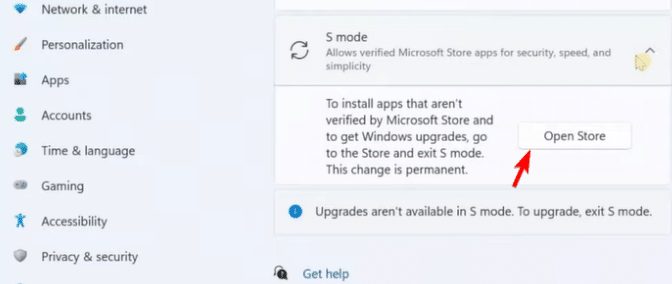
  • Press Windows + I keys to open the Settings app
  • Go to Activation

  • Look under Switch to Windows 11 Pro or Switch to Windows 11 Home, depending on the version you’re using
  • Click the Open Store button

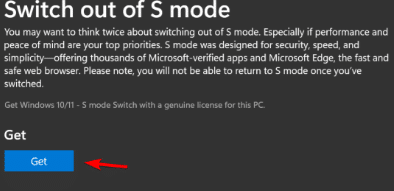
  • Click Get on the Switch out of S Mode option

  • Click Install
  • Simply follow onscreen instructions till you get a confirmation message stating that you’ve switched off S Mode

  • Now you can install apps from any source and access system tools

Sometimes, when you try to turn off S Mode via Windows Settings, a following message pops up: “Try again later. Something went wrong on our end.”

You can fix this issue by performing the following steps:

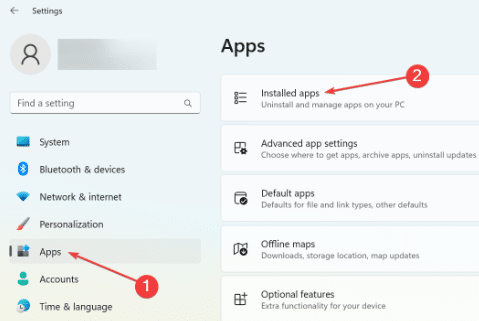
  • Open Windows Settings, select Apps and then select Installed Apps

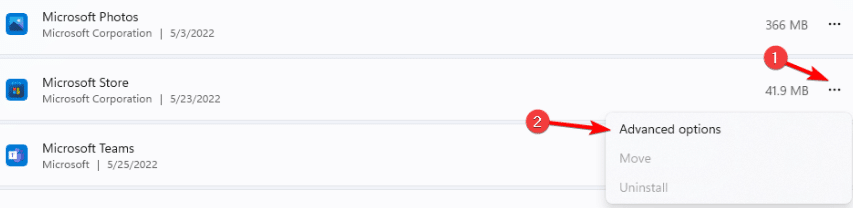
  • Go to Microsoft Store, click the three-dot menu next to it, and select Advanced options

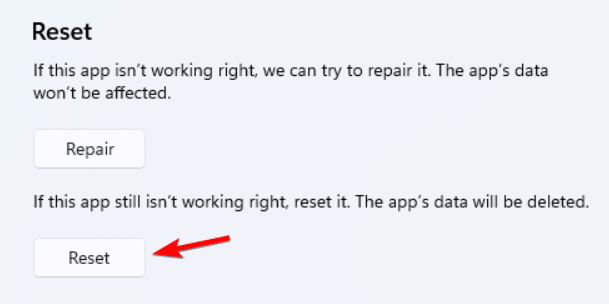
  • Click the Reset button

  • If prompted to confirm your action, click Reset again
  • Restart Windows
  • Now use the steps listed above to exit Windows S Mode

Once you’ve opted out of S Mode, you can download any browser or app you like. However, keep in mind that in some devices, like Dell laptops, re-enabling S Mode is not an option. So, before leaving S Mode, make sure that’s what you want.

And if you decide to get out of S Mode, consider installing performance-enhancing applications, such as Driver Updater. It is a driver update tool that automatically updates outdated device drivers and thereby helps improve your PC’s performance, minimize software errors, and enhance security.

Automatic driver update tools offer many benefits, the most important ones being:

  • You can update device drivers automatically
  • The software scans and updates all outdated or missing drivers at one go
  • The tool picks the right drivers for your device and operating system, so you won’t have to worry about installing an incorrect driver by mistake
  • Automatic driver updates are 100% safe

Driver Updater is one of the best driver update tools out there. Outbyte Driver Updater will give you access to a database of over 1 million drivers. It will regularly scan your PC, suggesting new driver versions to install. Driver Updater contains drivers for a variety of Windows devices. With just one click, you can update drivers in your system.

Step 1
Click here to Install and launch the app

Step 2
Scan all devices

Step 3
Install or update drivers automatically
 

Start Download


Filed Under: PC Fix Tips Tagged With: Windows S Mode

  • « Previous Page
  • 1
  • …
  • 4
  • 5
  • 6
  • 7
  • 8
  • …
  • 189
  • Next Page »


  • Recent Posts
  • Popular Posts
        

Read More Posts


Read More Posts

Drivers.com Sites

  • Software Drivers
  • Drivers Ed

About Us

  • Advertise
  • About Drivers
  • Drivers Support
  • Drivers.com Privacy Policy
  • Disclaimer
  • Software Drivers
  • Mac Fixes and Tips
  • PC Fix Tips
  • Security/ Backup
  • Tablets & Smartphones
  • Tech News

© Copyright 2026 PDE Publications Ltd. End User License Agreement (EULA)