Drivers.com

follow us:

facebook twitter
  • Home
  • Download Drivers
  • Drivers Help
  • PC/Mac Resources
  • Software Drivers
  • Mac Fixes and Tips
  • PC Fix Tips
  • Security/ Backup
  • Tablets & Smartphones
  • Tech News
  • Software Drivers
  • Mac Fixes and Tips
  • PC Fix Tips
  • Security/ Backup
  • Tablets & Smartphones
  • Tech News

4 Hidden Windows Services That Can Hog Your CPU (And How to Disable Them)

By Susan C on June 5, 2025

One gripe many users have with Windows is that it comes with a lot of additional baggage. The add-ons are not a problem if you’re using a super-powerful computer. But if your PC’s processing power is average or just-above-average, these hidden services can sometimes really slow things down. The good news is that not all of them are essential. You can safely turn off some of them to make things easier for your CPU and boost system’s performance.

Here are 4 hidden services that you may want to turn off.

Runtime Broker

The Runtimebroker.exe process manages permissions for applications found in Microsoft Store. Think of it as a middleman between those apps and your computer’s security settings that ensures they follow your security and privacy configurations.

While this process is supposed to consume no more than 30% of CPU resources, frequent spikes in usage are not uncommon, with each spike lasting 2-3 seconds. When the spikes occur repeatedly at short intervals, it can be rather frustrating. Worse, your system may freeze frequently if your computer is low on RAM.

The good news is you can safely turn off Runtime Broker if you don’t use any store apps. Here’s what to do:

  • Press Ctrl+Alt+Del keys and click Task Manager
  • Under the Processes tab, locate and disable Runtimebroker.exe

The process shouldn’t load automatically unless you access Microsoft Store or a related app.

Windows Search Indexer

Windows Search Indexer, or SearchIndexer.exe, handles indexing of your files for Windows Search. The process comes in real handy when you want to search for a lost file, but the downside is that can hog CPU resources when repairing the underlying index or indexing large files.

In case of limited CPU headroom, SearchIndexer.exe can alone impacts your computer’s speed. You can disable it be performing the following steps:

  • Press Win + R keys
  • Type services in the Run dialog box and press the OK button
  • Locate Windows Search service and then double-click it
  • Click Disable to turn off the service
  • If you want to disable it permanently, choose the Disabled option from the drop-down menu next to Startup type

CTF Loader

CTF Loader, or ctfmon.exe, is a process that’s part of the Alternative User Input Text Input Processor (AITIP), which manages text input methods such as speech recognition and specialized keyboards.

Since CTF loader continuously runs in the background, it makes sense to disable it if you don’t use alternate text input methods. But keep in mind that disabling ctfmon.exe from Task Manager isn’t the best option because the process can launch itself again. A more effective solution is to permanently disable it via Windows Services.

This is what you’ve to do.

  • Press Win + R keys
  • In the Run dialog box, type services.msc and press the OK button
  • In the right-hand pane, locate and double-click Text Input Management Service
  • Click Disable to turn off the service. Choose the Disabled option in the Startup type drop-down menu to permanently disable the service

Microsoft Store Background Apps

Windows include numerous bloatware programs, including, but not limited to, Microsoft Store apps such as Outlook and Copilot. These apps continue to run in the background, hogging CPU resources, so it’s best to uninstall them if you don’t use them. You can uninstall these apps via Add or Remove programs utility, just like any other installed app.

However, if you prefer to keep these apps, consider preventing them from starting automatically with Windows to speed up your computer. Here’s what to do:

  • Press Ctrl+Alt+Del and select Task Manager
  • Locate and select the apps you want to disable and then select Disable

Besides disabling hidden services that can slow down your computer, I also recommend you to keep your device drivers up-to-date. The easiest and fastest way to do this is by using an advanced third-party tool such as Driver Updater.

Automatic driver update tools offer many benefits, the most important ones being:

  • You can update device drivers automatically
  • The software scans and updates all outdated or missing drivers at one go
  • The tool picks the right drivers for your device and operating system, so you won’t have to worry about installing an incorrect driver by mistake
  • Automatic driver updates are 100% safe

Driver Updater is one of the best driver update tools out there. Outbyte Driver Updater will give you access to a database of over 1 million drivers. It will regularly scan your PC, suggesting new driver versions to install. Driver Updater contains drivers for a variety of Windows devices. With just one click, you can update drivers in your system.

Step 1
Click here to Install and launch the app

Step 2
Scan all devices

Step 3
Install or update drivers automatically
 

Start Download


Filed Under: PC Fix Tips Tagged With: Hidden Windows Services

How to Troubleshoot HP Laptop Black Screen?

By Susan C on June 5, 2025

How to Troubleshoot HP Laptop Black Screen?

If you’ve an HP laptop and are facing display issues, such as the screen not turning on, this post is for you. From quick fixes that work in most situations to more complex solutions that can save the day when quick fixes don’t work, we’ve covered them all.

So, let’s dive right in.

Solution #1 – Adjust the screen brightness

Before moving on to more complex solutions, check whether the screen’s brightness is not set to the minimum. You can adjust brightness using a function key.

While the exact function keys for increasing and decreasing brightness may vary from one HP model to another, they invariably have a small sun icon, often with a plus or minus sign.

Solution #2 – Turn off hibernation

Hibernation files at times can become corrupt. If your screen’s brightness setting is fine, turn off hibernation and restart the computer. Your laptop’s display will work normally after restart if the root cause was corrupt hibernation files.

Solution #3 – Update the graphics card driver

Device drivers bridge the gap between hardware and OS and software. If the graphics driver is corrupt, missing, or incompatible, display issues may arise. Updating the graphics card driver would fix the problem.

There are two ways to update graphics driver. One is easy and requires nothing more than a few mouse clicks. Third-party tools, such as Driver Updater are perfect for updating graphics drivers. Not only they are easy to use, but they also update the latest driver in a blink of

eye. More information about the software and a download link is shared in the last section.

Of course, using a third-party tool for updating graphics driver (or any other device driver, for that matter) is not mandatory. You can update it manually, though the whole process can be a tad tedious.

Here’s what to do:

  • Click the Windows icon at the center of the taskbar, type device manager in the search bar and hit Enter
  • In the Device Manager window, locate and expand Display adapters

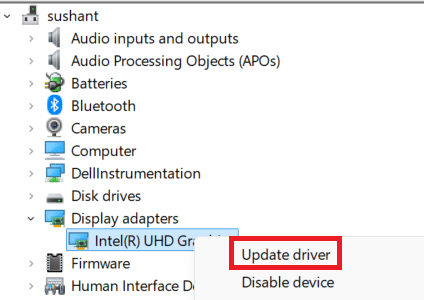
  • Right-click your graphics card, select Update driver, and click the first option (Search automatically…) in the next window

  • Follow on-screen instructions

One drawback of this manual method is that Windows searches only your computer for the best available driver. If the best available driver is not the latest one, the problem may persist.

In that situation, we recommend you hop on to the graphics card driver manufacturer website, locate the latest driver for your graphic card model, download and install it. To all of this, you first need to know the make and mode of your graphic driver.

Obtaining this information, however, is a cinch. Here’s what to do:

  • Open Device Manager
  • Expand the Display adapters entry, right-click the graphic card and select Properties

  • You’ll find all the necessary information about your card under the Driver tab

  • Open a web browser, go to the manufacturer’s website, locate the latest driver for your graphics card
  • Download and install it (by clicking the .exe file)
  • If a User Access Control window pops up, click Yes
  • Restart Windows

Solution #4 – Perform a hard reset

At times, a software or firmware issue may prevent the screen from displaying. In such instances, a hard reset may do the job.

Here’s what to do:

  • First, disconnect all the peripheral devices, such as an external keyboard, mouse, or printer
  • Next, remove any cables connected to your laptop or computer
  • Disconnect the system from power
  • Remove the battery
  • Now press down the power button and hold it for about 15 seconds
  • Reconnect the system to power without inserting the battery
  • Restart the computer
  • Connect an external monitor to ensure the LCD cable is working fine. In case the external monitor doesn’t display anything, press the F4 key. If your computer displays on the external monitor, replace the LCD cable as it might be faulty. If that doesn’t fix the issue, it’d be best to ask your local computer repair technician to check your laptop

How to download graphics driver automatically

The easiest and fastest way to update graphics driver (and other device drivers) is by using a reliable third-party tool. We recommend you to try Driver Updater. It has been around for years and is super-fast and accurate. With just a few clicks, it can update all outdated device drivers on your system.

Automatic driver update tools offer many benefits, the most important ones being:

  • You can update device drivers automatically
  • The software scans and updates all outdated or missing drivers at one go
  • The tool picks the right drivers for your device and operating system, so you won’t have to worry about installing an incorrect driver by mistake
  • Automatic driver updates are 100% safe

Driver Updater is one of the best driver update tools out there. Outbyte Driver Updater will give you access to a database of over 1 million drivers. It will regularly scan your PC, suggesting new driver versions to install. Driver Updater contains drivers for a variety of Windows devices. With just one click, you can update drivers in your system.

Step 1
Click here to Install and launch the app

Step 2
Scan all devices

Step 3
Install or update drivers automatically


Start Download


Filed Under: PC Fix Tips Tagged With: HP Laptop Screen

Bluetooth Not Working On Windows 11 (Solved)

By Susan C on May 26, 2025

Bluetooth Not Working On Windows 11 (Solved)

If Bluetooth is not working on your Windows 11, try not to panic. The issue typically occurs because of software-related issues and can be easily fixed (as this post shows). We recommend you try the solutions listed below in the order they appear.

Make sure Bluetooth is turned on

  • Click the Start icon in the center of the taskbar
  • Type settings in the search bar and hit Enter
  • Click Bluetooth & devices and toggle on the switch next to Bluetooth

Run Bluetooth troubleshooter

There’s a built-in Bluetooth troubleshooter in Windows that can help resolve common issues. Giving it a try is worth it if the Bluetooth is turned on but the system doesn’t connect to a Bluetooth device, such as earbuds.

  • Click the Start icon, type settings in the search bar, and hit Enter
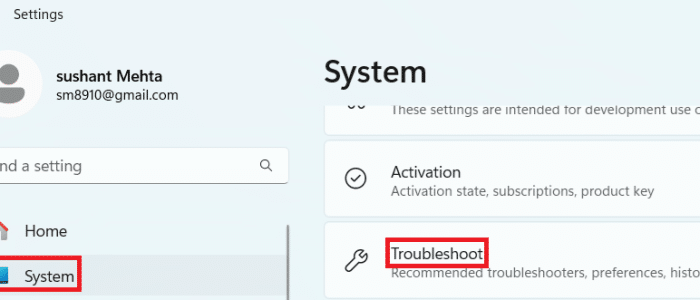
  • Click System in the left-hand panel and then click Troubleshoot

  • Click Other troubleshooters under the Options heading

  • Click the Run button next to Bluetooth in the right-hand panel

  • Wait for the troubleshooter to do its job. When it’s done, it will let you know whether it was successful or not

If running the Bluetooth troubleshooter didn’t help, try updating the Bluetooth driver.

Update the Bluetooth driver

There are two ways to update a device driver: (1) using a driver update too or (2) updating it manually via Device Manager or by downloading the latest driver from the manufacturer’s website.

We recommend the first method because it is many times easier and faster. If you’re wondering which third-party tool is best suited for the job, Driver Updater is an option. You can find out more about this amazing tool in the last section.

While an advanced driver update tool is worth the cost, not everyone may want to buy it. In that case, you must take matters into your own hands. Here’s what you need to do:

  • Click the Start icon in the taskbar, type device manager in the search bar, and hit Enter
  • Expand the Bluetooth entry
  • Right-click your Bluetooth adapter and click Update driver

  • Select Search automatically… (the first option) and Windows will automatically install the latest driver (if it is able to find one)

If Windows is unable to find the latest Bluetooth driver, head over to the manufacturer website. Next, download the latest driver for your Bluetooth device. Once you’ve done that, double-click the installer (it will be a file with .exe listed at the end of it) and wait for the installation to complete. If a User Access Control window pops up, click the Yes option.

Restart Bluetooth Support service

Restarting Bluetooth Support service is another solution worth trying. Here’s what you need to do:

  • Click the Windows icon in the taskbar
  • Type services in the Search bar and hit Enter
  • In the right-side panel, locate and double-click Bluetooth Support Service

  • Click Stop under Service Status in the General tab. Now click the Start button
  • In the drop-down menu next to Startup type, select Automatic

  • Click Apply and then OK

Now, check whether Bluetooth is working or not.

Repair system files

If none of the above solutions have worked for you, as a last resort run the SFC scan to check if there are any damaged, missing, or corrupt system files. The SFC scan identifies and fixes such files.

Here’s what to do:

  • Press the Windows icon in the taskbar and type command prompt in the search bar
  • Right-click Command Prompt in the Best Match field and select Run as administrator. If asked to provide administrative permission, click Yes

  • Type the following command and hit Enter

Wait for Windows to complete the scan. Check if Bluetooth is working after SFC scan is complete.

How to automatically update Bluetooth (and other device) drivers?

We recommend Driver Updater for this purpose. It’s super-fast, reliable, and accurate, and updates your Bluetooth and other device drivers with just a couple of clicks.

Automatic driver update tools offer many benefits, the most important ones being:

  • You can update device drivers automatically
  • The software scans and updates all outdated or missing drivers at one go
  • The tool picks the right drivers for your device and operating system, so you won’t have to worry about installing an incorrect driver by mistake
  • Automatic driver updates are 100% safe

Driver Updater is one of the best driver update tools out there. Outbyte Driver Updater will give you access to a database of over 1 million drivers. It will regularly scan your PC, suggesting new driver versions to install. Driver Updater contains drivers for a variety of Windows devices. With just one click, you can update drivers in your system.

Step 1
Click here to Install and launch the app

Step 2
Scan all devices

Step 3
Install or update drivers automatically


Start Download


Filed Under: PC Fix Tips Tagged With: Bluetooth issue

  • « Previous Page
  • 1
  • …
  • 6
  • 7
  • 8
  • 9
  • 10
  • …
  • 189
  • Next Page »


  • Recent Posts
  • Popular Posts
        

Read More Posts


Read More Posts

Drivers.com Sites

  • Software Drivers
  • Drivers Ed

About Us

  • Advertise
  • About Drivers
  • Drivers Support
  • Drivers.com Privacy Policy
  • Disclaimer
  • Software Drivers
  • Mac Fixes and Tips
  • PC Fix Tips
  • Security/ Backup
  • Tablets & Smartphones
  • Tech News

© Copyright 2026 PDE Publications Ltd. End User License Agreement (EULA)