Drivers.com

follow us:

facebook twitter
  • Home
  • Download Drivers
  • Drivers Help
  • PC/Mac Resources
  • Software Drivers
  • Mac Fixes and Tips
  • PC Fix Tips
  • Security/ Backup
  • Tablets & Smartphones
  • Tech News
  • Software Drivers
  • Mac Fixes and Tips
  • PC Fix Tips
  • Security/ Backup
  • Tablets & Smartphones
  • Tech News

Want to add or remove widgets in Windows 11? Learn How

By Susan C on May 5, 2025

Want to add or remove widgets in Windows 11? Learn How

Widgets are interactive elements mainly designed to do two things: (1) display dynamic content and (2) provide quick access to apps and features.

Apart from providing quick access to information and features, Windows 11 widgets offer multiple benefits, such as helping you streamline your workflow and enhance personalization.

That said, some find them visually intrusive and aren’t overly pleased that they may continue running in the background even when not actively used. Regardless of which camp you belong to — those who like widgets or those who don’t — this post is for you. It provides step-by-step instructions for both adding widgets on Windows 11 desktop and removing them.

Key Takeaways:


  • Press Win+W, choose plus (+) and then select Pin next to a Widget to add it on Windows 11
  • Third-party tools lets you add widgets directly on to your desktop
  • To remove a widget, select Unpin widget after clicking its three-dot icon

Add a widget in Win 11

You can add widgets through the built-in widgets panel. Here’s what to do:

  • Press Win+W. This will open the widgets panel
  • Click + (add widgets) sign

  • Select the widget you want to add and then click the Pin icon in the right-side pane

  • The selected widget will now appear in the Widgets panel. To access the source website or app, simply click the widget’s title
  • Press Win+W to close the Widget board

Add widgets to your Win desktop

If you want to add Widgets directly to your desktop, you’ll need a third-party tool, such as Widget Launcher. You can download it directly from the Microsoft store. Once you’ve installed the tool, you can put a widget on your desktop by choosing it from the list of widgets on your screen and then selecting Launch Widget.

To remove a widget that you’ve added to your desktop, simply hover the mouse over it and Click X.

Customize Widgets in Windows 11

Customizing widgets in Win 11 is easy. Here’s what to do:

  • Press Win+W
  • Click the three-dot menu and adjust the widget’s size by selecting any of these three options: Small, Medium, and Large. Click the Customize Widget option (after clicking the three-dots menu) for more customization options

Note: Not all widgets can be resized.

Remove Widgets in Windows 11

The process for removing widgets is as easy as the one for adding them.

  • Open the Widgets panel by pressing Win+W
  • Click the three-dots menu inside the widget window of the widget you want to remove
  • Choose Unpin widget

Add Widgets Panel to your taskbar

Adding a shortcut to widgets panel to the taskbar is pretty straightforward. This is what you have to do:

  • Right-click on the Windows taskbar and choose Taskbar settings
  • Turn on the Widgets toggle

  • Close the Settings app
  • The shortcut will appear in the bottom left-hand corner. Click it to open the Widgets board

That’s just about it! I hope you found this article helpful. Leave your comments below and share the post so that others can benefit. And if you’re worried that adding widgets will slow down your computer, I recommend you perform basic Windows maintenance tasks regularly. These include keeping your security software up to date, running Disk Cleanup to free up space, and regularly updating the OS and drivers. If you’re wondering about the best way to keep your drivers up to date, I recommend using a smart third-party tool, such as Driver Updater.

Automatic driver update tools offer many benefits, the most important ones being:

  • You can update device drivers automatically
  • The software scans and updates all outdated or missing drivers at one go
  • The tool picks the right drivers for your device and operating system, so you won’t have to worry about installing an incorrect driver by mistake
  • Automatic driver updates are 100% safe

Driver Updater is one of the best driver update tools out there. Outbyte Driver Updater will give you access to a database of over 1 million drivers. It will regularly scan your PC, suggesting new driver versions to install. Driver Updater contains drivers for a variety of Windows devices. With just one click, you can update drivers in your system.

Step 1
Click here to Install and launch the app

Step 2
Scan all devices

Step 3
Install or update drivers automatically
 

Start Download


Filed Under: PC Fix Tips Tagged With: Win 11 Windgets

What Is iphlpsvc and Should You Disable It?

By Susan C on April 26, 2025

What Is iphlpsvc and Should You Disable It?

Some users have reported that a service named iphlpsvc at times uses too many resources, so is it safe to disable it?

Iphlpsvc is an Internet Protocol Helper Service. It is responsible to help retrieve and modify network configuration settings for your Windows computer. If it is slowing down your computer, yes, you can disable it.

Continue reading to find out more about what iphlpsvc does and how to correctly disable it.

What is Iphlpsvc?

The IP Helper Service comes pre-installed in your Windows computer and plays an important role in retrieving and modifying network configurations settings of a Windows PC. Typically, the service requires little management from your side, unless it’s slowing down your computer or causing some other issue.

You might find iphlpsvc.dll in the list of processes when you open Task Manager. Typically, iphlpsvc.dll doesn’t hog computer resources, so you can safely leave it to its own devices.

Is it safe to disable iphlpsvc?

The answer is, yes. Disabling the service won’t harm your computer or prevent it from running smoothly. That said, you may want to leave iphlpsvc alone if you use IPv6 and the service is not drawing unnecessary CPU and memory usage (which typically it doesn’t).

But, as you may know, in the world of Windows, nothing is set in stone. There could be occasions when iphlpsvc could deviate from its typical nature, hogging computer resources and in turn impacting its performance. In that case, you can safely disable it from the Services window.

How to disable iphlpsvc?

You can disable iphlpsvc from the Services window, Windows Registry, or Command Prompt. Disabling it from the Services window is easiest, though we have explained other methods in equal detail.

Method #1: Disable iphlpsvc from Services window

If you want to disable the service, perform these steps:

  • Type services in the Search Bar in the taskbar at the bottom of your screen and hit Enter
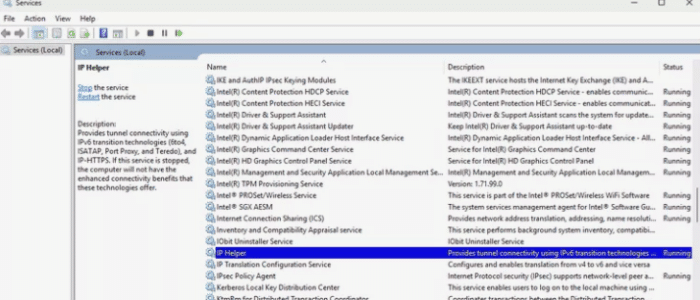
  • In the Services window, locate and double-click IP Helper

  • To disable iphlpsvc temporarily, click Stop in the Properties dialog box and then click Apply and OK to save the changes

  • To stop iphlpsvc permanently, choose the disabled option in the Startup type drop-down menu, and then click Apply and OK

  • Close the Services window

Method #2 – Disable iphlpsvc from Windows Registry

Before discussing the steps to follow to disable iphlpsvc from Windows registry, I must point out that the registry is a very sensitive part of Windows. A small misstep could have serious and unalterable consequences.

Therefore, you should proceed only if you’re comfortable working with the Registry Editor, an in-built tool that allows users to view and modify the registry entries. And always make a registry backup before you tweak the Windows registry. A backup allows you to restore the registry to its previous state if something goes wrong.

With that out of the way, let’s look at how to disable iphlpsvc from Windows registry.

  • Type regedit in the Search bar in the taskbar and hit Enter
  • Click Yes if the User Access Control window pops up
  • Navigate to

  • In the right-side pane, locate the Start value, right-click it and select Modify

  • Change the Value data to 4 and click OK

Method #3 – Disable iphl psvc from Command Prompt

It’s also possible to disable iphlpsvc from Command Prompt. Here’s what to do:

  • Type command prompt in the Search Bar in the Taskbar in the bottom of your screen, right-click the Commands Prompt entry in the search results, and select Run as administrator

  • Type the following command in Command Prompt and hit Enter

  • Exit Command Prompt
  • Restart your computer

Which one of these methods you liked best? Leave us a comment below. And share this post so that others can benefit.

Just a final word before I sign off for the day: Slow computer speed can also occur because of several other reasons, the most common one being outdated device drivers. Keeping your device drivers (including network drivers) up-to-date using an advanced tool, such as Driver Updater, can go a long way in ensuring your PC consistently performs at its optimum level.

Automatic driver update tools offer many benefits, the most important ones being:

  • You can update device drivers automatically
  • The software scans and updates all outdated or missing drivers at one go
  • The tool picks the right drivers for your device and operating system, so you won’t have to worry about installing an incorrect driver by mistake
  • Automatic driver updates are 100% safe

Driver Updater is one of the best driver update tools out there. Outbyte Driver Updater will give you access to a database of over 1 million drivers. It will regularly scan your PC, suggesting new driver versions to install. Driver Updater contains drivers for a variety of Windows devices. With just one click, you can update drivers in your system.

Step 1
Click here to Install and launch the app

Step 2
Scan all devices

Step 3
Install or update drivers automatically


Start Download


Filed Under: PC Fix Tips Tagged With: iphlpsvc

How to Restart the Printer Spooler Service on Windows 11

By Susan C on April 25, 2025

How to Restart the Printer Spooler Service on Windows 11

“I am experiencing issues even when my printer is connected properly. What should I do?” – Arnold

Printer issues are not uncommon. Fortunately, in most cases, they can be solved easily.

If you’re experiencing printer issues such as the ones mentioned below even when your printer is properly connected, then restarting the printer spooler can help.

  • An error message that says “the printer spooler service is not running”
  • Documents getting stuck in the printer queue
  • Files not being sent to the printer

Printer spooler is built-in program in Windows. It is responsible for managing any print jobs that are sent to the printer.

Here’s what you need to fix the above issues:

Step #1 – Restart Printer Spooler Service

  • Type services in the Windows Search Bar (usually located on the taskbar at the bottom of the screen) and click Services app in the search results
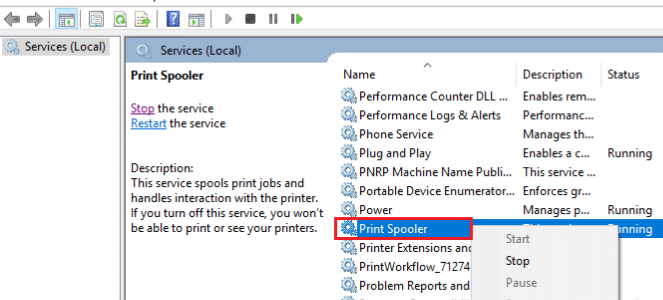
  • In the right-side pane, look for Print Spooler service, right-click on it, and select Restart
  • Once you’re done, try to print a test document. If the printer doesn’t print it, try the next solution

Step #2 – Clear the print queue

  • Type control panel in the Search Bar in the taskbar and hit Enter
  • Set view by to Category using the drop-down menu next to it and then click View devices and printers
  • Right-click your printer and select See what’s printing
  • Right-click each document and then click Cancel
  • Try to print a test document and if you’re still unable to print, try the next solution

Step #3 – Manually delete files in print spooler folder

Here’s what to do:

  • Type services in the Search Bar in the taskbar and hit Enter
  • In the Services window, right-click Print Spooler service in the right-side pane and select Stop
  • Type file explorer in the Windows Search Bar and hit Enter
  • Navigate to C:\Windows\System32\spool\Printers and delete all files
  • Once you’re done, open the Services window, right-click the Print Spooler and select Start

You should be able to print documents now. But if the problem still persists, move on to the last solution.

Step #4 – Use a batch file for clearing and restarting the print spooler

Here’s what to do:

  • Right-click on an empty space on the desktop, hover the cursor over New, and select Text Document
  • Now copy and paste the text below into the document:

net stop spooler

del /Q /F /S “%windir%\System32\spool\PRINTERS\*.*”

net start spooler

  • The text document should look like the screenshot below
  • Click the File menu and select Save as
  • Change the Save as type to All Files by using the drop-down menu next to it. Give any name to file you like, but just make sure that you type .bat at the end of it (see the screenshot below) and click Save
  • After you’ve saved the file, right-click it and select Run as administrator to clear and restart the print spooler

We’re sure you will be able to print documents now. Keeping this batch file may be a good idea. If needed, you can reuse it in the future.

Well, I believe as far as restarting the printer spooler is concerned, that’s just about it. But before signing off, I would like to give a pro-tip to improve printer performance, bug fixes, and ensure better compatibility with new software. Keeping the printer drivers helps you achieve all of that and some more. While you can update printer drivers manually, the easiest and the fastest way to do it is by using a reliable third-party tool. I recommend you give Driver Updater a try. It is the most accurate and advanced among all the driver update tools on the market.

Automatic driver update tools offer many benefits, the most important ones being:

  • You can update device drivers automatically
  • The software scans and updates all outdated or missing drivers at one go
  • The tool picks the right drivers for your device and operating system, so you won’t have to worry about installing an incorrect driver by mistake
  • Automatic driver updates are 100% safe

Driver Updater is one of the best driver update tools out there. Outbyte Driver Updater will give you access to a database of over 1 million drivers. It will regularly scan your PC, suggesting new driver versions to install. Driver Updater contains drivers for a variety of Windows devices. With just one click, you can update drivers in your system.

Step 1
Click here to Install and launch the app

Step 2
Scan all devices

Step 3
Install or update drivers automatically


Start Download


Filed Under: PC Fix Tips Tagged With: printer spooler error

  • « Previous Page
  • 1
  • …
  • 8
  • 9
  • 10
  • 11
  • 12
  • …
  • 189
  • Next Page »


  • Recent Posts
  • Popular Posts
        

Read More Posts


Read More Posts

Drivers.com Sites

  • Software Drivers
  • Drivers Ed

About Us

  • Advertise
  • About Drivers
  • Drivers Support
  • Drivers.com Privacy Policy
  • Disclaimer
  • Software Drivers
  • Mac Fixes and Tips
  • PC Fix Tips
  • Security/ Backup
  • Tablets & Smartphones
  • Tech News

© Copyright 2026 PDE Publications Ltd. End User License Agreement (EULA)