Drivers.com

follow us:

facebook twitter
  • Home
  • Download Drivers
  • Drivers Help
  • PC/Mac Resources
  • Software Drivers
  • Mac Fixes and Tips
  • PC Fix Tips
  • Security/ Backup
  • Tablets & Smartphones
  • Tech News
  • Software Drivers
  • Mac Fixes and Tips
  • PC Fix Tips
  • Security/ Backup
  • Tablets & Smartphones
  • Tech News

How to Fix Blurry Text in Windows 10

By Susan C on April 20, 2025

How to Fix Blurry Text in Windows 10

“I am struggling with blurry text in Windows 10. Other things, such as images, are as sharp as ever, but the text is blurry. Can you help?” – Michelle.

The blurry text issue is typically related to your system’s handling of Windows 10. If you’re struggling with this issue, like Michelle you’ll find this post useful.

How to troubleshoot blurry text on Windows 10?

Trying potential fixes beginning with the most successful resolution method is the best way to resolve the blurry text issue.

Solution #1 – Update Windows

At the risk of sounding cliche, keeping your Windows update can help fix many issues, including blurry text. Microsoft has provided fixes for blurry fonts in Windows 10 through updates delivered via Windows Update. Therefore, install any pending updates before trying other troubleshooting methods.

  • Press Windows + I keys to open the Settings app
  • Click Update & Security and then Windows Update
  • Now, click Check for Updates and follow on-screen prompts to install available updates

Solution #2 – Change the DPI scaling

On high-resolution displays, the default DPI scaling is 125% or 150%. Changing the DPI scaling value may resolve the issue. For instance, if Windows has set the value to 150%, change it to 125% and check if that does the trick.

  • Press Windows + I keys to open the Settings app
  • Click Display in the left pane and then click Advanced scaling settings in the Scale and layout section

  • Change the scaling value and click the Apply button

  • Sign out of your account and sign back in for changes to take effect

Solution #3 – Switch off DPI scaling

If the issue still persists, try switching off the scaling by setting the value to 100%. It has worked for some users, so is worth a try.

Solution #4 – Change DPI settings for certain apps

Try this solution if only certain apps have blurry text. Here’s what to do:

  • Right-click the program’s shortcut and select Compatibility > Change high DPI settings
  • Now tick the box next to “Use this settings to fix scaling programs for this program instead of the one in Setting”
  • Click OK twice

Solution #5 – Change screen resolution

In case you’re using more than one monitor, blurry text may appear on one or more monitors if they’re not using the same resolution. As you may guess, the issue can be fixed by setting the same resolution for all monitors.

Solution #6 – Update graphics drivers

Outdated graphic drivers can cause the blurry text issue. Updating the drivers can fix the issue. While you can update graphics drivers manually, the process is tedious. For this reason, we recommend using a third-party tool, such as Driver Updater.

Automatic driver update tools offer many benefits, the most important ones being:

  • You can update device drivers automatically
  • The software scans and updates all outdated or missing drivers at one go
  • The tool picks the right drivers for your device and operating system, so you won’t have to worry about installing an incorrect driver by mistake
  • Automatic driver updates are 100% safe

Driver Updater is one of the best driver update tools out there. Outbyte Driver Updater will give you access to a database of over 1 million drivers. It will regularly scan your PC, suggesting new driver versions to install. Driver Updater contains drivers for a variety of Windows devices. With just one click, you can update drivers in your system.

Step 1
Click here to Install and launch the app

Step 2
Scan all devices

Step 3
Install or update drivers automatically
 

Start Download


Filed Under: PC Fix Tips Tagged With: blurry text

How to Secure Your Windows PC Using a USB Security Key?

By Susan C on April 20, 2025

How to Secure Your Windows PC Using a USB Security Key?

How do you secure your Windows PC? With a password or a pin?

You don’t need me to tell you that securing your system is extremely important. It helps protects data and user account from unauthorized access. What you might not know though is that securing your PC with just a pin or password might not be enough.

Why is that so? You may wonder.

The answer is both are vulnerable to various attacks and can be compromised if certain security measures are missing.

For example, PINs are generally shorter and numeric, making it easier for attackers to crack them using brute-force methods.

While passwords are typically longer and more complex, a phishing attack can trick you into revealing it. In addition, many people have the bad habit of using the same password across multiple accounts. As you may guess, if an attacker manages to break into one account, they can swiftly access other accounts too.

So, what’s the solution? You may ask.

The answer may lie in converting a USB drive into a security — simple yet effective.

Why add a USB security key to Windows login process?

The advantages of adding an extra layer of protection above and over a PIN or password by using a USB security key are twofold.

One, it provides an additional encrypted physical verification. In simple terms, attackers cannot gain access to your computer if they don’t have the security key, even if they crack the login password or PIN.

Two, if your laptop ever gets stolen, the bad guys will not be able to use them since they don’t have the USB security key.

How to secure your Windows computer with a Secure USB key?

If you want to use the native methods in Windows for setting up a USB key, a FIDO2 compliant physical key — such as YubiKey, Google Titan, or Yubico — is needed. These keys cost anywhere between $20 and $50.

Once you’ve bought a FIDO2-compliant physical key, perform these steps:

  • Type settings in the search bar in the task bar and hit Enter
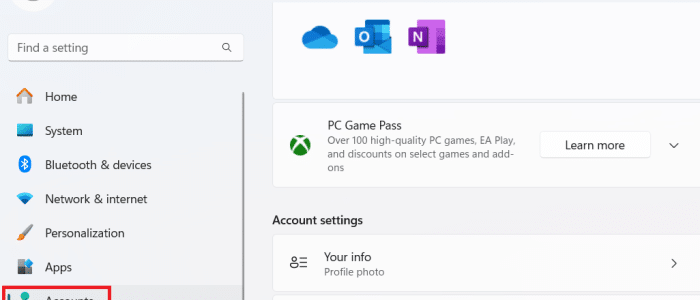
  • Click Accounts in the left pane and then click Sign-in options

  • Click Security key and then the Manage button below it

After you’ve configured the local user account to require a USB security key, you’ll need to plug the FIDO2 compliant USB for all future logins.

What happens if your security key is lost, damaged, or stolen?

Like any physical thing, a USB security can get lost, damaged, or stolen. If that happens, you should still be able to log in to your computer, provided you’ve set up a recovery code or another form of multi-factor authentication.

Keep in mind you cannot afford to lose both the USB security key and the recovery codes because then you could be potentially locked out of your computer permanently. For this reason, it is crucial you store them in a secure place and well away from your computer.

What else can I do to keep my Windows computer safe from hackers?

Using a robust antimalware tool is a must, as is browsing the internet safely, which includes using HTTPS, avoid clicking on pop-up from unknown websites, and being cautious with downloads, among other things.

Another thing that you can do is keep your device drivers up-to-date. Old USB drivers not only slow down your computer and trigger compatibility issues, but they may also contain vulnerabilities that hackers can exploit. If you’re wondering how you can update your USB device drivers hassle-free, the answer is by using a reliable third-party tool. We recommend you give Driver Updater a try. It is 100% accurate, super-fast, and very easy to use.

Automatic driver update tools offer many benefits, the most important ones being:

  • You can update device drivers automatically
  • The software scans and updates all outdated or missing drivers at one go
  • The tool picks the right drivers for your device and operating system, so you won’t have to worry about installing an incorrect driver by mistake
  • Automatic driver updates are 100% safe

Driver Updater is one of the best driver update tools out there. Outbyte Driver Updater will give you access to a database of over 1 million drivers. It will regularly scan your PC, suggesting new driver versions to install. Driver Updater contains drivers for a variety of Windows devices. With just one click, you can update drivers in your system.

Step 1
Click here to Install and launch the app

Step 2
Scan all devices

Step 3
Install or update drivers automatically


Start Download


Filed Under: PC Fix Tips Tagged With: USB security key

How to speed up Windows 11 with a few easy steps

By Susan C on April 14, 2025

How to speed up Windows 11 with a few easy steps

Is your Windows 11 crawling along no faster than a snail? Tired of twiddling your thumbs as you wait for applications to load?

Don’t worry. We’ve got your back. This post shows how to speed up Windows 11 with just a few easy steps.

Step #1 – Turn off unnecessary startup programs

Startup programs launch automatically when your computer boots; hence the name. Some applications do need to start up when Windows loads, but if you check the list of startup programs on your PC, you’re very likely to find a few unnecessary ones. Disable them because too many startup programs can slow down a computer.

Here’s what to do:

  • Press Windows + I keys to launch the Settings app
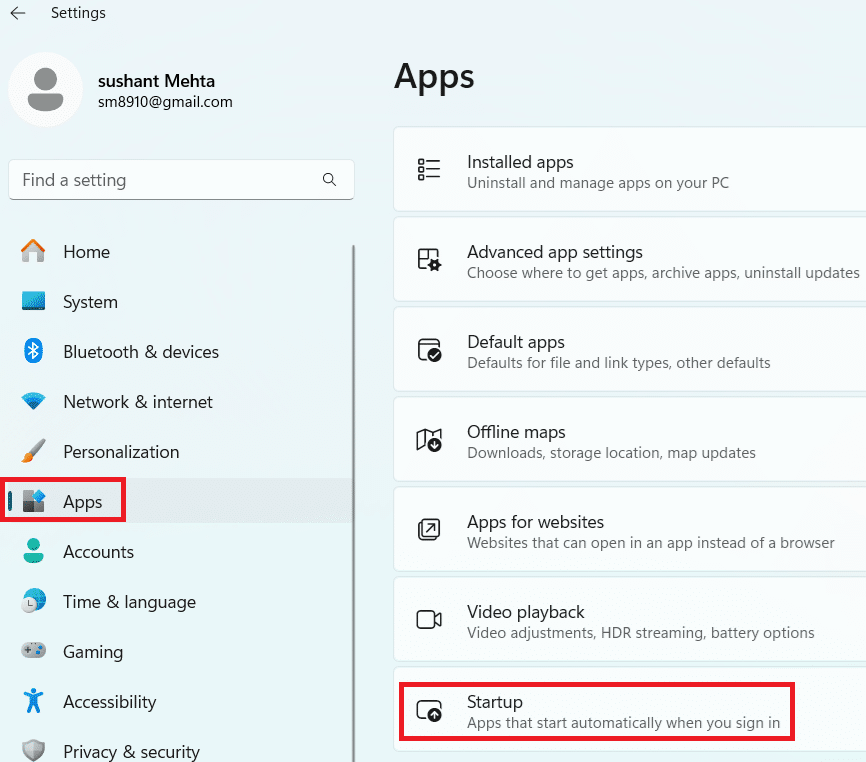
  • Click Apps in the left-hand pane
  • Click Startup in the right-hand pane

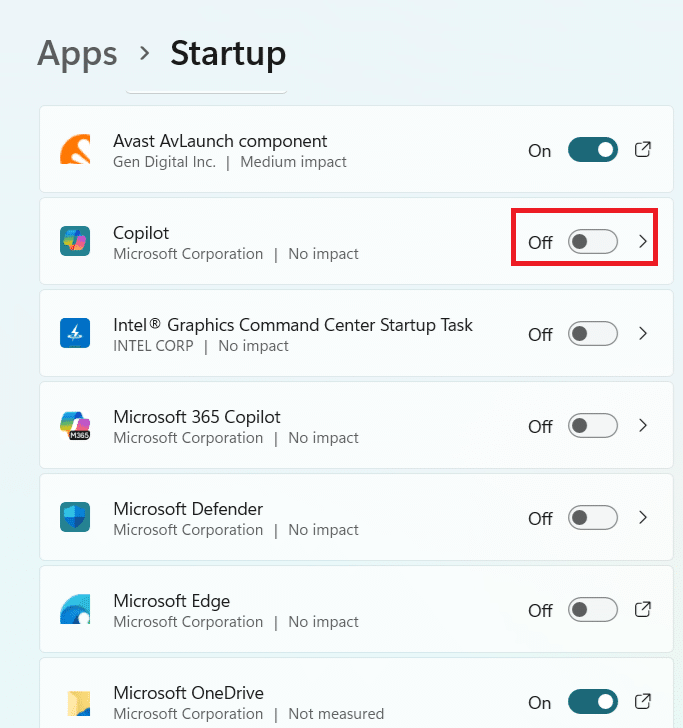
  • In the right-hand pane, you’ll see the names of all programs that are configured to load automatically when Windows starts
  • Go through the list and toggle off applications (to disable them) that don’t need to run in the background

  • Once you’re done, restart Windows and check whether everything is working smoothly (After restart, If you’re facing issues with a disabled app or program, you can enable it by toggling it on in the Startup window.)
Note: Many apps such as Xbox, Microsoft Edge, Mobile devices, Skype, etc. can be safely disabled from starting automatically.

Step#2 – Turn off unnecessary background services

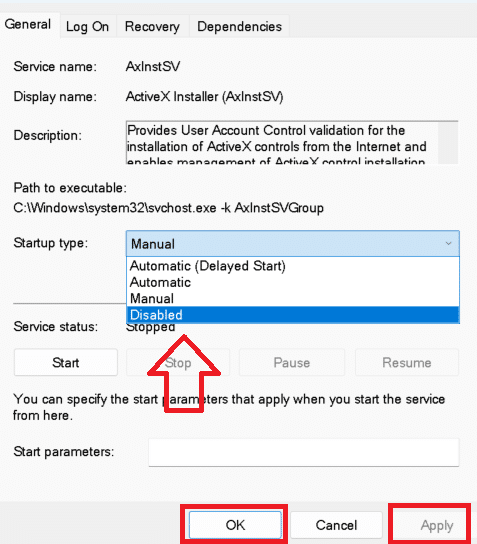
Background services run in the background, providing important support for essential system features. They consume system resources such as memory, disk space, and CPU. While your system and software need some background services for smooth functioning, several Windows 11 services are unnecessary and therefore can be safely disabled. Example includes Certification Propagation, Platform Service, and Connected User Experiences.

To disable background services, follow these steps:

  • Press Win + R keys to launch the Run command box
  • Type services.msc and then hit Enter

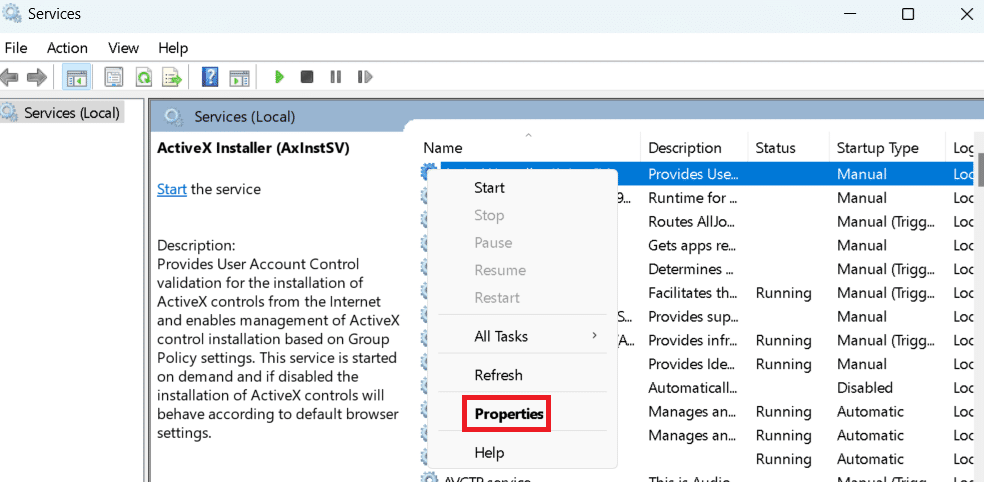
  • In the right-hand pane of the Services window, right-click each of the services mentioned above one-by-one, select Properties, and the select Disabled in the Startup type drop-down menu

  • Click the Apply button and then OK to save the changes

  • Restart Windows

Step #3 – Remove Temporary Files

Removing temporary files can help speed up your computer. Here’s what to do:

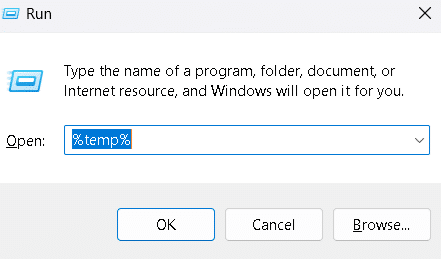
  • Press Win + R keys
  • Type %temp% in the Run command box and hit Enter

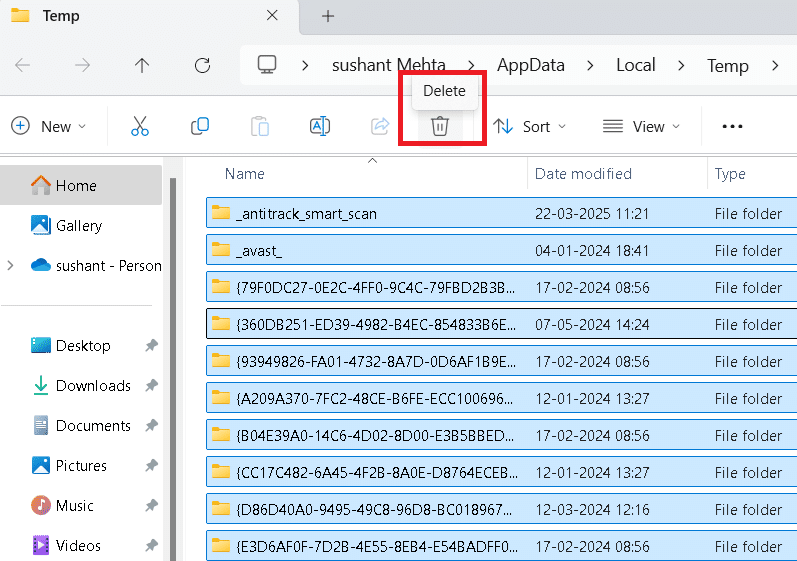
  • You’ll see all temporary files on your system in the right-hand pane. Select them and click the delete button in the toolbar

  • If the File-in-Use pop-up window comes up, just select Do this for all current items and then click the Skip button

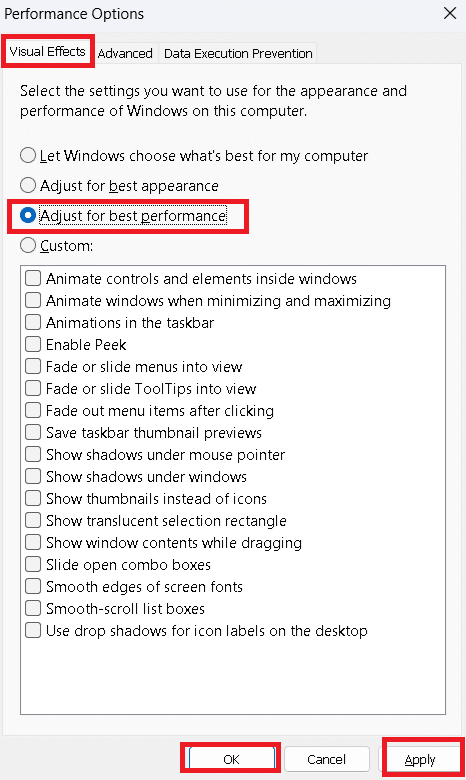
Step #4 – Disable visual effects

Windows 11 includes several visual effects, like shadow effects and animation. While these visual effects look great, they consume a good amount of system resources and may slow down your computer. Consider disabling them to improve computer speed.

Here’s what to do:

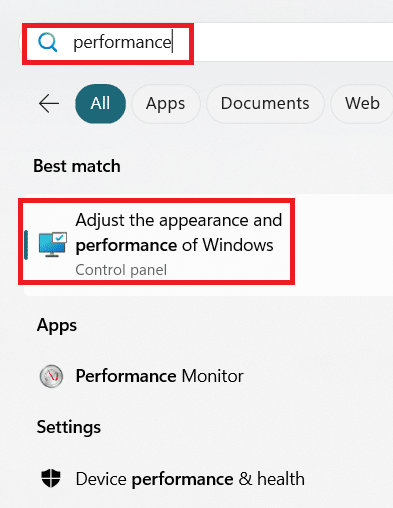
  • Click the Windows icon in the taskbar, type performance in the search bar, and select Adjust the appearance and performance of Windows in the search results

  • Click the Visual Effects tab (if it’s not selected by default)
  • Select Adjust for best performance
  • Click Apply to save the changes and then click OK to close the Performance window

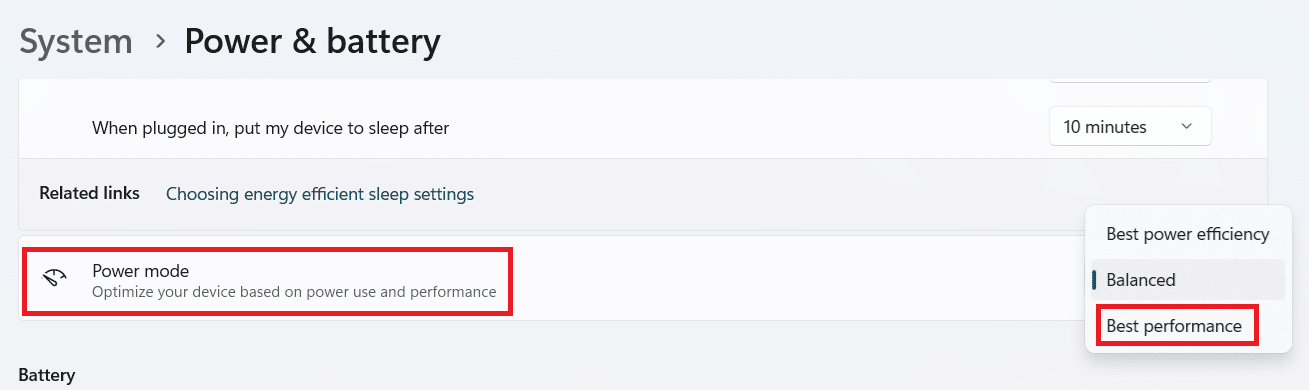
Step #5 – Select Best performance power plan

Changing the power plan to “Best performance” or “Balanced” can improve PC performance. But the trade-off is you will get much less time out of a battery charge.

To switch to Best performance power plan, perform these steps:

  • Type settings in the Search box in the taskbar and hit Enter
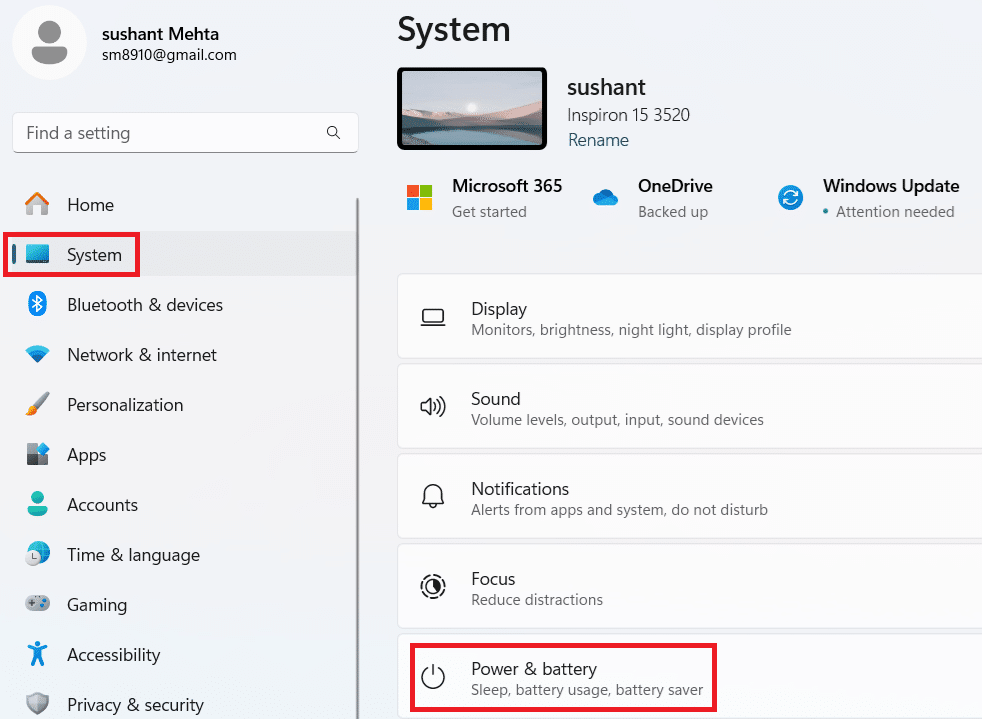
  • Click System in the left pane
  • Click Power & battery in the right pane

  • Scroll down just a little and use the drop-down menu next to Power mode to change its setting to Best performance

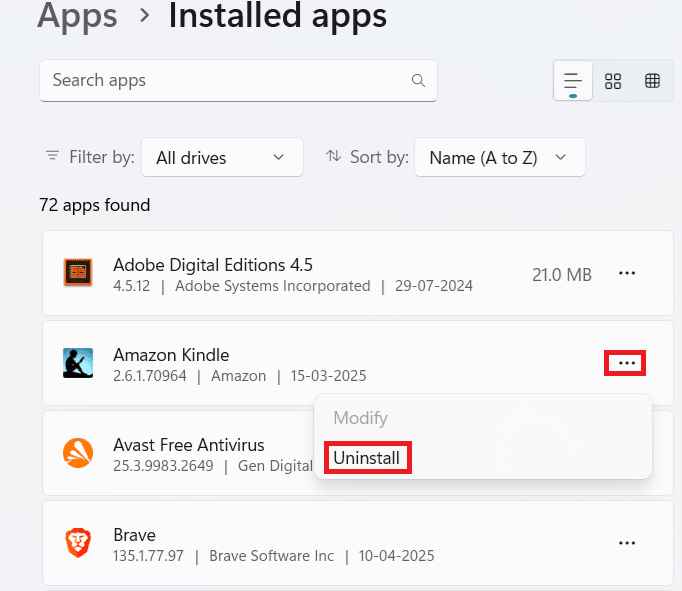
Step #6 – Uninstall unused apps

Unused or infrequently used applications can consume valuable system resources. Removing them is a smart idea if your computer’s performance is less than optimal.

Here’s how you can remove unwanted programs:

  • Type settings in the Search bar and hit Enter
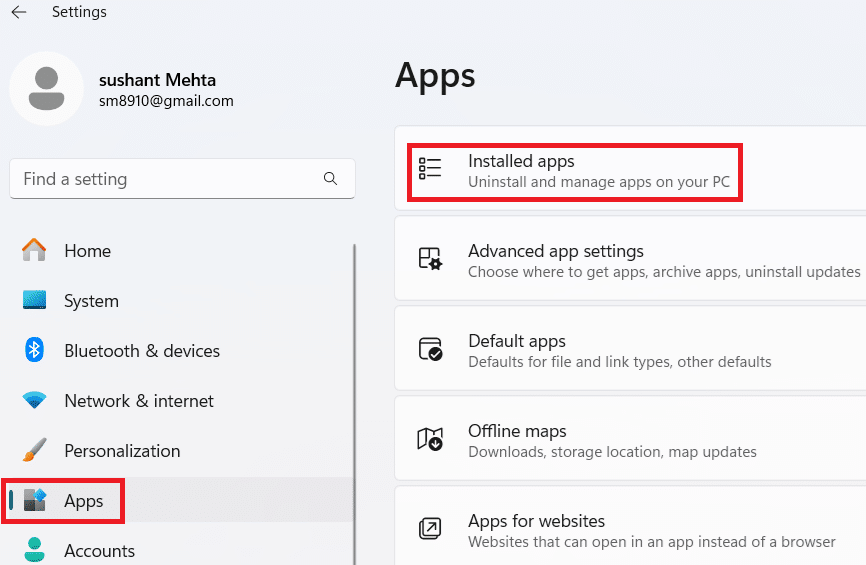
  • Click Apps in the left pane
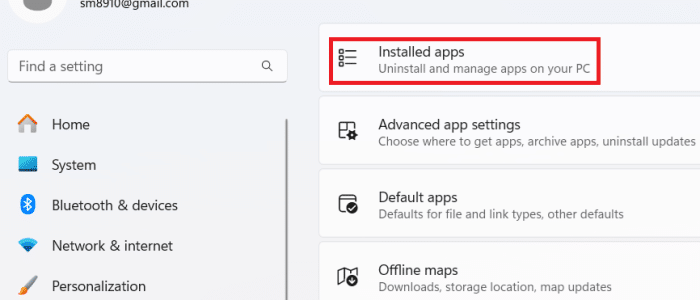
  • Click Installed apps

  • Go through the list of installed apps and remove those you rarely use one-by-one by clicking the three-dot menu (…) next to them and selecting Uninstall

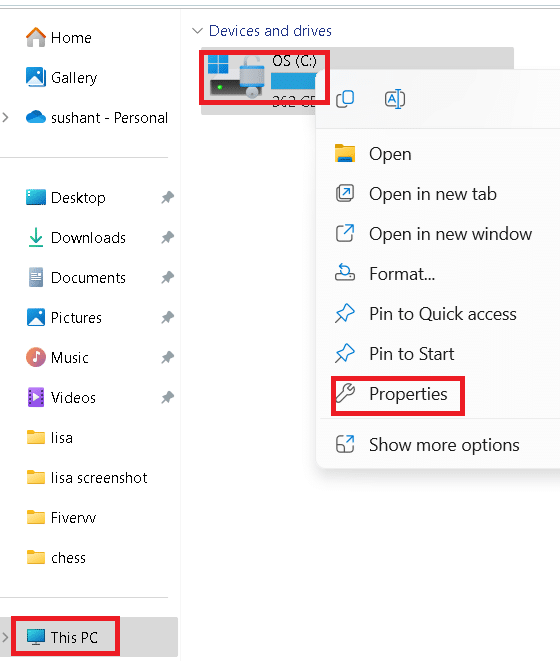
Step #7 – Turn off Automatic Defrag (For SSD disks only)

The default setting in Windows 11 is to defrag drives for optimizing performance. However, when it comes to SSD drives, defragmentation does little to improve performance. It may also shorten the disk’s lifespan. For this reason, we recommend to turn off disk’s defrag if you have as SSD drive.

Here’s what to do:

  • Type file explorer in the Search box in the taskbar and hit Enter
  • Click This PC in left pane
  • Right-click Local Disk (C:) on the right and choose Properties

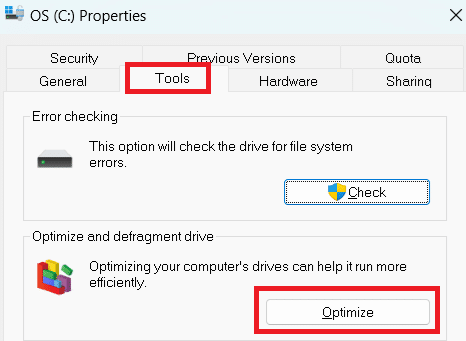
  • Click the Tools tab and then click the Optimize button

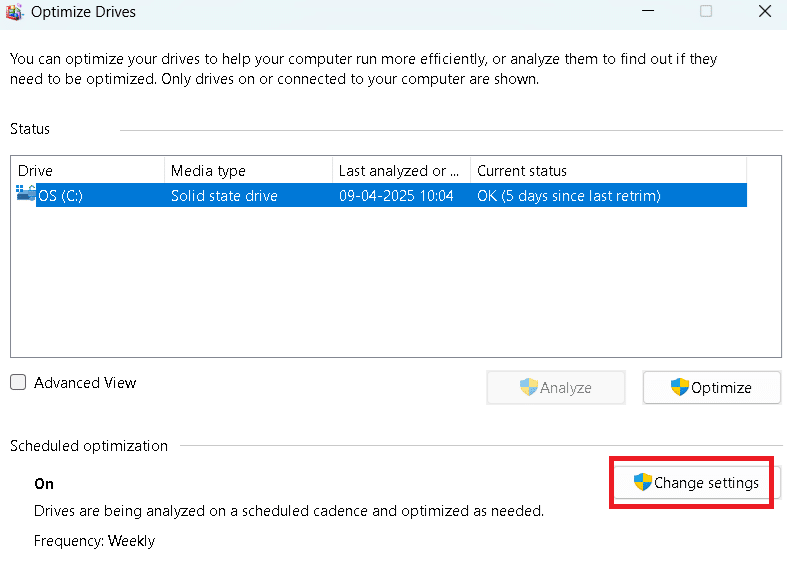
  • Click Change settings in the next window

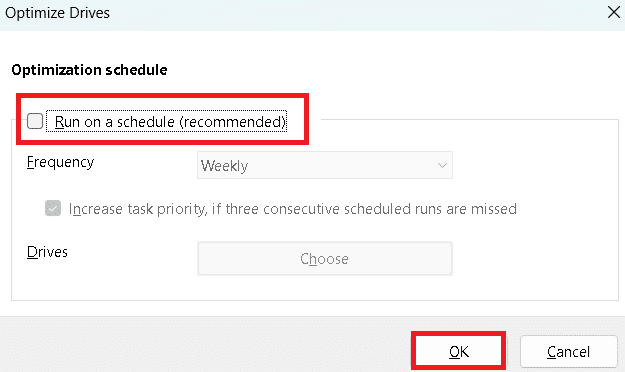
  • Uncheck “Run on a schedule” option and then click the OK button

  • Click Close

Step #8 – Run a virus scan

Malware can impact your PC’s performance, among other things. Run a deep virus scan on your computer to ensure there are no viruses, malware, or rootkits.

Step #9 – Update device drivers

Outdated device drivers can slow down you computer and trigger software-related errors. They also pose a security risk as they may contain unpatched vulnerabilities that can be used by hackers to access your computer. However, manually updating drivers is tedious, not to mention the risk of accidentally installing an incompatible driver that can complicate matters further. Therefore, we recommend using an advanced third-party tool such as Driver Updater.

Automatic driver update tools offer many benefits, the most important ones being:

  • You can update device drivers automatically
  • The software scans and updates all outdated or missing drivers at one go
  • The tool picks the right drivers for your device and operating system, so you won’t have to worry about installing an incorrect driver by mistake
  • Automatic driver updates are 100% safe

Driver Updater is one of the best driver update tools out there. Outbyte Driver Updater will give you access to a database of over 1 million drivers. It will regularly scan your PC, suggesting new driver versions to install. Driver Updater contains drivers for a variety of Windows devices. With just one click, you can update drivers in your system.

Step 1
Click here to Install and launch the app

Step 2
Scan all devices

Step 3
Install or update drivers automatically


Start Download


Filed Under: PC Fix Tips Tagged With: speed up Windows 11

  • « Previous Page
  • 1
  • …
  • 10
  • 11
  • 12
  • 13
  • 14
  • …
  • 189
  • Next Page »


  • Recent Posts
  • Popular Posts
        

Read More Posts


Read More Posts

Drivers.com Sites

  • Software Drivers
  • Drivers Ed

About Us

  • Advertise
  • About Drivers
  • Drivers Support
  • Drivers.com Privacy Policy
  • Disclaimer
  • Software Drivers
  • Mac Fixes and Tips
  • PC Fix Tips
  • Security/ Backup
  • Tablets & Smartphones
  • Tech News

© Copyright 2026 PDE Publications Ltd. End User License Agreement (EULA)