
Drivers.com

follow us:

facebook twitter
  • Home
  • Download Drivers
  • Drivers Help
  • PC/Mac Resources
  • Software Drivers
  • Mac Fixes and Tips
  • PC Fix Tips
  • Security/ Backup
  • Tablets & Smartphones
  • Tech News
  • Software Drivers
  • Mac Fixes and Tips
  • PC Fix Tips
  • Security/ Backup
  • Tablets & Smartphones
  • Tech News

‘Save Failed’ Error on Ground Branch (SOLVED)

By Susan C on April 11, 2025

‘Save Failed’ Error on Ground Branch (SOLVED)

Getting the “Save Failed” error while playing the Ground Branch game?

Don’t worry. You’re not alone.

Many users have complained about receiving this error. Here’s the exact message that pops up.

In this post, we’ll walk you through three solutions that are sure to work.

Why am I receiving the Save Failed error?

You could be receiving the error due to one of the following reasons:

  • Corrupted files: Corrupted game files can trigger the Save Failed error.
  • Not having administrator privileges: If the game doesn’t have administrator privileges, you can receive the Save Failed error. This typically happens when the Ground Branch is not set to run automatically with administrator privileges.
  • Security software incompatibility: Sometimes Windows Defender flags a genuine app or program as a threat. In this situation, adding that app or program in the exclusion list helps fix the issue.

Now that we’ve discussed the probable causes, let’s see how to troubleshoot the error.

Solution #1 – Verify game files integrity

Since corrupted game files is the most common reason behind Save Failed error, it makes sense to check the integrity of game files before trying other troubleshooting methods.

Here’s what you need to do:

  • Launch the Steam client and sign in to your account
  • Click the Library tab, choose Ground Branch, right-click it, and select Properties
  • Go to Local Files and select the Verify Integrity of Game Cache option
  • If prompted to confirm your action, click Yes
  • Wait for the verification to finish and then reboot your computer
  • Launch Ground Branch and check if the error occurs when you try to save the game

Solution #2 – Run Ground Branch’s executable with administrator privileges

If the error still persists, launch the executable with administrator privileges. There are two ways to do this:

  • You can manually launch the game with administrator privileges every time you open it
  • You can tweak the game’s properties so that it automatically launches itself with administrator privileges every time

Both these methods are discussed below. You can select the one that works best for you.

Manually set the administrator privileges

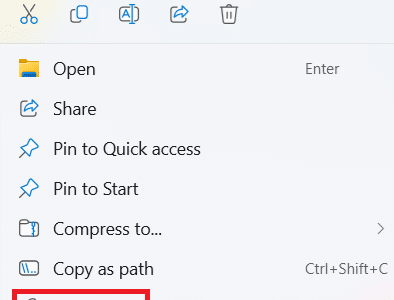
  • Right-click the game’s executable file and click Run as administrator
  • Click Yes in the UAC window
  • Repeat the above two steps every time you open the game

Set the game to automatically launch with administrator privileges

  • First right-click the executable file and then click Properties
  • Click the Compatibility tab
  • Tick the box before “Run this program as an administrator”
  • Click Apply and then click OK to save the changes

Solution #3 – Set the game executable file as an exclusion

If neither of the two solutions given above worked for you, try adding the executable in the exclusion list of Microsoft Windows Defender.

Here’s what to do:

  • Click Start, type settings in the search box and select Settings in the search results
  • Click Privacy & security in left-side pane and then click Windows security in right-side pane
  • Now click Virus & threat protection
  • Scroll down a little and click Manage settings under Virus & threat protection
  • Click Add or remove exclusions in the next window
  • Click Add an exclusion and then click File
  • Select the Ground Branch executable. If you want the correct address to locate the file faster, here’s the address:

  • After adding the executable as an exclusion, exit Windows Defender, restart Windows, and check if the issue is fixed

Tip: If the issue still persists, it might be a smart idea to update your drivers. Outdated or corrupt device drivers can trigger various errors. The easiest and fastest way to update device drivers is by using an advanced third-party tool such as Driver Updater.

Automatic driver update tools offer many benefits, the most important ones being:

  • You can update device drivers automatically
  • The software scans and updates all outdated or missing drivers at one go
  • The tool picks the right drivers for your device and operating system, so you won’t have to worry about installing an incorrect driver by mistake
  • Automatic driver updates are 100% safe

Driver Updater is one of the best driver update tools out there. Outbyte Driver Updater will give you access to a database of over 1 million drivers. It will regularly scan your PC, suggesting new driver versions to install. Driver Updater contains drivers for a variety of Windows devices. With just one click, you can update drivers in your system.

Step 1
Click here to Install and launch the app

Step 2
Scan all devices

Step 3
Install or update drivers automatically
 

Start Download


Filed Under: PC Fix Tips Tagged With: Ground Branch Error

How to Fix Access Denied Error on Windows 11?

By Susan C on April 11, 2025

How to Fix Access Denied Error on Windows 11?

Are you struggling with the “Access Denied” error on Windows 11? Here are six solutions that are sure to help.

Why am I receiving the Access Denied error?

In most cases, the error crops up when Windows blocks you or an application from accessing a file or folder or a particular application.

Why does Windows do that? You may wonder.

Not having the required permissions is the most common reason. Other reasons include:

  • User profile corruption
  • Folder or file ownership conflicts
  • System bugs or errors during Windows update
  • The file or folder is encrypted
  • Malware interference or misinterpretation of legitimate software or program by your security software

How to troubleshoot the Access Denied error on Windows 11?

Solution #1 – Check and modify permissions

Think of a file or folder on a computer as a private property with restricted access. Without prior permission, you cannot enter either. If you can’t open a file, chances are you don’t have the appropriate permissions. Here’s how you can check file or folder permissions on Windows 11 and change them, if necessary.

  • Right-click the file (or folder) you want to access and select Properties

  • Click the Security tab and then the Edit button

  • Select your user account in the Group or user names section and then tick the checkbox next to Full Control

  • When you’re done, click Apply and then OK
  • Close the Properties dialog box

Solution #2 – Modify file or folder ownership

Taking ownership of the file or folder in the event that the initial owner is no longer around may do the trick.

Here’s what to do:

  • Right-click the file or folder and choose Properties
  • Click the Security tab
  • Now click the Advanced button

  • Click the Change option next to the Owner field
  • In the Enter the object name to select box, type in your name
  • Click Check Names and then OK

  • Click Apply and then OK

Solution #3 – Turn on the hidden administrator account

Windows comes with a built-in hidden elevated account — aptly called the hidden administrator account — that gives a user full, unrestricted access to the system. However, this account is disabled by default. Enabling it can help fix thorny system issues like the Access Denied error.

Here’s how you can enable this account:

  • Press Windows + X keys and then select Terminal (Admin)
  • In the User Account Control box, click Yes
  • In the Elevated Command Prompt, type the following command and hit Enter

You’ve now activated the hidden administrator account. Log out of your account and log in as the admin user. Now, you should be able to access the file or folder.

To disable the account, log in with your regular user account and perform the first two steps to access Elevated Command Prompt. Now type this command and hit Enter.

Solution #4 – Decrypt the file or folder

If you’re getting the Access Denied error because the file or folder is encrypted, then decrypting it can help.

Here’s what to do:

  • Right-click the file or folder and select Properties
  • Click the General tab and then the Advanced button
  • Untick all the tabs, except “allow files in this folder to have content indexed”

  • Click OK twice
  • When Windows prompt you to confirm your action, select “Apply changes to this folder, subfolders, and files” and then click OK

Solution #5 – Temporarily disable your security software

Antivirus software can sometimes misinterpret a genuine file, folder, program, or software as a threat and block your access. Temporarily turning the antivirus tool off can allow you access to the file or folder. But don’t forget to enable the security software after you’re done. Turning off the antivirus protection will leave your computer vulnerable to viruses, malware, hackers, and more.

For third-party tools, the exact steps for disabling vary from one tool to another. That said, in most cases, all you have to do is open the app’s user interface, look for Real-Time Protection or Protection Settings, and then disable it.

If you’re using Microsoft Windows Defender — a built-in antivirus and antimalware tool in Windows operating systems — perform these steps to disable it:

  • Click the Windows icon, type windows security in the search bar, and select the Windows Security app
  • Click Virus & threat protection and then scroll down just a little bit and click Manage settings
  • You’ll notice four main options enabled (Real-time protection, Cloud-delivered protection, Automatic sample submission, and Tamper Protection). But before touching those, scroll down to Controlled folder access and click Manage Controlled folder access and then toggle it off
  • Click Yes on the User Access Control prompt
  • Hit the back arrow in the Windows Security window and turn off all the four options
  • If prompted, click Yes in the User Account Control window

Once you’re done, repeat the above-mentioned steps to enable Windows defender. 

Solution #6 – Perform a system restore

In case the problem is recent, System Restore can help fix it by reverting your computer’s state to a previous point in time, undoing changes that may be causing the issue.

Here’s what to do:

  • Click Start, type control panel in the search field, and click Control Panel in the search results
  • If View by is set to Category, change it to Small icons or Large icons and then click Recovery

  • In the next window, Click Open System Restore

  • Select a restore point by following the on-screen prompts to revert your system to an earlier time when the Access Denied error was not present
  • Once the process finishes, check if the issue is fixed

That’s it! Which solution worked for you?

Leave us a comment below and share the post so others facing the Access Denied error can benefit.

We leave you with a pro tip to keep you computer in top shape: Update your device drivers on a regular basis. This helps prevent many computer errors from occurring and enhances system’s performance and security. The easiest (and the fastest) way to update device drivers is by using a reputable third-party tool, such as Driver Updater.

Automatic driver update tools offer many benefits, the most important ones being:

  • You can update device drivers automatically
  • The software scans and updates all outdated or missing drivers at one go
  • The tool picks the right drivers for your device and operating system, so you won’t have to worry about installing an incorrect driver by mistake
  • Automatic driver updates are 100% safe

Driver Updater is one of the best driver update tools out there. Outbyte Driver Updater will give you access to a database of over 1 million drivers. It will regularly scan your PC, suggesting new driver versions to install. Driver Updater contains drivers for a variety of Windows devices. With just one click, you can update drivers in your system.

Step 1
Click here to Install and launch the app

Step 2
Scan all devices

Step 3
Install or update drivers automatically


Start Download


Filed Under: PC Fix Tips Tagged With: access denied

How to Fix the Canon Printer Error 5100

By Susan C on April 5, 2025

We all know the situation: You want to print an important document, but instead of printing, the printer returns an error, leaving you wondering what to do next. If you use a Cannon printer, one error you’re likely to run into sooner or later is Error code 5100. This error occurs when there’s an issue with the printer’s cartridge carrier.

Fortunately, troubleshooting error code 5100 is a quick and easy process — and in this post, we’ll walk you through all the steps you need to perform to get your Canon printer up and running.

Fix #1 – Replace the FINE cartridge

In most cases, the error code 5100 occurs when the cartridge is faulty or unsuitable for the Canon printer model you’re using. You can fix the problem by replacing the existing cartridge with a genuine FINE cartridge.

Here’s what to do:

  • Ensure the printer is switched off and unplugged and then open its front cover
  • Pull out the printer tray, and wait for the cartridge to move into the replacement position
  • Gently push the FINE cartridge down until a clicking sound is heard. Now, pull out the cartridge
  • Remove the new cartridge from its packaging, insert it into the holder all the way, and gently push the lever
  • Finally, gently slide the paper tray into its place until it clicks or locks securely

Fix #2 – Resolve the issue of jammed paper

Jammed paper can also trigger the Canon printer error 5100. Here’s how you can fix a printer paper jam:

  • Switch off the printer and unplug it
  • Pull out the paper try and open the document cover
  • Locate the jammed paper and gently remove it
  • Make sure you retrieve all torn pieces
  • Now reload the paper tray correctly and restart the printer

Check if the error is fixed. If not, try the next solution.

Fix #3 – Reset the printer’s ink cartridge

Here’s what you need to do to reset your Canon printer’s ink cartridge:

  • Switch off the printer and unplug it
  • Open the printer’s cartridge door and wait until the cartridge holder moves to the center
  • Identify the printer cartridge you want to reset, gently press it down and then pull it out
  • Locate this cartridge’s chip and reset it using a tool specifically designed for this cartridge model
  • In the absence of a reset tool, try covering the chip’s contacts with a piece of tape for roughly 10 seconds. This often tricks the printer into thinking that you’ve popped in a brand-new cartridge
  • Now reinsert the printer cartridge and close the cover
  • Run a print test

Fix #4 – Clean your printer’s encoder strip

If the problem persists, try cleaning the encoder strip. Always use a soft, clean, and dry fabric to clean the encoder stripy. Once done, reinstall the encoder strip and check if the issue is fixed.

That’s it! Which fix worked for you?

We’d love to hear about your experience in the comments below. If this post was helpful, please share it so that others can benefit.

And, oh, by the way, here’s an important tip to fix slow printing: Always keep your printer drivers up-to-date. If you’re wondering how to do that, we recommend using an advanced third-party tool such as Driver Updater.

Automatic driver update tools offer many benefits, the most important ones being:

  • You can update device drivers automatically
  • The software scans and updates all outdated or missing drivers at one go
  • The tool picks the right drivers for your device and operating system, so you won’t have to worry about installing an incorrect driver by mistake
  • Automatic driver updates are 100% safe

Driver Updater is one of the best driver update tools out there. Outbyte Driver Updater will give you access to a database of over 1 million drivers. It will regularly scan your PC, suggesting new driver versions to install. Driver Updater contains drivers for a variety of Windows devices. With just one click, you can update drivers in your system.

Step 1
Click here to Install and launch the app

Step 2
Scan all devices

Step 3
Install or update drivers automatically


Start Download


Filed Under: PC Fix Tips Tagged With: Error code 5100

  • « Previous Page
  • 1
  • …
  • 11
  • 12
  • 13
  • 14
  • 15
  • …
  • 189
  • Next Page »


  • Recent Posts
  • Popular Posts
        

Read More Posts


Read More Posts

Drivers.com Sites

  • Software Drivers
  • Drivers Ed

About Us

  • Advertise
  • About Drivers
  • Drivers Support
  • Drivers.com Privacy Policy
  • Disclaimer
  • Software Drivers
  • Mac Fixes and Tips
  • PC Fix Tips
  • Security/ Backup
  • Tablets & Smartphones
  • Tech News

© Copyright 2026 PDE Publications Ltd. End User License Agreement (EULA)