
Drivers.com

follow us:

facebook twitter
  • Home
  • Download Drivers
  • Drivers Help
  • PC/Mac Resources
  • Software Drivers
  • Mac Fixes and Tips
  • PC Fix Tips
  • Security/ Backup
  • Tablets & Smartphones
  • Tech News
  • Software Drivers
  • Mac Fixes and Tips
  • PC Fix Tips
  • Security/ Backup
  • Tablets & Smartphones
  • Tech News

How to Change the Screen Timeout in Windows 11?

By Susan C on April 4, 2025

How to Change the Screen Timeout in Windows 11?

Screen timeout refers to the period of inactivity after which your computer’s screen turns off automatically to save power. The default screen timeout in Windows 11 is 5 minutes, but you can increase or decrease it as per your needs. In this article, we look at 2 DIY ways to change the screen timeout in Windows 11.

Method #1 – Adjust screen timeout using Settings

This is perhaps the easiest way to adjust the screen timeout settings. Here’s what to do:

  • Press Win + I keys to access Settings
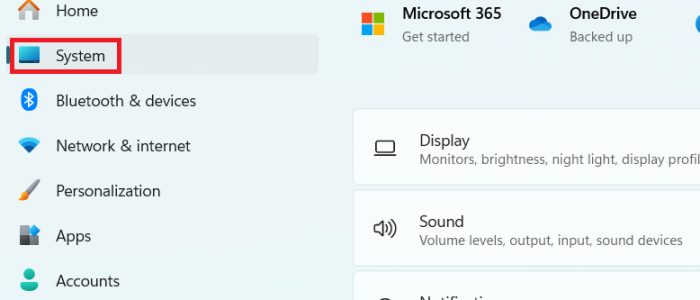
  • Click System (in the left-side pane) and then click Power & battery (in the right-side pane)

  • In the Power section, expand Screen and sleep
  • Select the appropriate screen timeout setting from the drop-down menu next to On batter power, turn off my screen after. Keep in mind this option allows you to adjust screen timeout only when your system is running on battery power

  • If you also want to change the default lock screen timeout (the period of inactivity after which your computer screen gets automatically locked), click When plugged in, turn off my screen drop-down menu and select the appropriate setting

Method #2 – Change settings through Control Panel

You can also change your computer’s screen timeout setting via Control Panel. Here’s what you need to do:

  • Press Windows + R keys
  • In the Run dialog box, type control and press Enter
  • Change the View by setting to large icons using the drop-down menu

  • Then click Power Options

  • Click Change plan settings next to your power plan

  • You’ll see two drop-down menus next Turn off the display. One is for changing display settings when the system is on battery and the other is for adjusting settings when the system is plugged in. Change the settings as per your needs

  • If you want, you can also change the sleep settings
  • Once you’re done, click Save changes
Note: You can also change the Lock Screen Timeout via Registry Editor and Control Panel. However, these methods are a bit advanced, and since they don’t offer any additional benefit, there’s no reason to not use the two simple DIY methods discussed above.

Keep in mind that the second method allows you to adjust screen timeout settings for both when on battery and plugged in. The first method, in contrast, works only if you want to change the setting when your computer is running on battery power.

Lastly, it’s a good practice to keep your device drivers up-to-date. This keeps various computer errors at bay and also help maintain your computer’s good performance. The simplest and fastest way to update device drivers is by using a reliable third-party tool such as Driver Updater.

Automatic driver update tools offer many benefits, the most important ones being:

  • You can update device drivers automatically
  • The software scans and updates all outdated or missing drivers at one go
  • The tool picks the right drivers for your device and operating system, so you won’t have to worry about installing an incorrect driver by mistake
  • Automatic driver updates are 100% safe

Driver Updater is one of the best driver update tools out there. Outbyte Driver Updater will give you access to a database of over 1 million drivers. It will regularly scan your PC, suggesting new driver versions to install. Driver Updater contains drivers for a variety of Windows devices. With just one click, you can update drivers in your system.

Step 1
Click here to Install and launch the app

Step 2
Scan all devices

Step 3
Install or update drivers automatically


Start Download


Filed Under: PC Fix Tips Tagged With: Screen Timeout

(Solved) Windows 11 Not Booting?

By Susan C on April 2, 2025

(Solved) Windows 11 Not Booting?

Are you facing the Windows 11 Not booting issue? Or getting a booting error on Windows 11?

Don’t worry. This post provides several solutions that can fix issues like these. You should give them a go if you are encountering any of the following issues:

  • Windows 11 not booting
  • Getting stuck on the boot screen or Windows logo
  • Getting stuck at the login screen
  • Windows 11 starts to boot before shutting down abruptly
  • Getting a loading error

How to troubleshoot Windows 11 not booting?

The issue can occur due to various reasons. For this reason, we have listed several probable solutions. You don’t need to try out all of them. Instead, you can try out those that are more likely to work in your situation.

Solution #1 – Carefully Check Hardware

  • Ensure there are no issues with the power source

Try another power source. If you still get the error, the issue is not because of the original power source.

  • Check the monitor

If you use a desktop computer, make sure the monitor’s power button is not turned off. In case you aren’t able to see anything even after turning on the monitor, the problem may lie with the monitor. Disconnect the power source cable and reconnect it. If you still can’t see anything, try using another monitor (if that’s possible). Otherwise, get the monitor checked by a computer repair professional.

  • Disconnect the external devices

Although not very common, external devices can cause the Windows 11 not booting issue. We recommend you disconnect all the external devices and then check if your system is booting. If it isn’t, the issue isn’t because of an external device.

Solution #2 – Scan and repair system files

Damaged or missing system files can trigger the Windows 11 can’t boot issue. In that case, Reset PC should work. It solves issues arising due to broken or missing system files.

Here’s what to do:

  • Reboot your PC and shut it down when you see the Windows logo. Do this 3 times to access Automatic repair screen. Choose Advanced Options

  • Select Troubleshoot

  • Select Reset this PC

  • You’ll be presented with two options: Keep my files (Select this if you want to keep personal files) and Remove everything (Select this if you want to remove all personal files, along with apps and settings). Select the option that works best for you

  • Select Yes when asked if you want to go ahead with resetting of your PC

Solution #3 – Run Chkdsk

The Chkdsk is a command-line utility that scans the hard disk for errors and fixes them. Perform the following steps to run Chkdsk when Windows is not booting normally.

  • Reboot your computer and when you see the Windows logo on your screen, then shut it down. Do this 3 times to access the Automatic Repair window
  • Click Advanced options
  • Click Troubleshoot
  • Select Advanced options
  • Click Command Prompt

  • Type chkdsk C:/f in the Command Prompt window. A message stating that Chkdsk can’t run… will appear. Type Y  to continue

If the problem still persists, chances are there’s some issue with hardware, such as GPU, CPU, or motherboard. It would be best to get your computer checked by a specialist.

Once your computer is up and running, don’t forget simple maintenance tasks such as updating device drivers on a regular basis. Outdated drivers can trigger various errors, besides slowing down your system. Because updating drivers manually is tedious, we recommend using a third-party tool such as Driver Updater.

Automatic driver update tools offer many benefits, the most important ones being:

  • You can update device drivers automatically
  • The software scans and updates all outdated or missing drivers at one go
  • The tool picks the right drivers for your device and operating system, so you won’t have to worry about installing an incorrect driver by mistake
  • Automatic driver updates are 100% safe

Driver Updater is one of the best driver update tools out there. Outbyte Driver Updater will give you access to a database of over 1 million drivers. It will regularly scan your PC, suggesting new driver versions to install. Driver Updater contains drivers for a variety of Windows devices. With just one click, you can update drivers in your system.

Step 1
Click here to Install and launch the app

Step 2
Scan all devices

Step 3
Install or update drivers automatically


Start Download


Filed Under: PC Fix Tips Tagged With: PC not booting

How to Turn on Keyboard Backlight on Your HP Laptop?

By Susan C on March 30, 2025

Not all HP laptops come with a keyboard that has a backlight option, but some do. If you have such a laptop and want to turn on the keyboard backlight, this post is just for you. This article shows you how to turn on the keyboard backlighting on an HP laptop.

Solution

The process of turning on keyboard backlighting on HP laptops is fairly easy and can be completed by pressing a single key. You can use the same key to enable or disable the keyboard lighting.

Here’s what to do:

  • Turn on your HP laptop
  • Locate the light key on your keyboard. You’re likely to find in in the row that has Function keys. This row is located at the top of the keyboard. The light key usually has a keyboard icon with a glowing effect
  • Press this key to enable keyboard backlighting (The same key can be used to toggle off backlighting)
Note: Some HP models may require you to press the light key and Fn key simultaneously. You can find the Fn key in the bottom row. It is usually located between the left Ctrl key and Windows key.

Here’s how you can control backlight’s brightness?

You can control keyboard backlight’s brightness through the luminance keys. You can find them in the top row of the keyboard, where Functions keys are located. There are two luminance keys. One is for increasing the brightness, denoted by a larger flashing light symbol. The other one is for decreasing the brightness and has a smaller flashing light icon.

My keyboard’s backlight is not turning on. What should I do?

If you have followed the above-mentioned steps and your laptop’s backlight doesn’t turn on or turns on for a small period only before switching off again, try the fixes mentioned below.

Turn on Actions keys

If your laptop’s backlight doesn’t turn on, turn on Action keys in BIOS.

Here’s what to do:

  • Restart your HP computer or turn it on if it’s already off
  • Wait for the “entering setup” message to appear. This message may vary from one computer to another, but it always include the specific key you need to press to access BIOS. Usually it is one of the function keys, generally the F10 or F2 key, or the Del key
  • Press the specified key when the “entering setup” message appears to enter the BIOS
  • Once you’re in BIOS, go to the Advanced tab
  • Look for Function key behavior. The action keys mode can have a different name in your computer, such as Hot Keys Mode or Media Keys Mode. If this setting is disabled, then to enable the action keys change the setting from Function Key to Media Key
  • When you’re done, hit the F10 key to save the settings and exit BIOS

Change Backlit Timeout Settings

If the backlight switches on for only a small period and then switches off again, tweaking keyboard timeout settings can help.

Here’s what you need to do:

  • Access the BIOS (Refer to the steps above)
  • Go to Advanced tab and then Built-in Device Options. You’ll see the Backlight keyboard timeout setting. Set it to however long you want to enable your keyboard’s backlighting

Is the backlighting feature available in all HP laptops?

No, keyboard backlighting is not something that all HP models have.

What can I do to minimize the chances of system errors and performance-related issues?

Keep your device drivers up-to-date all the time! Outdated device drivers can cause various errors and issues, so keeping them up-to-date will save you from much trouble. The easiest (and the fastest) way to update device drivers is by using a reliable third-party tool such as Driver Updater.

Automatic driver update tools offer many benefits, the most important ones being:

  • You can update device drivers automatically
  • The software scans and updates all outdated or missing drivers at one go
  • The tool picks the right drivers for your device and operating system, so you won’t have to worry about installing an incorrect driver by mistake
  • Automatic driver updates are 100% safe

Driver Updater is one of the best driver update tools out there. Outbyte Driver Updater will give you access to a database of over 1 million drivers. It will regularly scan your PC, suggesting new driver versions to install. Driver Updater contains drivers for a variety of Windows devices. With just one click, you can update drivers in your system.

Step 1
Click here to Install and launch the app

Step 2
Scan all devices

Step 3
Install or update drivers automatically


Start Download


Filed Under: Software Drivers Tagged With: HP Keyboard backlight

  • « Previous Page
  • 1
  • …
  • 12
  • 13
  • 14
  • 15
  • 16
  • …
  • 189
  • Next Page »


  • Recent Posts
  • Popular Posts
        

Read More Posts


Read More Posts

Drivers.com Sites

  • Software Drivers
  • Drivers Ed

About Us

  • Advertise
  • About Drivers
  • Drivers Support
  • Drivers.com Privacy Policy
  • Disclaimer
  • Software Drivers
  • Mac Fixes and Tips
  • PC Fix Tips
  • Security/ Backup
  • Tablets & Smartphones
  • Tech News

© Copyright 2026 PDE Publications Ltd. End User License Agreement (EULA)