
Drivers.com

follow us:

facebook twitter
  • Home
  • Download Drivers
  • Drivers Help
  • PC/Mac Resources
  • Software Drivers
  • Mac Fixes and Tips
  • PC Fix Tips
  • Security/ Backup
  • Tablets & Smartphones
  • Tech News
  • Software Drivers
  • Mac Fixes and Tips
  • PC Fix Tips
  • Security/ Backup
  • Tablets & Smartphones
  • Tech News

How to Fix Canon Printer B200 Error?

By Susan C on March 26, 2025

Recently, a blog reader asked us:

“I have a Cannon printer, which is not particularly old or overused. However, I’m getting this annoying B200 error, preventing me to run print jobs. Why is this error occurring and, more importantly, can it be fixed? Or is it time to buy a new printer, which is something that I don’t want? Can you help?” – Martin

The B200 error usually occurs when the print head overheats. Print head is that part of a printer that has the all-important job of distributing the ink from the printer cartridges onto the paper. In short, it is a critical component of a printer. Unfortunately, it is quite susceptible to issues, particularly on budget printers.

How to troubleshoot Canon Printer B200 Error?

In many cases, replacing the ink cartridges does the trick. Here’s what to do:

  • Open the top cover of the printer
  • Turn the printer on
  • You may find inks moving back and forth across the printer’s length. Eventually they are going to move in the replacement position
  • Replace the ink cartridges

It is possible that the inks don’t move into the replacement position despite moving back and forward. In that situation, follow these steps:

  • Switch the printer off and then power it on. When you see inks moving back and forward, unplug your printer’s power cord and then move the inks to replacement position
  • Next, replace your printer’s ink cartridges
  • Close the printer’s top cover, plug the printer back in, and turn it on

Now, check if the error is fixed.

If not, try updating the printer drivers.

To update your Canon printer driver, open your web browser, navigate to Canon Support website, find your model, and download the latest driver for it. Save the downloaded driver file on a suitable location and once the download is complete, double-click it to launch installation. Follow on-screen instructions to complete installation.

Just as old printer drivers prevent your printer from working properly, so do old device drivers disrupt your PC’s performance and cause system errors. For this very reason, it’s important that you regularly update device drivers. The easiest way to do this is by using an advanced third-party tool, such as Driver Updater. You can find more information about the tool and a download link towards the end of the blog post.

Coming back to the Canon Printer B200 error, if replacing the ink cartridge and updating the printer drivers doesn’t do the job, it would be best to get your printer serviced. In the worst-case scenario, a replacement may be necessary.

Download link for Driver Updater…

Automatic driver update tools offer many benefits, the most important ones being:

  • You can update device drivers automatically
  • The software scans and updates all outdated or missing drivers at one go
  • The tool picks the right drivers for your device and operating system, so you won’t have to worry about installing an incorrect driver by mistake
  • Automatic driver updates are 100% safe

Driver Updater is one of the best driver update tools out there. Outbyte Driver Updater will give you access to a database of over 1 million drivers. It will regularly scan your PC, suggesting new driver versions to install. Driver Updater contains drivers for a variety of Windows devices. With just one click, you can update drivers in your system.

Step 1
Click here to Install and launch the app

Step 2
Scan all devices

Step 3
Install or update drivers automatically
 

Start Download


Filed Under: PC Fix Tips Tagged With: Canon Printer B200

How to Fix Hal.dll Errors in Windows 11 or 10?

By Susan C on March 24, 2025

How to Fix Hal.dll Errors in Windows 11 or 10?

Like many Windows errors, the Hal.dll error could occur due to several reasons. You could receive the error if there’s a problem with the hal.dll file itself. For example, if the file missing or corrupted, the titled error could arise. Another reason is a damaged hard drive. Yet another reason, and also perhaps more common than the other two, is issues with the primary boot code. Regardless of the root cause, the solutions discussed in this post would help you fix the issue.

How to troubleshoot Hal.dll error?

The following solutions applies to Win 11 and 10, including both 32-bit version and 64-bit versions.

Solution #1 – Restart Windows

Although improbable, the hal.dll error could arise because of a temporary glitch. A system restart often fixes temporary issues. Therefore, it’s worth a try.

Note: You’ll have to force a restart because the hal.dll error appears before Windows has started completely, which in turn makes a normal restart impossible.

If the error still persists, move on to the more advanced troubleshooting steps.

Solution #2 – Check your boot sequence

You could get the hal.dll file error if the boot order in the BIOS doesn’t list the hard drive with your usually used copy of Windows on it at the top.

Here’s how you can check the boot sequence (and change it, if necessary):

  • Restart your computer (As said earlier, if you’re getting the hall.dll error, you’ll need to force restart)
  • Press a specific key repeatedly (such as F2, F10, or Del key) during startup. What key you need to press to enter BIOS depends on your laptop or desktop make, but generally it is one of the Function keys or Del key. As your computer boots, the first screen will have a Function key (or possibly Del key) listed at the bottom with BIOS listed next it. This is the key you need to press to enter into your system’s BIOS
  • After pressing the correct key repeatedly at startup, you’ll be able to access the BIOS Setup Utility
Note: BIOS utilities vary, so yours might not look exactly like the one shown above. It could even look completely different. Regardless of how your BIOS utility looks, it will consist of a set of menus that contain different settings for your system’s hardware. Use the instructions given for navigating around the BIOS, check for the boot order and change it, if necessary.
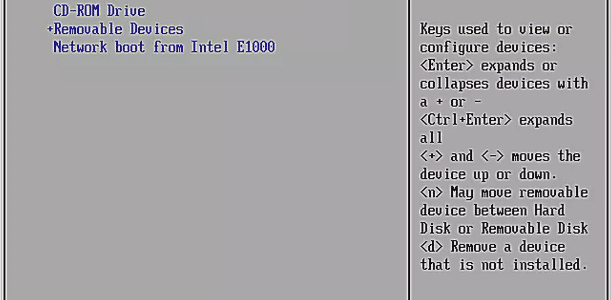
  • Navigate to the boot order options, which will look something similar to the screenshot below. All hardware devices connected that contains the necessary files and instructions to start Windows (i.e. all bootable devices) will be listed here. Common bootable devices include, your hard drive, USB ports, optical drive, and floppy drive. Your computer will look at the first listed drive for operating system (OS) information, and if it doesn’t find it there, it will look at the next entry in the list and so on. So, in the example given below, the computer will first look for OS information on the hard drive. If it doesn’t find it there, it will first check the CD-ROM drive, then a removable device that’s attached (such as the flash drive), and finally it’ll check the network.

  • Check the boot order to ensure the device that has the OS is listed at the top. If it isn’t, use the instructions on the BIOS setup utility screen to correct the boot order. In the example shown above, the boot order can be changed using the + and – Keys.

Solution #3 – Perform a startup repair

Startup repair is a pre-installed tool in Windows that can help fix system problems if your machine can’t boot. You can access startup repair one of three different ways:

  • Boot from a recovery drive you’ve created
  • Boot from Windows installation media (You can download it from Microsoft media)
  • Reboot into Recovery options (However, this option isn’t of much help if your computer can’t boot because it can only be accessed if it can start normally)

Once Windows boot into Recovery Environment, first click Troubleshoot and then click Startup Repair (it is right at the top). Next, you’ll need to choose the targeting system. Most of the time, you’re going to see only one. Click it and then the Startup Repair will go into the diagnosing mode and try to fix the underlying issue.

Solution #4 – Test your hard drive

If the problem persists, then it would be a good idea to test your hard drive. Windows include a tool, called CHKDSK, that scans the hard disk for errors and repair them.

Here’s what to do:

  • Type command prompt in the Search bar, right-click Command Prompt in the search results, and select Run as administrator
  • In the Elevated Command Prompt, type CHKDSK /f and press Enter
  • Wait for the scan to complete 

Solution #5 – Update the volume boot code to use BOOTMGR

In case the volume boot code has corrupted, you could receive the hall.dll errors. However, as this is an advanced troubleshooting step, we recommend you consult a computer technician, unless of course you know how to use advanced tools in Windows. 

If none of the above solutions worked for you, you may have to perform a clean install of Windows 11 (or Windows 10 if you are using that).

Even though the hall.dll error is not related to device drivers, it is always a smart idea to keep your drivers up-to-date. The easiest way to do this is by using a reliable third-party tool such as Driver Updater.

Automatic driver update tools offer many benefits, the most important ones being:

  • You can update device drivers automatically
  • The software scans and updates all outdated or missing drivers at one go
  • The tool picks the right drivers for your device and operating system, so you won’t have to worry about installing an incorrect driver by mistake
  • Automatic driver updates are 100% safe

Driver Updater is one of the best driver update tools out there. Outbyte Driver Updater will give you access to a database of over 1 million drivers. It will regularly scan your PC, suggesting new driver versions to install. Driver Updater contains drivers for a variety of Windows devices. With just one click, you can update drivers in your system.

Step 1
Click here to Install and launch the app

Step 2
Scan all devices

Step 3
Install or update drivers automatically


Start Download


Filed Under: PC Fix Tips Tagged With: Hall.dll errors

How to Fix Xbox System Error e102?

By Susan C on March 22, 2025

How to Fix Xbox System Error e102?

Are you getting Xbox system error 102 every time you start your Xbox? Or perhaps you’re receiving the error during the OS update?

Don’t worry. Regardless of when the system error e102 occurs, the solutions discussed in this post may help to fix it.

Solution #1 – Restart the Xbox console

Before we move on to the more complicated troubleshooting steps, it would be good idea to restart the gaming console. Sometimes, errors crop up due to temporary glitches, which get automatically fixed during restart.

Hold down the Xbox button and click Restart this Xbox. Once Xbox reboots, check if the issue is fixed. If it is not, move on the next solution in the list.

Solution #2 – Perform an offline update

If the OS version on the onboard console flash is different than the one on the recovery flash drive or HDD/SSD, the e102 error may occur. To fix the issue, get a flash drive that has the latest OSU 1 version and install the latest version to the console. Or in other words, you’ll need to perform an offline update. Performing an offline update is a 3-step process.

Step 1 – USB Drive that is formatted to NTFS file system

You need a USB drive that has at least 8GB of free space. Next, format the drive to NTFS file system. There are more than one ways to do this, and if you want, you can also use a third-party tool for this purpose.

Shared below are two manual methods. You can pick either if investing in a third-party tool doesn’t appeal to you.

Method 1 – Using File Explorer

  • Press Win + E to open File Explorer
  • Click This PC in the left-side pane in the File Explorer window
  • In the right-side pane, right-click your USB drive and click Format
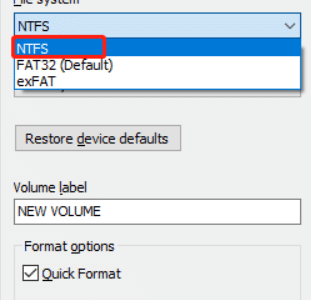
  • Select NTFS in the File System drop-down menu and then tick the checkbox next to Quick Format
  • Click Start
  • Click the OK button in case you’re asked to confirm your decision

Method 2 – Using Disk Management

  • Type disk management in the Search bar in the Taskbar and hit Enter

  • Right-click your USB drive and click Format

  • Select NTFS file system from the drop-down menu
  • Select the checkbox before Perform a quick format
  • Click the OK button

  • In case a warning pop-up message, click OK to proceed

Step 2 – Get the OSU 1 file on the USB drive

Perform the following steps to achieve this.

  • Download the latest Xbox One OS version
  • Wait for the download process to finish (may take several minutes) and then extract the files to the USB drive

Step 3 – Insert your USB into Xbox Console

  • Turn the Xbox One console off
  • Connect your USB drive that has the OSU 1 file
  • Holding down Bind and Eject buttons, press Xbox button
  • Upon hearing two power-up tones, release all three buttons
  • Press X on the controller to select Offline system update in the Startup Troubleshooter screen
  • You’ll see a message stating “Preparing console…”. The update process may take anywhere between 10 to 40 mins
  • Once the update process finishes, the console will automatically restart

Solution #3 – Reset the console using troubleshooter

Some users were able to fix the e102 error by resetting the console using the Xbox One Troubleshooter.

Note: Resetting the console will lead to removal of stored data. Therefore, it is a good idea to transfer the data on your console to another storage device.
  • Turn off the console
  • Disconnect power cords and wait for about 30 seconds
  • Holding Bind and Eject buttons, press Power till 2 power-up tones are heard, and then release Bind and Eject buttons
  • Troubleshooter screen will appear on the screen
  • Select Reset this Xbox | Remove everything
  • Wait until the process finishes

That’s about it! We hope one of these solutions worked for you. Leave us a comment if you want to ask something and share this post so others can benefit.

Before signing off for the day, here’s a pro tip to keep your Windows computer in top shape and nagging errors at bay: Keep your drivers up-to-date at all times. If you’re thinking this entails a lot of work, you’d be happy to know that Driver Updater does all the leg-work for you with just a single click.

Automatic driver update tools offer many benefits, the most important ones being:

  • You can update device drivers automatically
  • The software scans and updates all outdated or missing drivers at one go
  • The tool picks the right drivers for your device and operating system, so you won’t have to worry about installing an incorrect driver by mistake
  • Automatic driver updates are 100% safe

Driver Updater is one of the best driver update tools out there. Outbyte Driver Updater will give you access to a database of over 1 million drivers. It will regularly scan your PC, suggesting new driver versions to install. Driver Updater contains drivers for a variety of Windows devices. With just one click, you can update drivers in your system.

Step 1
Click here to Install and launch the app

Step 2
Scan all devices

Step 3
Install or update drivers automatically
 

Start Download


Filed Under: PC Fix Tips Tagged With: Xbox Error e102

  • « Previous Page
  • 1
  • …
  • 14
  • 15
  • 16
  • 17
  • 18
  • …
  • 189
  • Next Page »


  • Recent Posts
  • Popular Posts
        

Read More Posts


Read More Posts

Drivers.com Sites

  • Software Drivers
  • Drivers Ed

About Us

  • Advertise
  • About Drivers
  • Drivers Support
  • Drivers.com Privacy Policy
  • Disclaimer
  • Software Drivers
  • Mac Fixes and Tips
  • PC Fix Tips
  • Security/ Backup
  • Tablets & Smartphones
  • Tech News

© Copyright 2026 PDE Publications Ltd. End User License Agreement (EULA)