
Drivers.com

follow us:

facebook twitter
  • Home
  • Download Drivers
  • Drivers Help
  • PC/Mac Resources
  • Software Drivers
  • Mac Fixes and Tips
  • PC Fix Tips
  • Security/ Backup
  • Tablets & Smartphones
  • Tech News
  • Software Drivers
  • Mac Fixes and Tips
  • PC Fix Tips
  • Security/ Backup
  • Tablets & Smartphones
  • Tech News

How to Fix This Device is Currently in Use Error?

By Susan C on March 18, 2025

How to Fix This Device is Currently in Use Error?

As you’re trying to eject a removable device from your Windows computer, the following error message rears its ugly face on the screen:

Don’t panic. Help is on the way.

In this post, we’ll discuss 6 effective solutions to this error. So, let’s dive right in.

Why does “This device is currently in use” error occur?

Typically, the error arises when you eject a removable device from the system while some files of the device are in use. However, it’s not uncommon to receive the error even when all files of the ejectable device are closed.

Like any other Windows error, the “This device is currently in use” error can occur due to many reasons. The two most common ones are:

  • One or more programs are using some files in the removable device
  • A program or software, like a third-party antivirus tool or Windows Defender, is accessing the device in the background

How to troubleshoot “This device is currently in use”?

Before we discuss the solutions, a few words of advice:

Do not forcibly unplug your device. If you do so, your computer may fail to recognize the device the next time you plug in. There’s also the risk of the device or its files getting damaged.

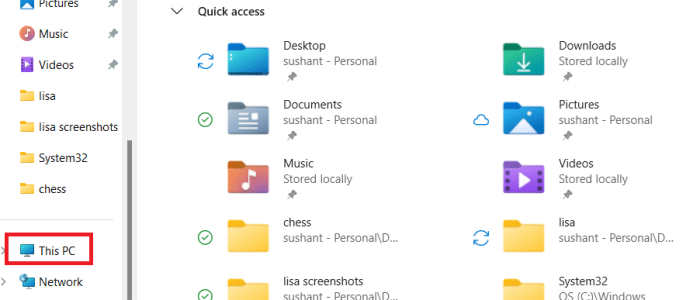
Solution #1 – Eject the device from “This PC”

  • Press Win + E keys to launch File Explorer
  • Double click This PC in the left-side pane

  • Right-click the removable device and select Eject

Solution # 2 – Log off the computer

When you log off, all files and programs currently in use are closed. For this reason, it’s a good idea to give this basic solution a try.

Solution # 3 – Use Disk Management to eject the device

  • Press Win + R keys to launch the Run dialog box
  • Type diskmgmt.msc and hit Enter

  • In the Disk Management window, locate the device you want to remove. Next, right-click it and select Eject

Solution #4 – Use Task Manager to eject the device

  • Press Ctrl+Shift+Del (some users may need to press Ctrl+Alt+Del) to access the Task Manager window
  • Locate the removable device in the Processes tab, right-click the device, and select End task

Solution #5 – Temporarily disable security software

It’s possible that your security software is accessing the files of your removable device in the background. Disable the security software and check if you’re able to eject the removable device.

Solution #6 – Use device manager to eject the device

  • Type device manager in the Search bar in the taskbar and hit Enter
  • In the Device Manager window, locate and expand the Disk drives entry
  • Locate the device you want to remove, right-click it and select Uninstall

That’s it! We hope one of these solutions worked for you. Let us know if this blog post has helped you by leaving a comment below. Please share the post so that others can benefit from it.

Before signing off for the day, a pro tip to keep your Windows computer in top shape: Update your device drivers on a regular basis. How? Glad you asked. While you can update drivers manually, it’s far from easy. A better option is to use an advanced driver update tool such as Driver Updater.

Automatic driver update tools offer many benefits, the most important ones being:

  • You can update device drivers automatically
  • The software scans and updates all outdated or missing drivers at one go
  • The tool picks the right drivers for your device and operating system, so you won’t have to worry about installing an incorrect driver by mistake
  • Automatic driver updates are 100% safe

Driver Updater is one of the best driver update tools out there. Outbyte Driver Updater will give you access to a database of over 1 million drivers. It will regularly scan your PC, suggesting new driver versions to install. Driver Updater contains drivers for a variety of Windows devices. With just one click, you can update drivers in your system.

Step 1
Click here to Install and launch the app

Step 2
Scan all devices

Step 3
Install or update drivers automatically


Start Download


Filed Under: PC Fix Tips Tagged With: Windows error

How to Troubleshoot 0x8000fff Error in Windows?

By Susan C on March 16, 2025

We all know the situation: You install a Windows update or new software and everything seems to be going fine when suddenly an error message pops up on the screen, leaving you wondering what you are supposed to do next.

0x8000fff is one such error, and like so many Windows error codes, at first glance it can appear as mysterious as The Da Vinci code. An obscure name notwithstanding, 0x8000fff is fairly easy to troubleshoot. And in this post we’ll show you exactly what you need to do to troubleshoot it. 

What causes 0x8000fff error?

In most cases, a third-party antivirus tool is to blame for this error. The error typically occurs during these situations:

  • Windows updates
  • System recovery
  • Software installation

The exact steps you need to perform to fix the 0x8000fff error code depends on when this error occurs.

Troubleshooting when the error occurs during software installation

More often than not, an incomplete uninstall is the root cause in this situation. This means the software you’re installing was earlier installed and some remnants of it are still present in the system.

To fix the issue, completely remove the application in question (i.e. no trace of it should be left on the system).

Here’s what you need to do:

Step #1 – Uninstall the program

  • Disable your third-party antivirus software (You can do this from the app’s user interface)
  • Close all other running apps
  • Type apps and features in the Start search bar and hit Enter
  • All the installed apps on your system will appear on the next screen. Locate the app you want to uninstall and click the three-dot icon next to it and select Uninstall
  • Wait for Windows to uninstall the program

Step #2 – Remove application data and remnants

After you’ve uninstalled the program, it’s important to delete all its app data and remnants. Here’s what you need to do:

  • Delete the folders that were created for this program in the following directories:  “.\Program Files,” “.\Program Files (x86),” “.\Users\\AppData\Local” and “.\Users\\AppData\Roaming”

Step #3 – Delete the app’s registry entries and empty temporary directories

  • Press Win + R keys to launch the Run dialog box
  • Type regedit and press OK
  • In the Registry Editor window, search for and delete the entries of the program under “HKEY_CURRENT_USER\Software” and “HKEY_LOCAL_MACHINE\Software” 

After you’ve removed the app’s registry entries, empty these temporary directories:  “.\Temp,” “.\Windows\Temp” and “.\Users\\AppData\Local\Temp.”

Now, restart Windows and check if the error is fixed.

Troubleshooting the error during a system restore by restarting Windows (Method 1)

Are you getting 0x8000fff when you try to use a system restore point that you have recently created or create a new restore point? If so, perform the following steps to fix the issue once and for all.

  • Press Win + R keys to launch the Run dialog box
  • Type msconfig and hit Enter
  • Click the Services tab, select Hide all Microsoft services, and click Disable all
  • Click the Startup tab and then click Open Task Manager
  • Disable all the Enabled services one by one by right-clicking them and selecting Disable
  • Restart the computer

Upon restart, disable your third-party antivirus tool. Now check if you’re able to create a new restore point or use a recently-created one. Finally, open Task Manager and enable all the startup programs in the System Configuration window and services in Task Manager.

Troubleshooting the error when it occurs during a system restore using DISM (Method 2)

If you are getting 0x8000fff error during a system restore and the cause is corrupt system files, using System File Checker and DISM — both tools are pre-installed in Windows — can help fix the issue.

Here’s what you need to do:

  • Type command prompt in the Search box in the taskbar
  • Right-click Command Prompt in the search results and select Run as administrator
  • Type the following command in Command Prompt and hit Enter

DISM/Online/Cleanup-image/Scanhealth

  • Wait for the command to run. If no error is found, Command Prompt will show the following message: “No component store corruption detected”. If you see this message, skip the remaining steps
  • In case an error is shown, type the following command and hit Enter

DISM/Online/Cleanup-image/Restorehealth

  • The DISM tool will will try to repair the detected errors, which may take some time

Once the detected errors have been successfully repaired, run the SFC scan by typing the following message in Command Prompt and hitting Enter.

Troubleshooting the error when it occurs during a Windows Update

Windows Update Troubleshooter is a built-in tool in Windows 11 that can help you fix errors, such as 0x8000fff, that occur during a Windows update.

Here’s how you can access it.

  • Type settings in the Search box in the taskbar and hit Enter
  • Click System in the left-side pane and then click Troubleshoot in the right-side pane
  • Click Other troubleshooters in the right-side pane
  • Click the Run button next to Windows Update under the Most frequent section in the right-side pane
  • Wait for the troubleshooter to fix the issue

That’s it! Which method worked for you?

Let me know if this blog post has helped you by leaving your comment about your experience. Please share it to help others.

Before signing off for the day, a final tip: Many issues and errors in Windows occur due to driver-related problems. Keeping your device drivers up-to-date is an easy way to keep your system healthy and error-free. Since manually updating drivers can be tedious, I recommend a third-party tool called Driver Updater. With just a single mouse click and in less than two minutes, it can update all outdated drivers on your computer.

Automatic driver update tools offer many benefits, the most important ones being:

  • You can update device drivers automatically
  • The software scans and updates all outdated or missing drivers at one go
  • The tool picks the right drivers for your device and operating system, so you won’t have to worry about installing an incorrect driver by mistake
  • Automatic driver updates are 100% safe

Driver Updater is one of the best driver update tools out there. Outbyte Driver Updater will give you access to a database of over 1 million drivers. It will regularly scan your PC, suggesting new driver versions to install. Driver Updater contains drivers for a variety of Windows devices. With just one click, you can update drivers in your system.

Step 1
Click here to Install and launch the app

Step 2
Scan all devices

Step 3
Install or update drivers automatically


Start Download


Filed Under: PC Fix Tips Tagged With: 0x8000fff Error

How to Fix INVALID DATA ACCESS TRAP on Windows 11

By Susan C on March 15, 2025

How to Fix INVALID DATA ACCESS TRAP on Windows 11

You’re likely to run into INVALID DATA ACCESS TRAP error when upgrading or updating the OS. The error prevents you from completing the update and indicates a rollback from Win 11 to 10 is necessary to troubleshoot the error. That said, a rollback is not always necessary. In this post, we offer you 5 DIY solutions to this problem. We’re sure at least one of them will work for you.

Solution #1 – Uninstall Media Players

  • Type settings in the Search bar in the taskbar and hit Enter

  • Click Apps in the left-side pane and then click Installed apps

  • You’ll see a list of installed apps on your system. Select all media players one by one, click the three-dot icon next to them, and select Uninstall

Solution #2 – Run a CHKDSK scan

Check disk (CHKDSK) is a pre-installed tool in Windows that scans and repairs hard drive errors. Some users were able to fix the titled error by running a CHKDSK scan, so giving it a go is worth it.

Here’s what you need to do:

  • Type command prompt in the Search bar in the taskbar, right-click Command Prompt in the search results, and select Run as administrator

  • Type the following command and hit Enter: chkdsk C: /f /r /x

  • Wait for the scan to complete, which can take anywhere between 10-20 minutes to a couple of hours or more, depending on the size and health of your hard disk

Solution #3 – Disconnect peripheral devices

Although not common, a peripheral device can trigger the INVALID DATA ACCESS TRAP error. Determining which peripheral device is the culprit right off the bat is next to impossible, so consider disconnecting all of them. Next, connect only the most essential ones, such as the keyboard and mouse, and check if that fixes the issue.

Solution #4 – Download Windows 11 ISO manually

When the error occurs during Windows 11 automatic installation or upgrade, manually installing Windows 11 ISO may help solve the issue.

Here’s what you need to do:

  • Open a web browser
  • Go to Microsoft Software Download page
  • Choose Windows 11 and click Download

  • Save the Windows 11 ISO file in a suitable location on your PC
  • Press Windows + E to launch File Explorer
  • Before proceeding with the Windows 11 installation, disconnect the computer from the Internet. Next, if you’re using a third-party antivirus tool, disable it
  • When you start installation, you might be asked whether you wish to install additional updates, choose No
  • Right-click the Win 11 ISO file and choose Mount

  • Click created virtual DVD drive

  • Next, click the installation file to begin installation
  • Wait for Windows 11 installation to complete. Re-establish your computer’s connection to the Internet and re-enable the third-party antivirus tool

Solution #5 – Update device drivers

Often, the titled error occurs due corrupt or outdated device drivers. The easiest way to ensure your device drivers are up-to-date is by using an advanced third-party tool, such as Driver Updater. With just a single click, it automatically updates all outdated device drivers.

Automatic driver update tools offer many benefits, the most important ones being:

  • You can update device drivers automatically
  • The software scans and updates all outdated or missing drivers at one go
  • The tool picks the right drivers for your device and operating system, so you won’t have to worry about installing an incorrect driver by mistake
  • Automatic driver updates are 100% safe

Driver Updater is one of the best driver update tools out there. Outbyte Driver Updater will give you access to a database of over 1 million drivers. It will regularly scan your PC, suggesting new driver versions to install. Driver Updater contains drivers for a variety of Windows devices. With just one click, you can update drivers in your system.

Step 1
Click here to Install and launch the app

Step 2
Scan all devices

Step 3
Install or update drivers automatically


Start Download


Filed Under: PC Fix Tips Tagged With: Windows error

  • « Previous Page
  • 1
  • …
  • 16
  • 17
  • 18
  • 19
  • 20
  • …
  • 189
  • Next Page »


  • Recent Posts
  • Popular Posts
        

Read More Posts


Read More Posts

Drivers.com Sites

  • Software Drivers
  • Drivers Ed

About Us

  • Advertise
  • About Drivers
  • Drivers Support
  • Drivers.com Privacy Policy
  • Disclaimer
  • Software Drivers
  • Mac Fixes and Tips
  • PC Fix Tips
  • Security/ Backup
  • Tablets & Smartphones
  • Tech News

© Copyright 2026 PDE Publications Ltd. End User License Agreement (EULA)