If you’ve encountered the “Kmode Exception Not Handled” error, try not to panic. Sure, it is the dreaded blue screen of death (BSOD) and you’ll likely lose any unsaved data if the error occurs while you’re in the middle of something. However, not all BSOD errors are equally complex. This one is actually pretty easy to resolve.
In this post, we’ll walk you through the most probable solutions to the “Kmode Exception Not Handled” error. Just work your way from top to bottom until the error is fixed. However, before we look at the solutions, here’s a brief description of the error.
What is a Kmode Exception Not Handled Error in Windows?
The error usually occurs on Windows 11 and 10. The error occurs when a Kernel Mode program causes an exception, which the exception handler is able to neither identify nor address. This error in turn can lead to other errors, as well as system shutdowns.
As to why the error occurs, there are several reasons. The most common ones are:
- Missing or faulty device drivers
- Faulty RAM
- Inadequate or outdated USB drive
- Corrupt programs or system files
- Old or incompatible graphics card
- Increase in CPU’s voltage
How to fix the “Kmode Exception Not Handled Error in Windows?”
Solution 1 – Disable Fast Startup
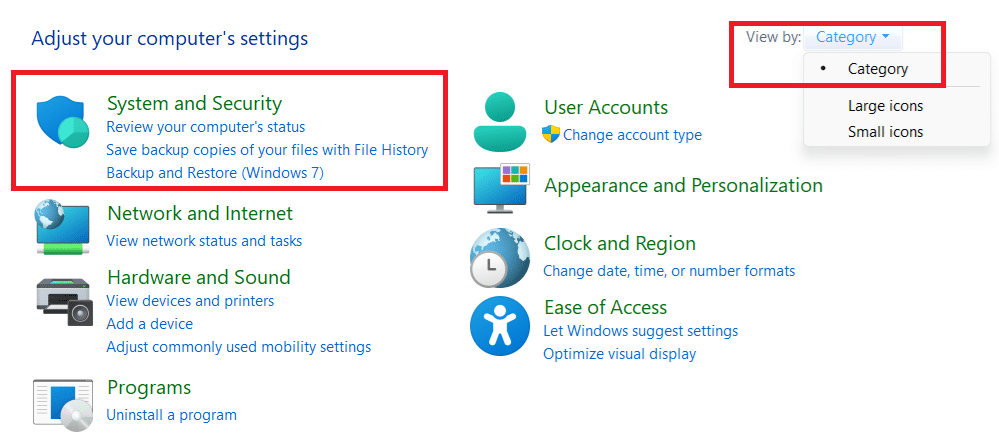
- Type control panel in the search field in the taskbar
- Ensure the View by menu is set to Category
- Click System and Security
- Click Power Options in the right-hand pane
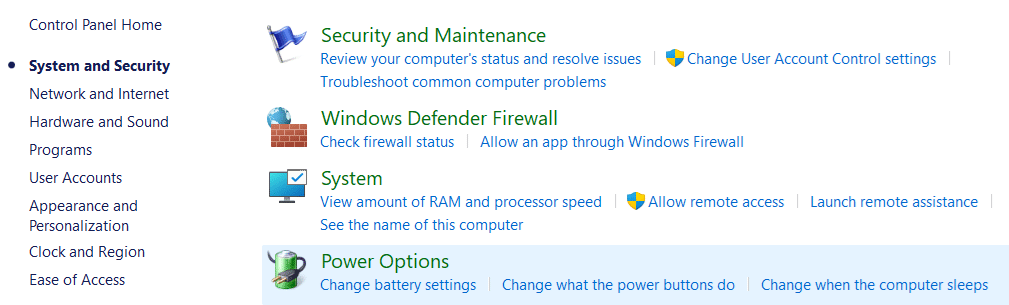
- Click Choose what the power button does in left-hand pane
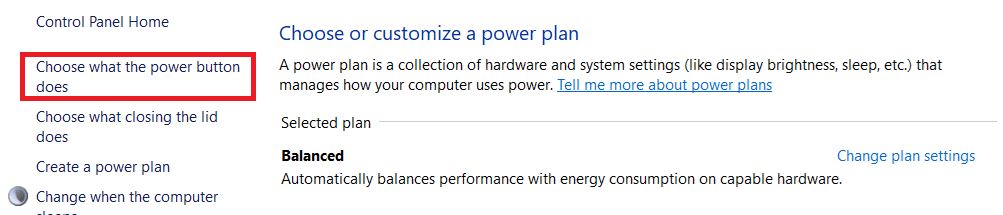
- Click the Change settings are currently unavailable

- Uncheck Turn on fast startup (recommended) option
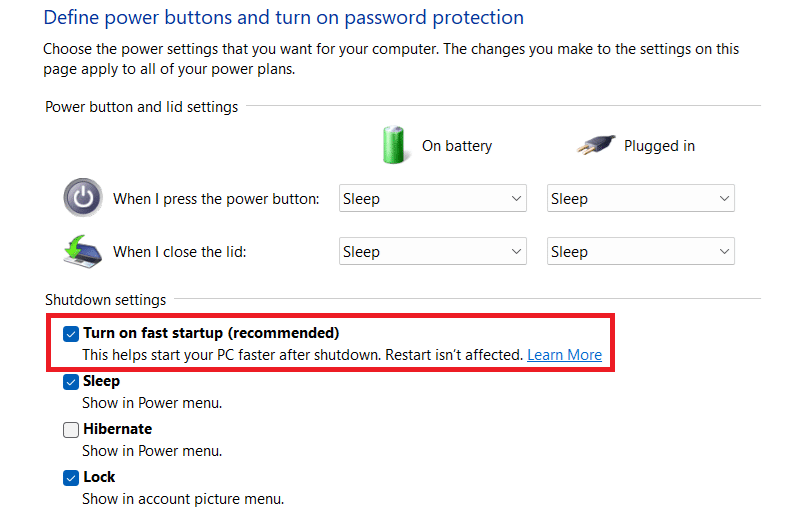
- Click the Save Changes button
Solution 2 – Update the faulty driver
Outdated driver or drivers often cause the Kmode Exception error. The error message that appears on the blue screen will display the related driver’s name.
Once you know which driver is causing the error, download the latest driver from the manufacturer’s website. Next, follow these steps:
- Type device manager in the Search bar in the taskbar
- Expand the hardware that corresponds to the driver listed in the error message
- Right-click on the hardware device
- Select Update driver

- Click the first option in the next window: Search automatically for drivers
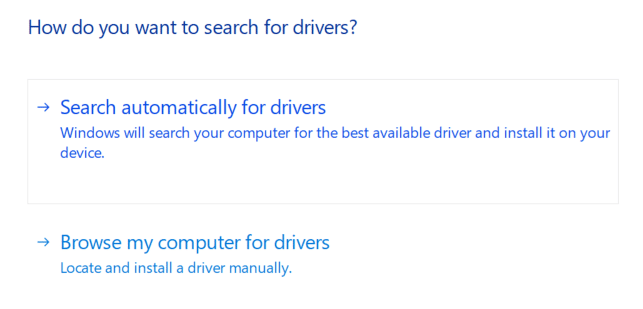
- Wait for Windows to install the latest driver
On a side-note, if your PC is stuck in the error loop after it restarts, chances are the display driver is corrupt or outdated. To fix the issue, download and install the latest driver from the graphic card manufacturer’s website.
If you find the manual driver update process tedious (which it is, if I were to be honest), opt for a third-party tool such as Driver Updater. It is one of the best driver update tool on the market and can update your device drivers in a jiffy with a single mouse click.
More information on Driver Updater and the download link is provided towards the end of the post.
Solution 3 – Install missing driver
Another common reason for the Kmode Exception error is missing drivers. You can fix the problem by performing these steps:
- Restart your computer and press F8 or Shift + F8 during startup
- Choose Safe Mode with Networking
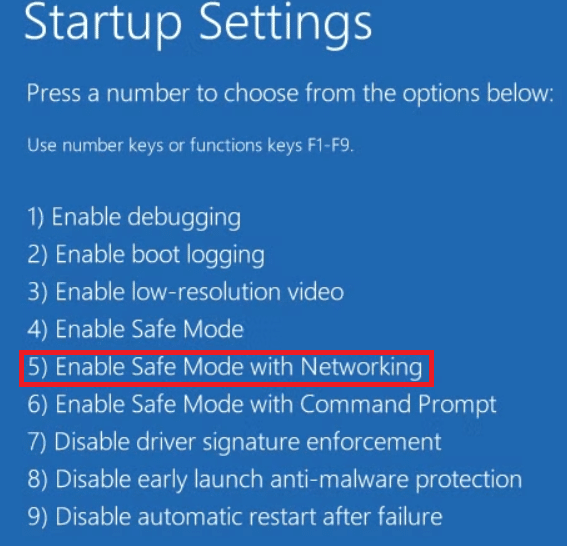
- When Windows boots in Safe Mode, perform the actions listed below
- Type device manager in the Search bar in the taskbar
- In the Device Manager window, click the expand any unknown device entry by clicking the arrowhead sign before it. Now right-click the hardware device and choose Update driver
- In the next window, select the first option: Search automatically for drivers
- Exit Safe Mode
- Restart your computer normally and check if the error is fixed
Solution 4 – Temporary uninstall the Antivirus program
Sometimes, computer errors occur when an installed program interferes with other processes or programs. Although having an advanced antivirus program is a must, it’s possible that your antivirus program may be causing software conflict, leading to the Kmode Exception Not Handled Error.
I recommend you temporarily disable your antivirus program and check if that fixes the error. If it does, consider switching to another antivirus program.
The exact steps for disabling antivirus software depends on the type of antivirus program you have. That said, in most cases, you can easily disable it by clicking its icon in the system tray (which is located at the right-hand corner of the taskbar, where Time and Date are displayed) and selecting the disable option.
Windows Defender users, on the other hand, should follow these steps:
- Type settings in the Search bar in the taskbar
- Click Privacy & security in the left-side pane and then click Windows Security
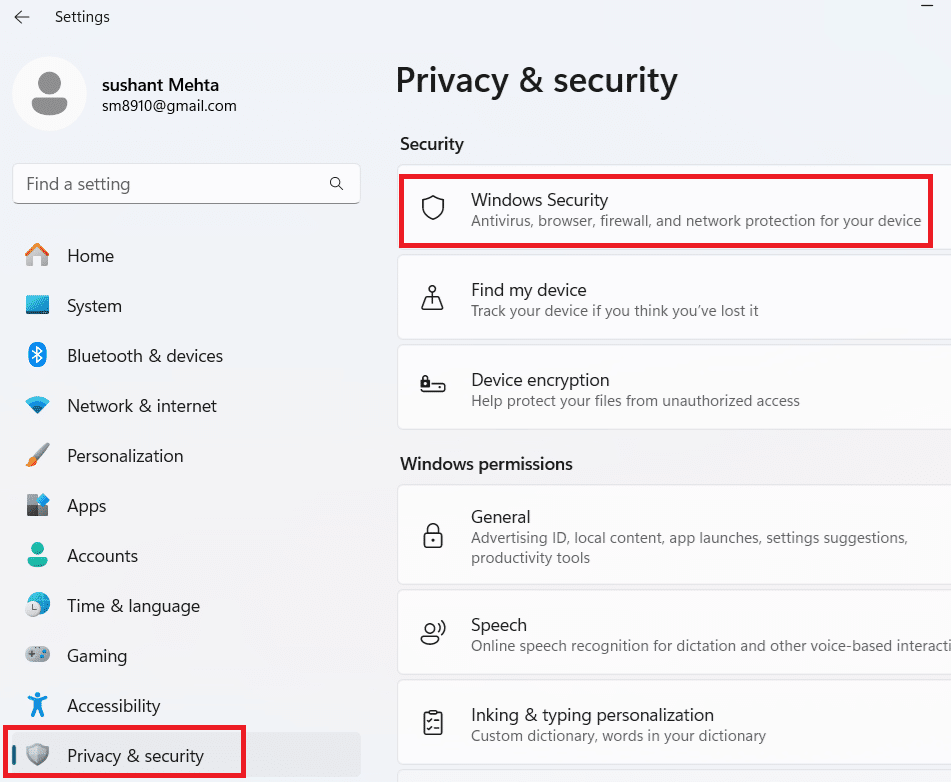
- Click Virus & threat protection
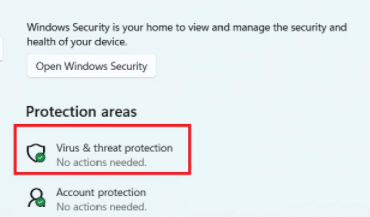
- Click Manage settings
- Switch the toggle under Real-time protection to Off
Solution 5 – Update BIOS
A clashing or obsolete BIOS version may also trigger this BSOD error. Therefore, I recommend updating BIOS. But before you proceed, read the user manual that came with your computer. Why is this necessary? The exact steps for updating BIOS vary from one system type to another.
Here are the general guidelines for updating BIOS:
- Open Chrome
- Visit your motherboard’s manufacturer website
- Download the latest BIOS version
- Cut and Paste the downloaded BIOS version to a USB stick
- Press and hold the Shift key and restart your computer
- Select Troubleshoot
- Click UEFI Firmware Settings (present in the Advanced settings section)
- Locate the updated BIOS version and install it from your USB stick
Solution 6 – Uninstall VPN Client
If the error persists and you’re using a VPN client like Cisco, OpenVPN, Atlas, etc, try uninstalling it and check if that fixes the error. Here’s what you need to do.
- Type Add or remove programs in the Search bar in the taskbar
- Locate the VPN client in the list of installed programs, click three vertical dots, and select Uninstall
- Restart Windows
Solution 7 – Run Windows Memory Diagnostic
Faulty RAM can cause various errors, including the Kmode Exception error. Windows computers include a memory diagnostic tool that allows you to check the RAM:
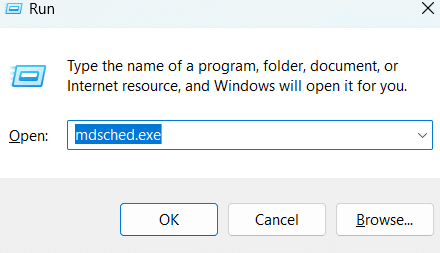
- Type run in the Search bar in the taskbar and press Enter
- In the Run dialog box, type mdsched.exe and hit Enter
- In the Windows Memory Diagnostic window, select Restart now and check for problems (recommended)
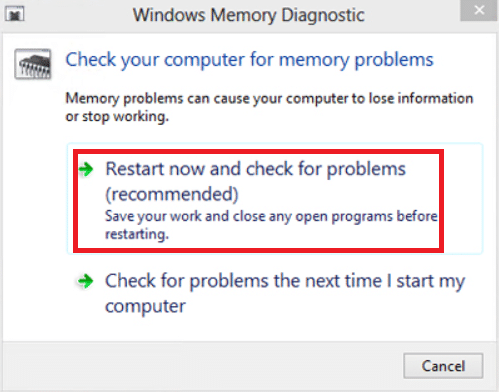
- The Memory Diagnostic tool will run automatically after you restart the computer
- The tool may take several minutes to finish the scan
If the diagnostic tool reports any errors, it would be best to contact the PC manufacturer regarding how to fix them, as memory errors typically indicates an issue with the installed memory chips or some other hardware issues. Alternately, you may contact your local computer technician to have the RAM replaced.
Why use a driver update tool to update device drivers?
Outdated device drivers can cause performance-related issues, as well as serious errors. Updating device drivers may not be everyone’s cup of tea, since the process can be time consuming. Using a reliable driver update tool such as Driver Updater is a viable alternative.
Automatic driver update tools offer many benefits, the most important ones being:
- You can update device drivers automatically
- The software scans and updates all outdated or missing drivers at one go
- The tool picks the right drivers for your device and operating system, so you won’t have to worry about installing an incorrect driver by mistake
- Automatic driver updates are 100% safe
Driver Updater is one of the best driver update tools out there. Outbyte Driver Updater will give you access to a database of over 1 million drivers. It will regularly scan your PC, suggesting new driver versions to install. Driver Updater contains drivers for a variety of Windows devices. With just one click, you can update drivers in your system.
Step 1
Click here to Install and launch the app
Step 2
Scan all devices
Step 3
Install or update drivers automatically